Workflows
Project properties
Project properties is the dialog that shows the name of a project, the standard under which it is designed, what it holds and when it was last written, beside the project file itself, the JSON in which the project is saved. The name can be changed there, and the file can be edited and applied, as one change that undo reverses.
What it is
Project properties opens from File, Project properties…, from a double-click on the tab of a project in the header, and from Project properties… when you right-click a tab. Its two groups are:
- Identity:
- Name: the name of the project, as its tab and its files show it.
- Standard: the key of the standard under which the project is designed, such as BIS. For the project in hand it is a button that opens the standard panel.
- Contents: how many levels, phases, walls and openings the project holds.
- Saved: the date and time at which the project was last written to the library of the atelier, or not yet.
- Project file: the project as the JSON file in which it is saved, in a box that you can read and edit. Apply rebuilds the project from the box once its text has changed; Copy puts the text on your clipboard.
Close leaves the dialog. The file itself leaves through File, Save a copy on this computer…, and the project closes through File, Close the project: neither is in this dialog.
When to use it
- To rename a project.
- To check how many levels, walls and openings a project holds.
- To see under which standard a project is designed, and to open it.
- To read the exact data of the project, or to paste it into a message or another tool.
- To repair an entry by hand, when you know the format of the project.
The steps
Open the properties. Double-click the tab of the project in the header. Project properties opens.
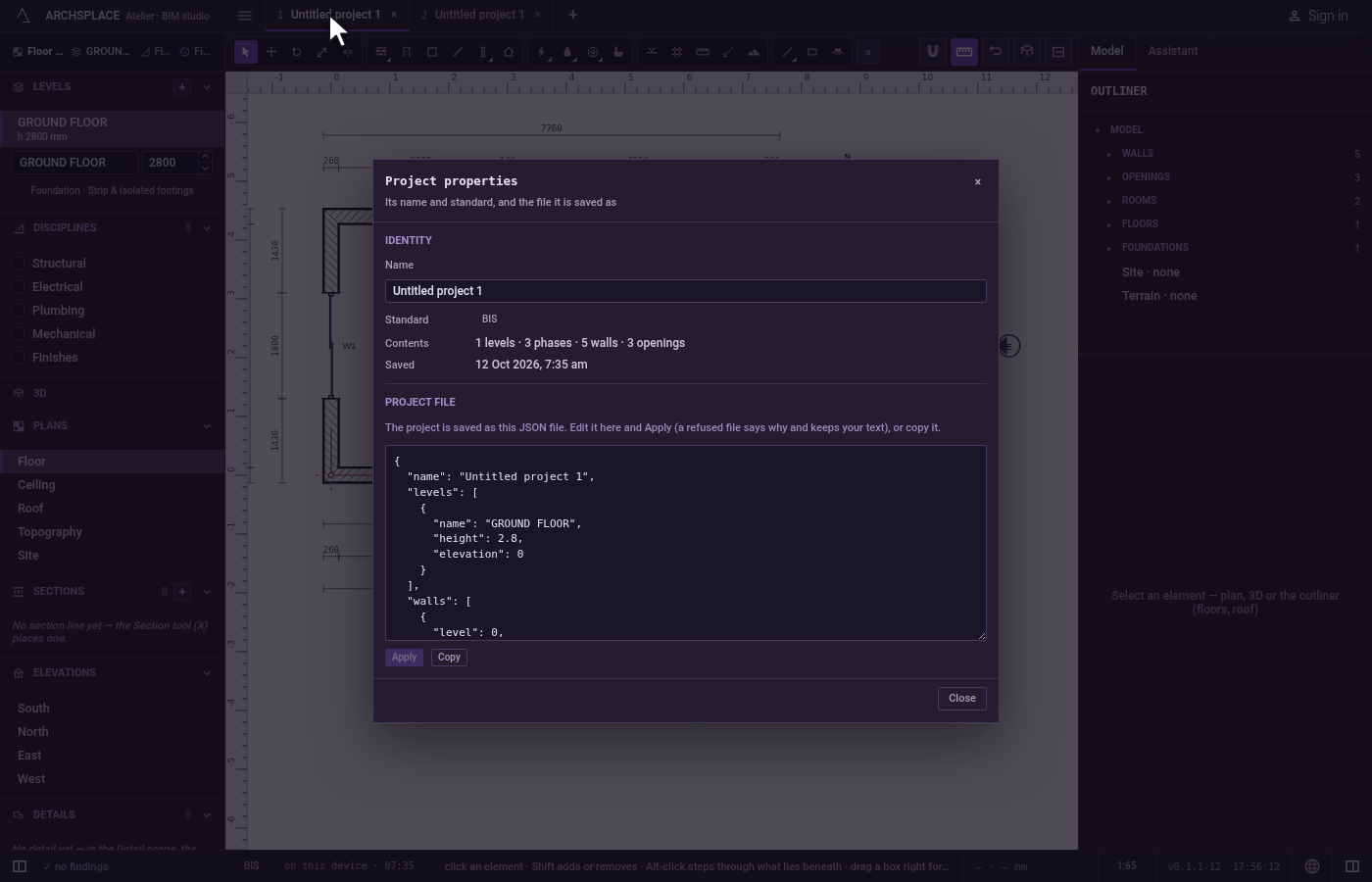
Read the contents. Contents says, for example, 2 levels · 3 phases · 14 walls · 6 openings.
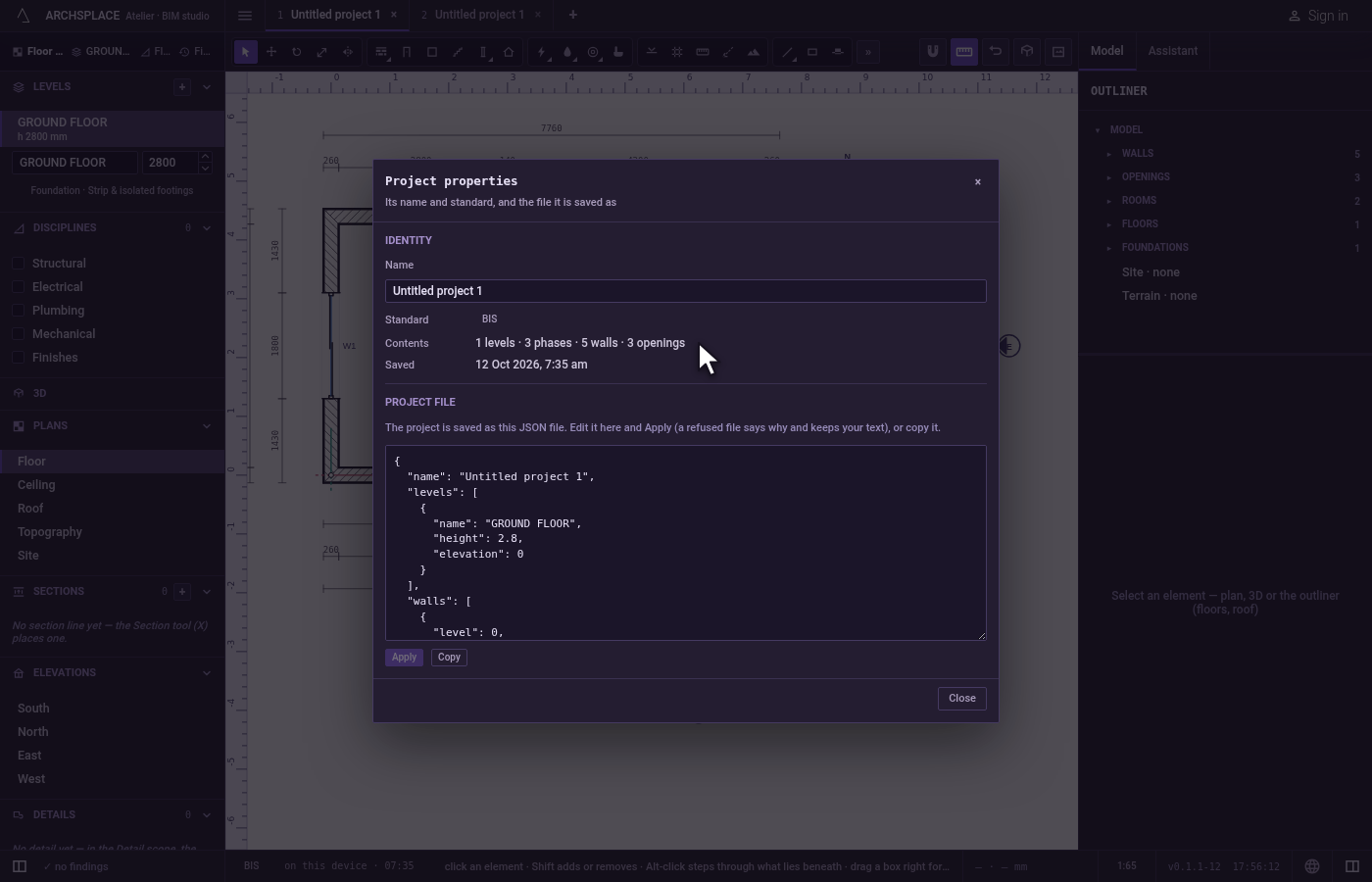
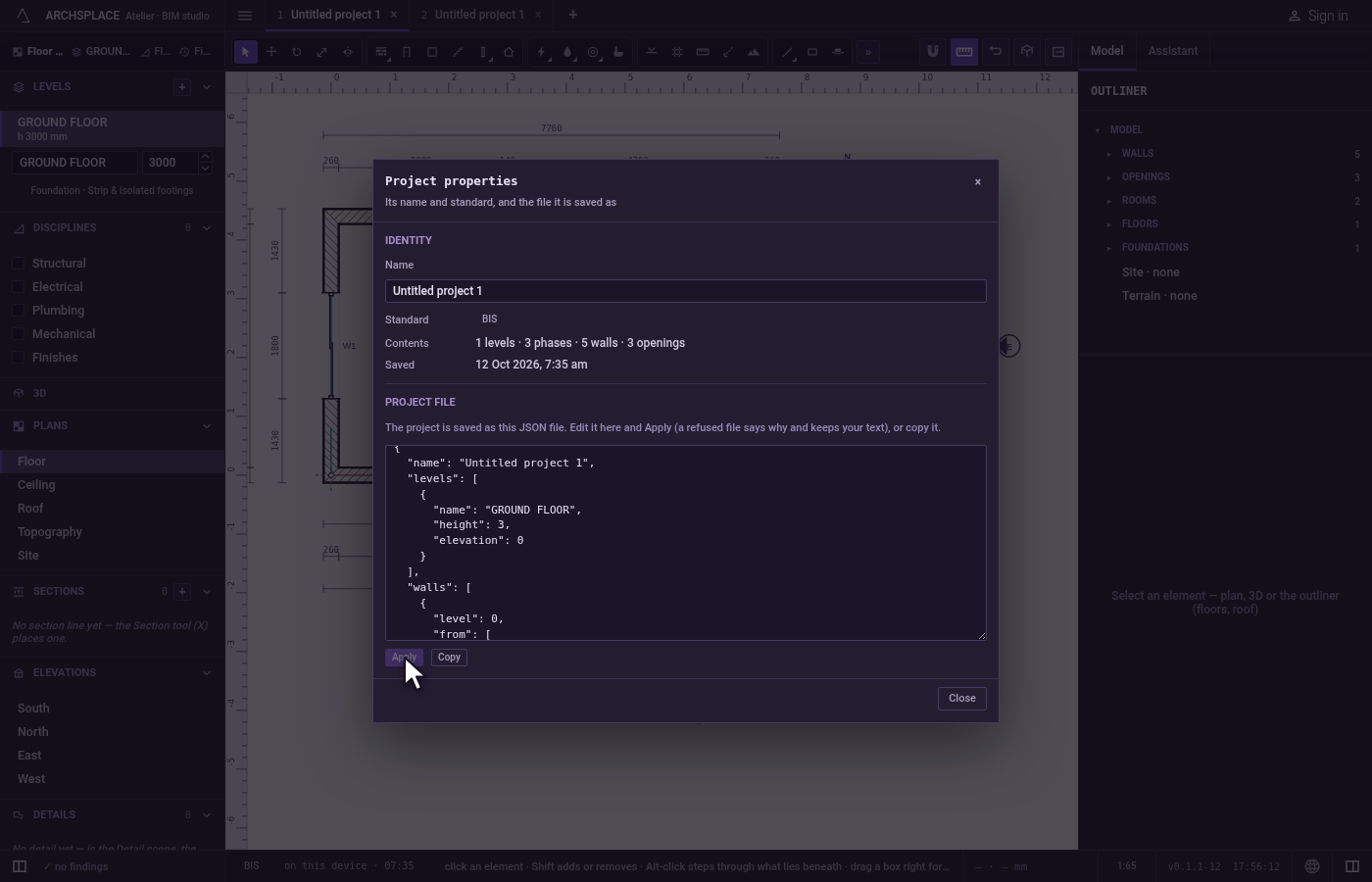
Edit the file. In Project file, change the height of the first level from 2.8 to 3 and click Apply. The project is rebuilt with a level of 3 m.
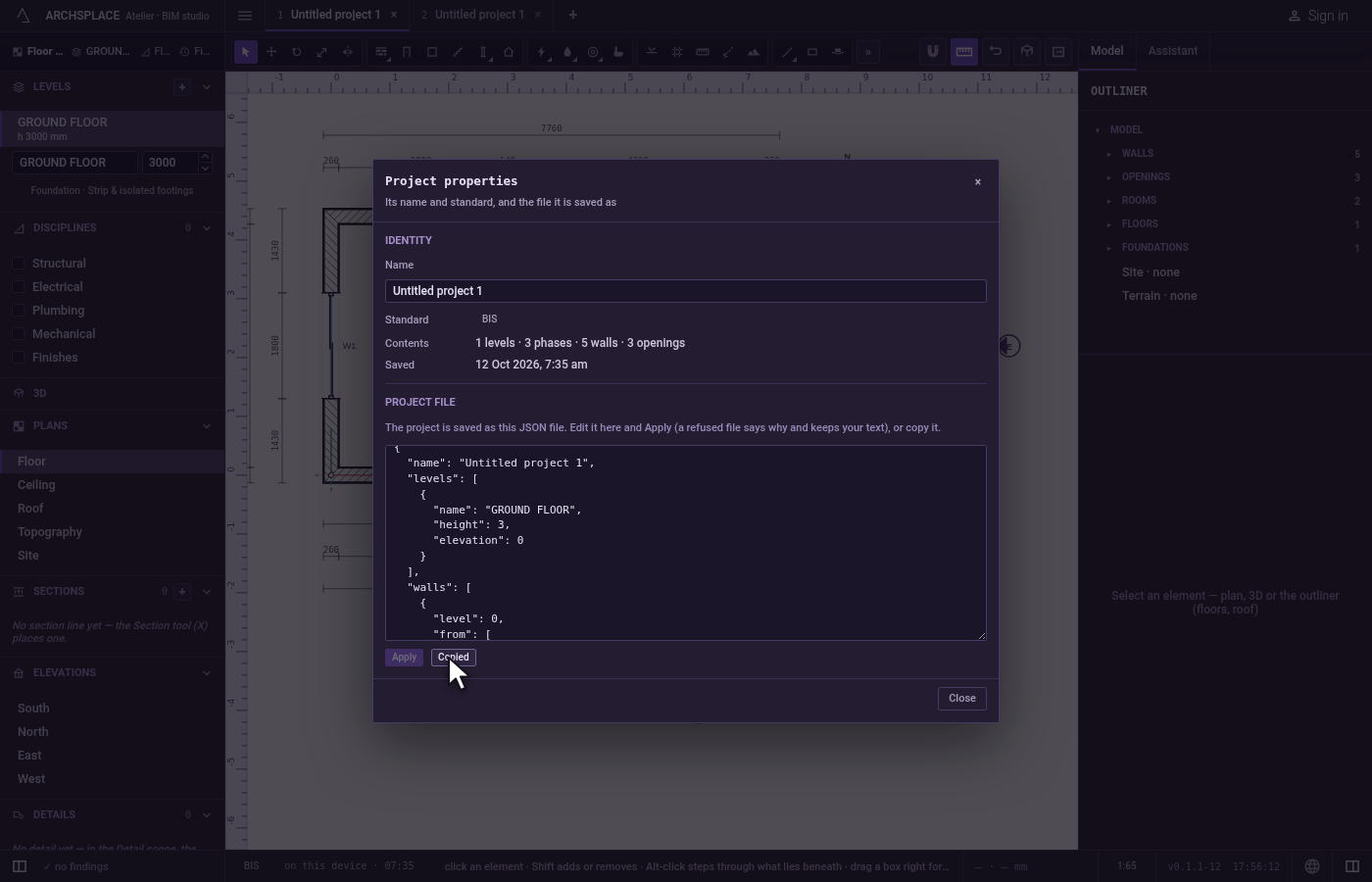
Copy the file. Click Copy. Its label changes to Copied, and the text is on your clipboard.
Rename the project. In Name, type Sharma Residence and press
Enter. The tab takes the new name.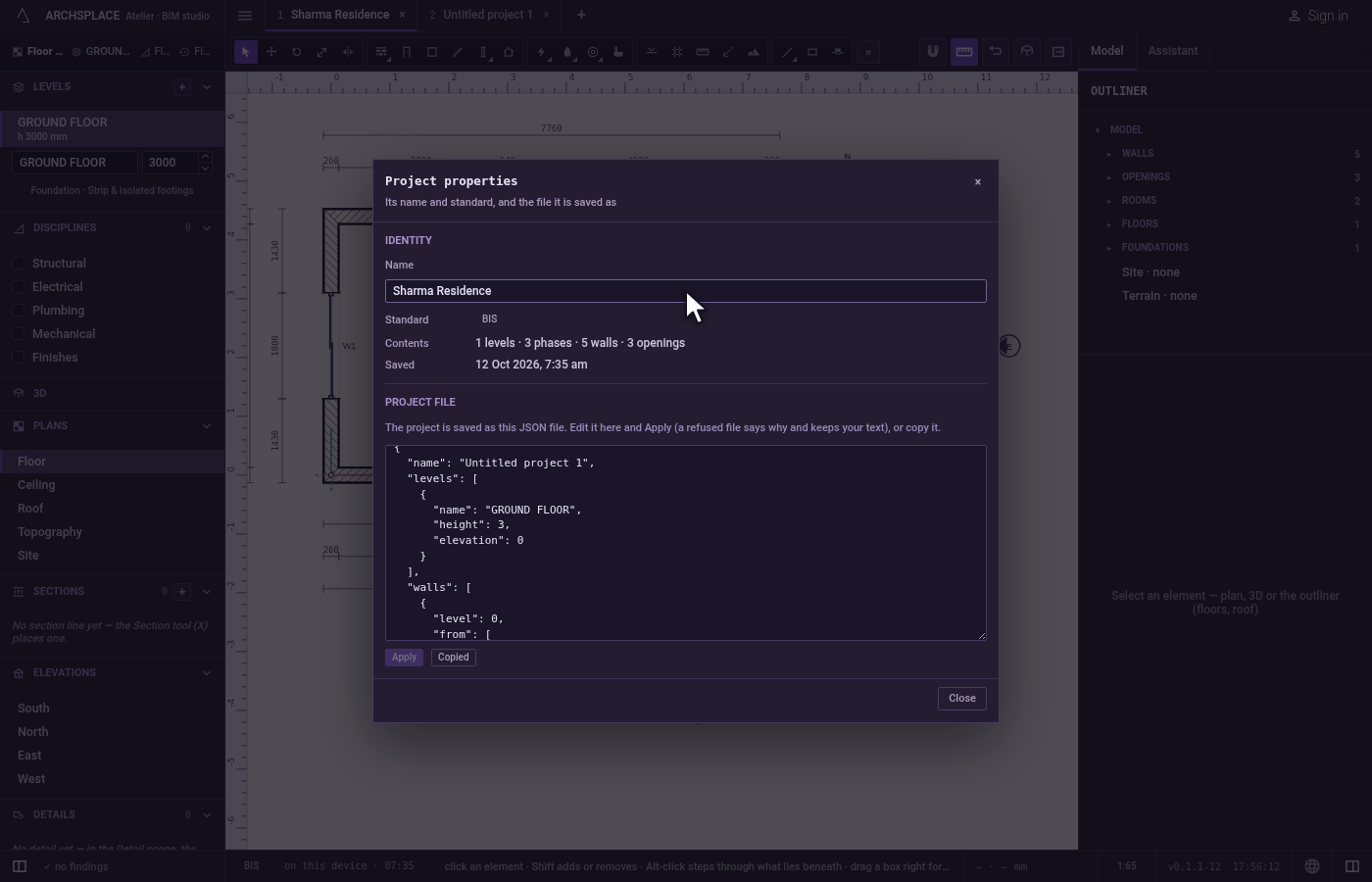
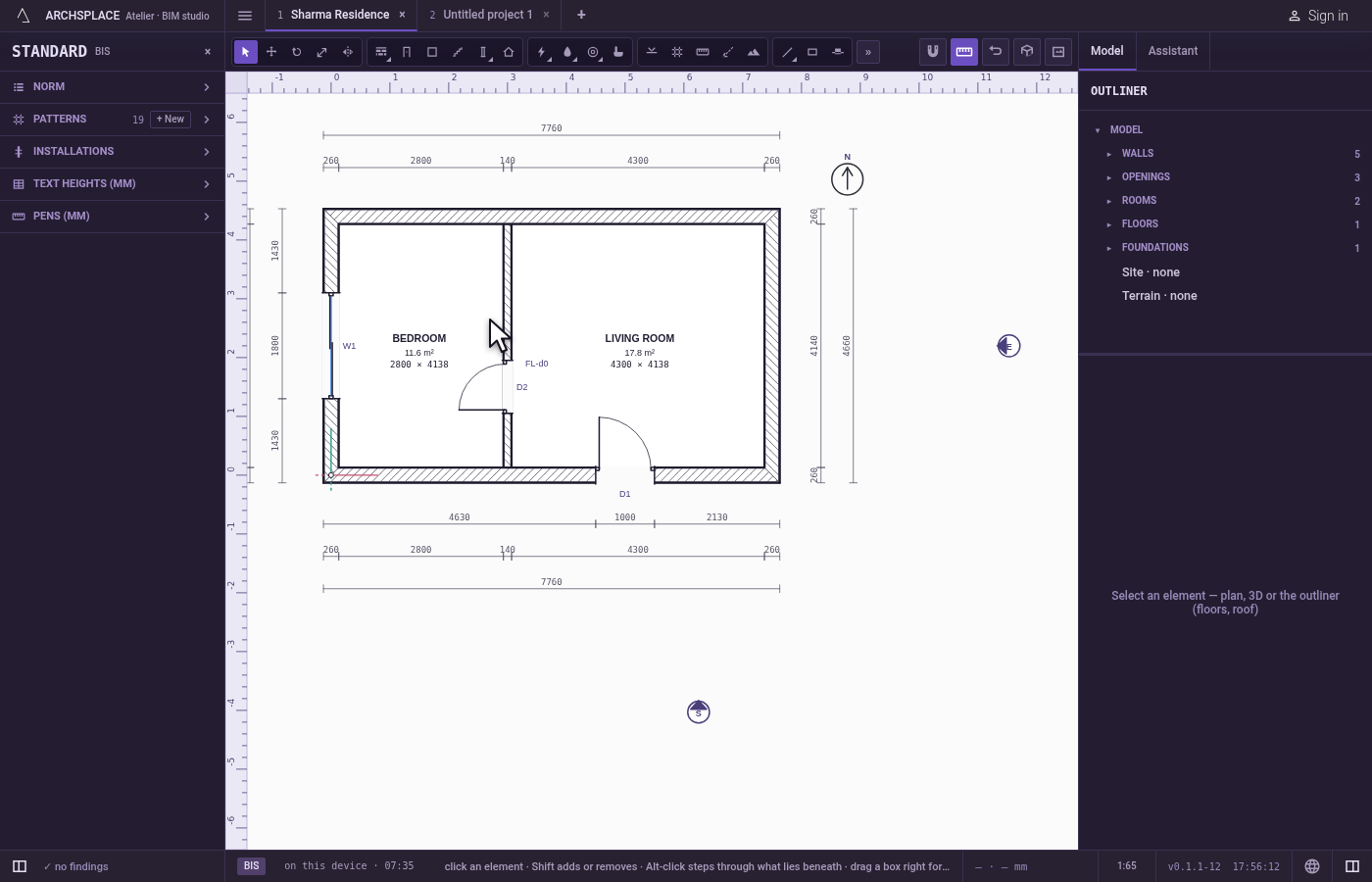
Open the standard. Click the key under Standard. The dialog closes and the standard panel opens on the left.
What it refuses
- An empty name. The name stays as it was.
- A project file that is not valid JSON. Apply gives the reason below the box, and your text stays as you typed it.
- Entries that the build refuses. The project is applied, and what the build refuses is reported below the box, with the first element and its reason. Those entries stay in the project as refused entries, so that you can repair them.
- Apply with nothing changed. The button stays greyed out.
What it writes to the contract
Name writes the name of the project. Apply writes the whole contract as the box holds it, as one change that one Ctrl+Z reverses when the project is the one in hand. Nothing else in the dialog writes.
Common questions
How do I rename a project?
Double-click its tab in the header, or choose File, Project properties…, type the new name in Name, then press Enter. Right-clicking the tab and choosing Rename renames it in the tab itself.
Can I edit the project as text?
Yes. The Project file box of Project properties holds the whole project as JSON. Edit it and click Apply: the project is rebuilt from it in one change, which Ctrl+Z reverses. Text that is not valid JSON is refused, with its reason shown and your text kept.
Where do I change the standard of the project?
Click the key of the standard under Standard: the standard panel opens on the left, where Designed under switches it.