Disciplines
Overlays
An overlay lays one discipline over the plan you are on: Structural, Electrical, Plumbing, Mechanical or Finishes, any number of them at once. They are switched in the Disciplines list of the navigator, and the plan below them never changes.
What it is
A drawing has one base, the cut of its plan, and any set of overlays laid over it. An overlay is a discipline: it adds what that discipline draws without changing the cut below it. There are five:
- Structural: the grids with their dimensions, the columns, the beams above, the roof carpentry, and on the lowest level the footings.
- Electrical: the points, and once a distribution board stands, the runs of its circuits.
- Plumbing: the sanitary appliances, the plumbing points, the pipes and the risers.
- Mechanical: the ventilation and the air conditioning, their terminals, units, ducts and refrigerant piping.
- Finishes: the tints of the rooms and every pattern laid on a floor or a ceiling, at its real size.
Overlays work on every plan of a level (see Plans of a level), and on sections and elevations as well. The caption on paper names them after the plan, for example "GROUND FLOOR · Floor plan + Structural".
When to use it
- To check the structure against the architecture on the floor plan.
- To coordinate two services by showing them together.
- To lay out the tiles of a floor with the Finishes overlay.
The steps
Open the plan. Open the level and the plan you want to look at.
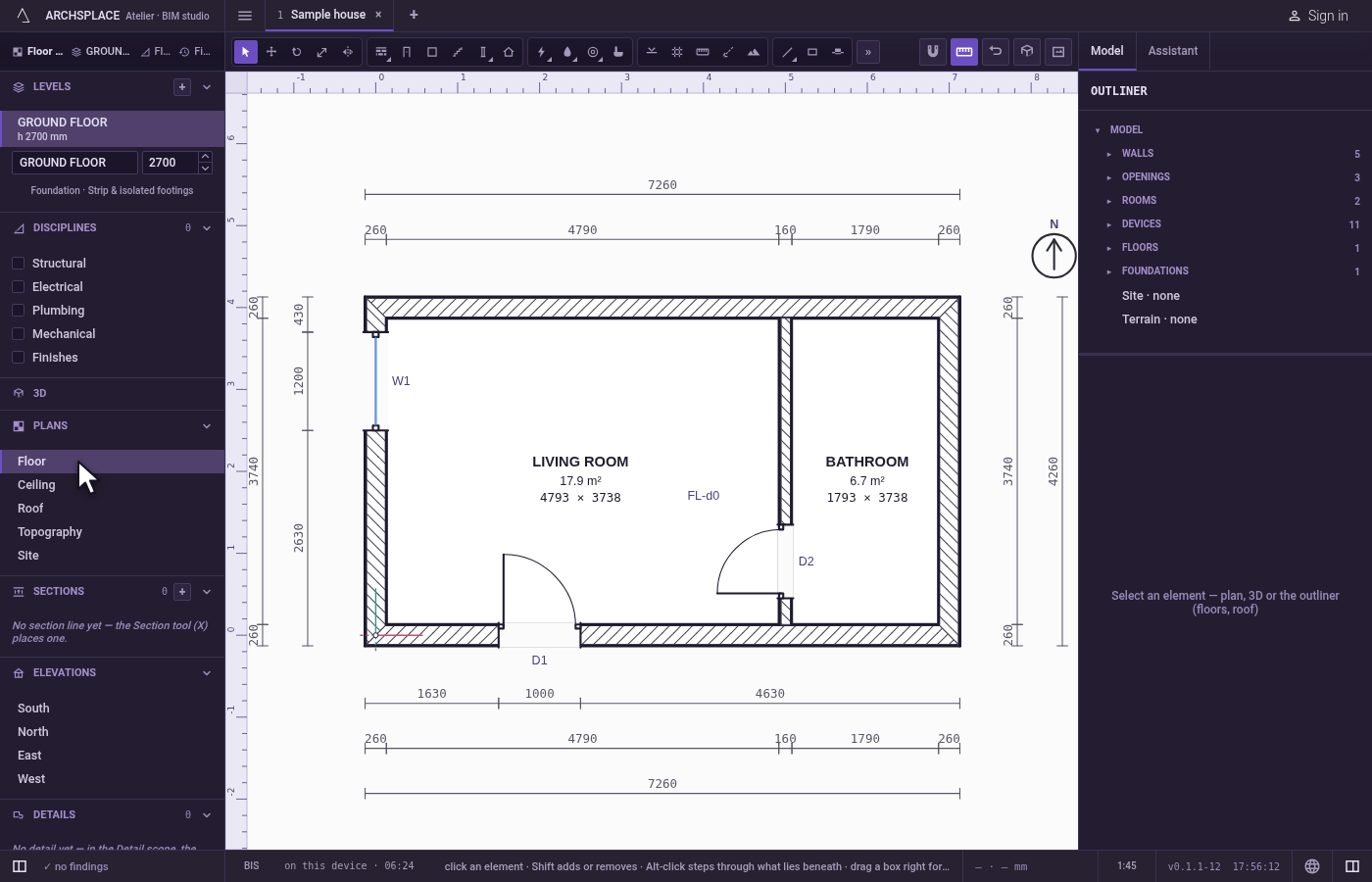
Tick the overlays. In the navigator, the Disciplines list has one checkbox for every overlay: Structural, Electrical, Plumbing, Mechanical and Finishes. Tick the ones you need; the View menu has the same items.
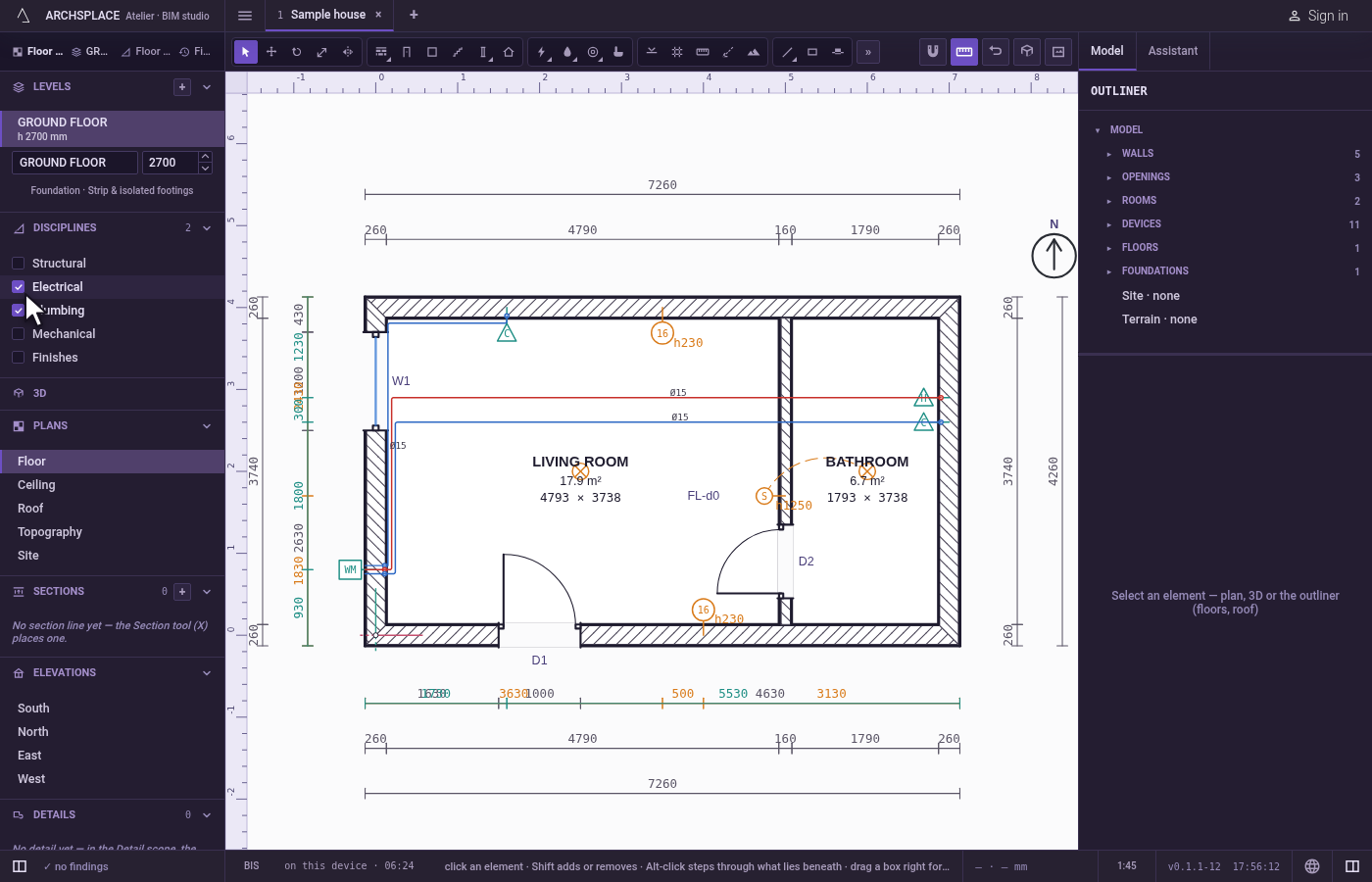
Look, and switch them off again. What an overlay draws comes from the model, like the rest of the plan. Untick it and it is simply not drawn; nothing is removed from the project.
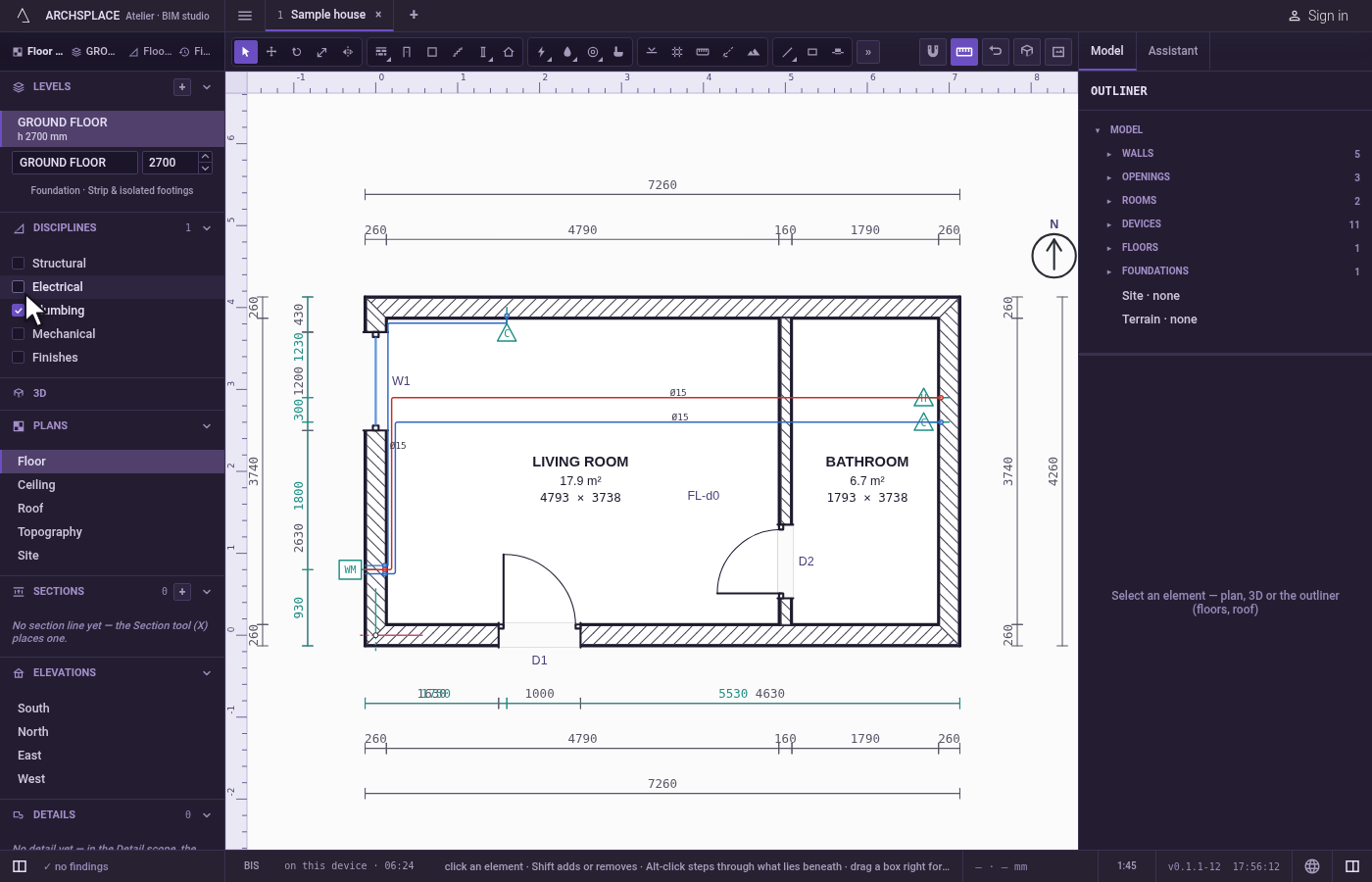
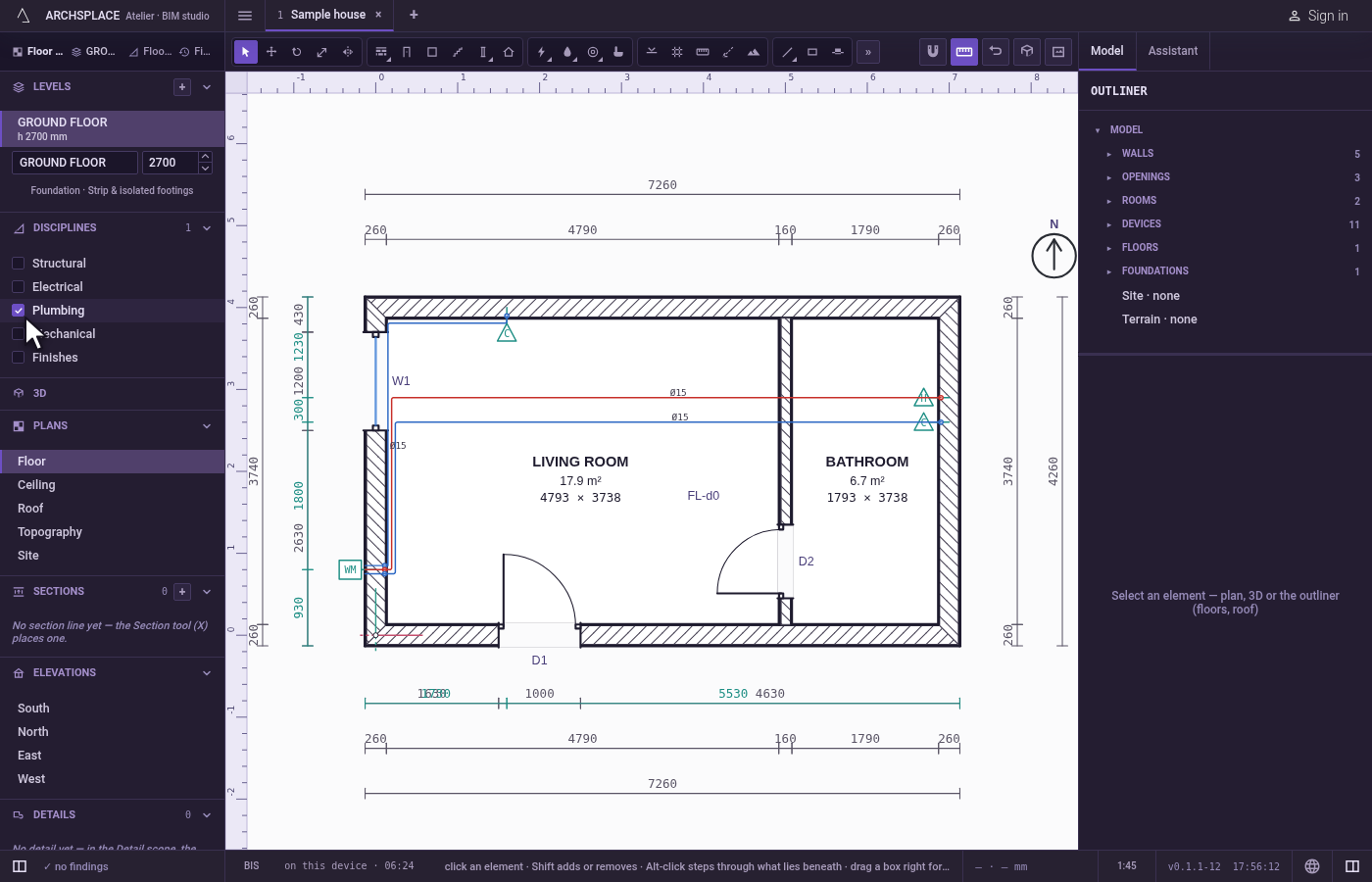
Leave them as they are. The overlays you ticked are remembered for that view of the project, on this computer, and come back the next time you open it.
What it refuses
- A separate plan for a discipline. No overlay changes the cut: there is no structural plan apart from the floor plan with Structural switched on.
- Nothing to show. An overlay with nothing of its discipline in the project lays nothing over the plan.
What it writes to the contract
Nothing. The overlays you tick change what the screen shows, and are remembered on this computer. A viewport on a sheet writes its own overlays to the project when you choose them on the sheet.
Common questions
How do I see the electrical and the plumbing together?
Tick both Electrical and Plumbing in the Disciplines list. Overlays combine: any set of them can lie over the same plan.
Can a sheet show overlays other than the ones on my screen?
Yes. Every viewport on a sheet carries its own overlays, so one sheet can show the plumbing and the electrical and another the structure alone.