3DVin the studio
Select
Select picks up what the next action will work on in the 3D view: a corner, an edge, a face, a whole body, a component or a building element such as a wall. Selecting on its own never changes the project; one click picks the finest thing under the pointer, a double click the whole face and a triple click the whole body.
What it is
Select is how you pick things up in the 3D view. It is the first tool on the bar, and what it holds is what the next action works on: the Delete key, the arrow keys, the right-click menu, and the tools that work on a selection such as Move, Rotate, Transform and Scale. Selecting changes nothing in the project.
It reaches every level of the model. On a modelled body or on loose lines, one click picks a single corner, edge or face, and further clicks on the same spot pick the whole face, then the whole body. A wall, a slab, an opening, a staircase or a component is picked whole by one click. Before you click, what the click would pick is highlighted in orange; what you have selected turns blue. One selection can mix all of these.
When to use it
- Before Move, Rotate, Transform or Scale, to give them what they should work on.
- To delete bodies, loose lines, walls, openings, staircases or components with the
Deletekey. - To open a component, the shape of a window or a door, the terrain or a foundation and work inside it.
- To see what something is in the panel on the right.
- To drag the corner where walls, pipes or beams meet.
The steps
Pick the tool. Press
V, or click Select, the first button on the bar. In the 3D view the space bar also brings Select back from any other tool and drops whatever that tool had in progress.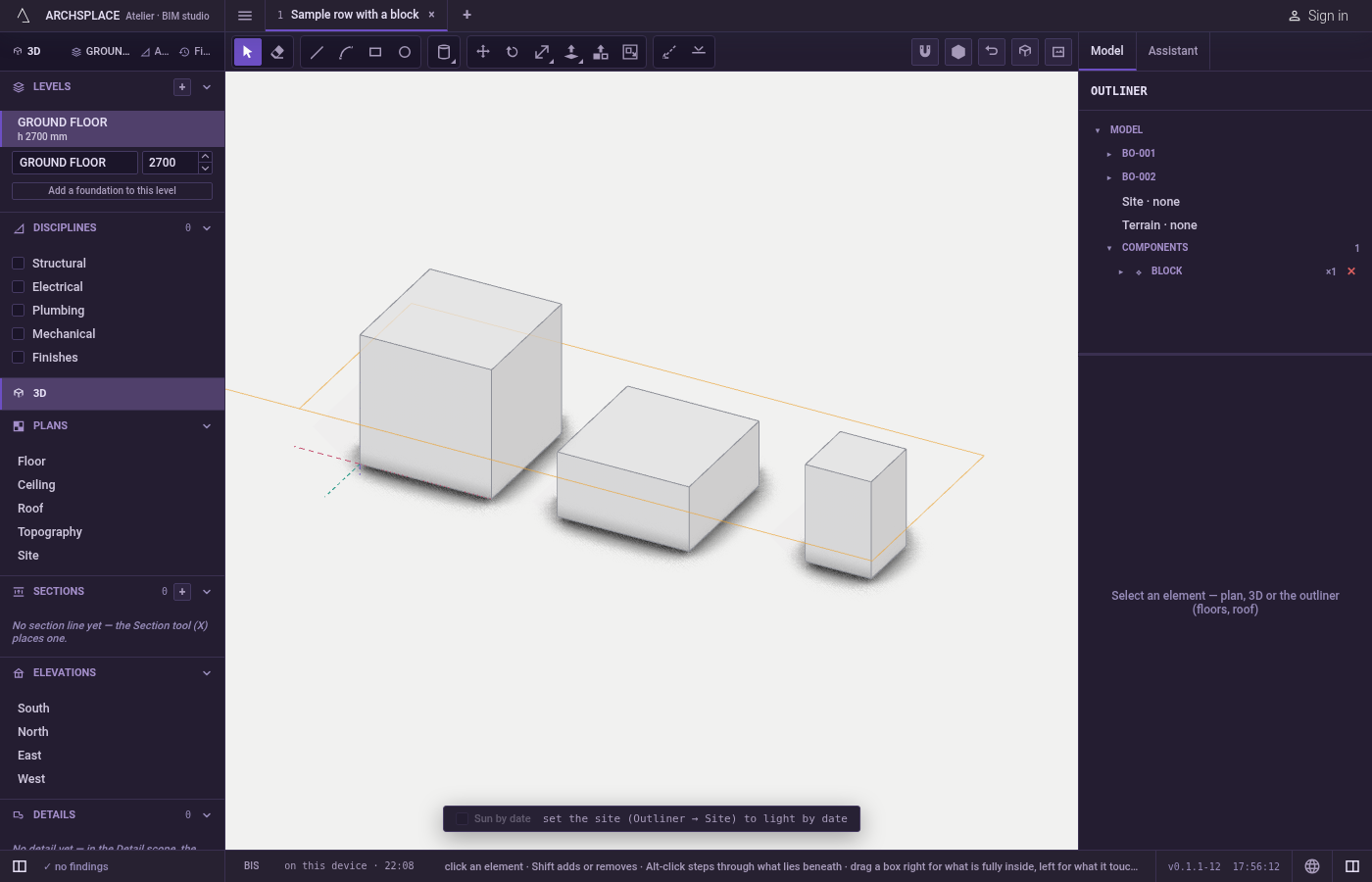
Click once for the finest thing. A click picks what lies closest under the pointer. A corner within a few pixels of the pointer wins over an edge, and an edge wins over the face it borders. A click on empty space releases everything.
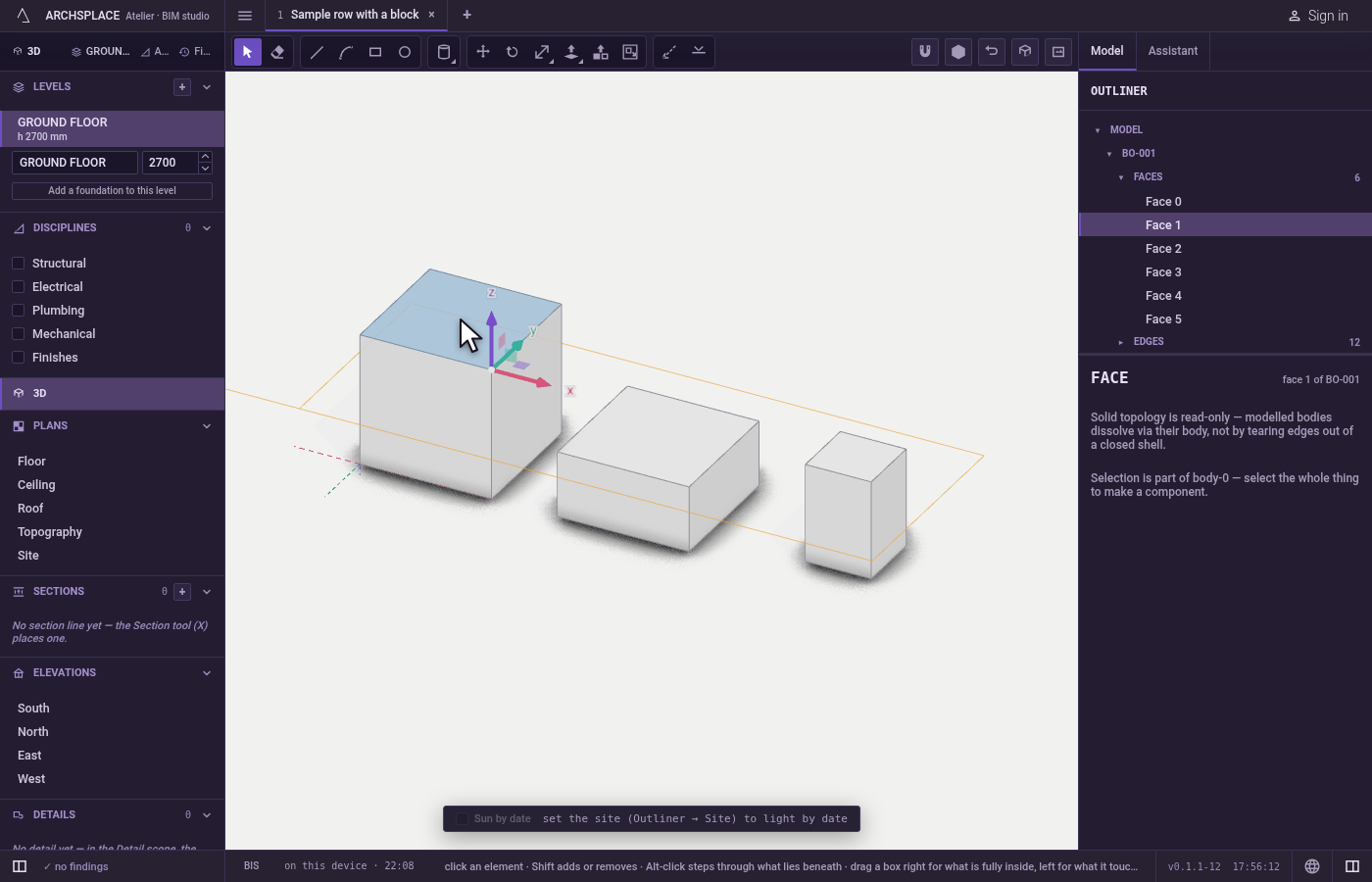
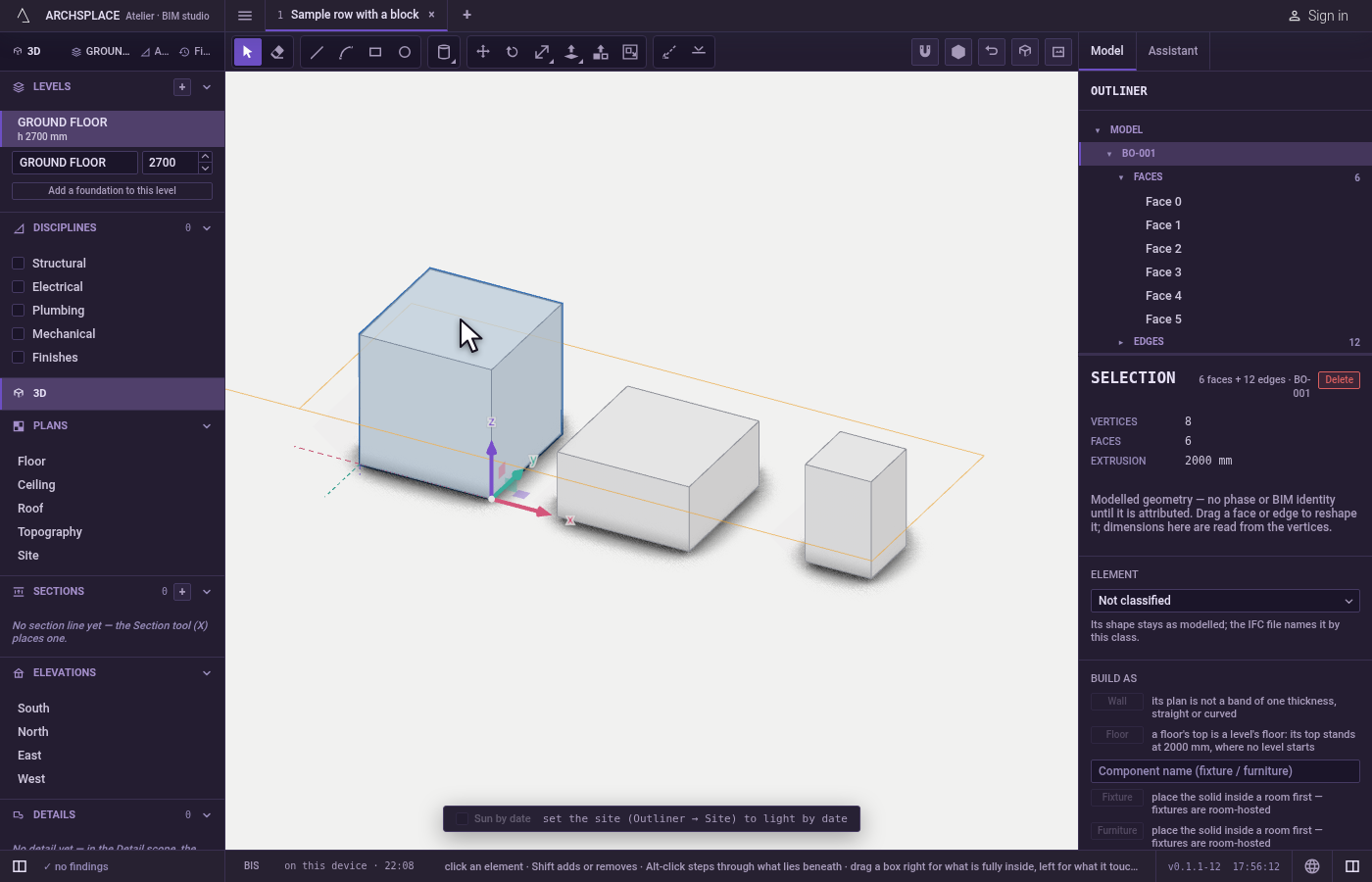
Click two or three times in a row for a larger whole. A double click picks the whole face with the edges around it. Inside a hole, it picks every face lining the hole. A triple click picks the whole body, even when the pointer is on one of its edges; on loose lines and faces it picks everything connected to the spot.
Add, remove, or reach behind.
Shift-click adds what the click picks, or removes it if it is already selected. AShifttriple click adds the whole body and nothing else.Ctrl-click (⌘on a Mac) adds or removes whole things: any part of a body you click brings in the whole body.Alt-click (⌥on a Mac) picks what lies behind the thing you have selected, along the line of sight; click again to go one level deeper, and after the last one it comes back to the front.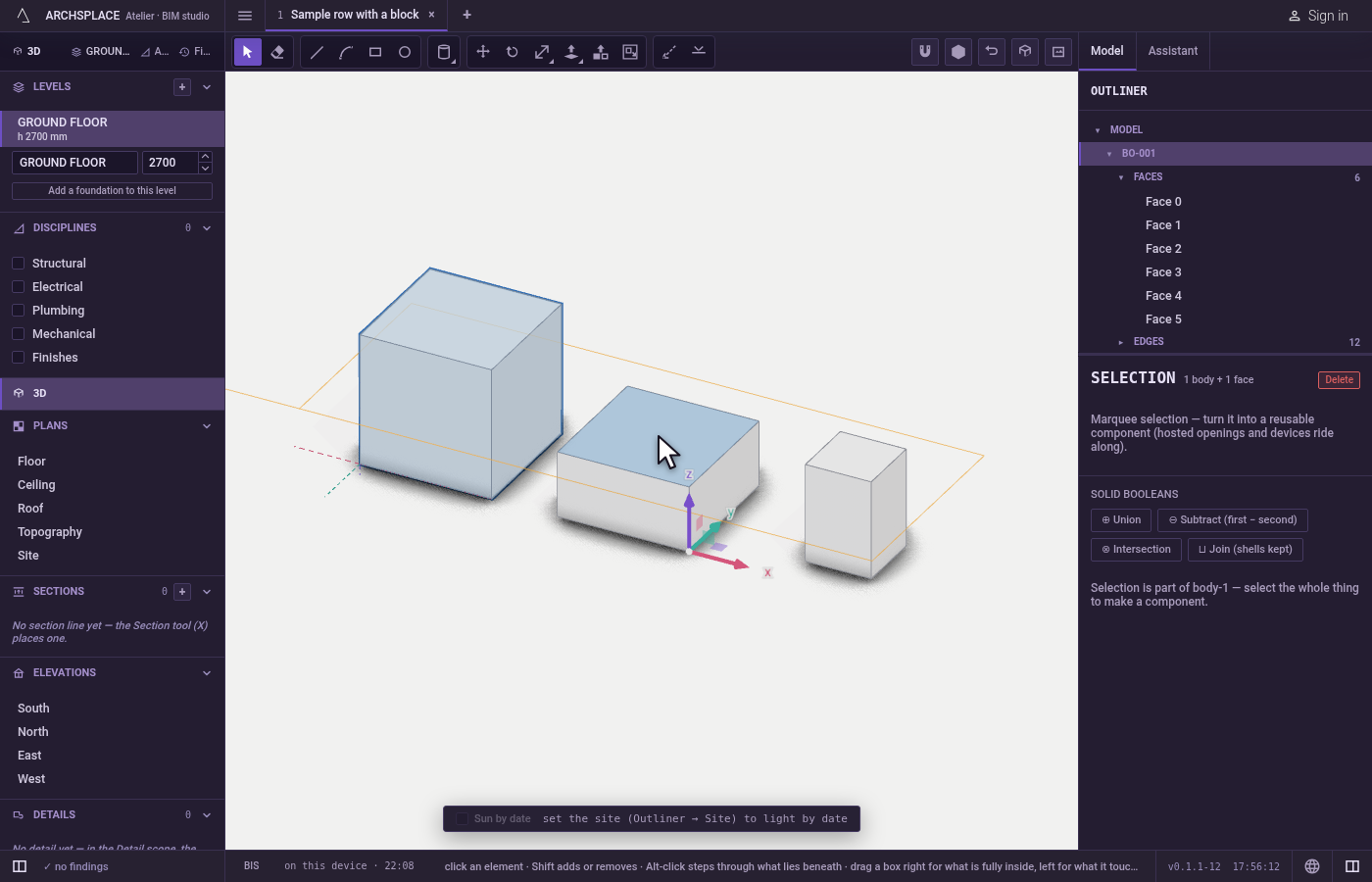
Draw a box. Press on empty space with the left button and drag. Dragged to the right, the box picks what lies fully inside it. Dragged to the left, it also picks what it touches. A body is picked whole only when the box encloses all of it; a body that the box cuts across gives the faces, edges and corners it caught. A box across components picks the components.
Shiftwith a box adds what it picks, or removes it if it is already selected.Ctrl+Ais the same box over the whole view.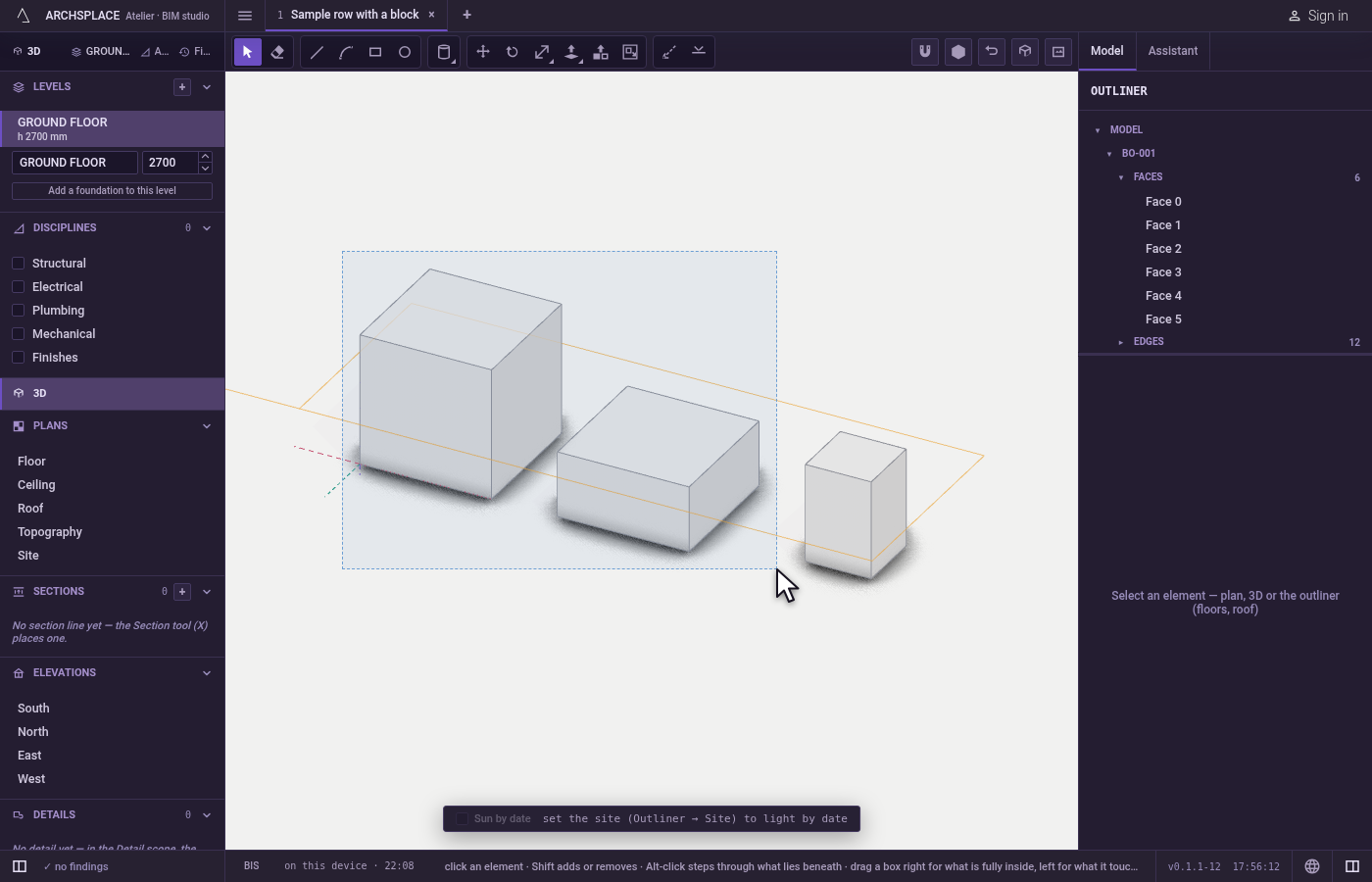
Open what holds more. A double click on a component opens it: the rest of the model fades and a banner names the component and how many copies of it stand in the project. A component placed inside it stays one object until you double-click that too.
Escapecloses one level at a time. A double click on a window or a door opens its shape in the elevation or section that shows it best. A double click on the terrain opens the terrain editor, on a footing the foundation editor, and on a laid pattern its tile editor.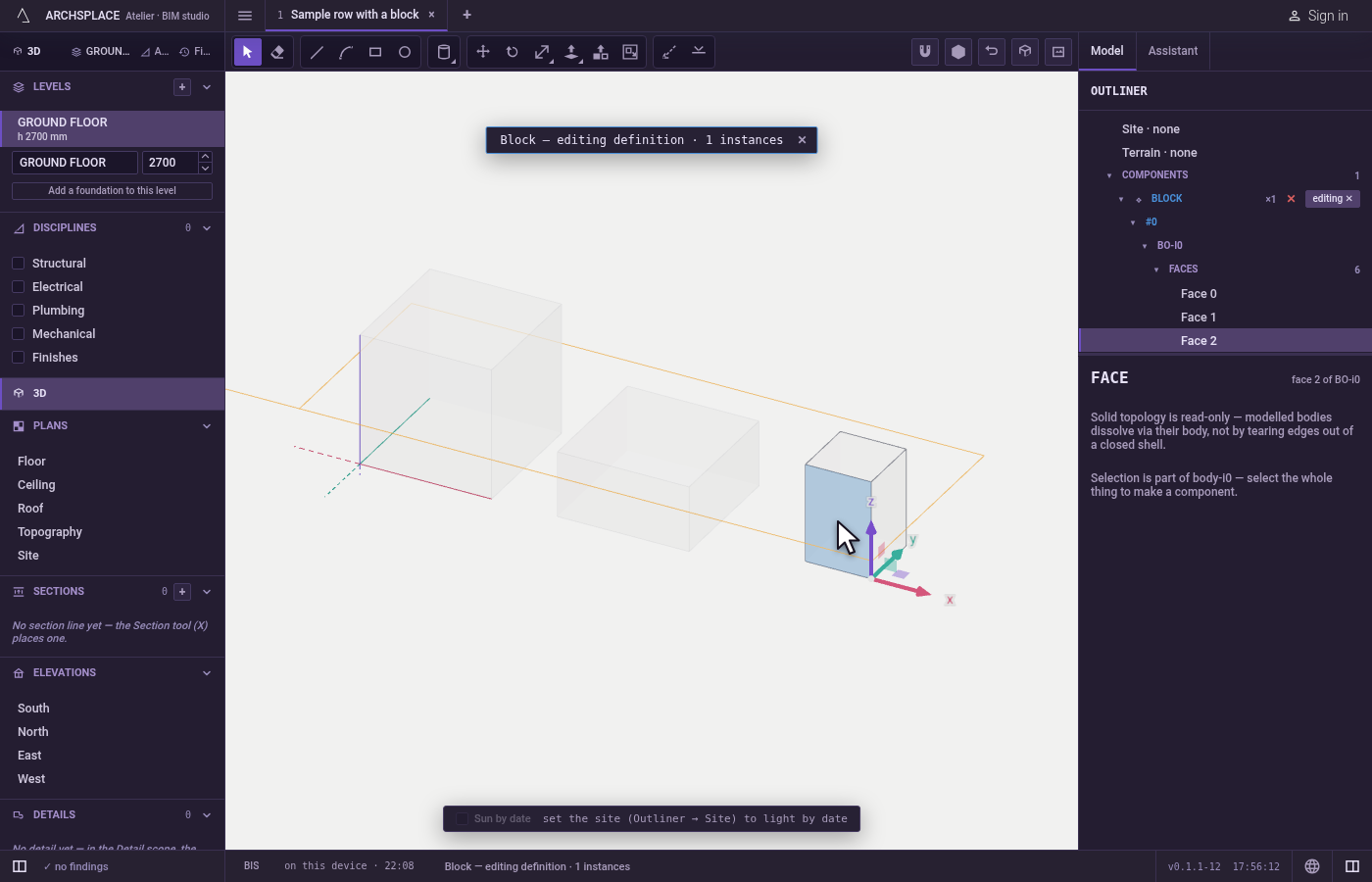
Use the handles on what you have selected. With something selected, arrows and squares appear on it: click an arrow, then click where the selection should land, or type a distance and press
Enter; a square moves it in its plane.Tabswitches between the axes of the world and those of the element itself. On selected walls, pipes and beams, a square dot appears at every corner where they meet: drag it and every run meeting there follows; keepAltpressed as you drag to move only that one end.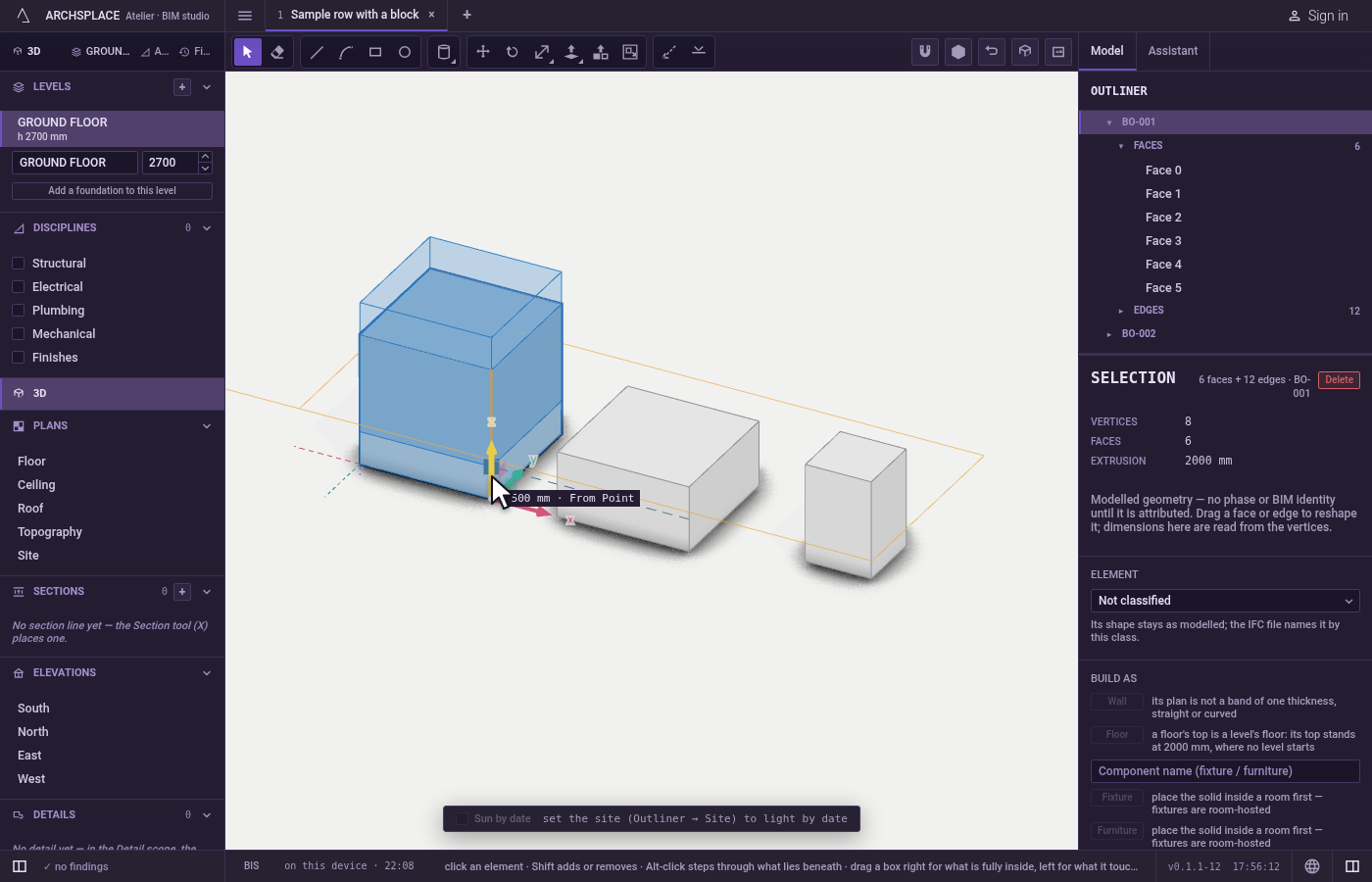
Act on what you have selected.
Delete(orBackspace) removes the whole selection in one step, and oneCtrl+Zbrings it back. When some pieces cannot go, the rest still goes and a notice counts both and gives the first reason. With one thing selected, the arrow keys nudge it by a small step that follows the zoom;Shiftmakes the step five times larger,Ctrlten times smaller.Escapeempties the selection.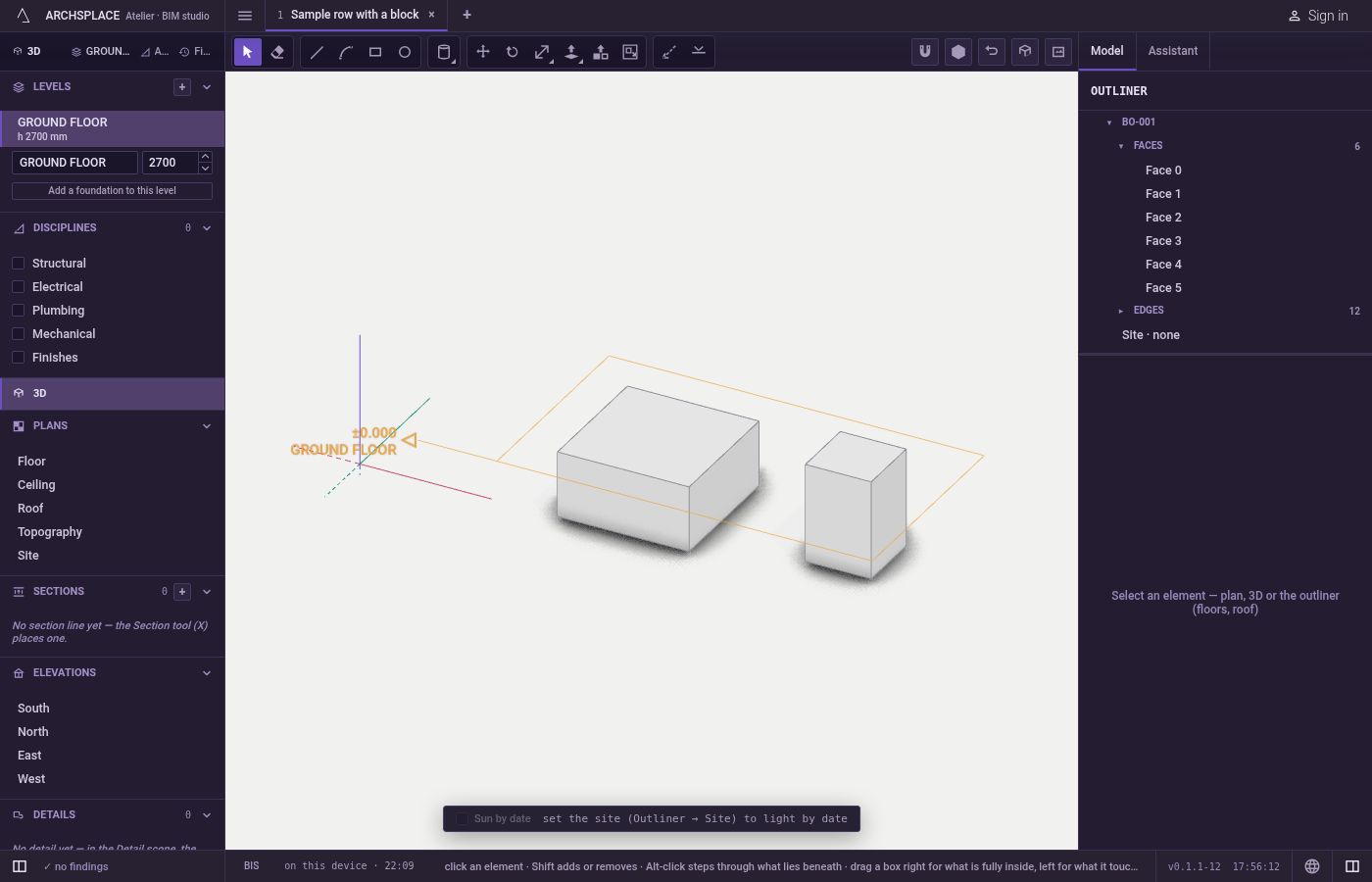
What it refuses
- A camera move. A drag with the middle or the right button moves the view and never selects, and a left press that travels more than a few pixels is read as a box, never as a click.
- What hides behind a surface. A corner or an edge on the far side of a face cannot be clicked through it; the face in front is picked.
Alt-click is the way to reach what lies behind. - The inside of a closed component. From outside, a click or a box picks the component whole. Its faces and edges wait until you open it.
- Levels, sections and guides in a box. They are picked by a click only, so
Ctrl+Afollowed byDeletecan never remove a level or a section. - A corner of a modelled body under Delete. Removing a corner would tear the faces around it, so Delete refuses it and asks you to delete the whole body, or an edge of loose lines.
- A face or an edge of a modelled body under Delete or the arrow keys. A body keeps its shell closed: delete the whole body, or reshape it with Move or Push/Pull. Loose lines and faces can be deleted and nudged.
- A slab or the terrain under Delete. A slab follows its level, so you redraw its outline instead. The terrain is measured ground: delete its spot heights, or clear it in its panel.
What it writes to the contract
Nothing. A selection lives in the studio while you work; it is never saved in the project, and making one is not a step you undo. What you do next is what writes: Delete takes the selection out of the project in one undoable step, the arrow keys and the handles move what you have selected, and a tool you switch to writes what that tool writes.
Common questions
How do I select a whole body in the 3D view?
Click it three times quickly on the same spot. The first click picks the corner, edge or face under the pointer, the second the whole face with its edges, and the third the whole body. On loose lines and faces, the third click picks everything connected to what you clicked.
How do I select something hidden behind another object?
Alt-click (Option-click on a Mac) on the spot. Every Alt-click picks the next thing along the line of sight, behind the one you have selected, and comes back to the front after the last one.
What is the difference between dragging the box to the right and to the left?
Dragged to the right, the box picks what lies fully inside it. Dragged to the left, it also picks what it only touches. A body is picked whole only when the box encloses all of it; a body that the box cuts across gives the faces, edges and corners it caught.
Why does a click on a component select the whole component?
A component is one object until you open it. Double-click it, or choose Edit component in the right-click menu, to work on what is inside. Escape closes it again.