SketchASin the studio
Arc by radius
Arc by radius draws a true arc in the sketch editor between a start and an end you click, with the radius you type or set with the pointer, bending towards the side the pointer is on. It always gives the shorter arc, at most a half circle.
What it is
Arc by radius draws an arc between two points you give, with a given radius. Of the arcs of that radius that join the two points, it draws the shorter one, which bends towards the side the pointer is on. The radius comes from the pointer, as its distance from the middle of the line between the two points, or from a number you type.
Since the radius can never be less than half the distance between the ends, the fullest arc it draws is a half circle; a larger radius gives a flatter arc.
When to use it
- To draw a segmental arch of a known radius over an opening.
- To join two points with a gentle curve of a set radius.
The steps
Pick Arc by radius. In the sketch editor (see Select for the ways in), type
Aand thenSquickly, or click Arc by radius on the toolbar of the editor. The hint at the cursor says arc by radius: pick the start point.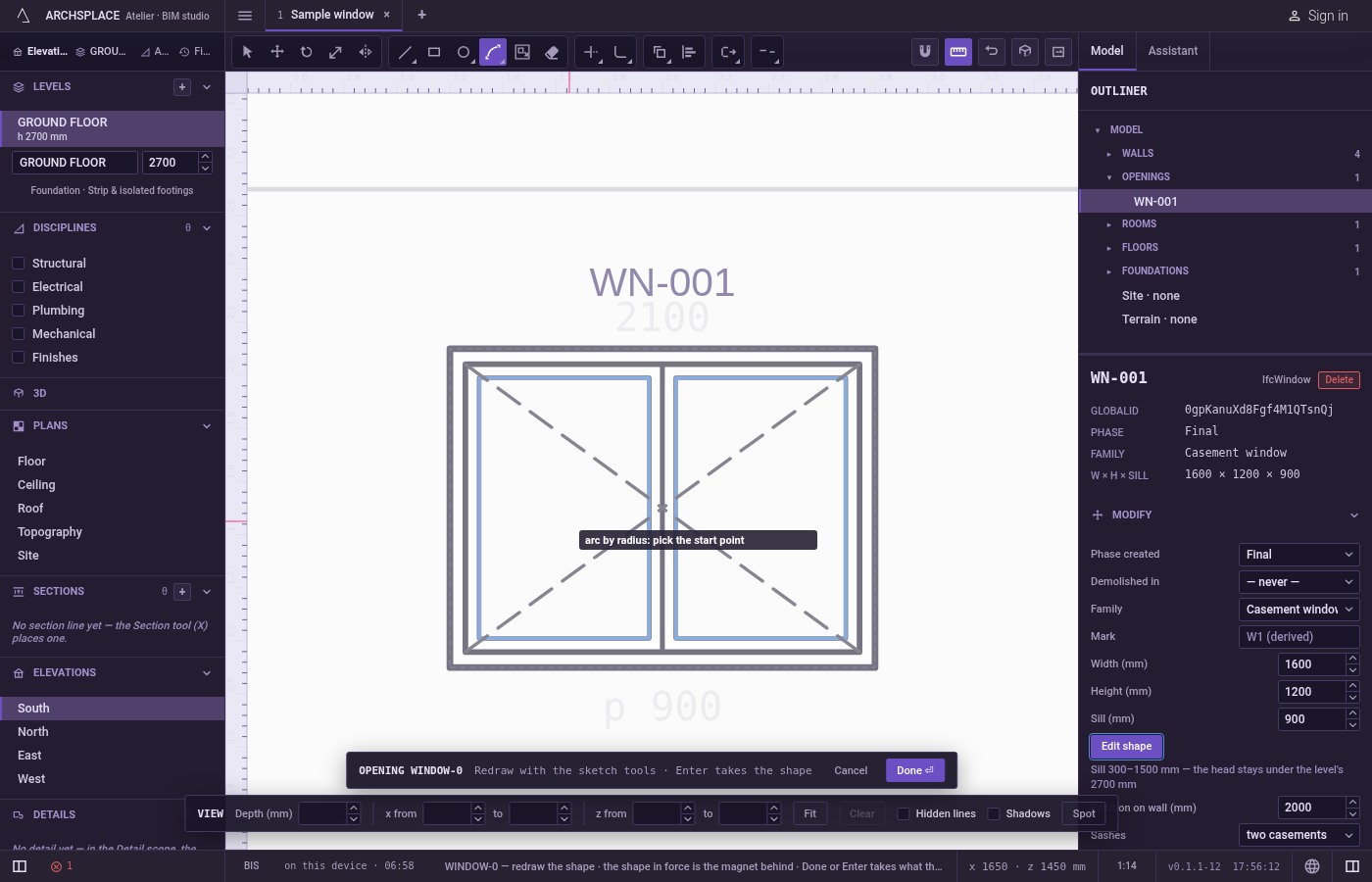
Click the start. It snaps to corners, midpoints, crossings, the dimmed shape in force and the lines of the view. You can also type it as
x;yfrom the origin of the editor, the centre of the opening at floor level or the origin of the plan.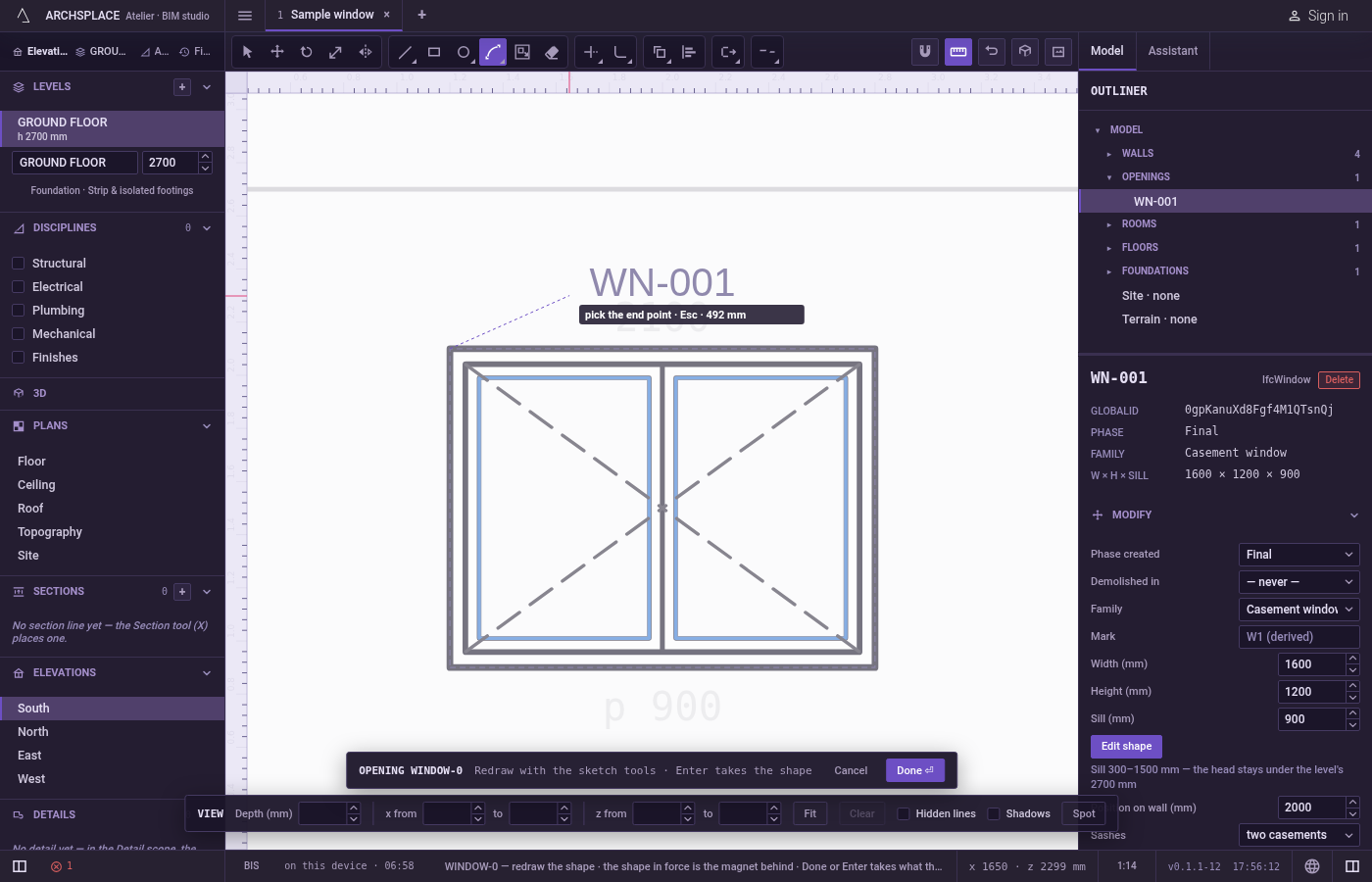
Click the end. It snaps in the same way, and can be typed as a point, such as
@1.2;0from the start.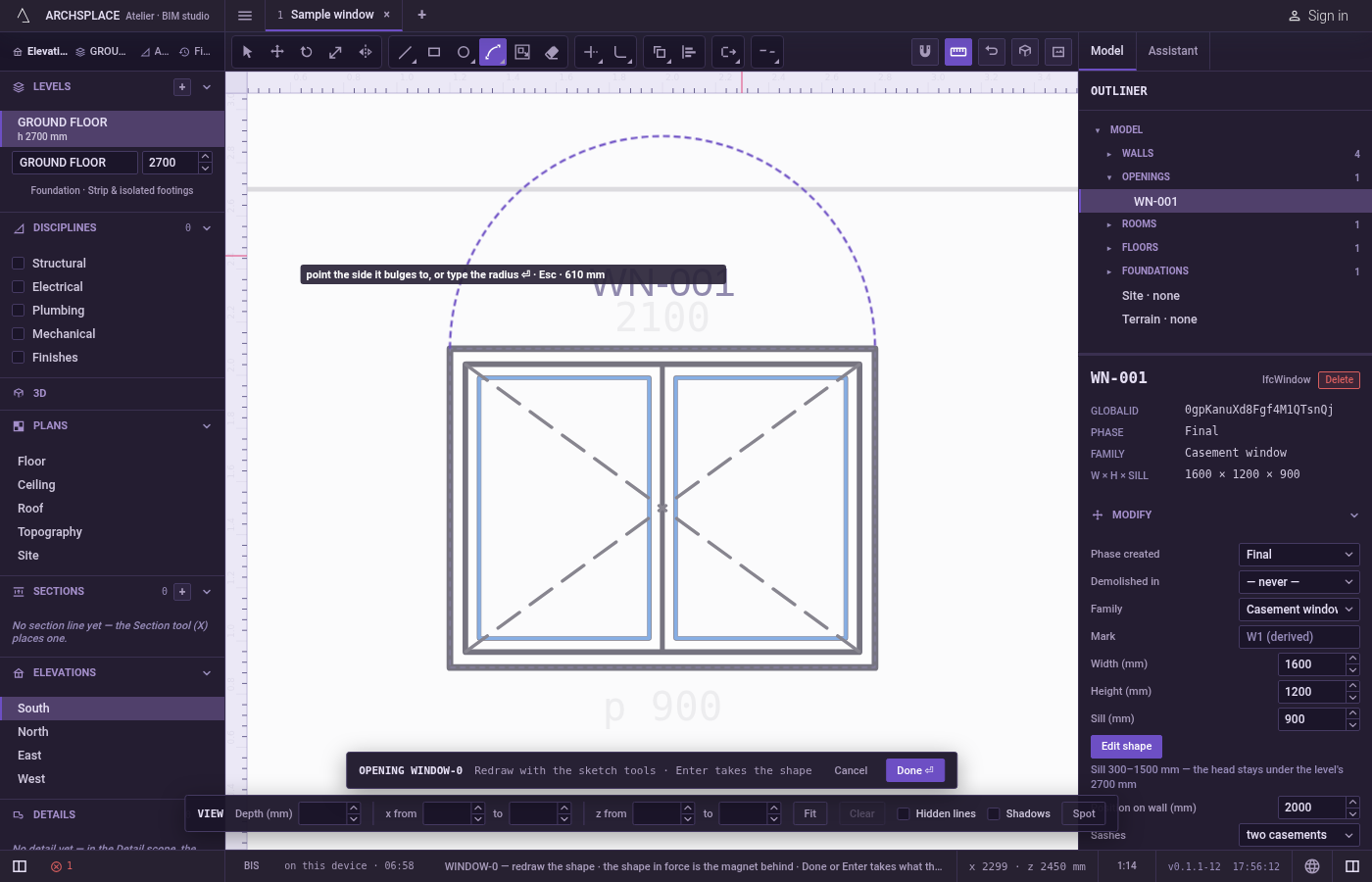
Point at the side and the radius. The arc follows the pointer, bending towards it. The distance of the pointer from the middle of the chord is the radius, so a pointer near the middle gives a half circle and a pointer farther away gives a flatter arc. Click to draw it.
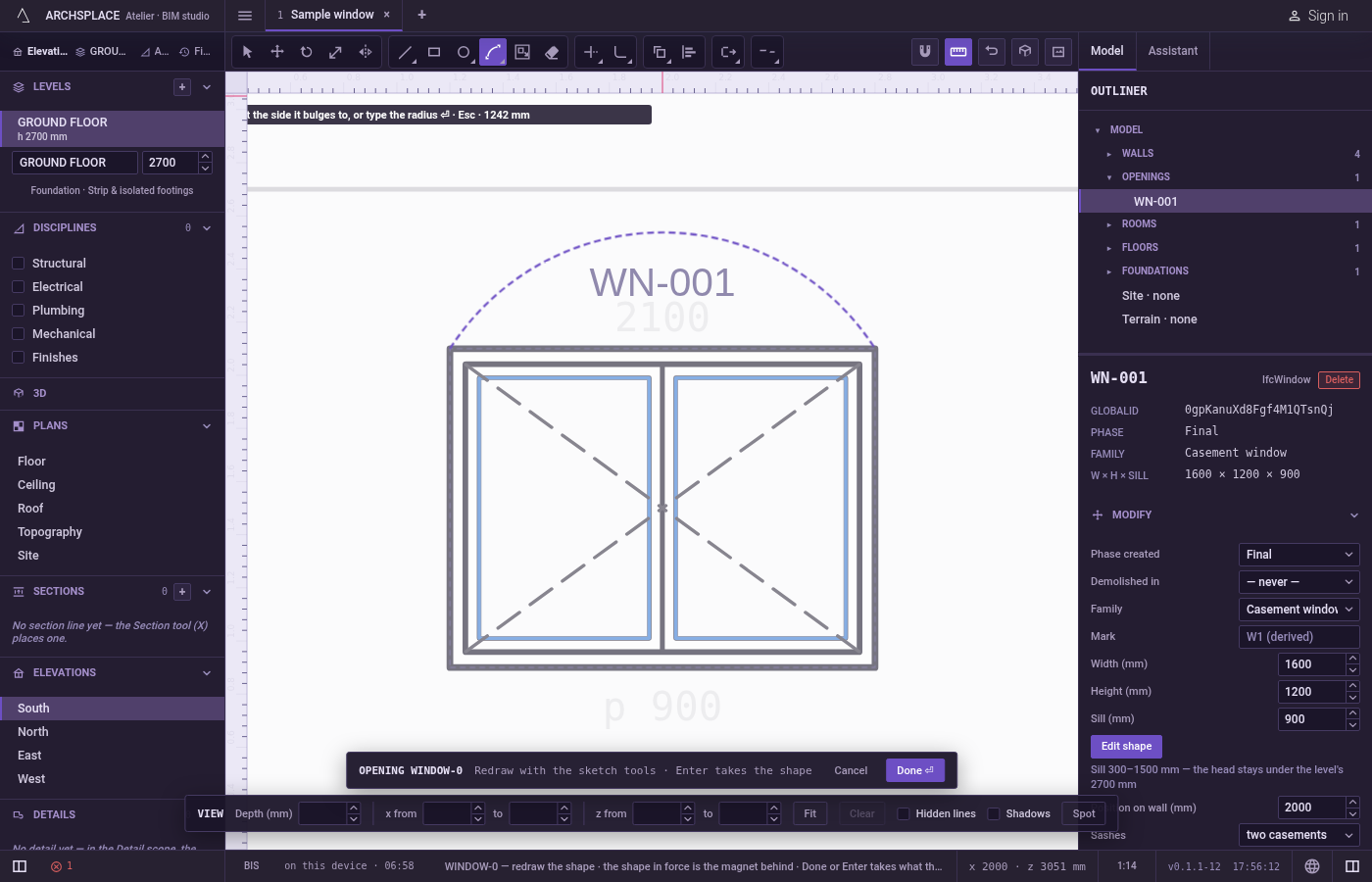
Or type the radius. Keep the pointer on the side towards which the arc should bend, type the radius in the project units, and press
Enter.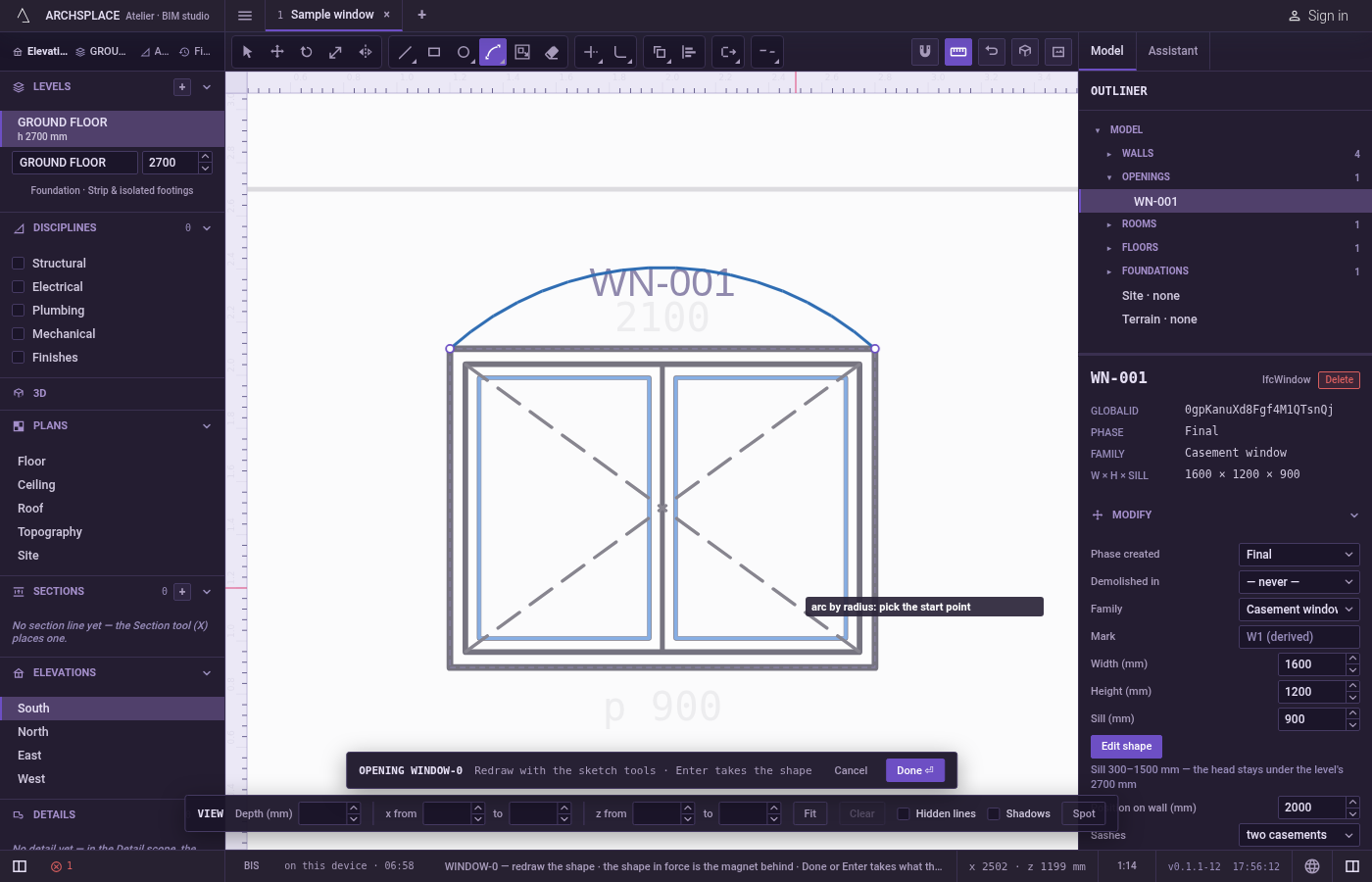
Carry on. The arc is drawn and left selected, and the tool waits for the next one.
Escapedrops the points given, then goes back to Select.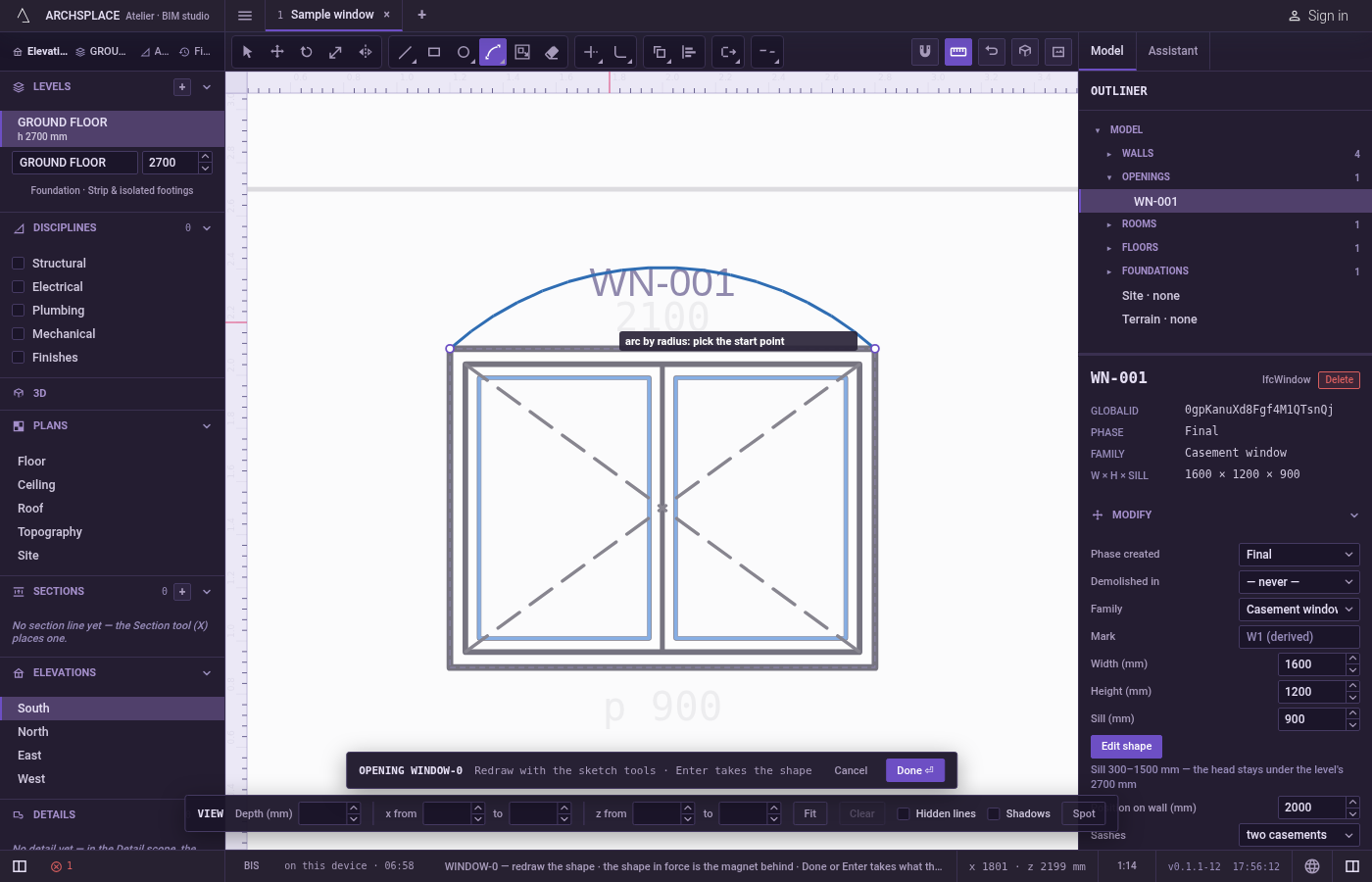
What it refuses
- A radius shorter than half the chord. No arc of that radius joins the two ends, and the hint says that point makes no shape.
- An end on the start. A chord with no length makes no arc, and is refused in the same way.
- More than a half circle. The shorter arc is always the one drawn. Use Arc or Arc by centre for a larger arc.
- A radius typed too early. The radius is taken only after the end. A bare number typed before that does nothing.
What it writes to the contract
Nothing until you press Done. Every arc is one step inside the editor, and Ctrl+Z goes back through them. The contract changes when you press Done, or Enter with nothing in progress, as one step that you can undo: what the lines enclose becomes the profile of the window or door, points [u, v] in metres across the wall and up from the floor, or the outline of the pattern area in the floorAreas or ceilingAreas of the room, points [x, y] in plan metres.
An arc closes an outline only together with your other lines. It becomes a bulge, the third number on the point where it starts. A window 1.2 metres wide under a segmental arch of radius 1.5:
Related
Common questions
How do I draw a segmental arch with a radius of 1.5 metres over an opening of 1.2 metres?
Press A and then S quickly, click the two top corners of the opening, place the pointer above them, type 1.5 and press Enter.
Why is my typed radius refused?
It is shorter than half the distance between the two ends, so no arc of that radius can join them. Half the distance gives a half circle; anything larger gives a flatter arc.
Can I get more than a half circle?
No. Arc by radius always gives the shorter arc. Use Arc or Arc by centre for a larger one.