ConceptsF8F10in the studio
The magnet
The magnet is how every click in the atelier finds its point: corners, midpoints, centres, crossings, edges, faces and the alignments of the gesture in progress all respond within 12 screen pixels, each with its own marker. The Snaps menu chooses which of them may pull the cursor, and F8 and F10 hold the direction.
What it is
Every click that places a point goes through one magnet: on the plan, in sections and elevations, in details and in the editors. It looks around the cursor within 12 pixels of the screen, whatever the zoom, and decides what the point is in a fixed order:
- a point wins over a line, and the nearest point wins: the end of a wall, a corner of its faces or its midpoint, the jamb or the centre of an opening, a turning point of a staircase or the middle of a run, a corner of a roof, the centre of a sanitary appliance, a terrain reading;
- then the alignments of the gesture in progress: the horizontal and the vertical through the point you started from, the extension of the last segment and the square to it, and the alignments with the last points the cursor rested on; when two of them meet, they fix their crossing;
- then two lines within reach give their crossing, such as a grid line and the face of a wall;
- then the nearest line is followed: the face or the axis of a wall, a grid line, a guide;
- with nothing within reach, the point is free, rounded to a step that follows the zoom.
The walls of a level traced below the plan are magnets too. What you are moving never pulls itself.
When to use it
- Always: every drawing tool and every move reads it.
- To choose which snaps may pull, when a crowded plan makes the cursor jump about.
- To hold the direction with Ortho or Polar tracking while you draw.
The steps
Read the marker. A small marker at the cursor names what the magnet has found: a square on an end or a corner, a triangle on a midpoint, a ring on a centre, a cross on a crossing, a diamond on a line, a ring under a bar on a tangent, a corner on a perpendicular, an hourglass on the nearest point. A dashed line shows each alignment that holds the cursor. The right side of the status bar shows the position of the cursor and the name of what was found.
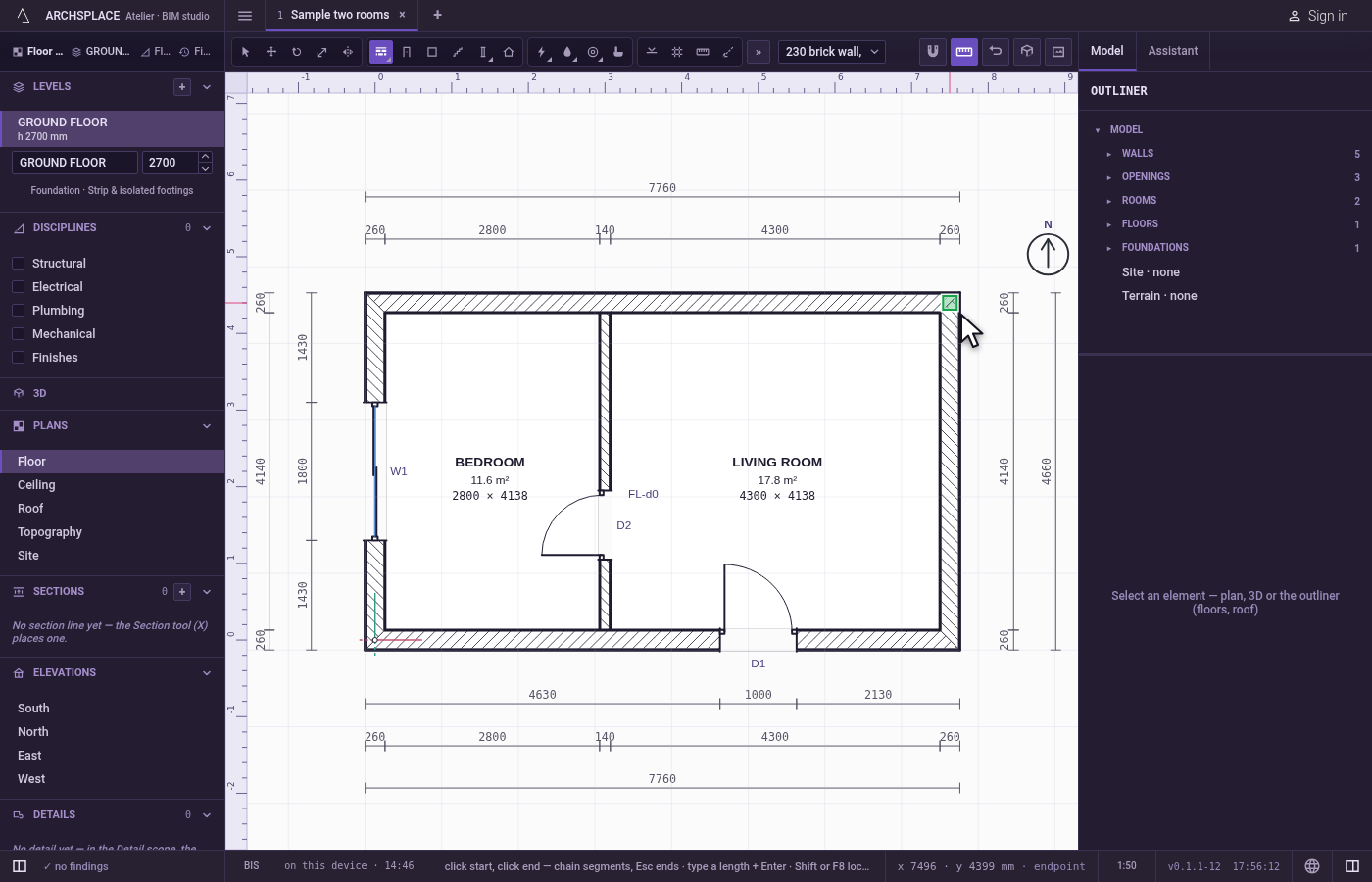
Click on it. A click lands exactly on the point the marker shows, as long as the pointer is still within its reach.
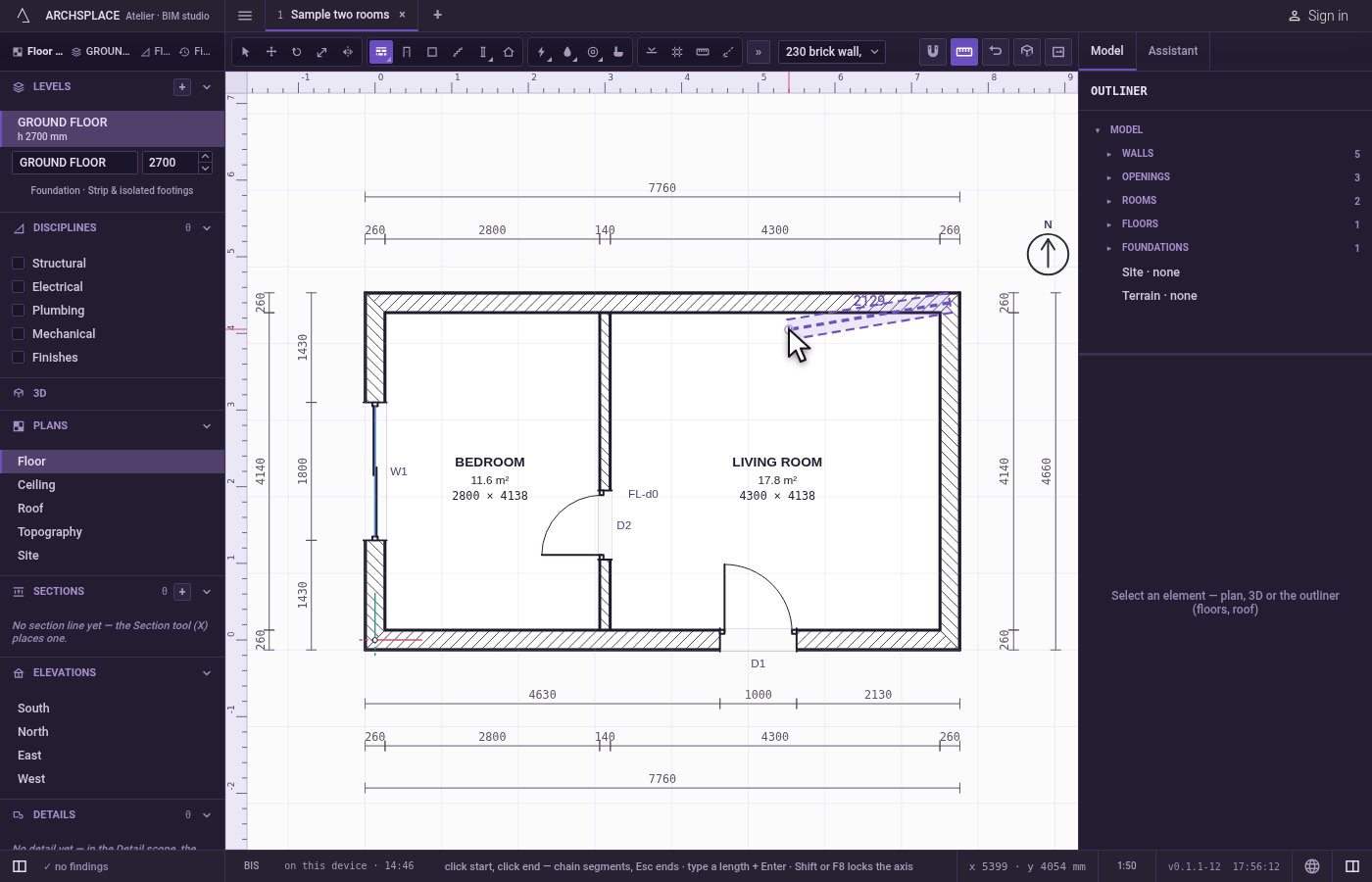
Hold an alignment. While you draw, keep
Shiftpressed to hold the nearest alignment from the starting point, wherever the cursor goes.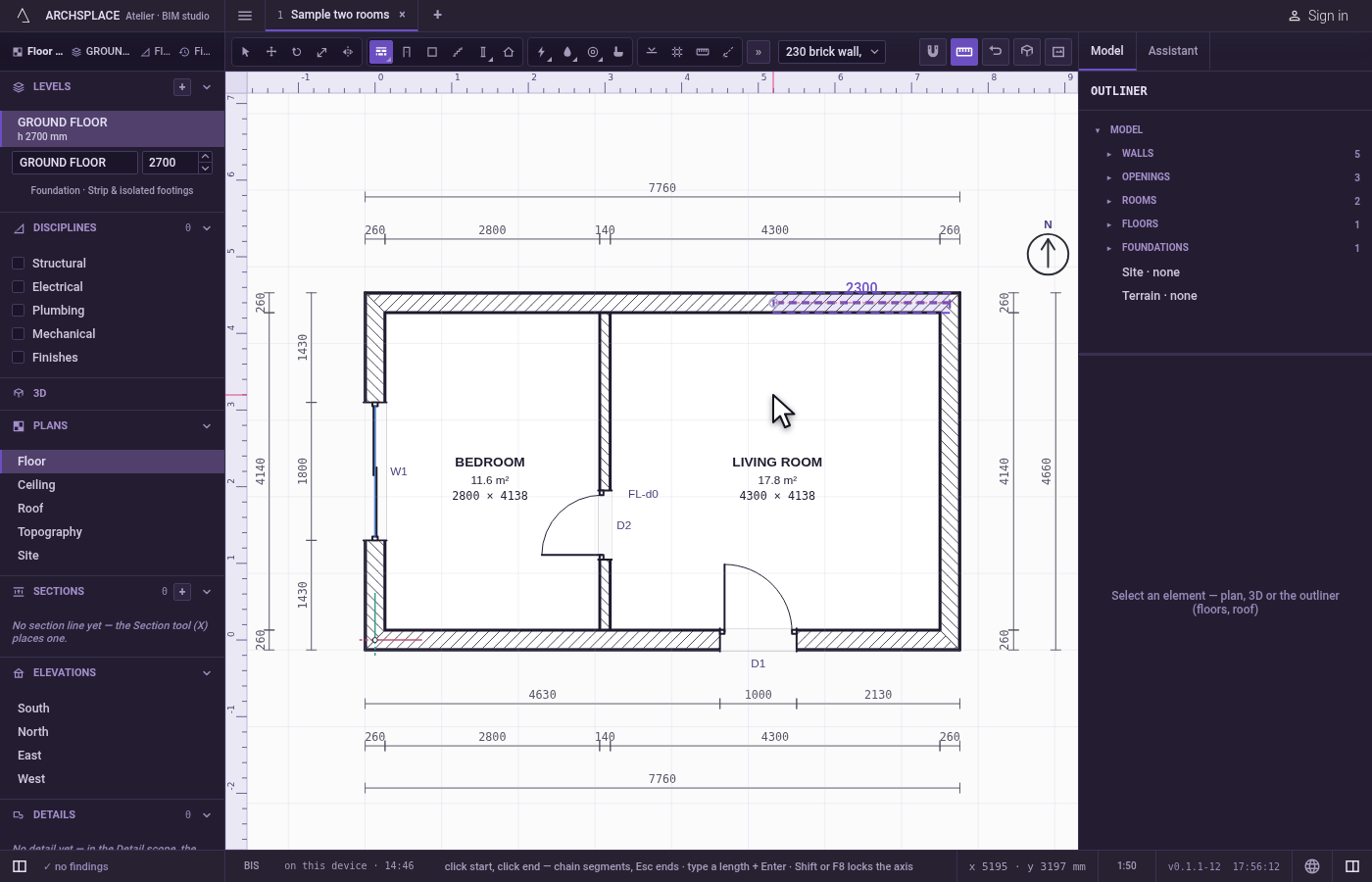
Choose the snaps. Open the Snaps menu on the toolbar. Tick or untick Endpoint, Intersection, Midpoint, Centre, Quadrant, Tangent, Perpendicular and Nearest; All on and All off set all of them at once. A snap that is switched off never pulls the cursor, in any view.
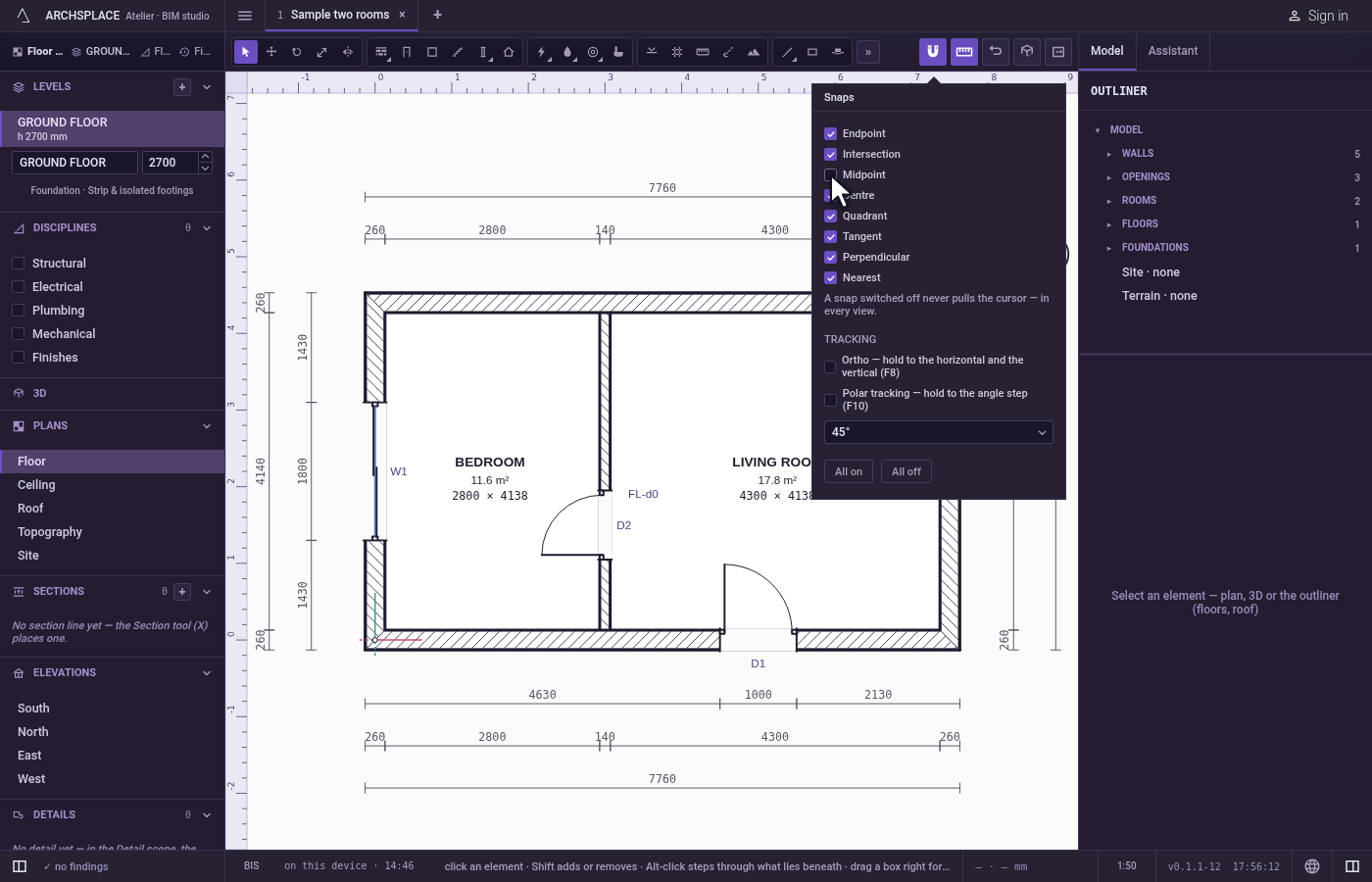
Switch on the tracking. In the same menu, Ortho holds every drawing to the horizontal and the vertical;
F8switches it on and off, and the plan shows ORTHO 90 in its corner while it is on. Polar tracking holds to an angle step of 15, 30, 45 or 90 degrees, chosen in the menu;F10switches it on and off.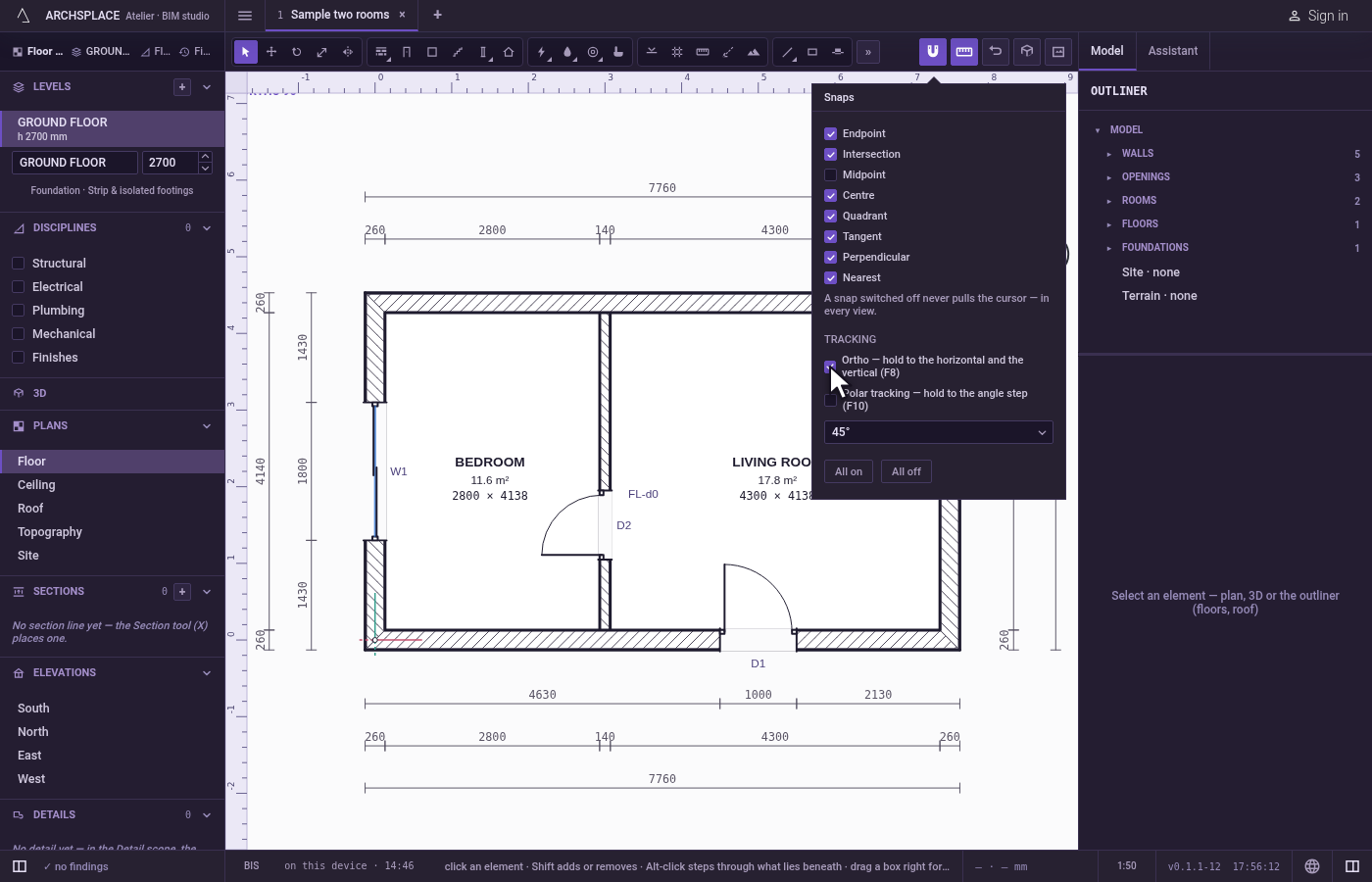
What it refuses
- A point beyond reach. Nothing farther than 12 screen pixels pulls the cursor; zoom in to reach a point crowded by others.
- A snap you have switched off. It never pulls, in any view, until you tick it again.
- Snapping to what is moving. The element in hand, and the walls carried by a dragged corner, are left out.
What it writes to the contract
Nothing. The magnet only finds points; what is written is what the tool writes at those points. The snaps you tick and the tracking are your own settings, kept on this computer.
Common questions
Why does the snap feel the same at every zoom?
Its reach is 12 pixels on the screen, not a distance in the model, so it follows the zoom. Away from everything, a free point is rounded to a step that also follows the zoom: millimetres when zoomed in, decimetres when zoomed out.
How do I stop the cursor from jumping to midpoints?
Open the Snaps menu on the toolbar and untick Midpoint. A snap that is switched off never pulls the cursor, in any view.
Can an element snap to itself while I move it?
No. What you are moving never pulls itself, and a dragged corner leaves its own walls out of the magnet.