PlanMin the studio
Move
Move shifts elements of the plan from a base point to the point where you drop them, or by a distance you type. With Ctrl pressed it leaves a copy instead, and typing x with a number right after a copy repeats it as an array.
What it is
Move picks up what you have selected and carries it from a base point to a drop point, both found by the magnet, or by a distance you type. Walls, pipes and beams move as one network: a corner they share with a wall that is not selected travels with them, so nothing that was joined comes apart, and a wall that ends on the face of a moved wall slides so that it stays on it. A window, a door or a wall point moved on its own lands on the wall below the drop point, or slides along its own wall.
If you keep Ctrl pressed when you drop, Move leaves a copy and keeps the original where it was. A copied wall carries its windows, doors and wall points along. Right after a copy, typing x with a number repeats the same step as an array.
When to use it
- To shift a partition, a column or a sanitary appliance to its correct place.
- To copy a window along an elevation, or a column along a grid, at an exact spacing.
- To lay out a row of identical elements with one copy and one typed number.
- To place what you copied with
Ctrl+C: Paste picks Move for you.
The steps
Select what is to move. Select one or more elements with Select. You may also skip this step and click the element itself in the next one.
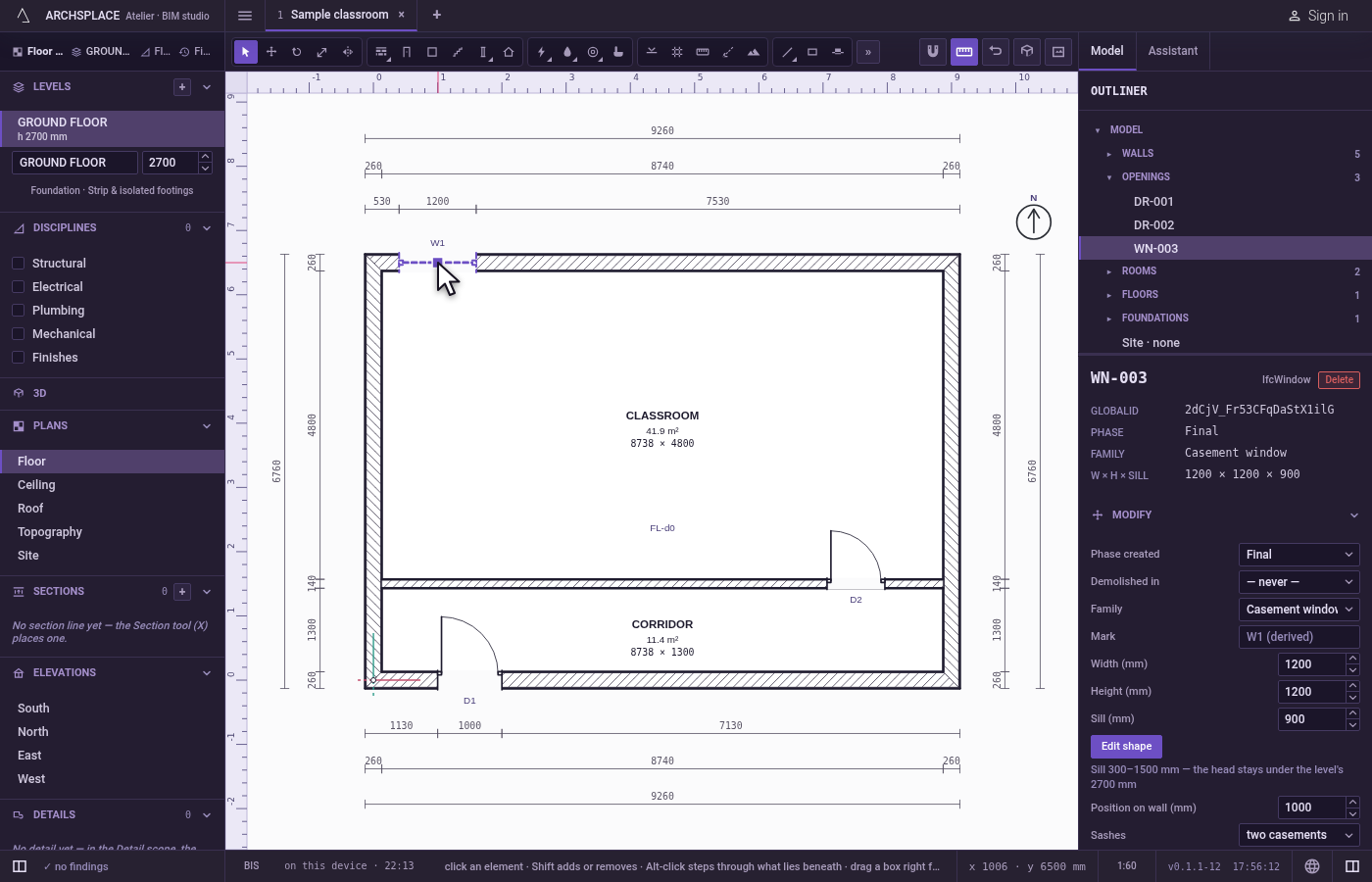
Pick the tool. Press
M, or click the Move button. When walls, pipes or beams are selected, the grips at their corners remain visible.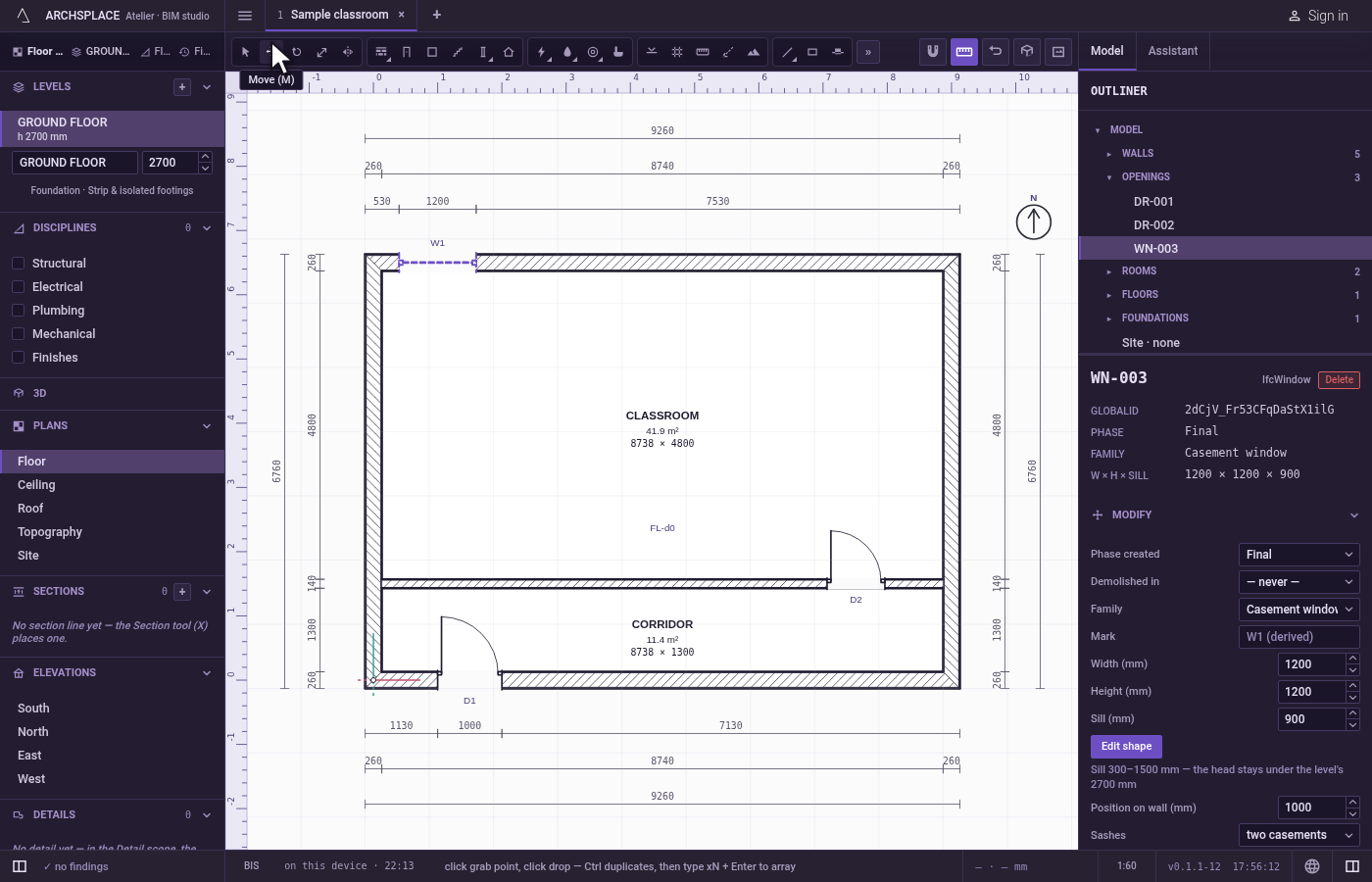
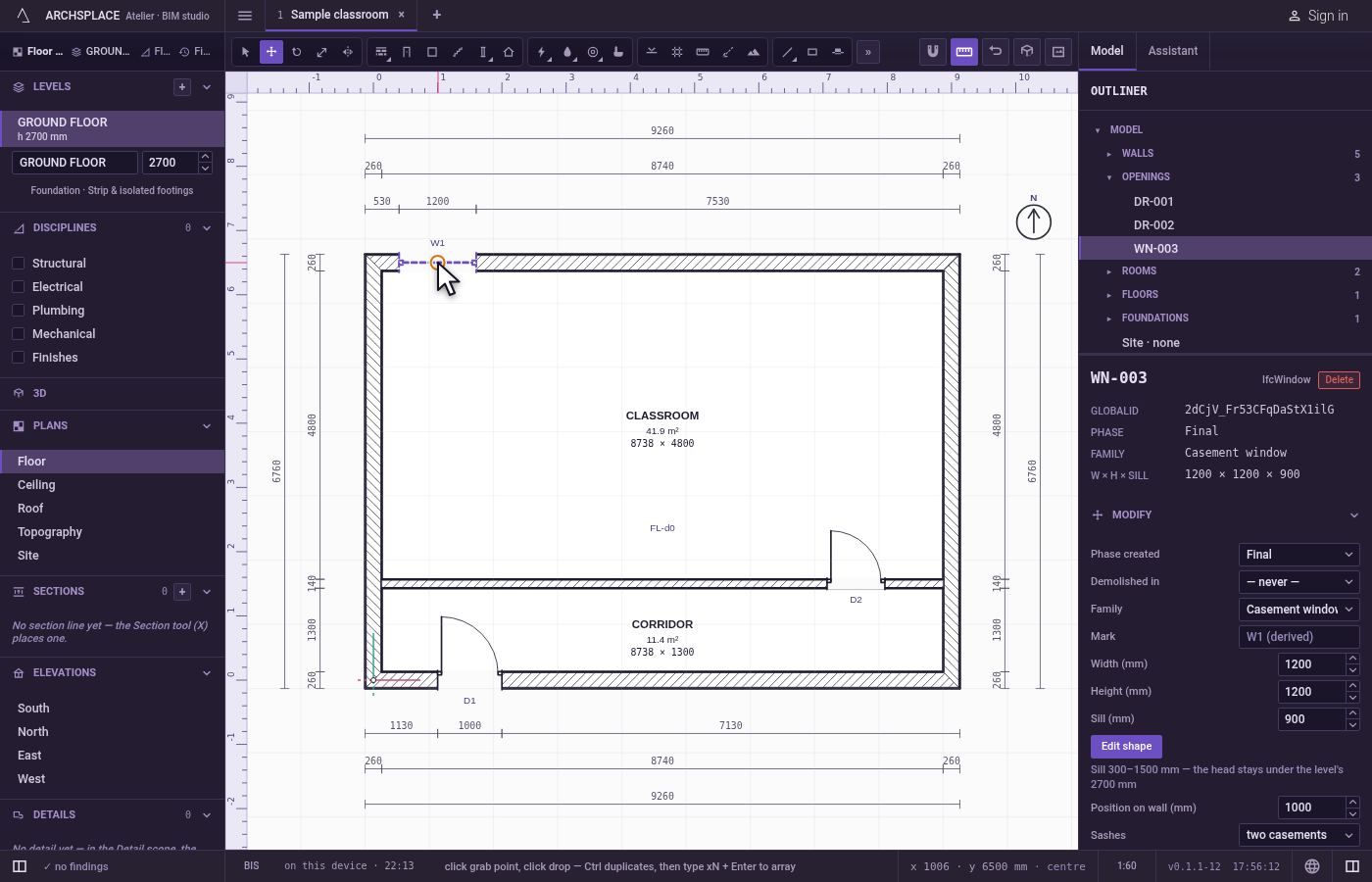
Click the base point. Click the point you want to carry, such as the corner of a wall or the centre of a column: the magnet holds the click on the nearest point within reach (see The magnet). With nothing selected, click the element itself; the point you click on it becomes the base point.
Show the direction. A ghost of what is moving follows the cursor, and the walls that will follow it show where they will end up. Shift, or F8 for as long as it is on, keeps the movement horizontal or vertical.
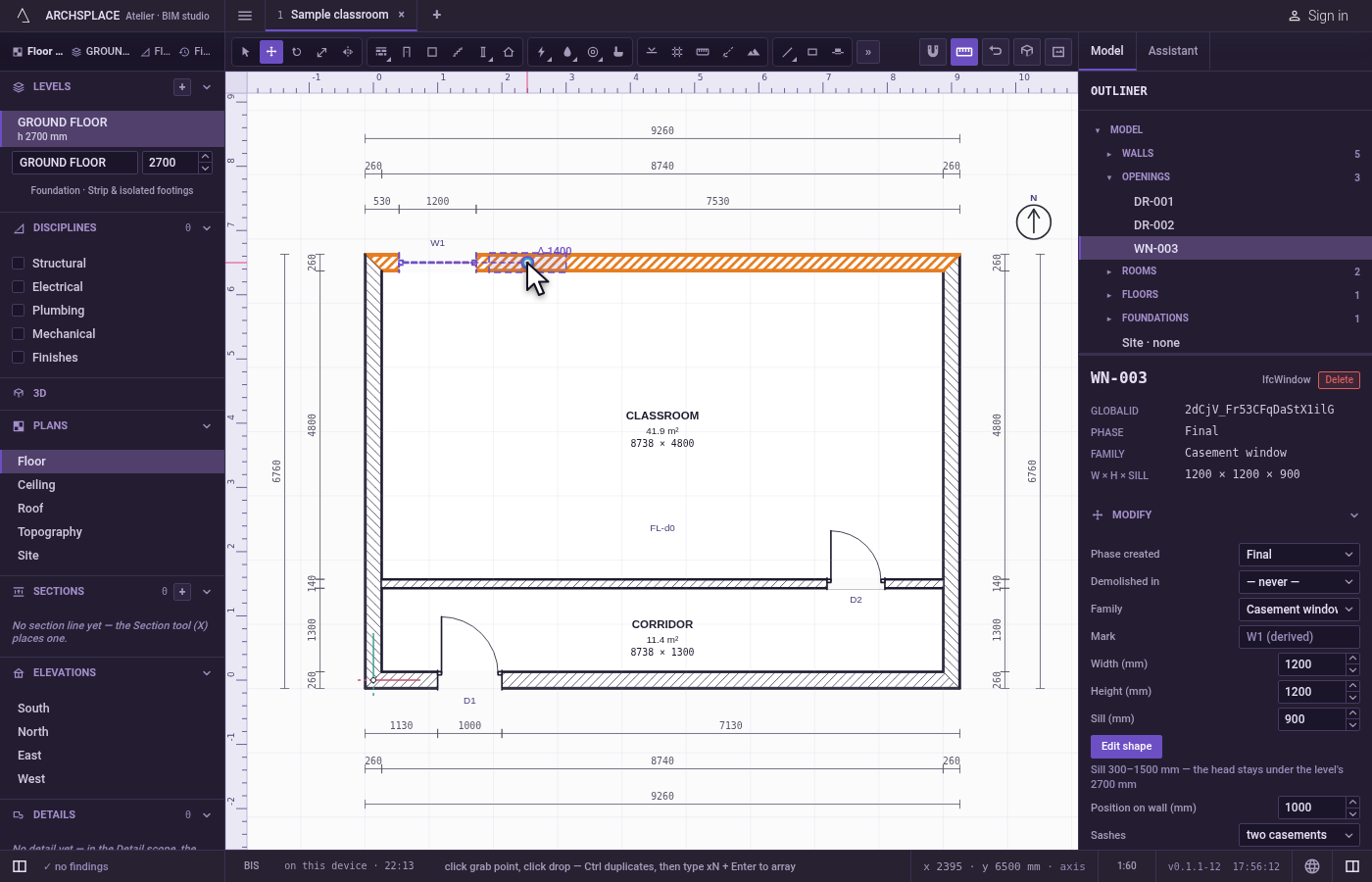
Drop it, or type the distance. Click where the base point should land, again with the magnet. Or type the distance in the project units and press Enter: the elements move by that much towards the cursor. Keep
Ctrl(⌘on a Mac) pressed as you click or press Enter to leave a copy instead.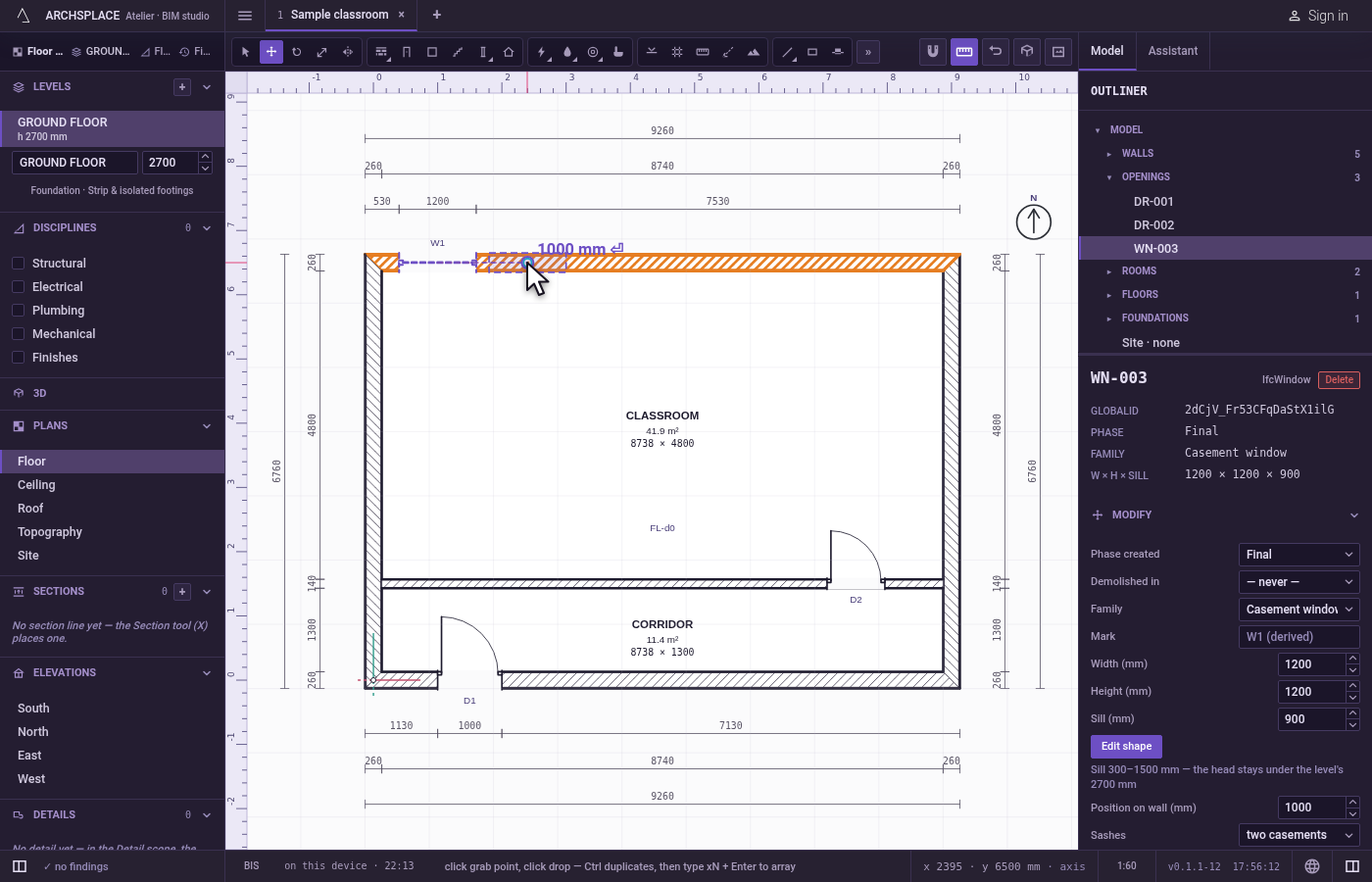
Repeat the copy. Right after a copy, type
xand a number, then Enter:x5lays out copies until there are five in all, each one the same step further on. Type/and a number instead to divide the distance between the original and the copy into that many equal parts.*works just likex.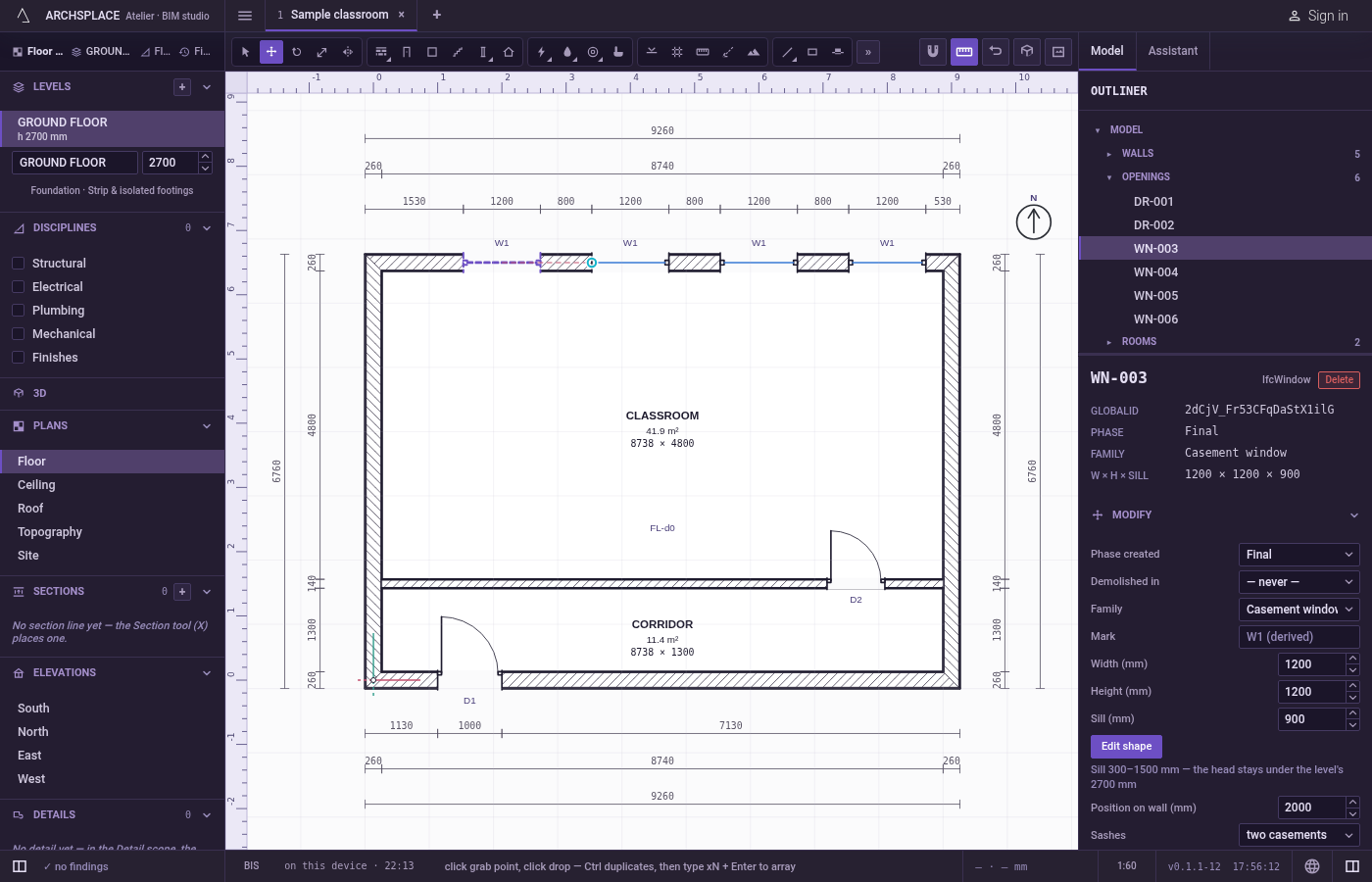
What it refuses
- A drop that would break a joint. If the move would leave a wall, a pipe or a beam shorter than one centimetre, nothing moves and the studio gives the reason in a message at the top right.
- Annotations. A dimension, a detail or a callout frame does not move with Move: each one tells you that it moves with the arrow keys or from its own panel.
- An array that is too large. An array that would place more than 2000 copies in one go is refused along with the count, and so is one that would take the project beyond 10,000 component instances.
- A click with nothing to move. With nothing selected, a click on empty space does nothing.
What it writes to the contract
One step, which one undo reverses. Every moved element keeps its entry and receives its new points: the two ends of a wall, the position of a column, the point of a room, the walk line of a stair, the corners of a roof. The ends of the walls, pipes and beams that met a moved one are written too, so that they stay joined. A window or a door keeps its wall and its distance along it, or takes the wall it was dropped on. A copy adds new entries at the end of their lists, including the openings and points of a copied wall, and an array adds all its copies in a single step.
Concepts
Related
Common questions
How do I move a wall by an exact distance?
Select the wall, press M, click a base point, point the cursor in the direction the wall should go, type the distance and press Enter. The wall moves by that distance in the direction you showed.
How do I make a row of copies at equal spacing?
Make one copy by moving with Ctrl pressed, then type x followed by the total number you need, for example x5, and press Enter. If you type /5 instead, the copies divide the gap between the original and the first copy.
Do the walls joined to the one I move stay joined?
Yes. The corners that the moved wall shares with other walls travel along with it, and walls that end on its face slide so that they remain on it.