3DLin the studio
Line
The Line tool draws straight lines anywhere in the 3D view, point after point, on a face, along an edge, from a corner or on the ground. Every line is in place the moment you click its end, and lines that close flat become a face.
What it is
The Line tool draws straight lines in the 3D view, one after another. Before every click it reads what lies under the pointer: a corner, the middle of an edge, an edge, a face, a guide, an axis line through the last point, the extension of the last line or a direction square to it. A marker and a word at the pointer (Endpoint, Midpoint, On Edge, On Face, On x axis, Perpendicular, From Point and the others) tell you what the click will pick. Over empty space the point lands on the ground.
A line is not held back until you finish: it goes into the project the moment you click its end, and the next line continues from there. Lines that cross split each other, and lines that close a flat outline make a face. Drawn on a face of a body, the lines become part of that body: a line from edge to edge splits its face, and a closed outline inside a face cuts out a face of its own.
When to use it
- To draw an outline in space and pull it into a volume with Push/Pull.
- To split a face of a body into parts that you can push or pull one at a time.
- To draw the path that a face follows with Follow Me.
- To draw construction lines on a face or in the air.
The steps
Pick the tool. Press
L, or click Line among the drawing tools.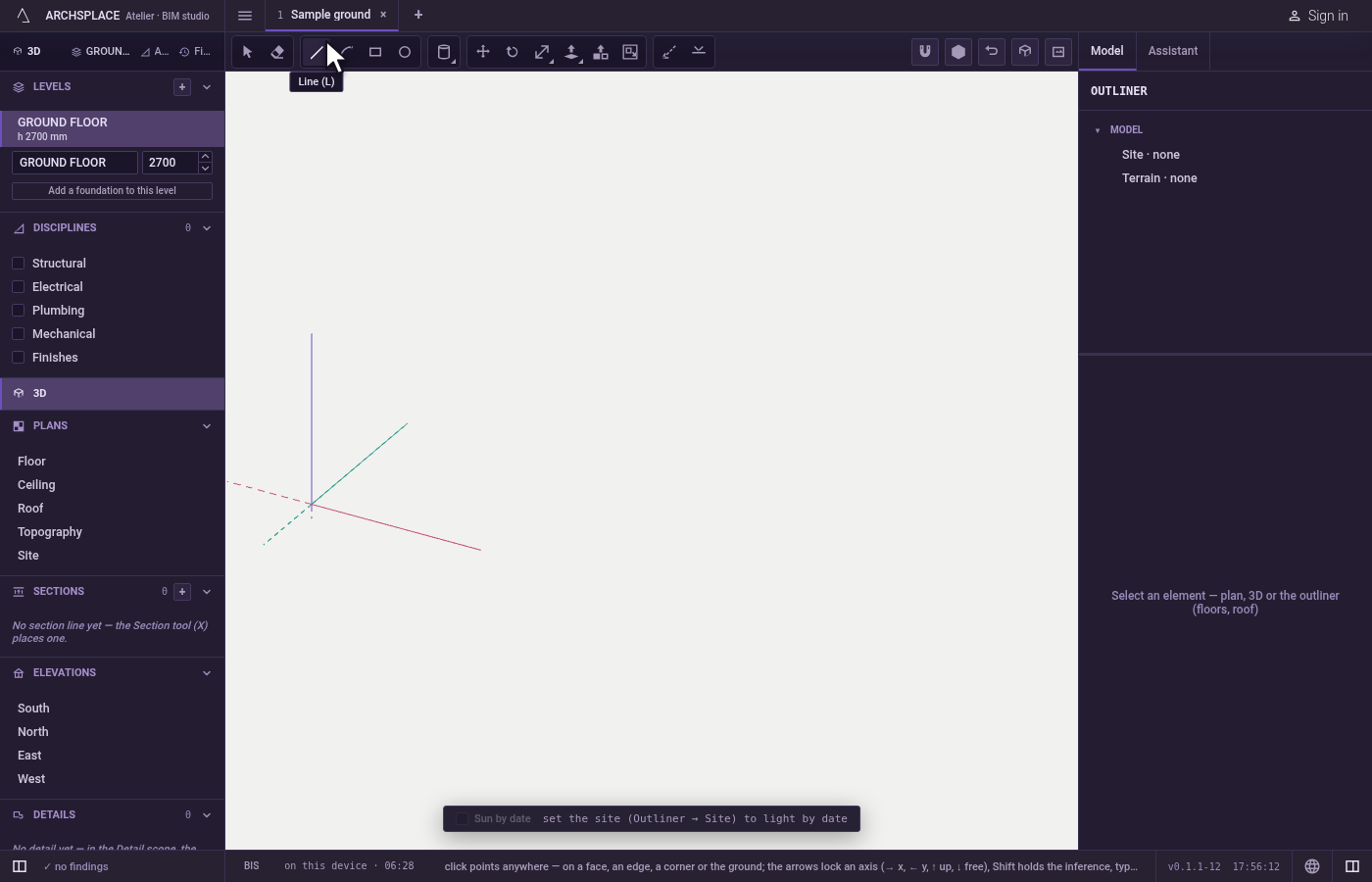
Click the first point. Watch the marker: the click lands exactly on what it names. Over nothing, it lands on the ground.
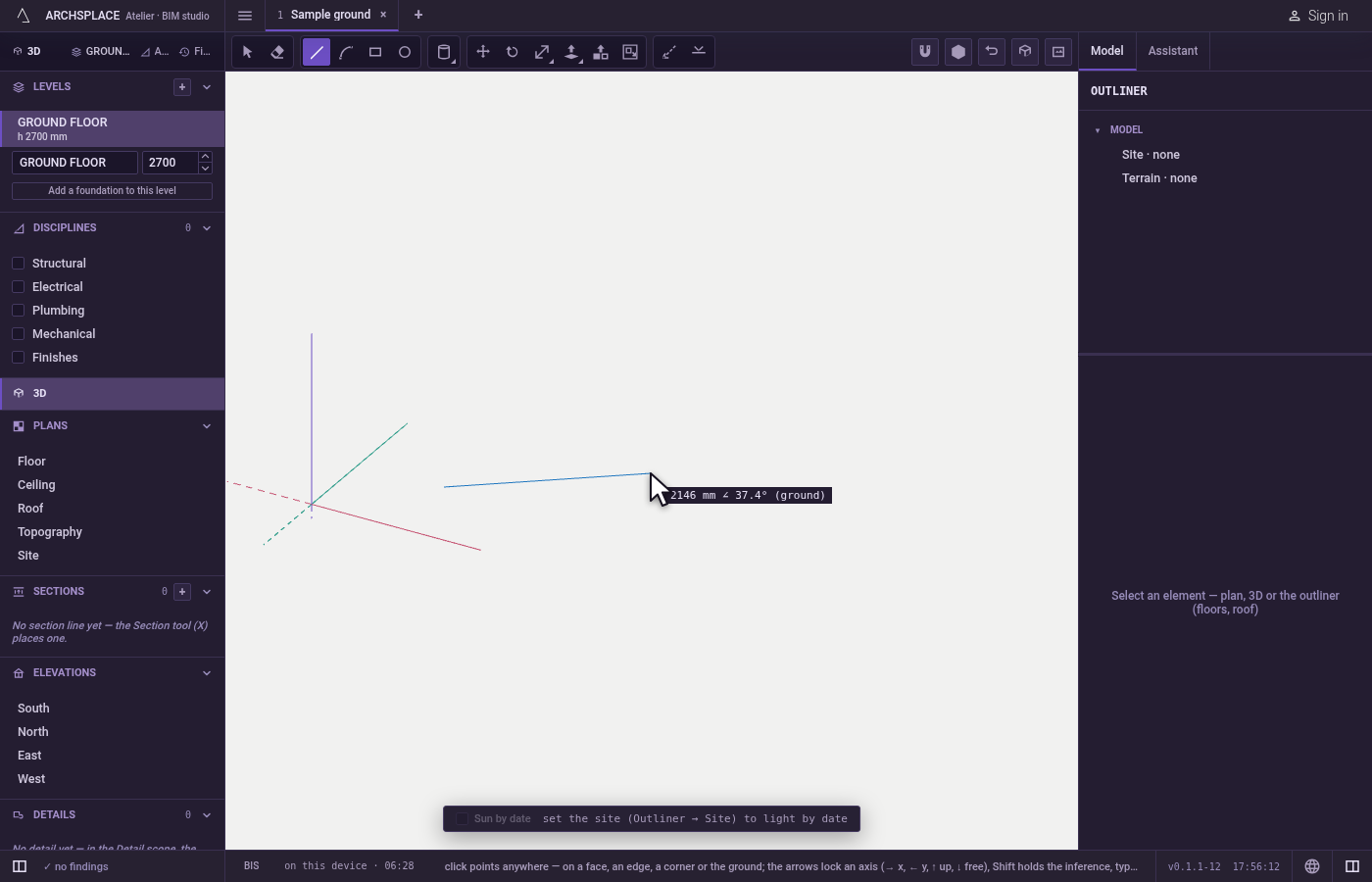
Click the next points. Every click lays one line from the last point. The readout beside the pointer gives the length of the line and its angle, measured in the plane of the face you started on, or on the ground.
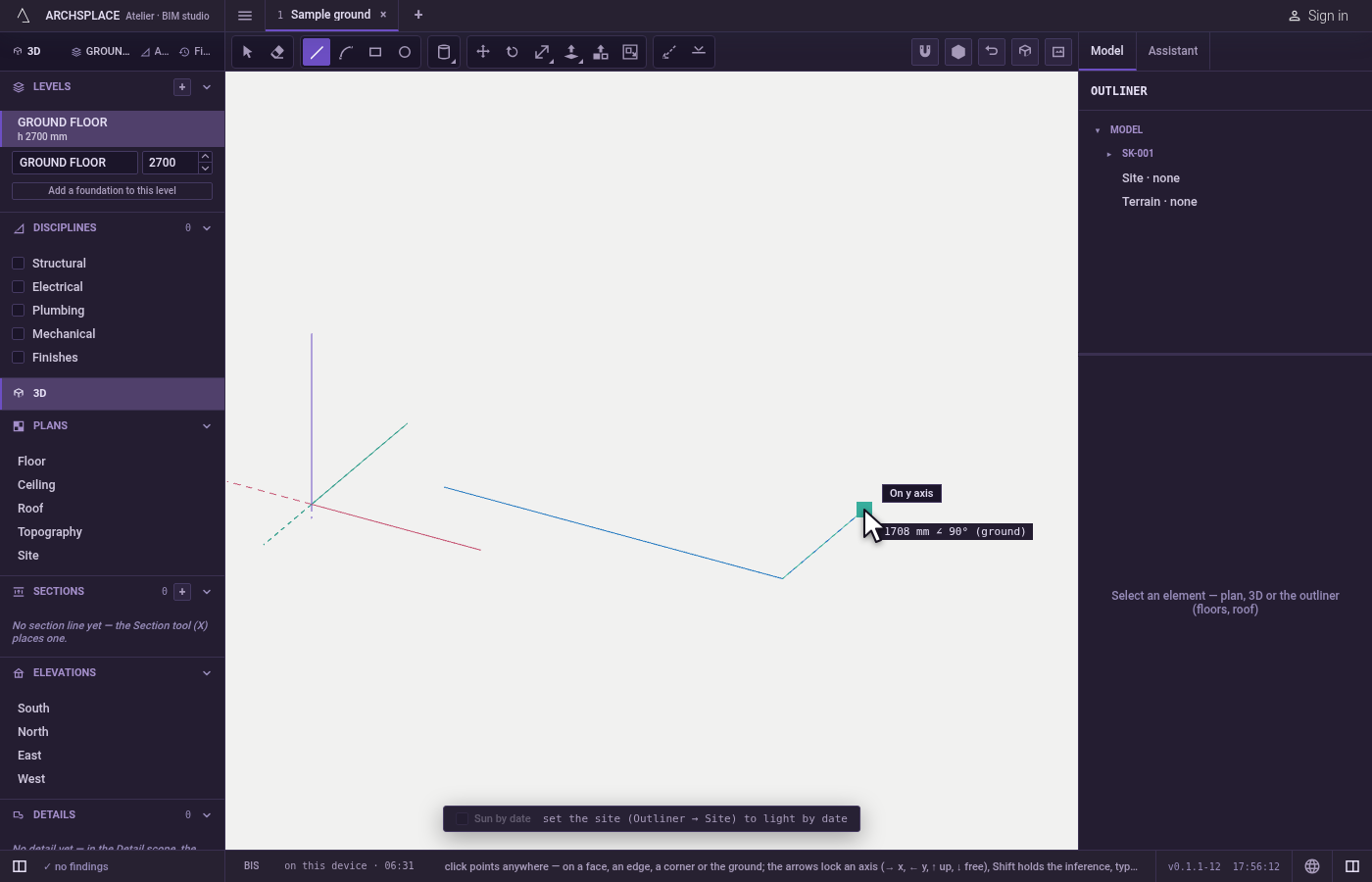
Hold a direction when you need it. Press
→to hold the x axis,←for the y axis,↑for the vertical, and↓to release it; the hint tells you which axis is held.Shiftkeeps the inference you see, whatever the distance.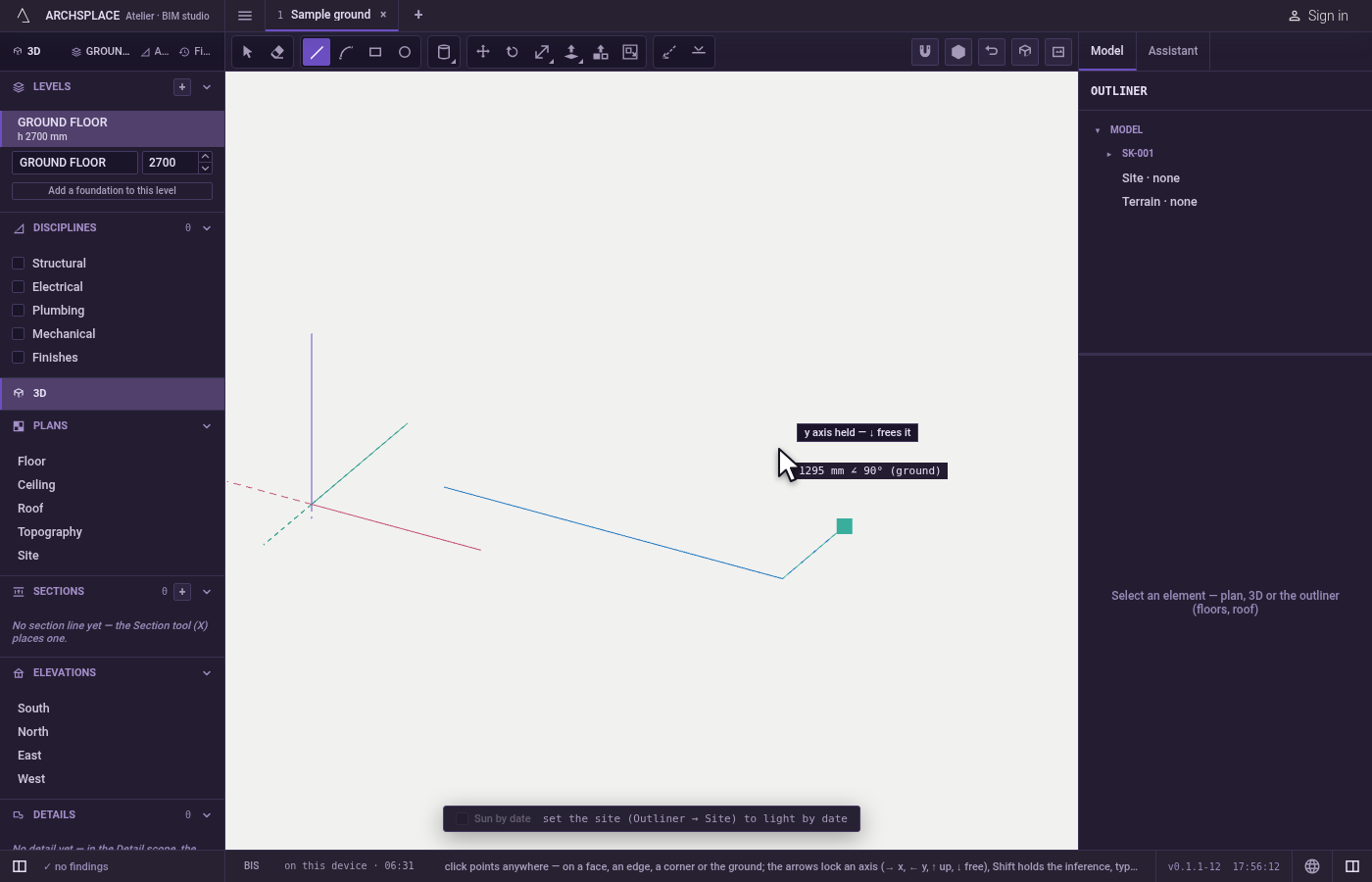
Type a value when you know it. Type a length and press
Enter: the line runs that far towards the pointer. Type2.5<45for a length at an angle, or<45alone to hold that angle until your next click or length.Escapeclears what you typed.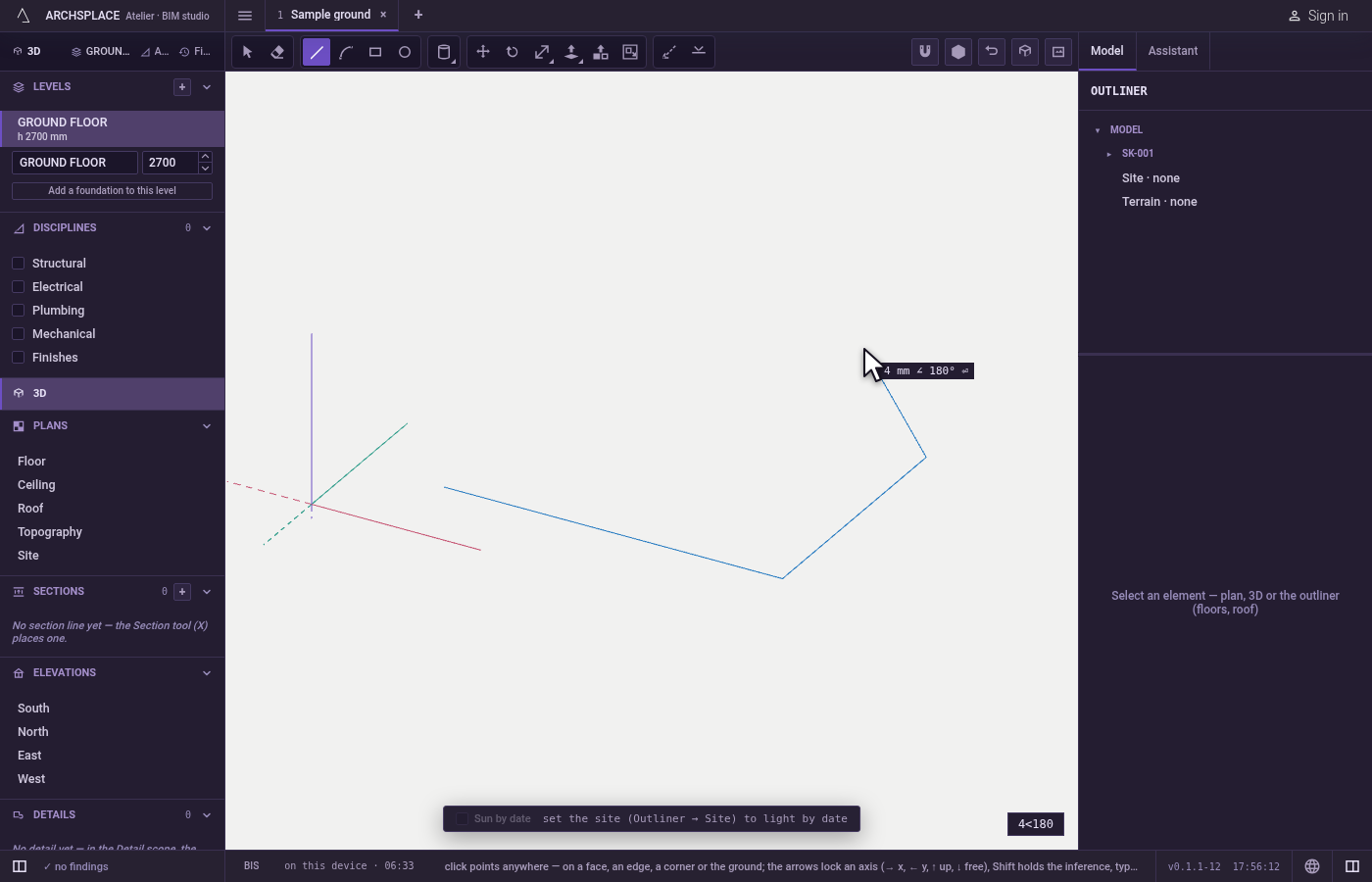
Close or stop. Click back on the first point to close the outline; if it is flat, it becomes a face.
Enter,Escape, the space bar or another tool end the chain where it is; every line already drawn stays.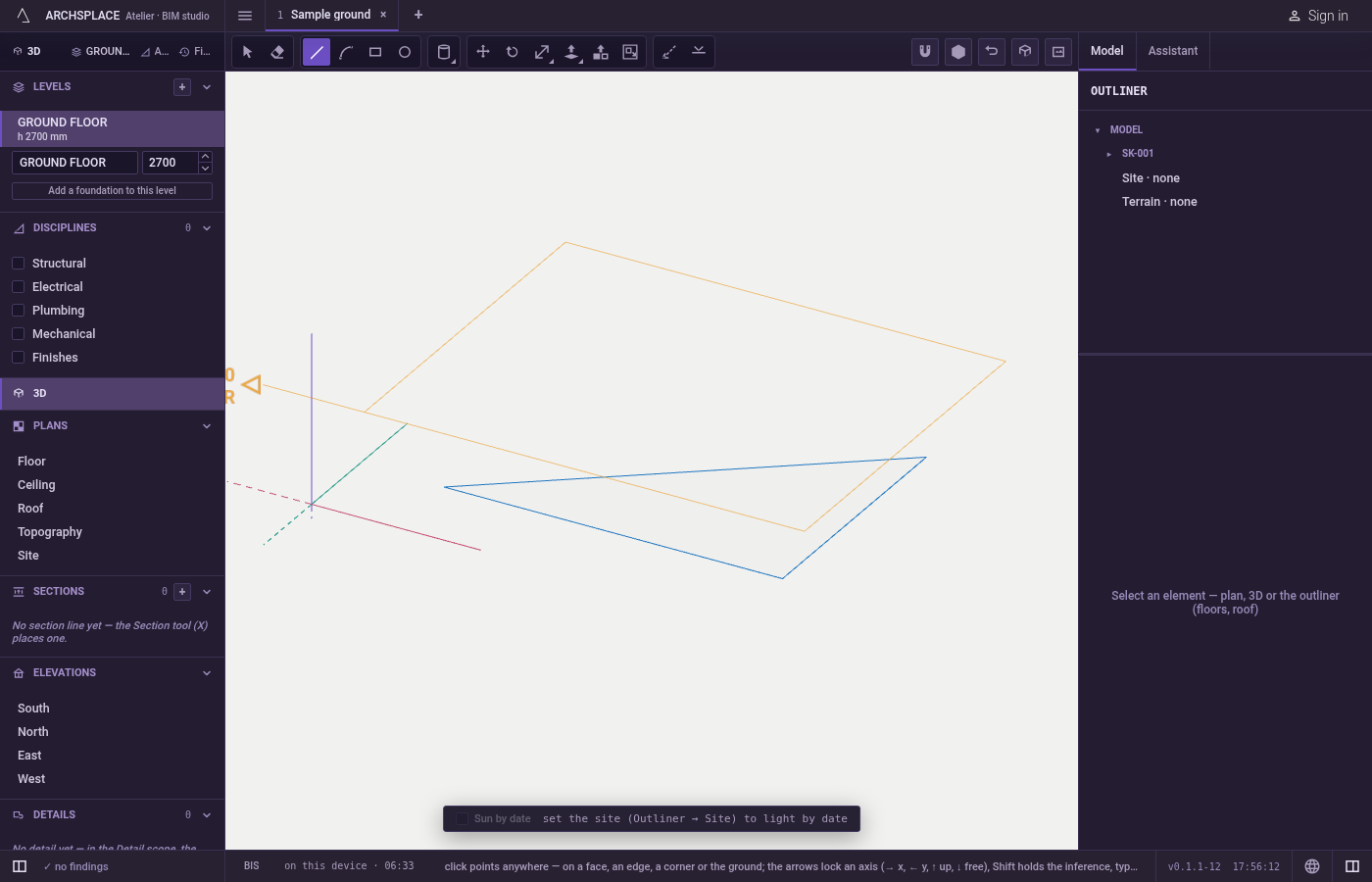
What it refuses
- A typed value that is not a line. Text such as
2.5<or a word is refused with a notice showing the three formats: a length, a length at an angle, or an angle alone. - A point on the hidden side of a face. Corners and edges behind a surface are not picked through it.
- An arc once the chain has left its plane. If you switch to Arc in the middle of a chain that has left the plane it started on, the arc is refused, since it needs one plane to lie in: end the chain and start the arc on a face.
What it writes to the contract
Every line you click is added to the modelled geometry of the model, or of the component you have open, at once and as its own undoable step. Where it crosses or touches other lines, they are split at that point, and the faces are worked out from the closed outlines; a line drawn on the face of a body is taken in by that body. Nothing is stored for a face itself: it is read from its lines every time.
Common questions
How do I draw a line of an exact length?
Show the direction with the mouse, type the length and press Enter. The line runs exactly that far towards where the pointer is. Type 2.5<45 for 2.5 at 45 degrees, or <45 alone to hold that direction and click its end.
How do I keep a line on an axis?
Press the right arrow for x, the left arrow for y, the up arrow for the vertical, and the down arrow to release it again. The hint at the pointer tells you which axis is held.
When does a drawing become a face?
As soon as the lines close a flat outline. Four lines that meet on one plane make a face, on the ground, on a wall or tilted in space, and you can push or pull it.
Do I lose the lines if I press Escape?
No. Every line is already in the project when you click its end. Escape, Enter, the space bar or another tool only end the chain.