SketchARin the studio
Array
Array repeats the selected lines in the sketch editor in rows and columns, or around a centre you click, from the counts and spacings you type. The original counts as the first item, and a preview shows every copy before you press Enter.
What it is
Array copies what you selected many times in one go, in two ways. In rows and columns, the copies are laid out on a grid with the spacing you type, or touching one another when you type none. Around a centre, they are spread over a full turn, or over the angle you type, each copy turned with its place unless you ask it to keep its bearing. The original is the first item of the array and does not move.
Array works on the lines as you drew them: selecting one side of an outline repeats the whole outline.
When to use it
- To lay out a regular set of shapes, such as a grid of square inlays or a ring of petals.
- To space copies evenly where Copy would need one click each.
The steps
Choose what to repeat. In the sketch editor (see Select for the ways in), select the lines with Select first, or pick Array and choose them afterwards.
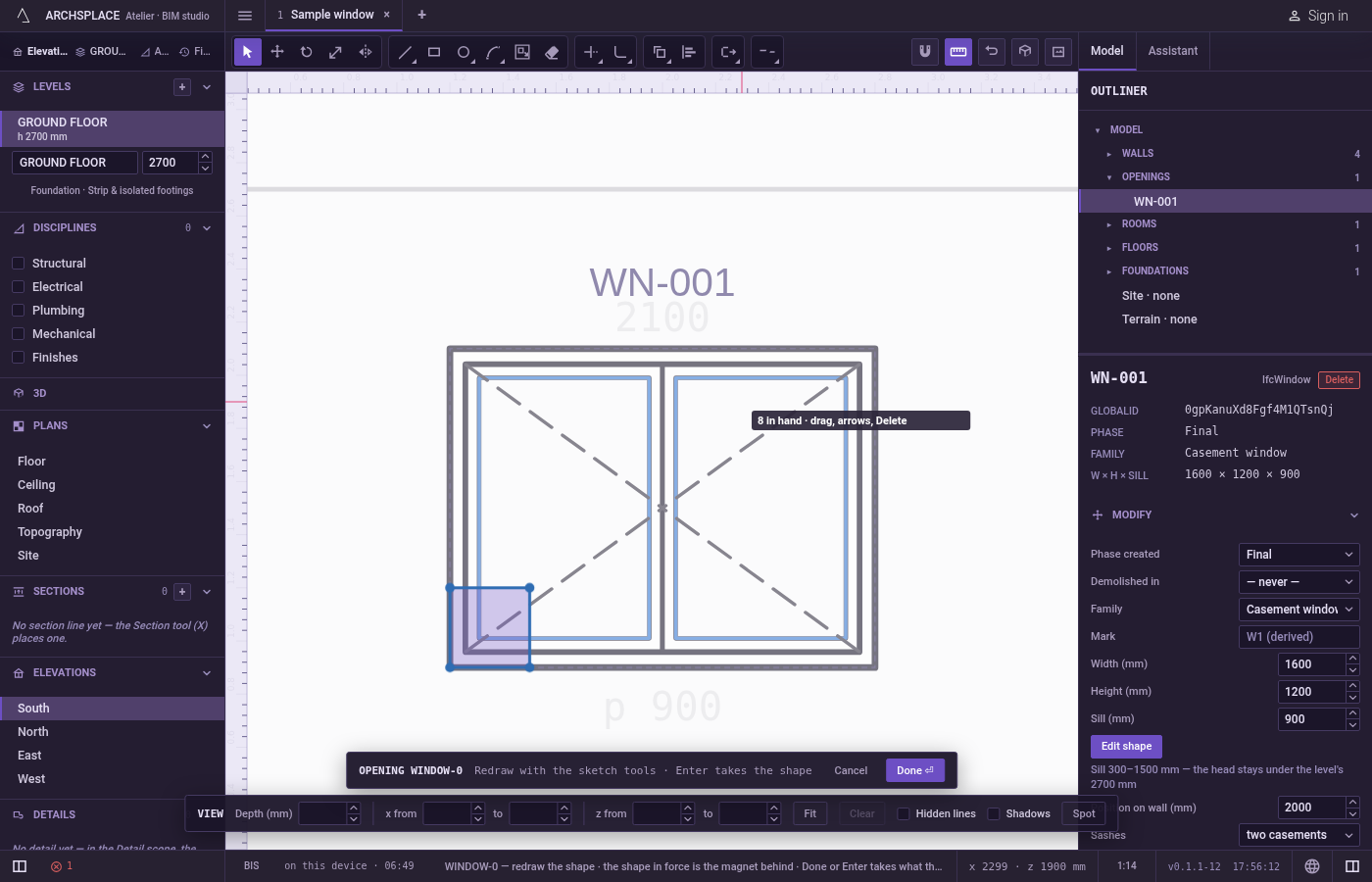
Pick Array. Type
Aand thenRquickly, or click Array on the toolbar of the editor. The hint at the cursor tells you to repeat the selection in rows and columns, or around a centre, by typing3x2x0.5x0.4or a count and an angle.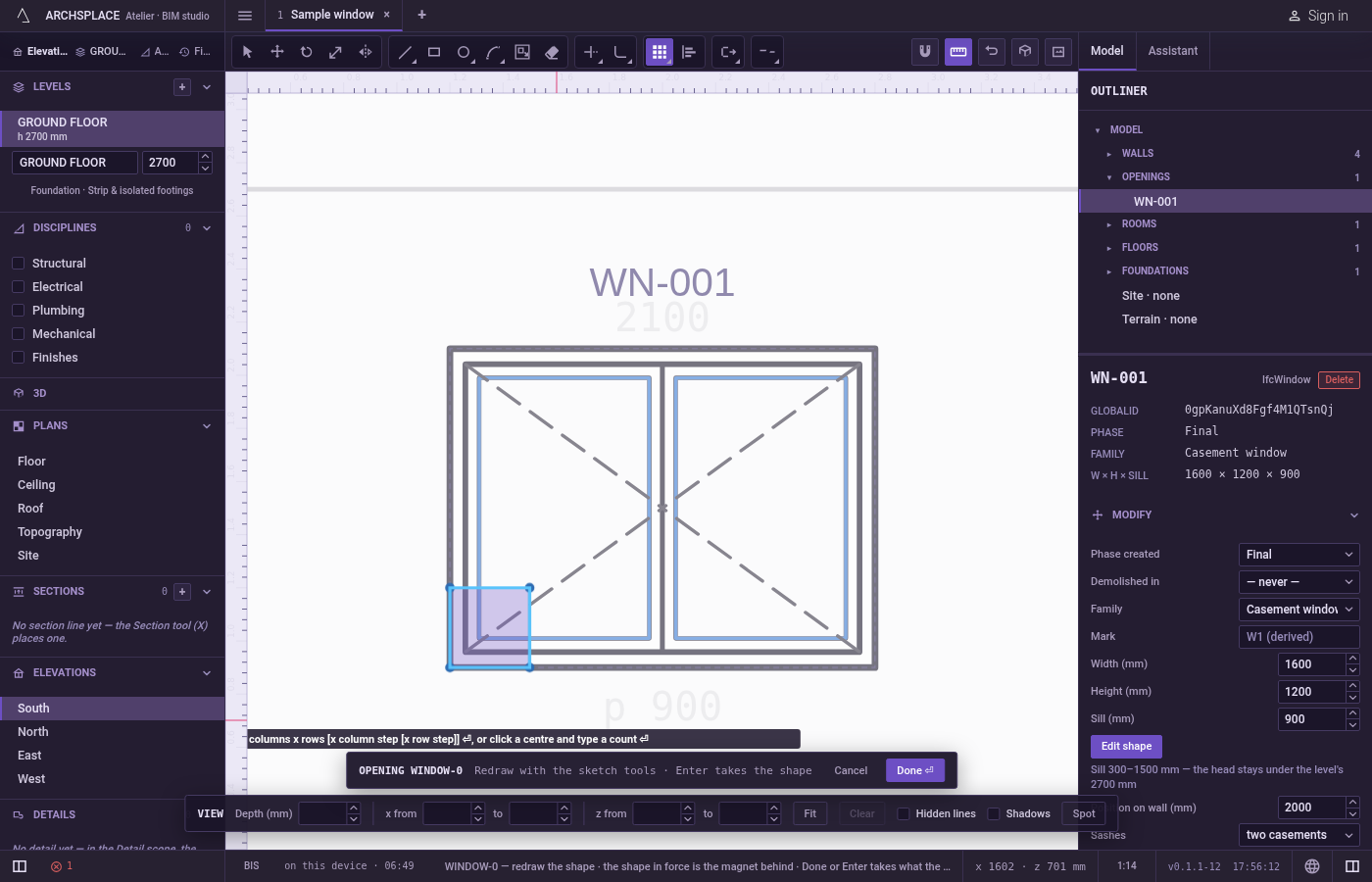
Pick the lines, if none are selected. Click lines to add them,
Shiftwith a click to take one out again, drag a box to the right for the lines lying fully inside or to the left for every line it touches, or pressFfor a fence. PressEnterwhen done.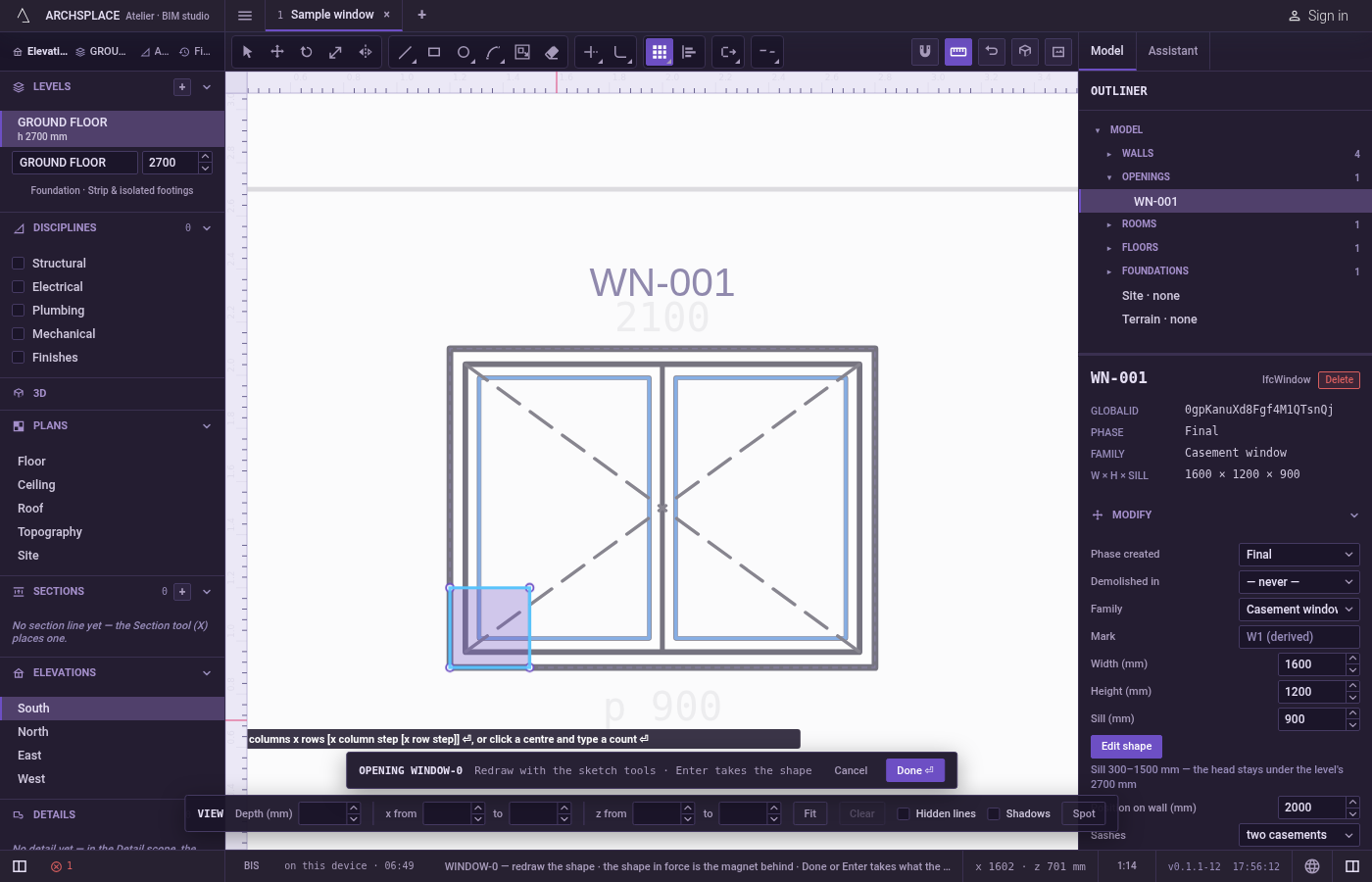
For rows and columns, type the grid. Type the columns,
x, the rows, and pressEnter:3x2. Add the spacing from one item to the next in the project units:3x2x0.5uses 0.5 both ways,3x2x0.5x0.4sets the columns and the rows apart. A negative spacing lays the copies the other way. While you type, the copies are previewed and the hint says how many items there will be in all.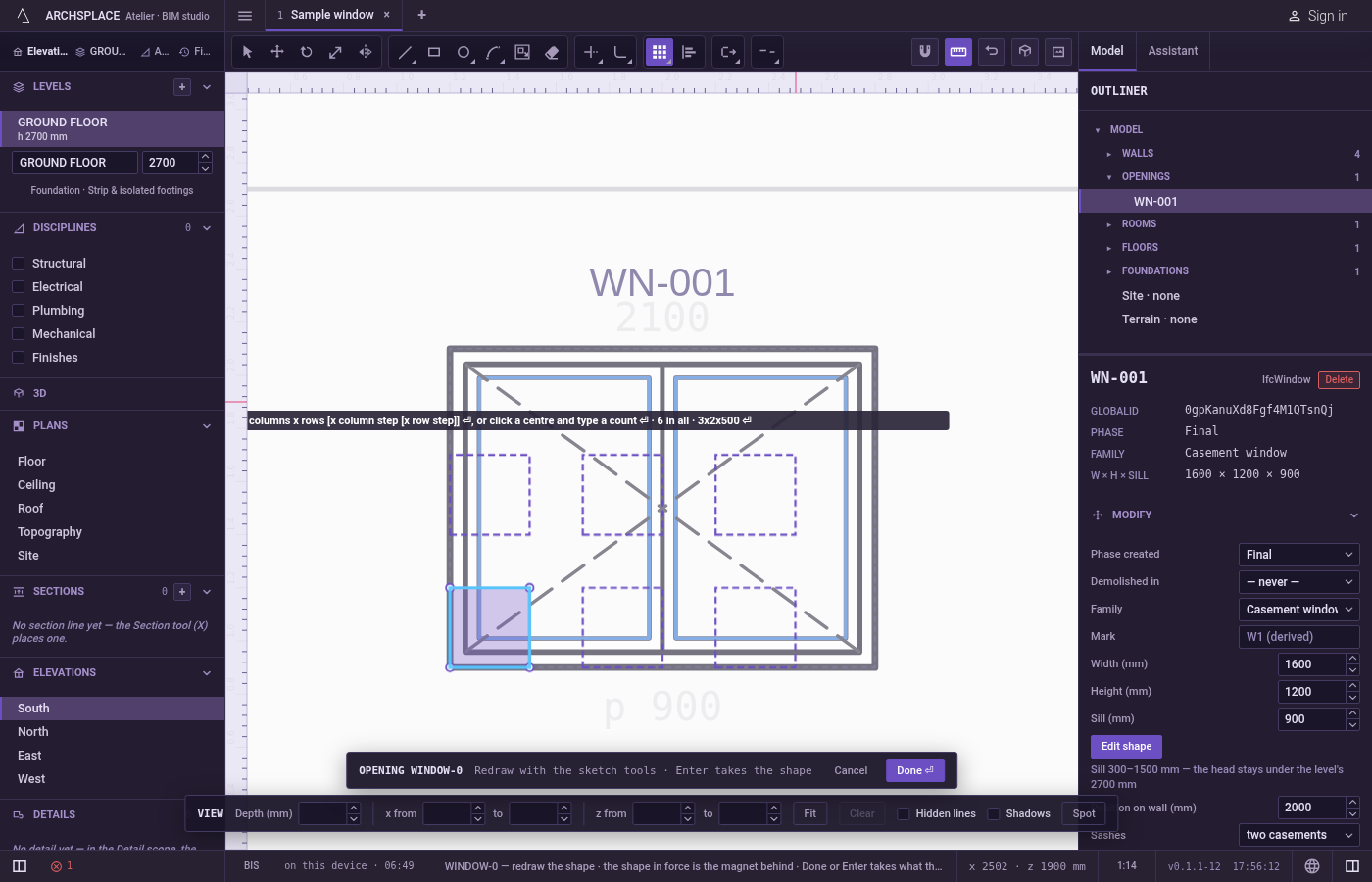
Or, around a centre, click it and type the count. Click the centre; it snaps like every point of the editor, and you can also type it as
x;y. Then type the count and pressEnterto spread the items evenly over a full turn, or the count,xand an angle in degrees to spread them over that angle, with the last item landing at its end:6x180. A negative angle turns clockwise. PressRbeforeEnterto keep every copy upright; the hint says items keep their bearing.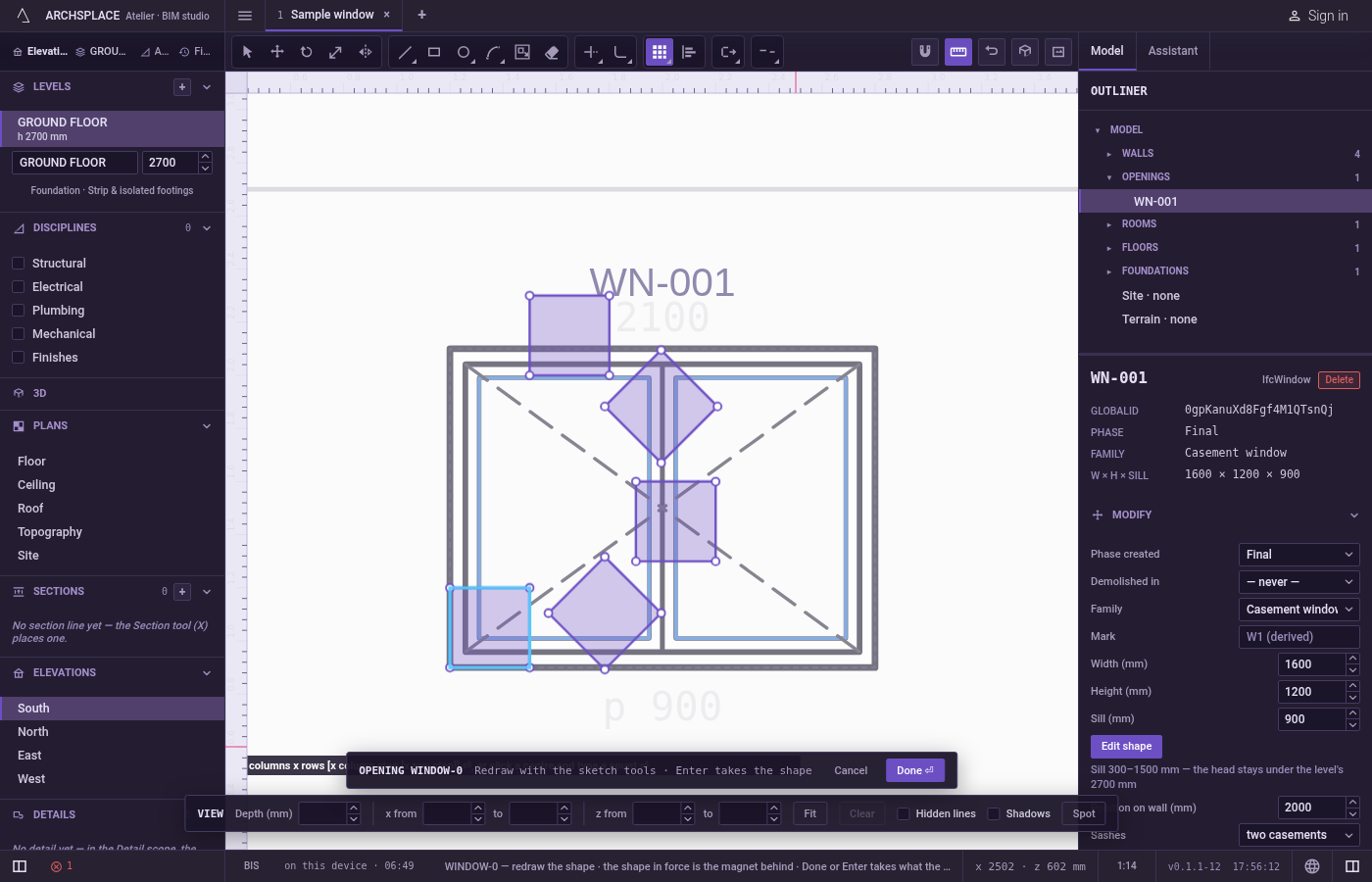
Carry on. The copies are added, the originals stay selected, and you can type another array.
Escapedrops the centre, then goes back to Select.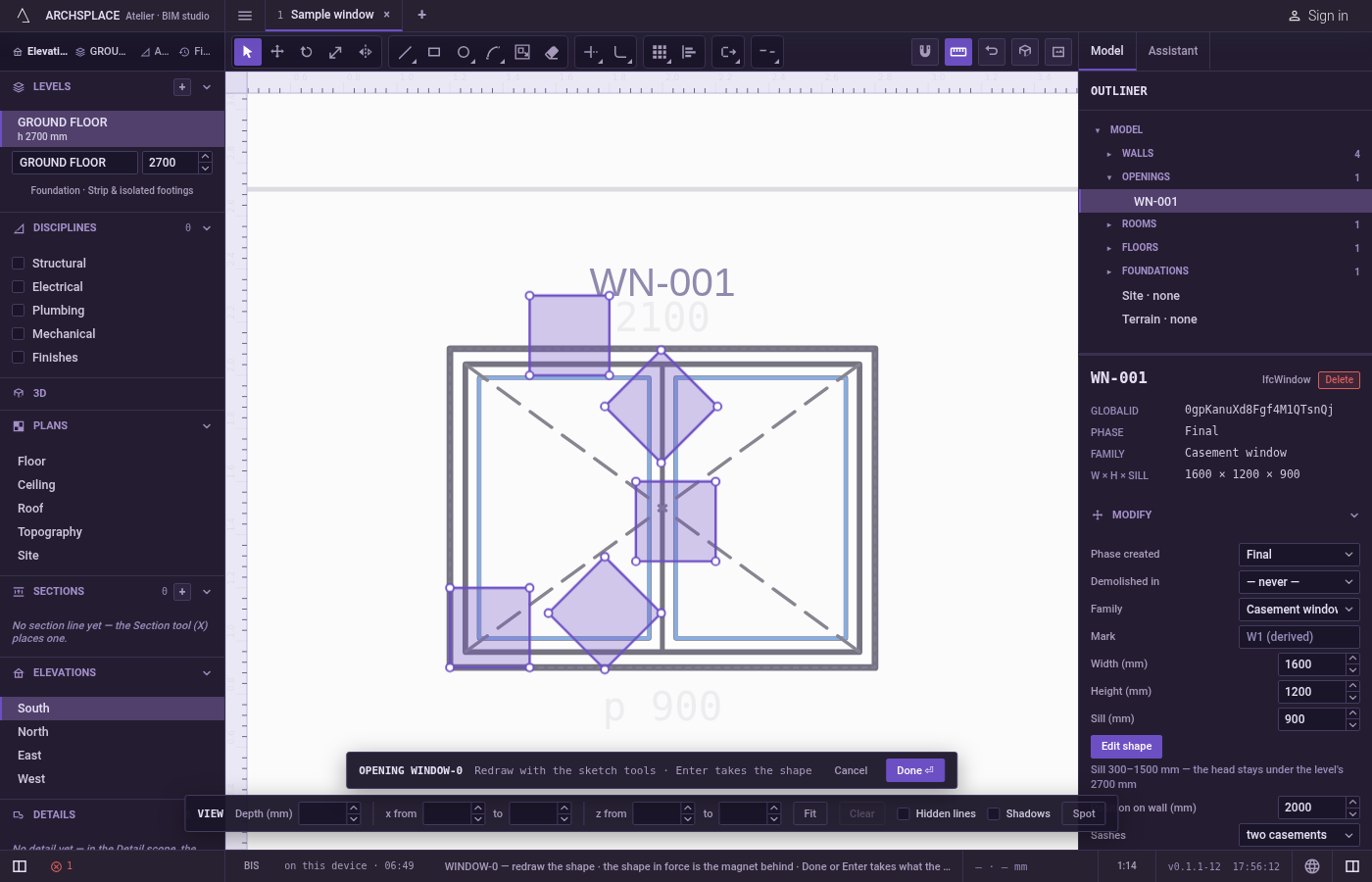
What it refuses
- An empty or oversized array. A count below one, or more than 2,500 items, is refused with that array is empty or too large.
- Counts with nothing selected. Until at least one line is picked, typed counts are not taken and
Enterasks again for objects to be selected. - Part of a line. Every item is a whole line as drawn.
- The shape in force. The dimmed shape behind your drawing cannot be repeated.
What it writes to the contract
Nothing until you press Done. The whole array is one step inside the editor, and Ctrl+Z takes it back in one go. The contract changes when you press Done, or Enter with nothing in progress, as one step that you can undo: what the lines enclose becomes the profile of the window or door, points [u, v] in metres across the wall and up from the floor, or the outline of the pattern area in the floorAreas or ceilingAreas of the room, points [x, y] in plan metres.
Done takes exactly one outline, so items that stand apart are refused as several outlines. An array helps only where its items cross or touch so as to close one outline, such as the lobes of a rosette drawn over one another.
Common questions
How do I lay out three columns and two rows 50 by 40 centimetres apart?
Select the lines, press A and then R, type 3x2x0.5x0.4 and press Enter. The counts include the original, so this adds five copies.
What spacing is used if I type only the counts?
The width and height of what you selected, so the copies just touch one another.
How do I spread copies around a centre?
After picking the lines, click the centre, type the count and press Enter for a full circle, or the count, x and an angle in degrees for part of a turn. Press R before Enter to keep every copy upright instead of turning it.