PlanSLin the studio
Scale
Scale enlarges or reduces the layout of what you have selected about a base point, by the ratio between a reference length and the new length you show, or by a factor you type. With Ctrl pressed it scales a copy and keeps the original.
What it is
Scale changes the size of a layout. Every point of what you have selected moves along the line from the base point, by the same factor: the ratio between the new length you show and the reference length you clicked. You may type the factor instead, 2 to double, 0.5 to halve.
What gets scaled is the position of things, never what they are made of. A wall keeps the thickness of its type, a column its section, a sanitary appliance and an electrical point their size; a wall becomes longer or shorter because its ends move. Walls, pipes and beams that meet the scaled ones stay joined to them. With Ctrl pressed, Scale leaves the original and scales a copy.
When to use it
- To bring a plan drawn at the wrong size to its true dimensions, from one length you know.
- To enlarge or reduce the layout of a room as a whole.
- To make a scaled copy of a group of elements.
The steps
Select what is to be scaled. Select the elements with Select.
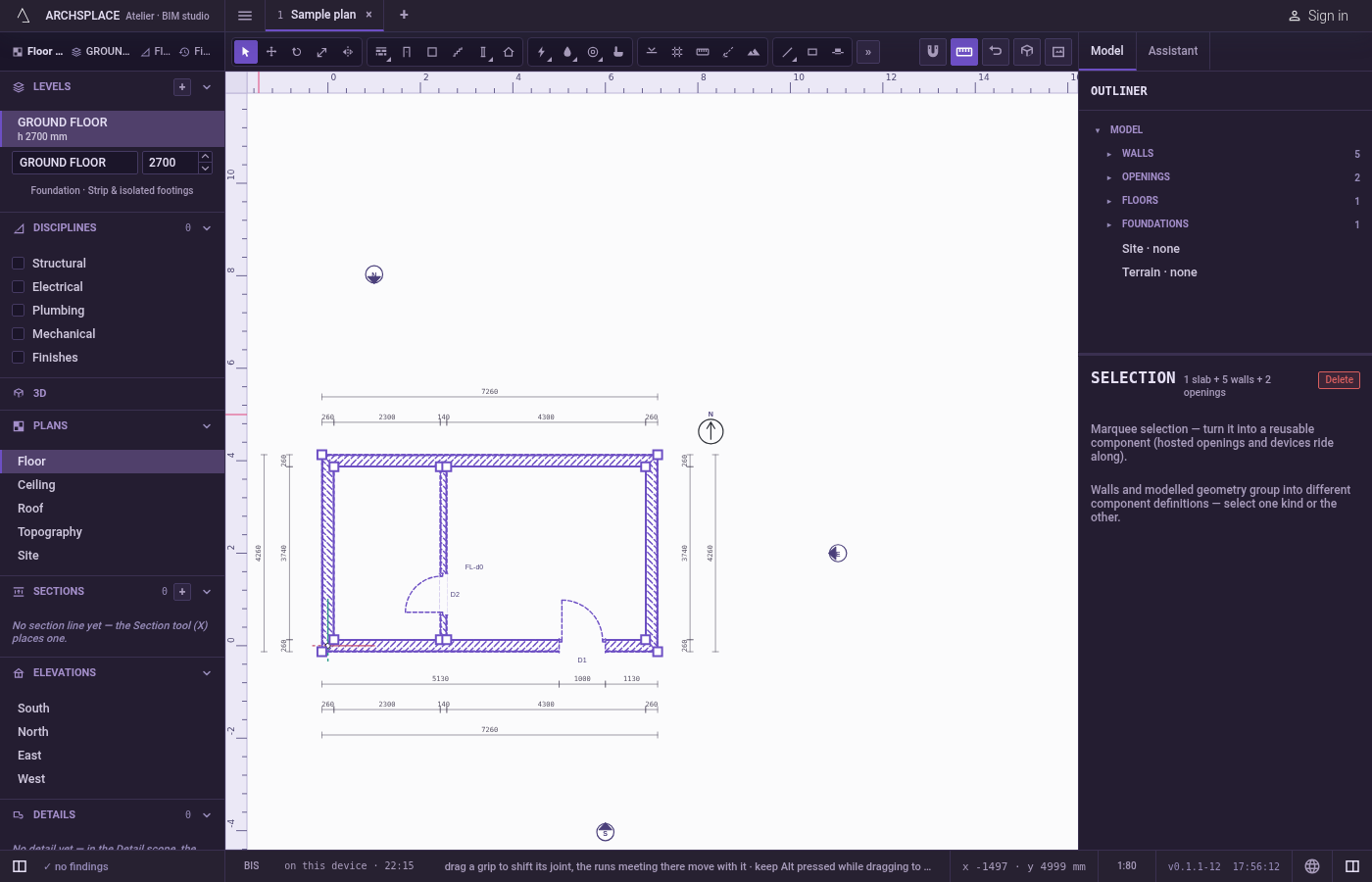
Pick the tool. Type
Sand thenLquickly, or click the Scale button (it may be in the overflow menu of the toolbar when the window is narrow).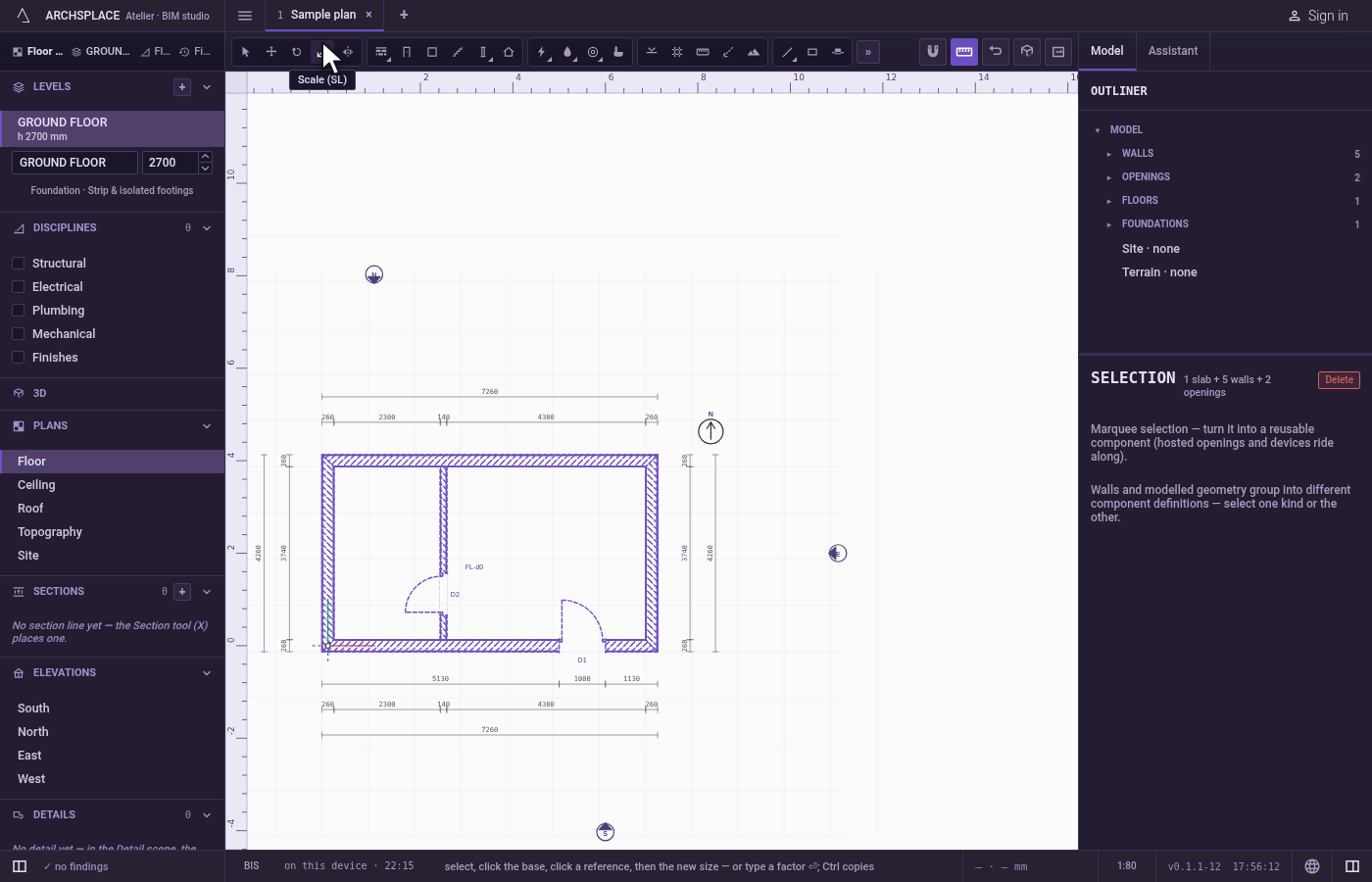
Click the base point. The base point stays where it is, and everything else moves towards it or away from it. The magnet holds the click on the nearest corner or midpoint. If your first click lands on one of the elements rather than on empty space, it picks what is to be scaled, and the base point becomes the next click.
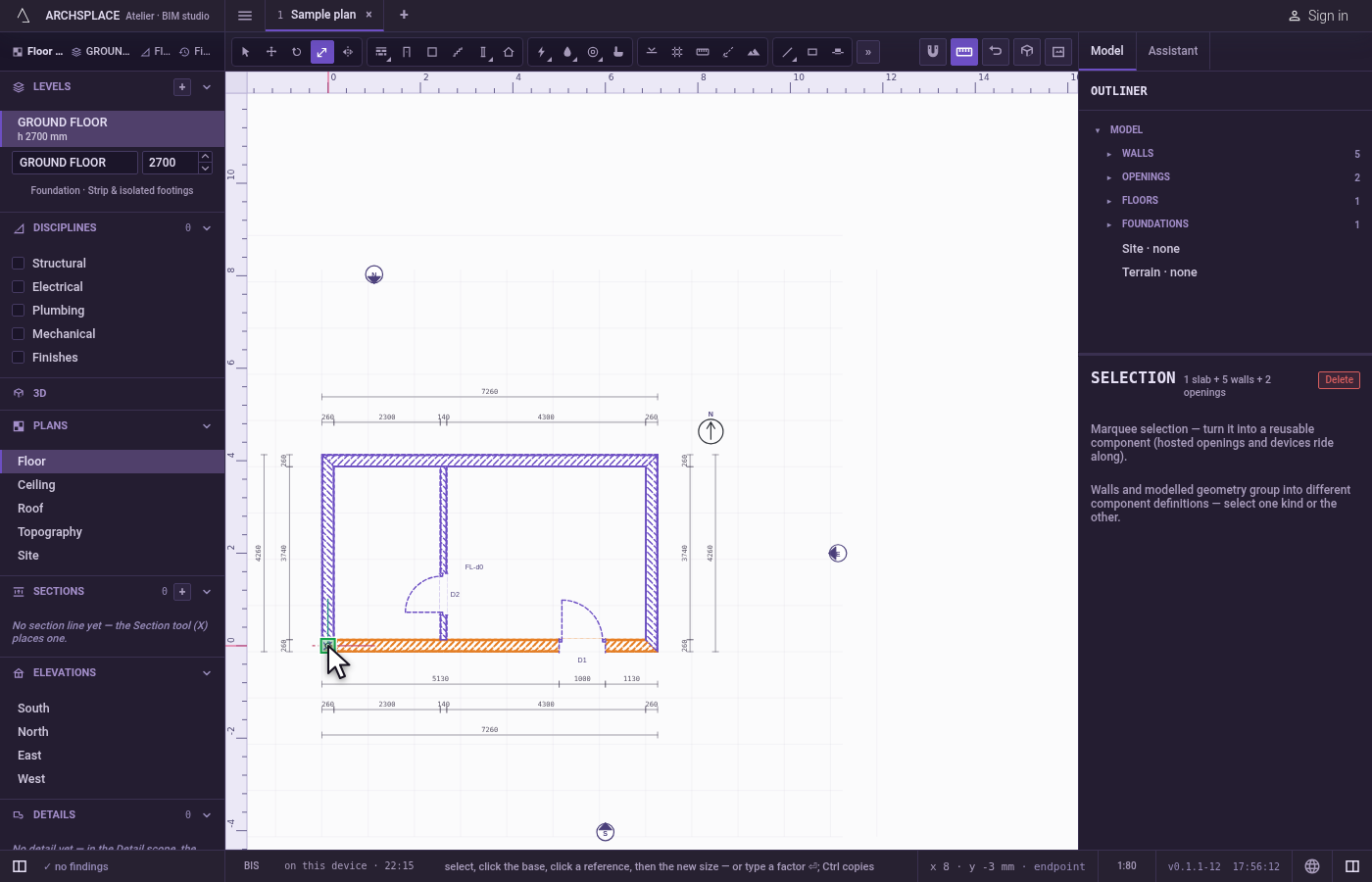
Click the reference. Click a second point. The distance from the base point to this point is the reference length.
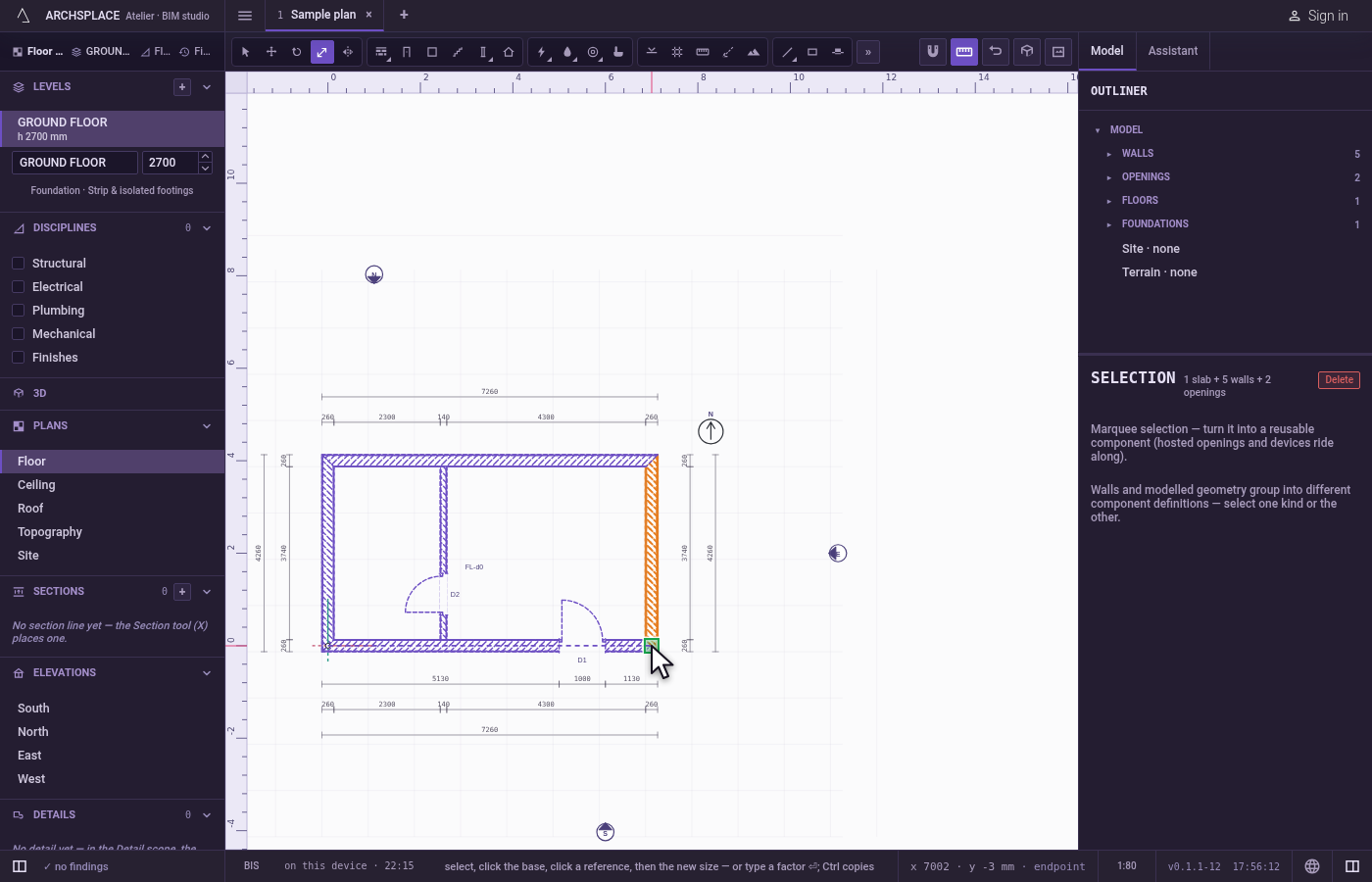
Show the new length, or type a factor. Move the cursor: a ghost of the selection grows and shrinks with the distance from the base point. Click where the reference point should now be. Or type a factor and press Enter. Keep
Ctrl(⌘on a Mac) pressed as you click or press Enter to scale a copy.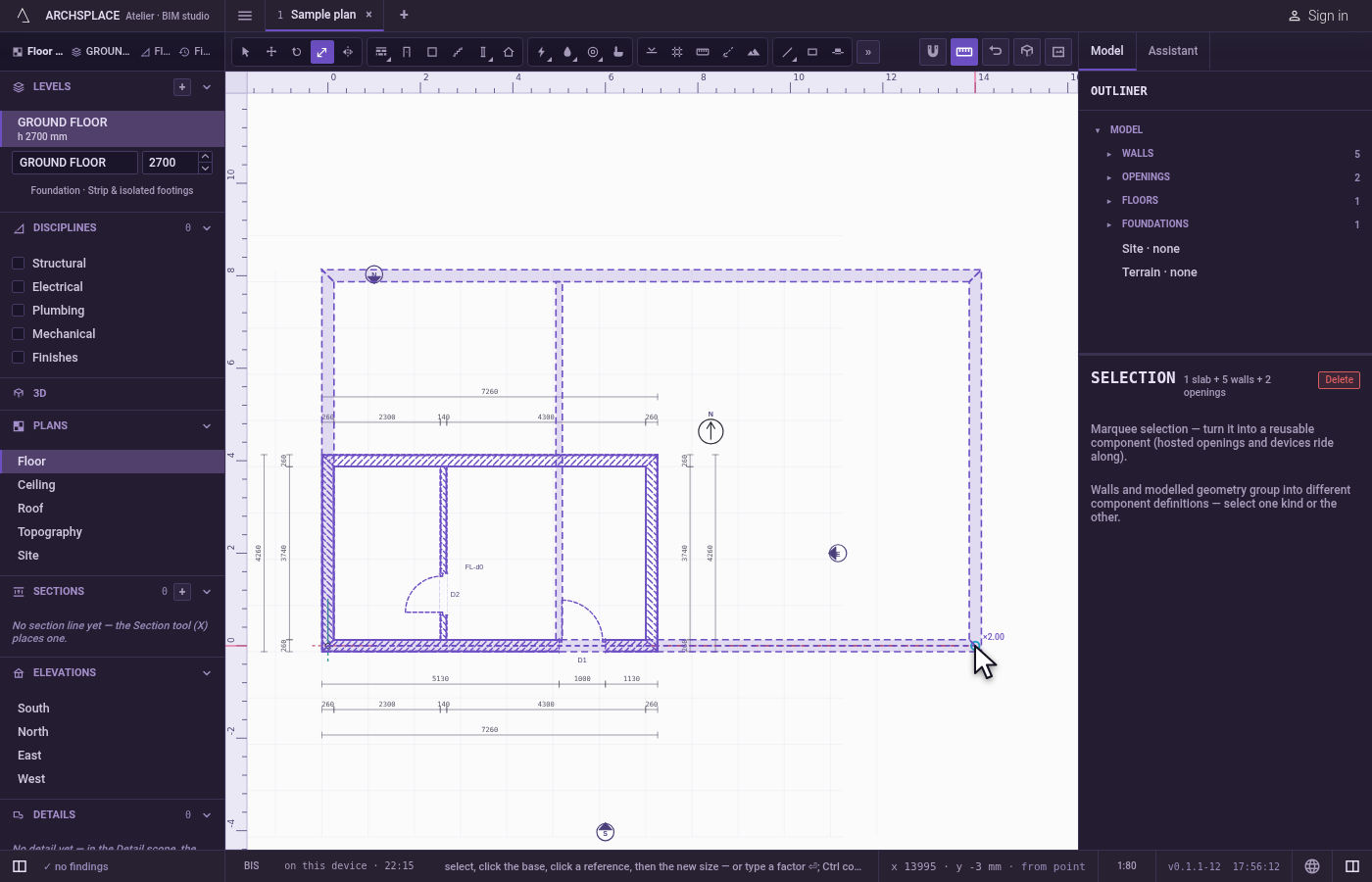
What it refuses
- A hosted element on its own. A window, a door or a point on a wall belongs to its wall. Scaled on its own, it stays as it was and a message asks you to scale the wall instead.
- The size of a component. A component instance never changes its size on the plan: a message asks you to enter the component to scale its geometry.
- A factor of one, or of zero. A click that brings no change, or a typed factor of zero or less, writes nothing.
- A scale that would break a joint. If a wall, a pipe or a beam would end up shorter than one centimetre, nothing changes and the studio gives the reason.
What it writes to the contract
One step, which one undo reverses. Every scaled element receives its new points: the two ends of a wall, the position of a column, the point of a room, the walk line of a stair, the corners of a roof. Sizes are not written: no thickness, no section and no appliance size changes. A copy adds new entries at the end of their lists instead.
Concepts
Common questions
Does Scale make my walls thicker?
No. Scale moves the points of what you have selected away from or towards the base point. A wall keeps the thickness of its type, a column its section and a sanitary appliance its size; only their positions and the lengths of the walls change.
How do I scale a traced plan to a known length?
Select what you have drawn, press S and then L, click one end of a length you know, click its other end as the reference, then click where that end should be at the true length. Everything selected is enlarged or reduced by that ratio.