3DFin the studio
Offset
Offset draws a copy of the outline of a face at an even distance inside or outside it, in the 3D view, holes and curves included. It works on a face of drawn lines, on a face of a body, or on lines you selected first.
What it is
Offset draws new lines parallel to an outline, at the same distance all the way round. On a face it offsets the outer outline and every hole together. Arcs remain arcs: an offset circle is a circle.
The new lines are drawn lines like any other. On a face of drawn lines they split it into a band and an inner face; on a face of a body they are taken in by the body and split its face in the same way. Either way you can then push or pull the parts on their own.
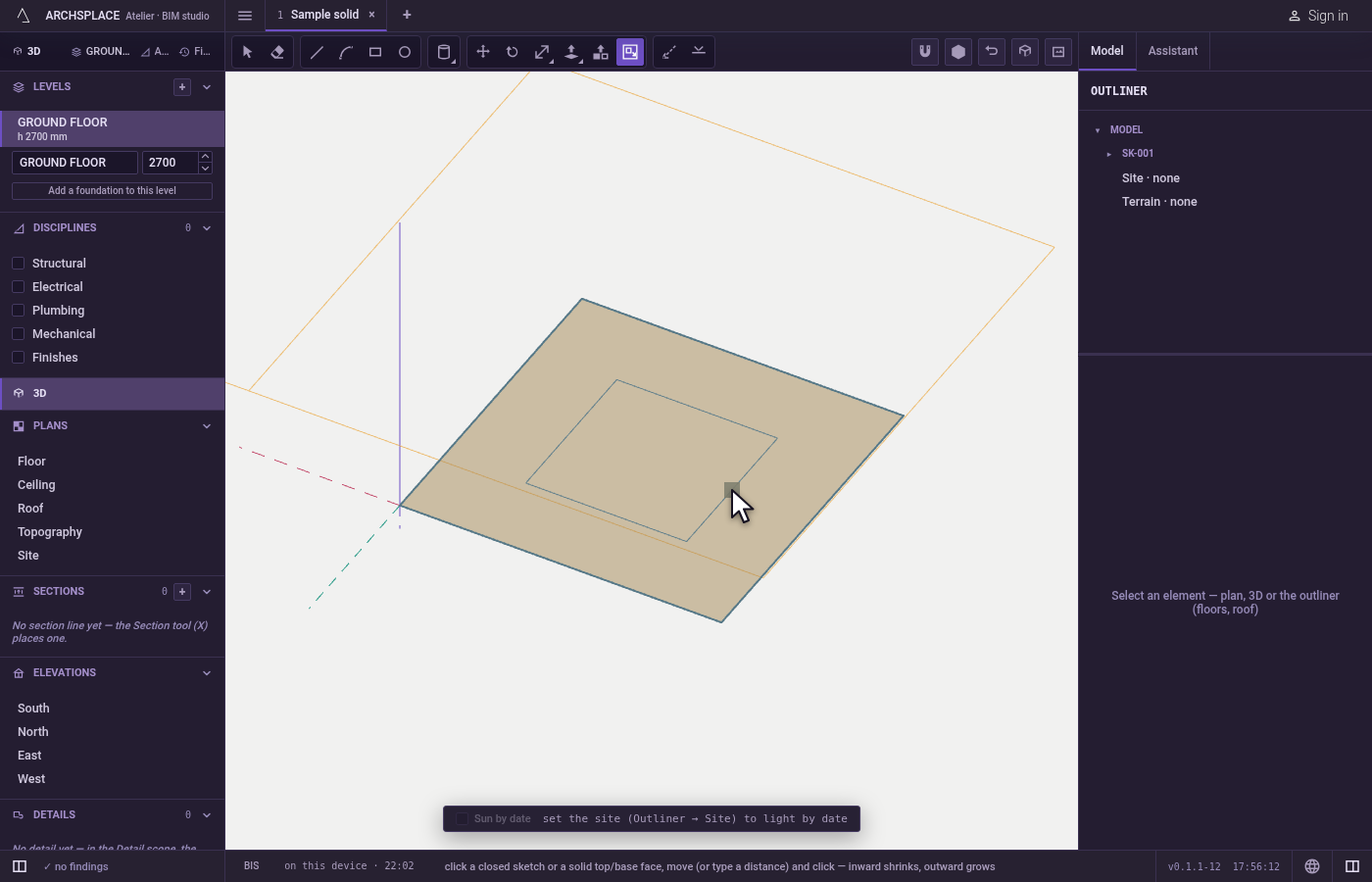
Before the click the face under the pointer is highlighted in orange. Once a face is picked, the new outline follows the pointer as a ghost; the distance is read from the pointer, and it snaps to corners, midpoints and edges on the plane of the face.
When to use it
- To draw a frame inside a face, then push the middle in to make a panel or a recess.
- To draw a border around a face before pulling it out.
- To offset a few chosen lines, such as the edge of a terrace, as one chain.
The steps
Choose what to offset. To offset only some lines, select them first with Select; otherwise go straight to the tool.
Pick the tool. Press
F, or click Offset.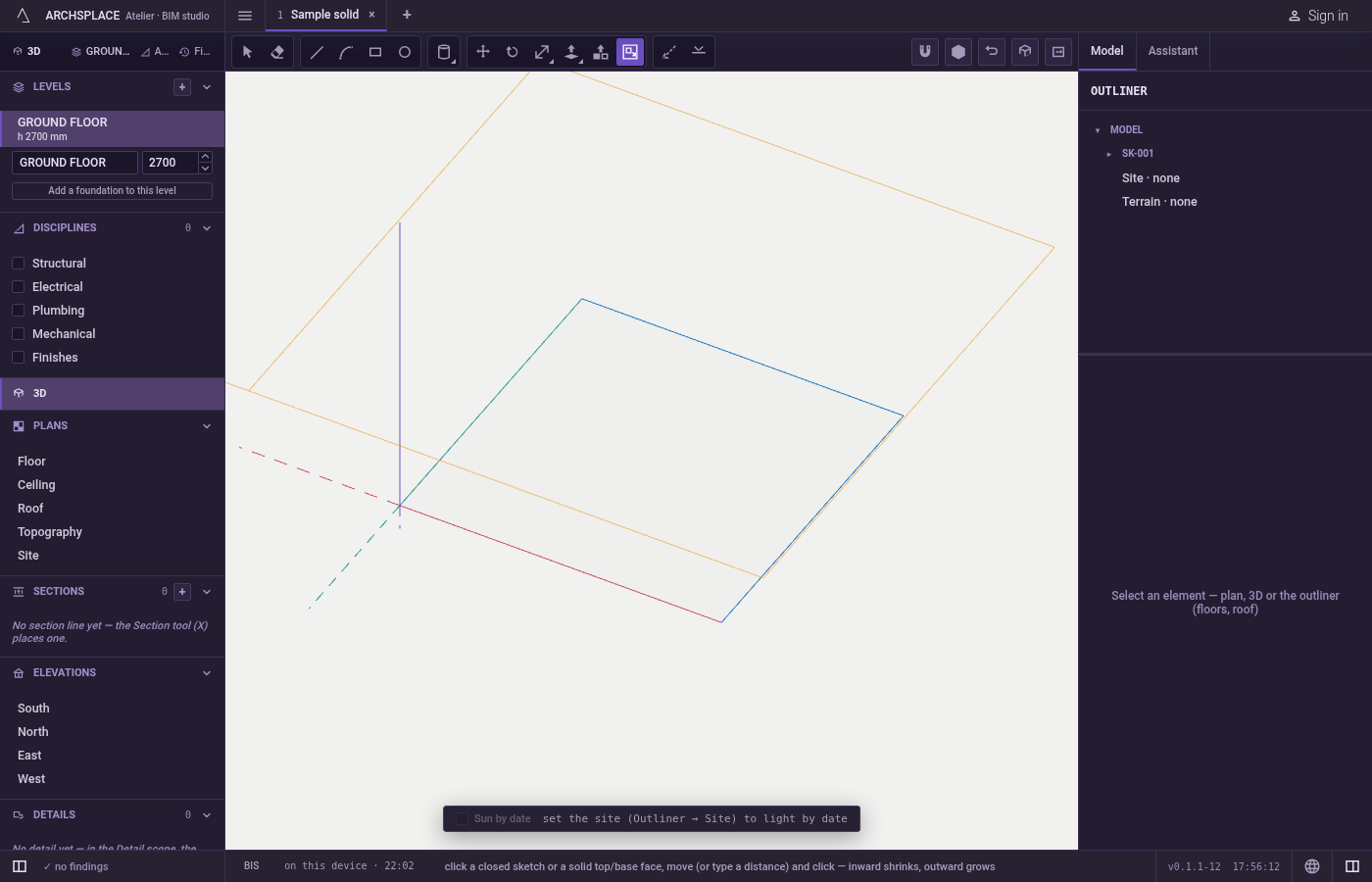
Click the face. It is highlighted in orange before the click. With lines selected first, a click anywhere picks them as a chain.
Move in or out. The new outline follows the pointer: inwards shrinks it, outwards enlarges it.
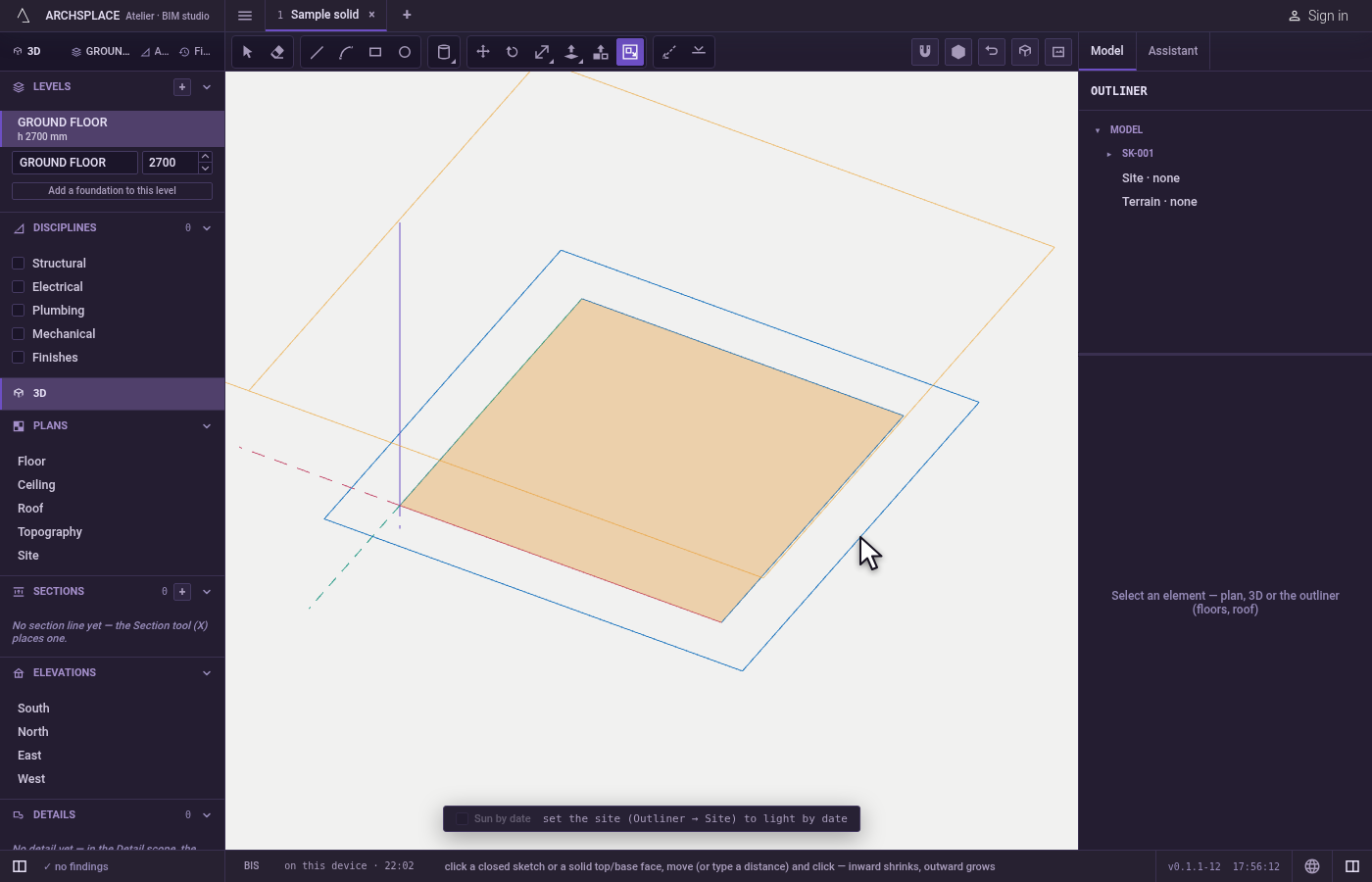
Confirm. Click, or type the distance and press
Enter; a typed distance goes towards the side the pointer is on. A double click on a face repeats the last distance.Escapereleases it.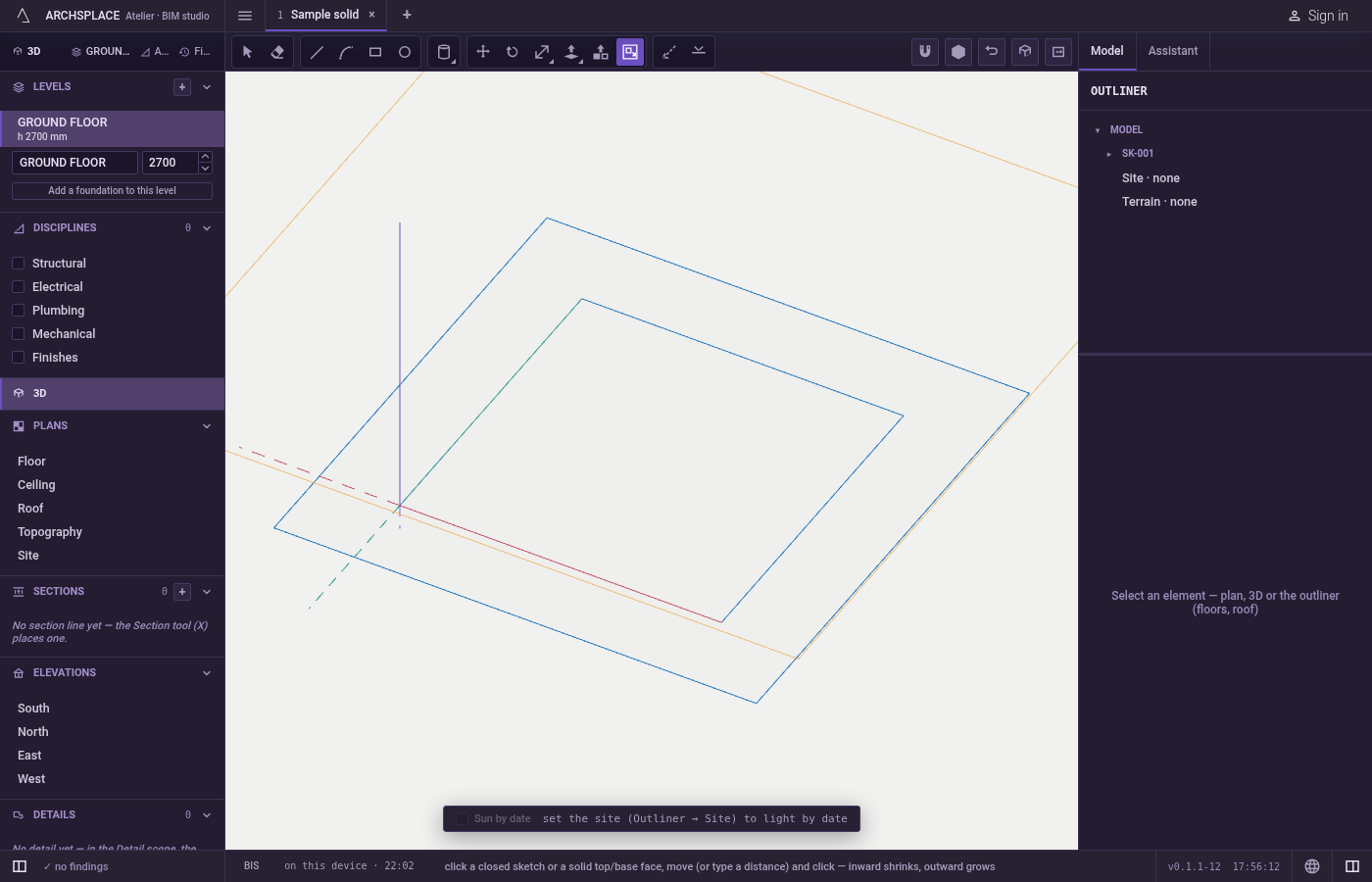
What it refuses
- A distance that collapses the outline. An offset that would shrink the outline to nothing draws nothing, and a notice asks you to use a smaller distance.
- Lines that do not form one chain on one plane. Selected lines are offset together only when they belong to the same drawn lines, join end to end and lie on one plane; otherwise the click picks the face under the pointer instead.
- Walls, slabs and roofs. Their faces are not offset by this tool; a click on them does nothing.
What it writes to the contract
One offset is one undoable step that adds the new lines to the modelled geometry of the model, or of the component you have open. Where they cross other lines they split each other, and on the face of a body they become part of the body, splitting that face.
Common questions
How do I make a frame inside a face?
Pick Offset (F), click the face, move inwards and click, or type the width of the frame and press Enter. The new outline splits the face into a frame and an inner face that you can push in.
Can I offset only some edges?
Yes. Select the edges first, all from the same drawn lines and on one plane, then pick Offset: they are offset together as one chain, wherever you click.
Does an offset arc remain an arc?
Yes. An arc or a circle offsets to one curve again, so it can still be picked and erased as a whole.