SketchLin the studio
Line
Line draws a chain of straight lines in the sketch editor, one corner per click or per typed length. A click back on the first corner, or C, closes it into an outline, and Enter ends it open.
What it is
Line draws straight lines from corner to corner in the sketch editor. Every click places a corner and the next line starts there, so a run of clicks makes one chain. The chain closes into an outline when you come back to its first corner, or it stays open when you end it. From the third corner onwards, the shape in progress is drawn filled, closed back to the pointer, so that you can see the outline you are about to make.
The dimmed shape in force behind your drawing is a magnet: its corners, midpoints and edges, those of your own lines and their crossings all attract the pointer, and so do the lines of the view.
When to use it
- To draw a new outline with straight sides, such as a pointed window, a trapezium or an L-shaped area.
- To add a single straight line across a shape, to divide it or to trim against later.
The steps
Pick Line. In the sketch editor (see Select for the ways in), press
Lor click Line on the toolbar of the editor. Its button lights up on the toolbar. The hint at the cursor says first point.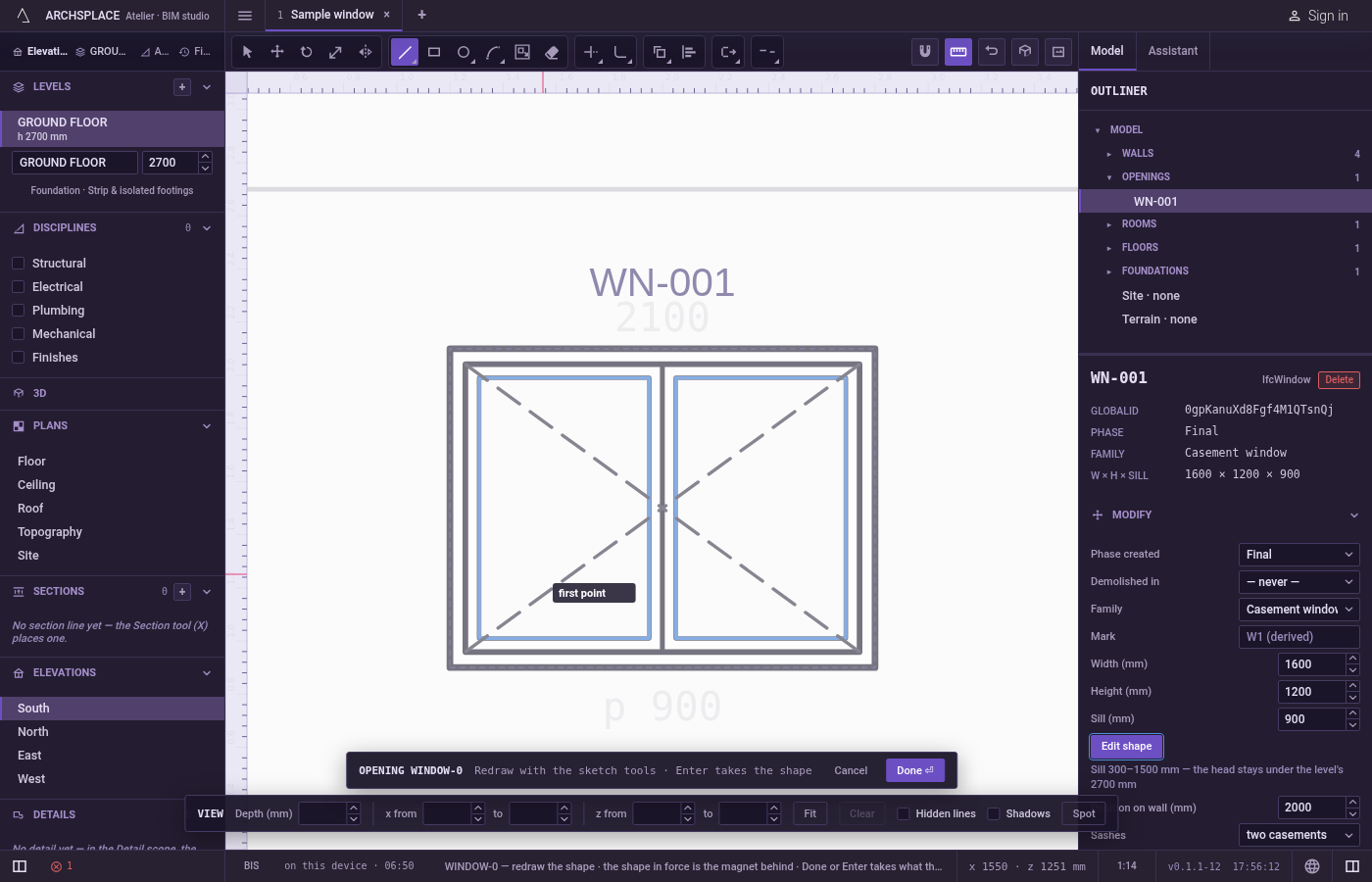
Click the first corner. It snaps to whatever is near, and the snap shows on the pointer.
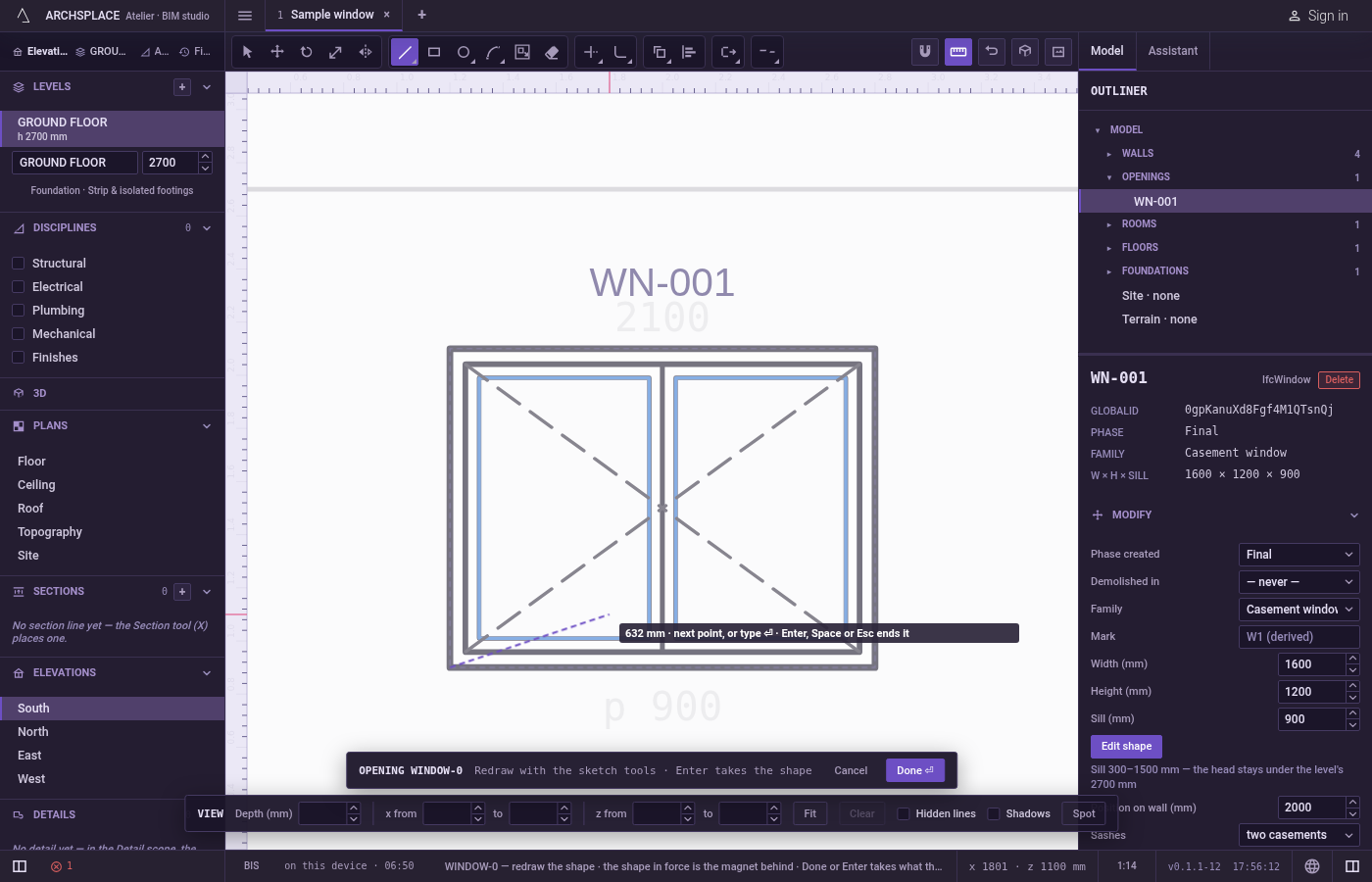
Click the next corners. A line follows the pointer from the last corner and the hint shows its length. Every click places a corner. You can also press, drag and release: the release places the next corner. For an exact length, point in the direction of the next side, type the length in the project units and press
Enter.Backspaceremoves the last character typed, or, with nothing typed, the last corner placed.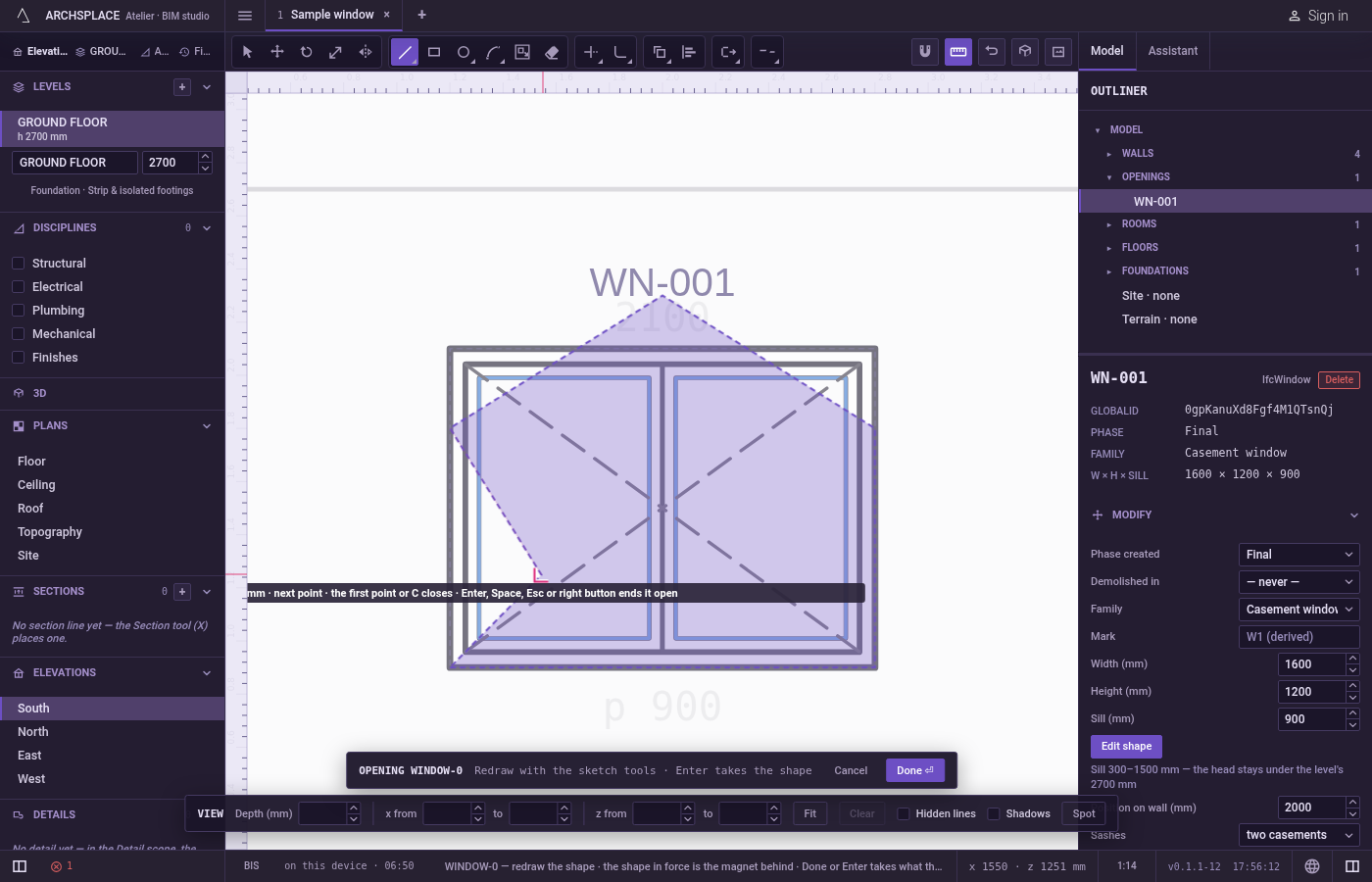
Close the outline. Click the first corner again, or press
Conce there are at least three corners. The closed outline stays, and Line is ready for a new chain.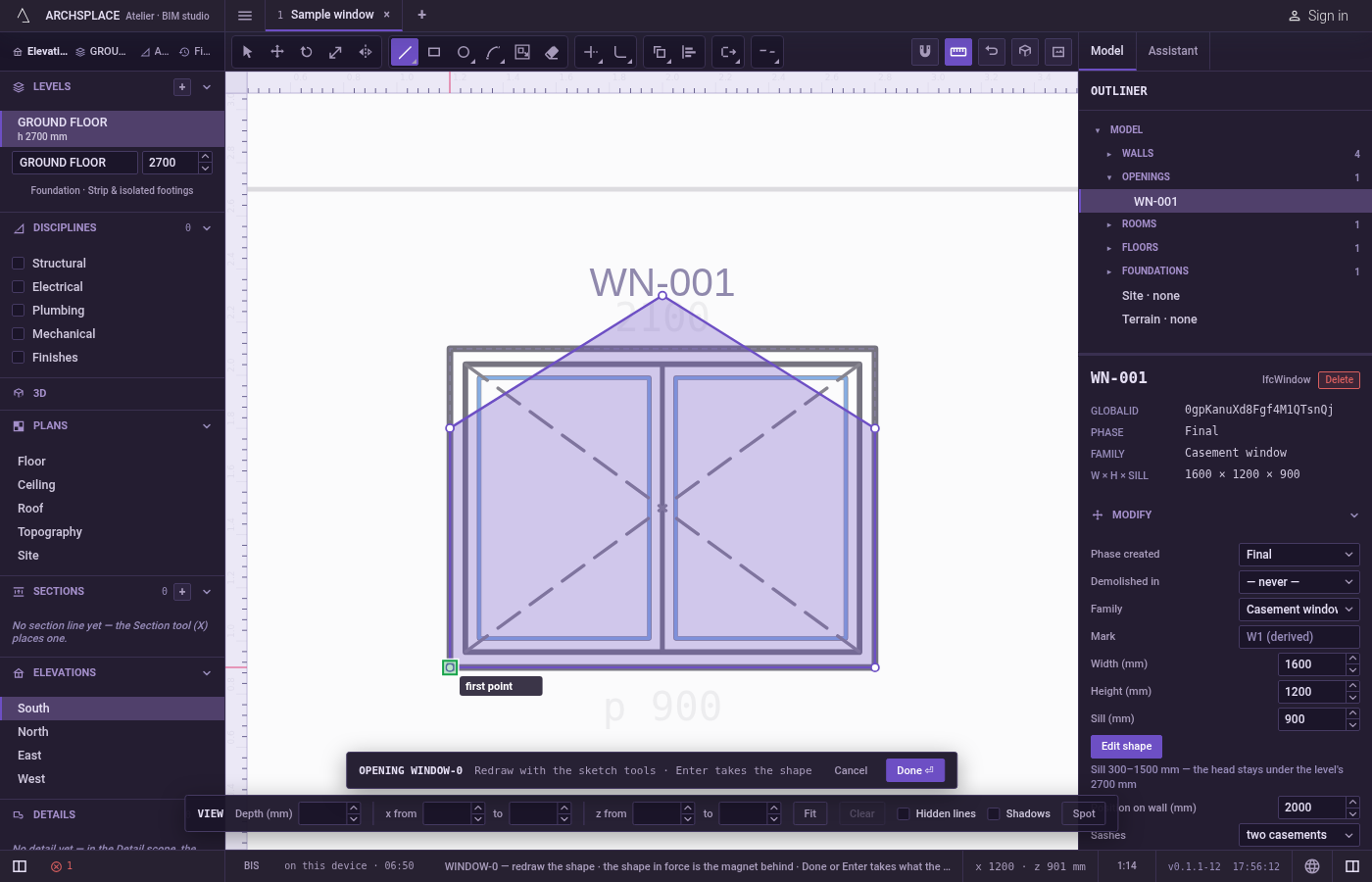
Or end it open. Press
Enteror click the right mouse button to end the chain where it is and stay in Line.SpaceorEscapealso end it open and go back to Select. A chain needs two corners to remain; with a single corner,Escapedrops it.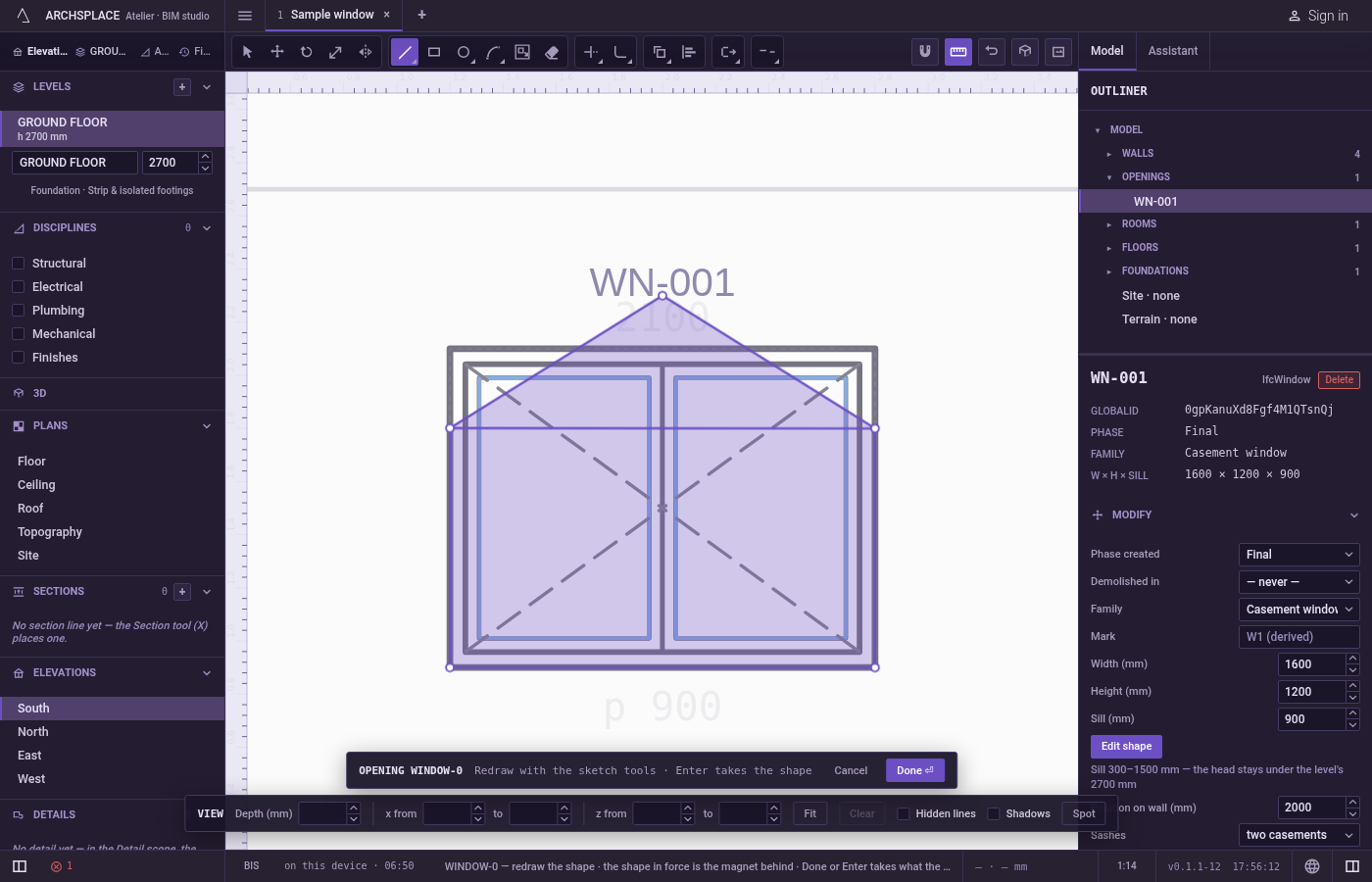
What it refuses
- The same corner twice in a row. A click on the last corner does nothing.
- A length typed before the first corner. Digits count only once a chain has started. Typed before that, they are dropped.
- Coordinates. Line takes a length along the pointer, not a point typed as numbers. To type points, use Polyline.
- Closing with too few corners.
Cneeds three corners; with two, it does nothing.Enterwith only one corner does nothing either. - The shape in force. Your lines snap to it but never change it. It is not part of your drawing unless you draw over it.
What it writes to the contract
Nothing until you press Done. Every chain is added to the drawing inside the editor, with its corners rounded to the nearest millimetre, and Ctrl+Z goes back through them. The contract changes when you press Done, or Enter with nothing in progress, as one step that you can undo. Done reads every area your lines enclose, wherever they cross or touch, and it must find exactly one outline with no island. That outline becomes the profile of the window or door, points [u, v] in metres across the wall and up from the floor, or the outline of the pattern area in the floorAreas or ceilingAreas of the room, points [x, y] in plan metres. A pointed opening drawn with five corners comes out like this:
Common questions
How do I close the outline I am drawing?
Click back on its first corner, or press C once you have at least three corners. Enter, Space, Escape and the right mouse button end the chain open instead.
How do I draw a side of an exact length?
After a corner, point in the direction of the next side, type the length and press Enter. The next corner lands at that distance in the direction of the pointer.
Does an open chain count as an outline?
Only where its lines enclose something together with the other lines of the drawing. Done reads every area that the lines close in, so a chain whose ends land on an existing line can complete an outline without being closed itself.