Panels
Keyboard shortcuts
Keyboard shortcuts is the section of the Settings dialog that lists every key of the atelier: the keys that are always the same, then the tools of each editor with the key that opens them. The key of a tool can be changed to one to four letters, or left empty, and a key that another tool of the same editor already uses is refused by name.
What it is
Keyboard shortcuts is one section of the Settings dialog. It opens from Help, Keyboard shortcuts, and from the Shortcuts entry in the rail of the dialog. A line at the top says how it works: a key opens a tool in the editor to which it belongs, a key that another tool of the same editor already uses is refused, and the change is kept for you on this device.
The list has two parts:
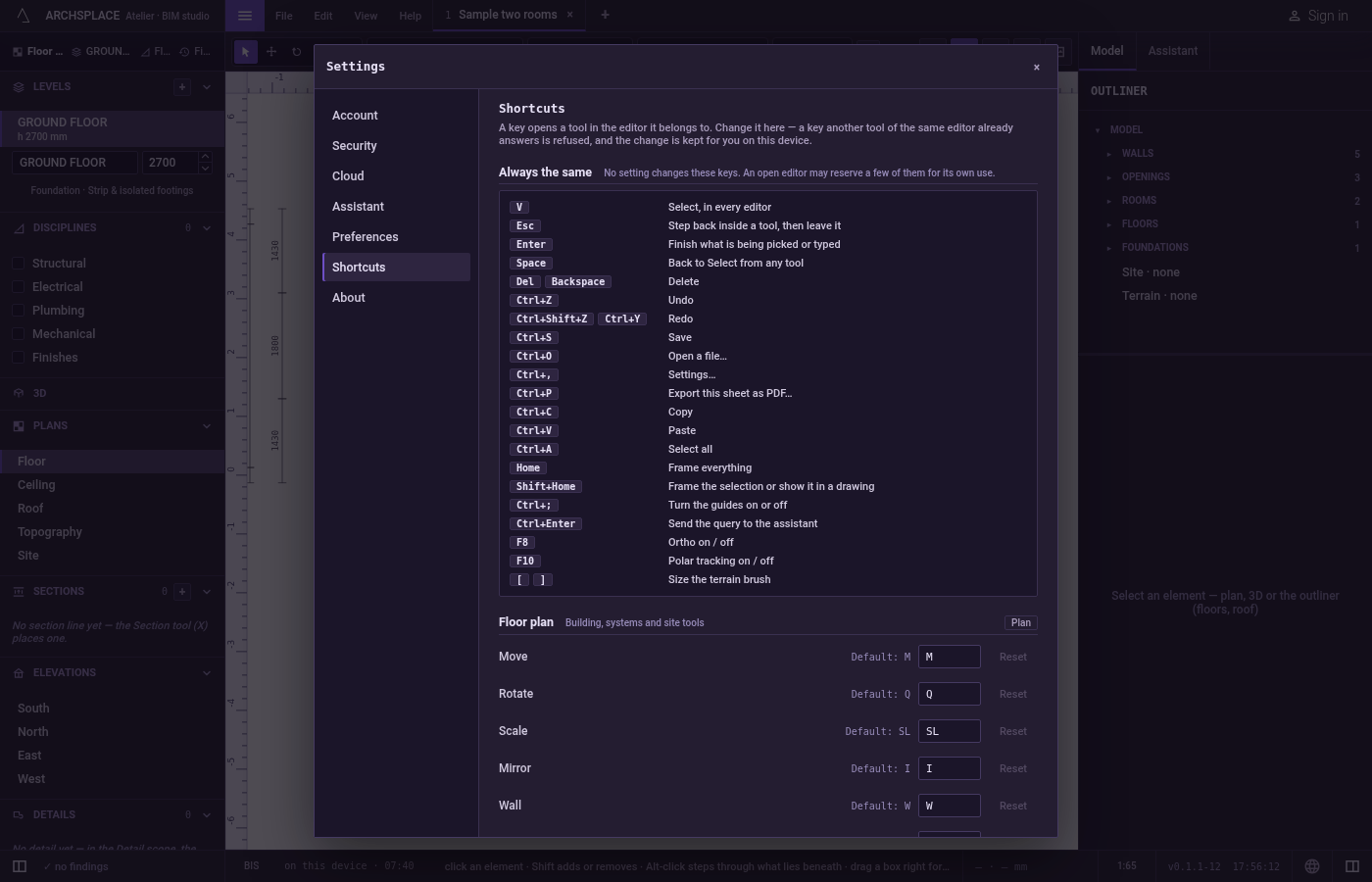
- Always the same: keys that no setting changes. Select is V in every editor; then come Escape (go back inside a tool, then leave it), Enter, Space (back to Select from any tool), Delete, Undo and Redo, Save, Open, the settings, the PDF of the sheet, Copy, Paste, Select all, Home (frame everything), Shift+Home (frame the selection), the guides, sending to the assistant, F8 for Ortho, F10 for polar tracking and the two brackets that size the terrain brush. In the installed atelier the list adds Save a copy, New project and Close the project. Each key is written the way your keyboard writes it:
Ctrl+Shift+Zon Windows and Linux,⇧⌘Zon a Mac. - One part for each editor: Floor plan (building, systems and site tools), Drawing over a view (one key each, the same on the plan, the sections, the elevations and the callouts), 3D modelling, Terrain editor, Roof editor, Sketch editor and Tile editor. Each tool stands once, with the bars on which it appears when there are several, the default key (Default: W for Wall), its own key in a field, and Reset. A changed row is marked.
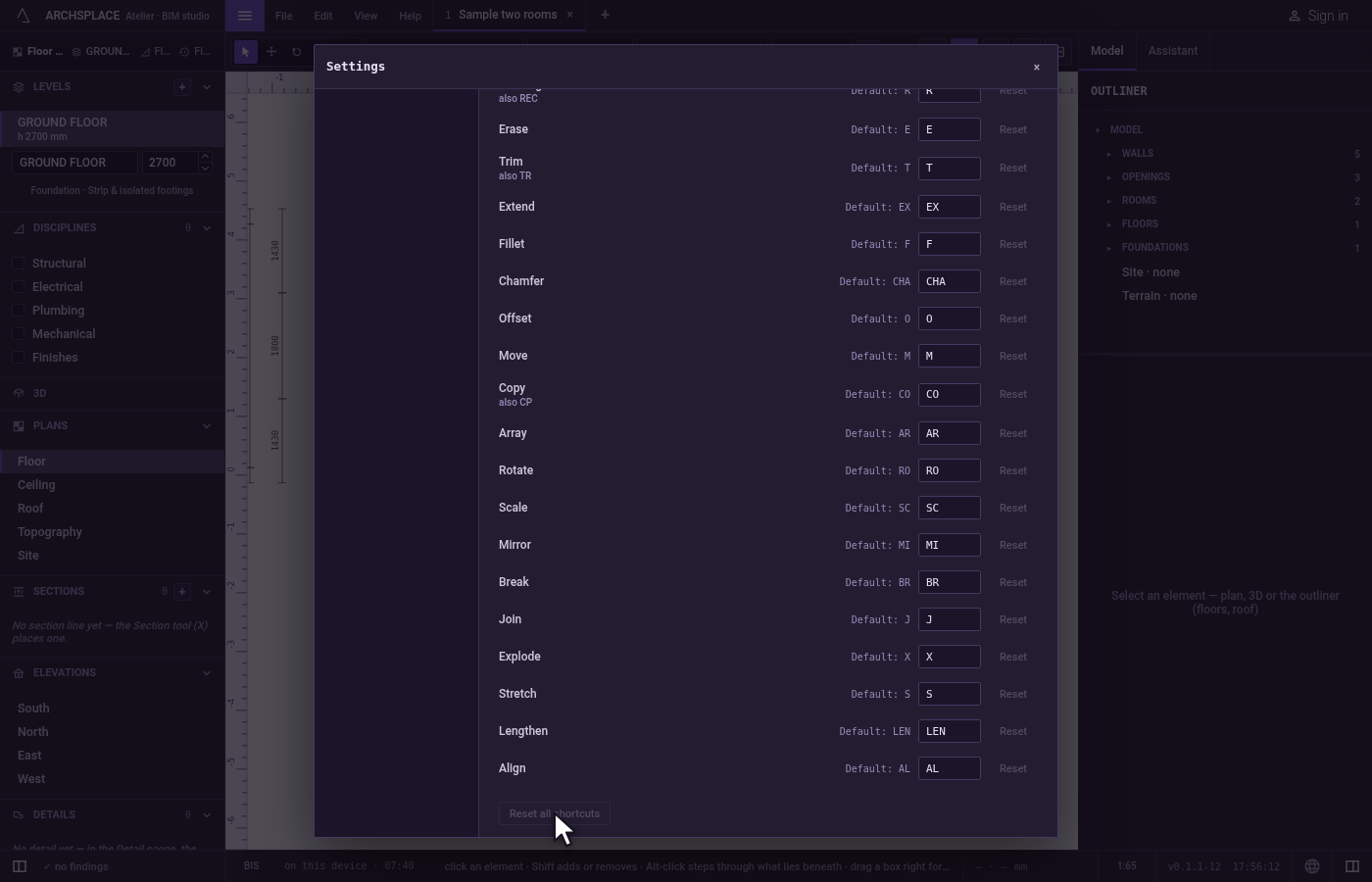
At the bottom, Reset all shortcuts gives every tool back its default key.
When to use it
- To find the key of a tool you use often.
- To give a tool the key that your hand already knows from another program.
- To take a key off a tool so that a mistyped letter never opens it.
- To go back to the keys with which the atelier ships.
The steps
Open the shortcuts. Open Help and click Keyboard shortcuts. The Settings dialog opens on Shortcuts, with the fixed keys on top.
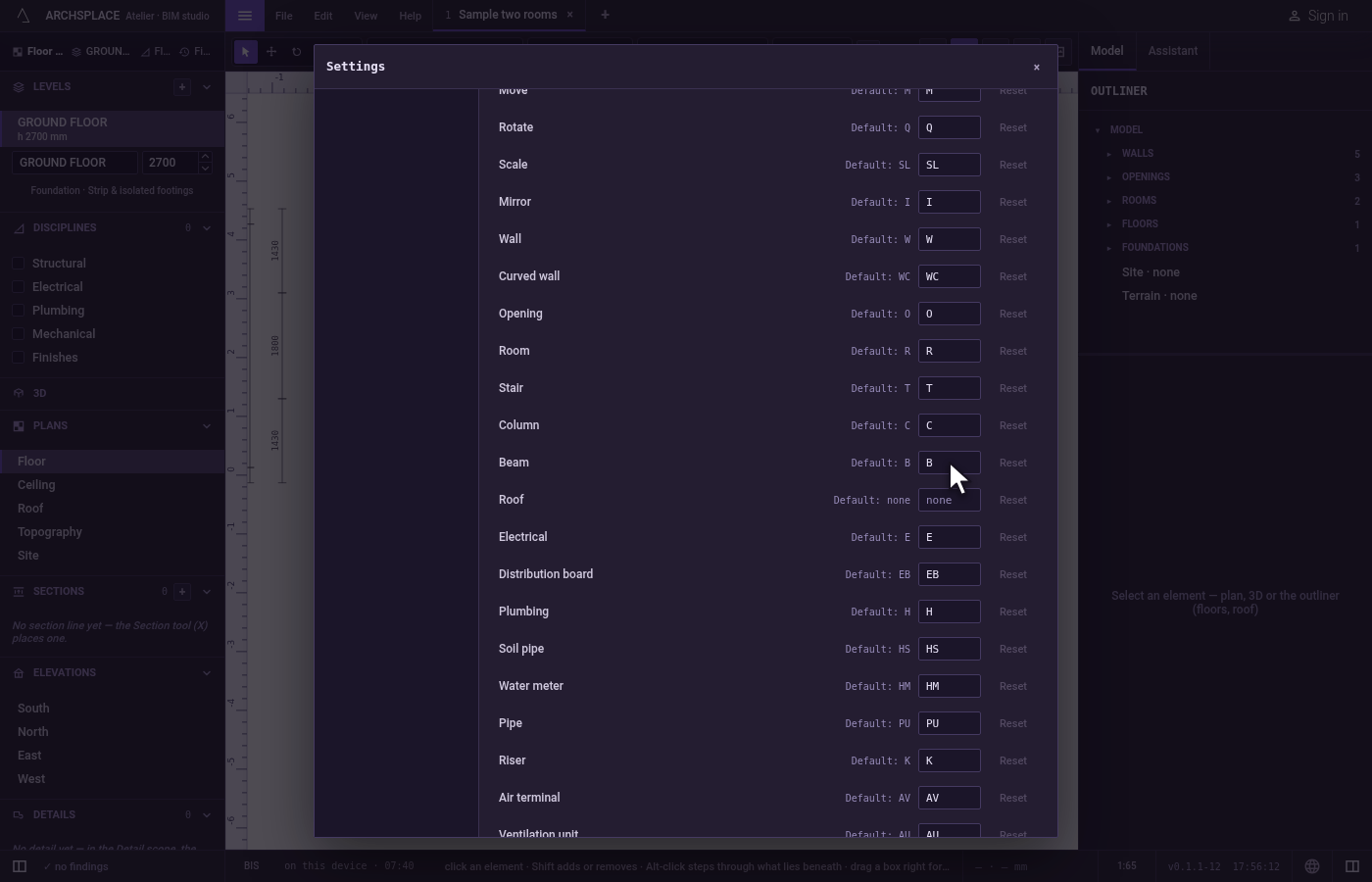
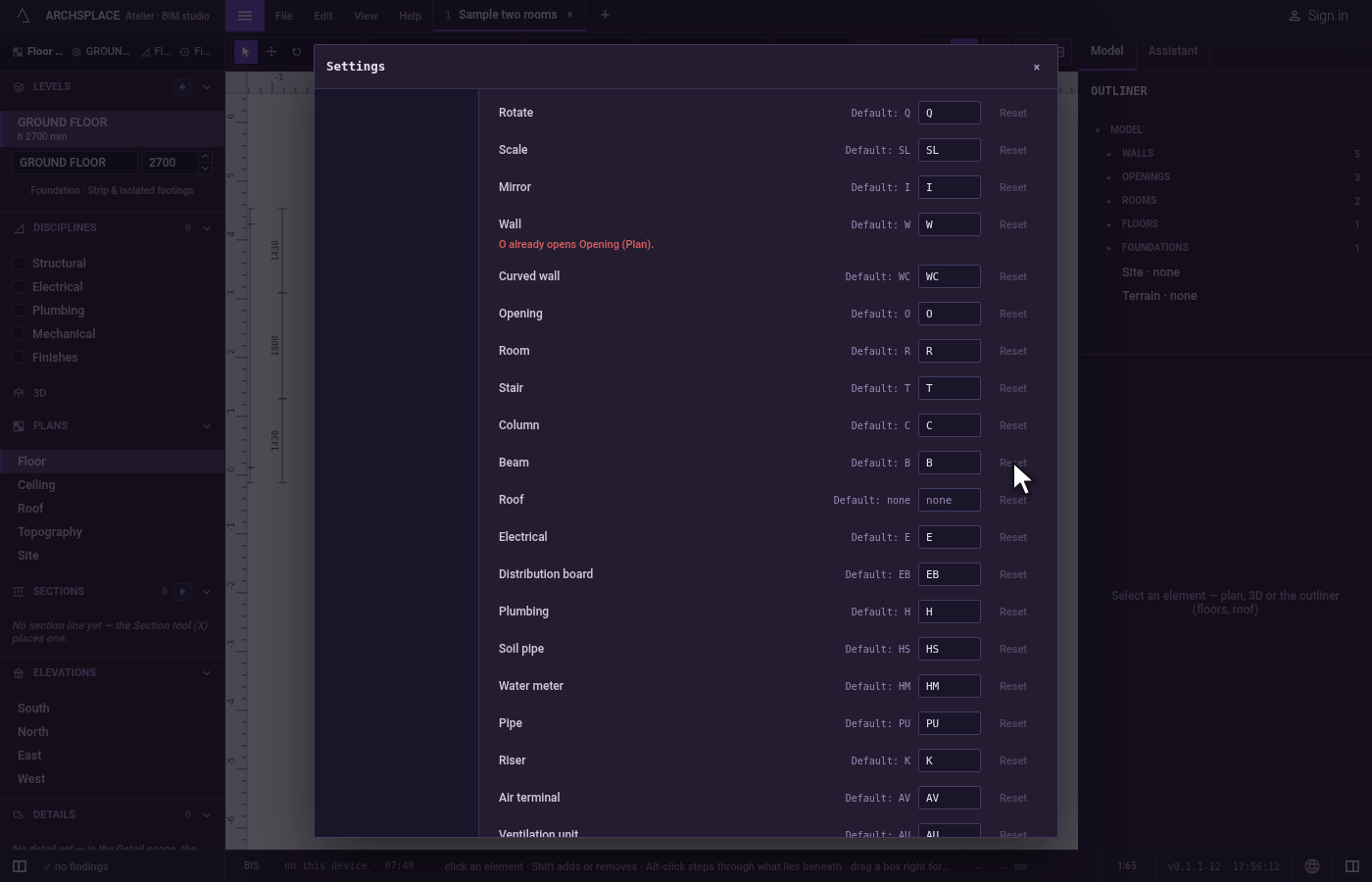
Find the tool. Scroll to Floor plan and find Beam, whose field reads B.
Type its new key. Select the field, type BM and press
Enter. The row is marked as changed, and B M now opens the Beam tool on the plan.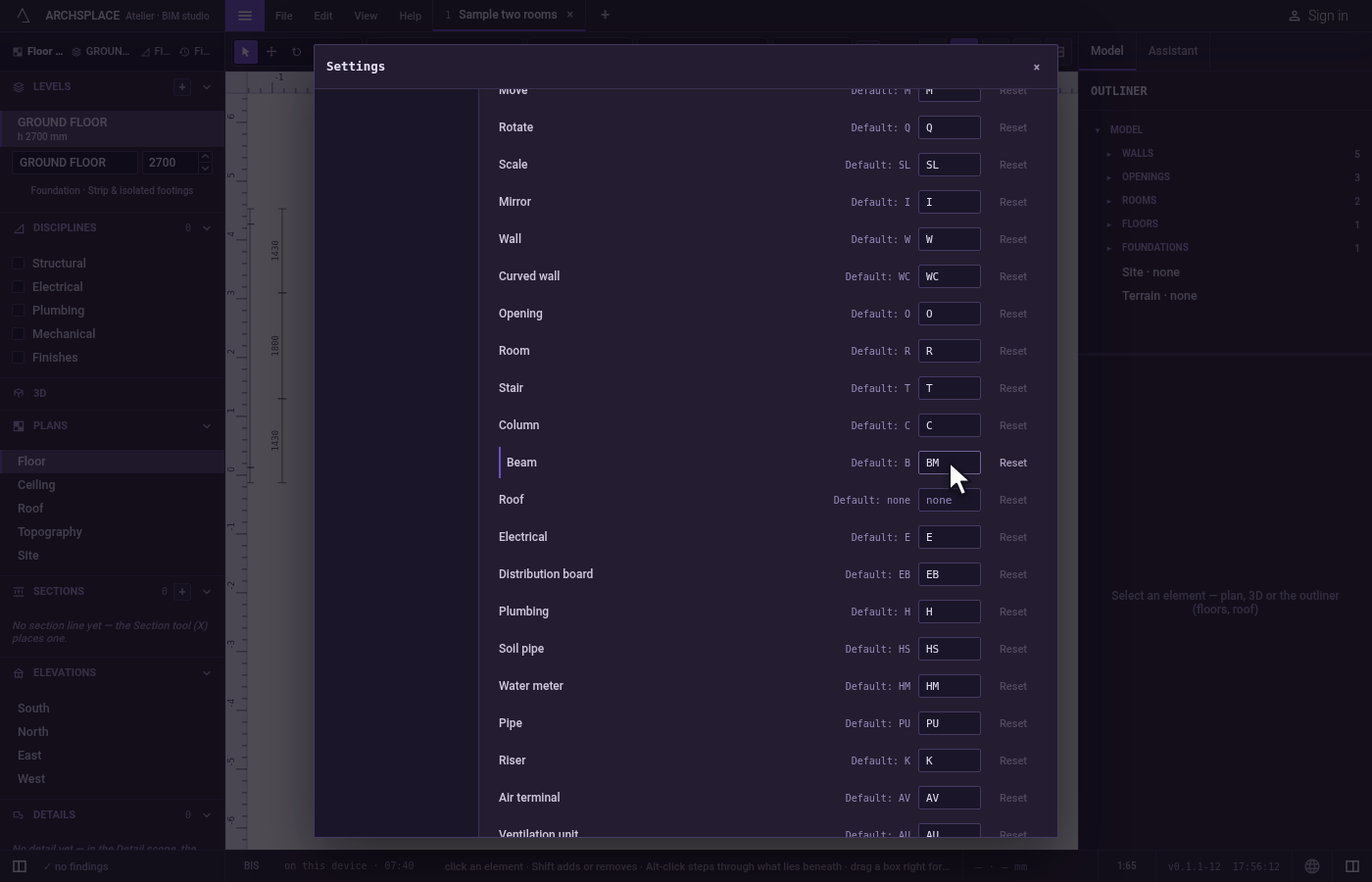
Try a key that is taken. In the Wall row, type O and press
Enter. The field goes back to W, and a message below the row says that O already opens Opening on the Plan bar.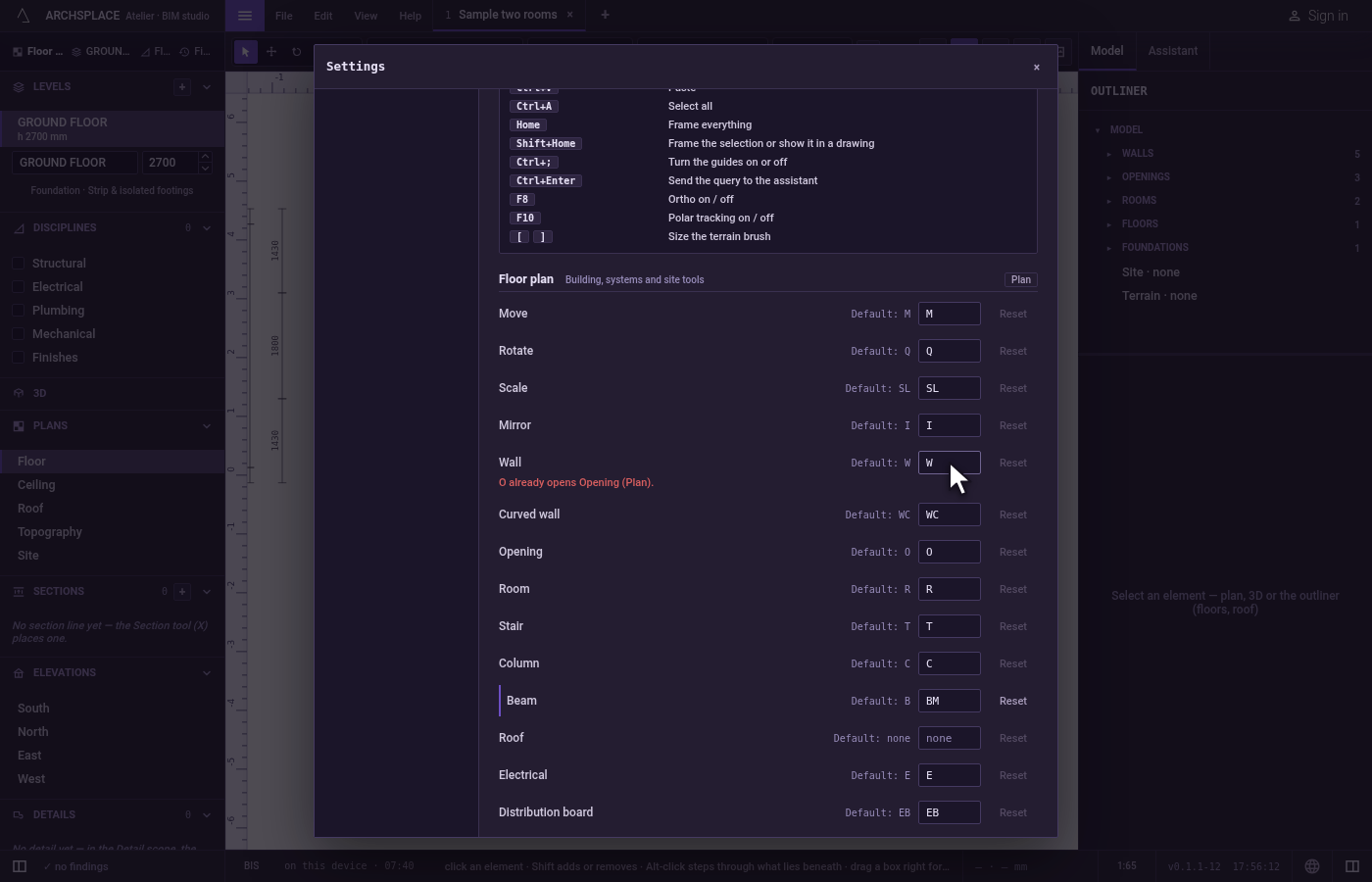
Reset one tool. Click Reset in the Beam row. Its key is B again.
Reset everything. Click Reset all shortcuts at the bottom of the list. Every tool takes back its default key, and the button is greyed out.
What it refuses
- A key that another tool of the same bar uses. The message names that tool and its bar, and nothing is changed.
- A key that would hide the word of another tool. When the letters you typed start a longer key of another tool on the same bar, one of the two could never be typed: the message names it.
- A fixed key. Typing the name of a key such as Delete, Enter or Space is refused: that key is always the same in every editor.
- More than four letters, or anything but letters. A key is one to four letters, or empty for none.
- Changing Select. Select is V everywhere and has no field.
What it writes to the contract
Nothing. Your shortcuts belong to you, not to the project: they are kept in this browser, or in the installed atelier on this computer, and every project you open responds to them.
Common questions
How do I change the key of a tool?
Open Help, Keyboard shortcuts. Find the tool in the list of its editor, type the new key in its field (one to four letters) and press Enter. The toolbar, the key itself and the typed words follow at once.
Why is my new shortcut refused?
Because another tool of the same editor already uses it, or because the letters you typed would start the word of that other tool before yours could be typed. The message below the row names the other tool and its editor, and nothing is changed.
Can I change Ctrl+Z or the Select key?
No. Select is V in every editor, and the keys listed under Always the same, such as Undo, Save, Copy, Home or F8, never change. Only the keys of the tools can be changed.
How do I get the original shortcuts back?
Click Reset beside one tool to give it back its default key, or Reset all shortcuts at the bottom of the list to undo every change.