SketchCHAin the studio
Chamfer
Chamfer cuts the corner between two straight lines in the sketch editor with a straight line, at the distances you type from the corner along each of them. With lines selected, Enter bevels every corner they have in one go.
What it is
Chamfer replaces the corner where two straight lines meet with a short straight line, a bevel. You set how far from the corner the bevel starts on each line: one distance for both, or two, the first on the first line you pick and the second on the second. Each line is cut back to where the bevel starts, and the side kept is the side on which you picked it.
Like Fillet, Chamfer works on the lines as you drew them: two neighbouring sides of one outline have their corner replaced in place, and two separate open lines are joined at their own ends, with the bevel added as a line of its own.
When to use it
- To cut the corners of a window, a door or a pattern area at an angle.
- To draw a splayed corner of an exact size on each side.
The steps
Pick Chamfer. In the sketch editor (see Select for the ways in), type
C,H,Aquickly, or click Chamfer on the toolbar of the editor. The hint at the cursor says chamfer: pick the first line, or type the distances ⏎ · T trim / no trim · Esc.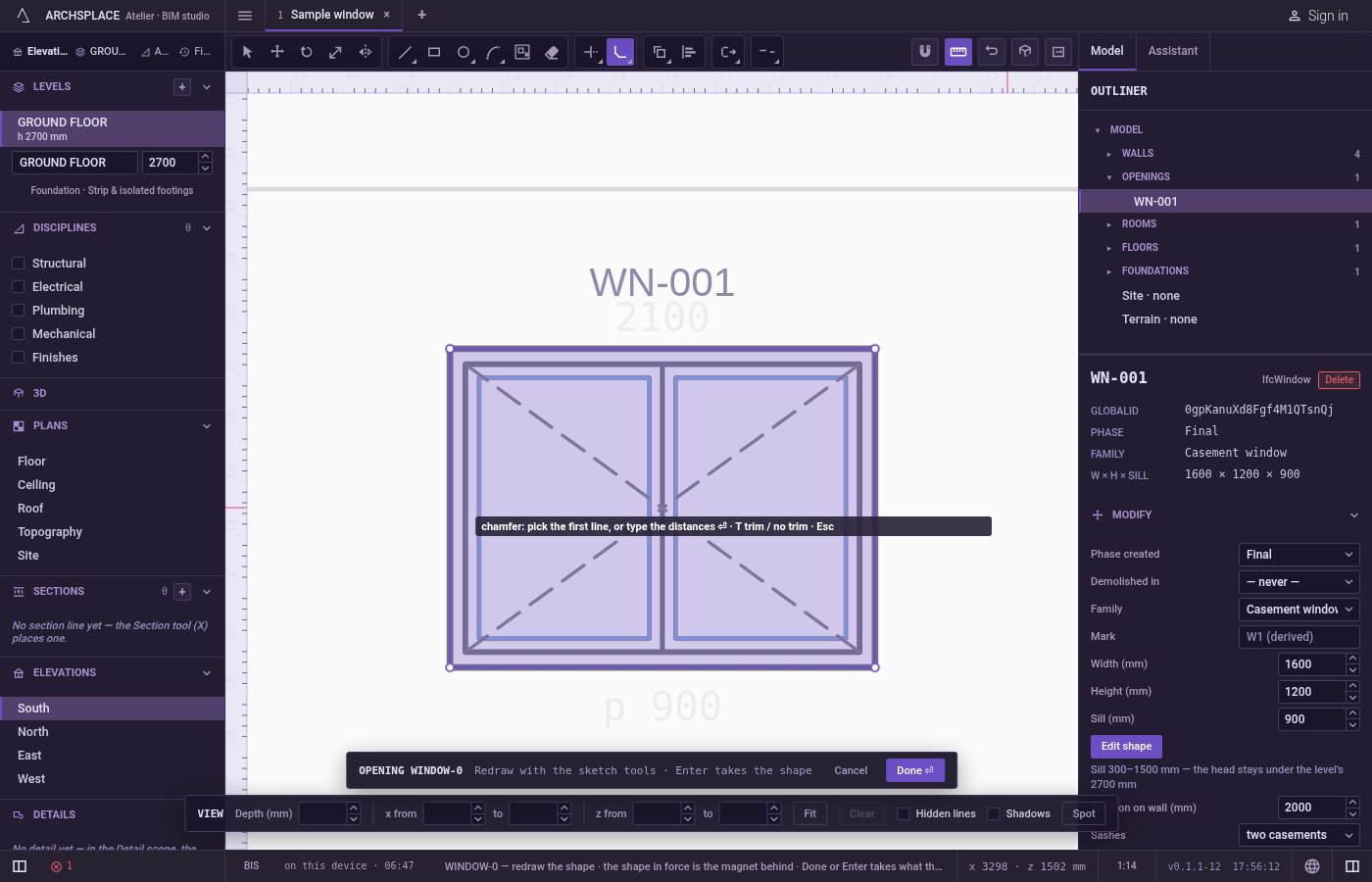
Type the distances. Type one distance for both lines, or two separated by
x, such as0.2x0.1, in the project units, and pressEnter. The distances are zero every time you pick Chamfer and stay as you set them until you leave the tool.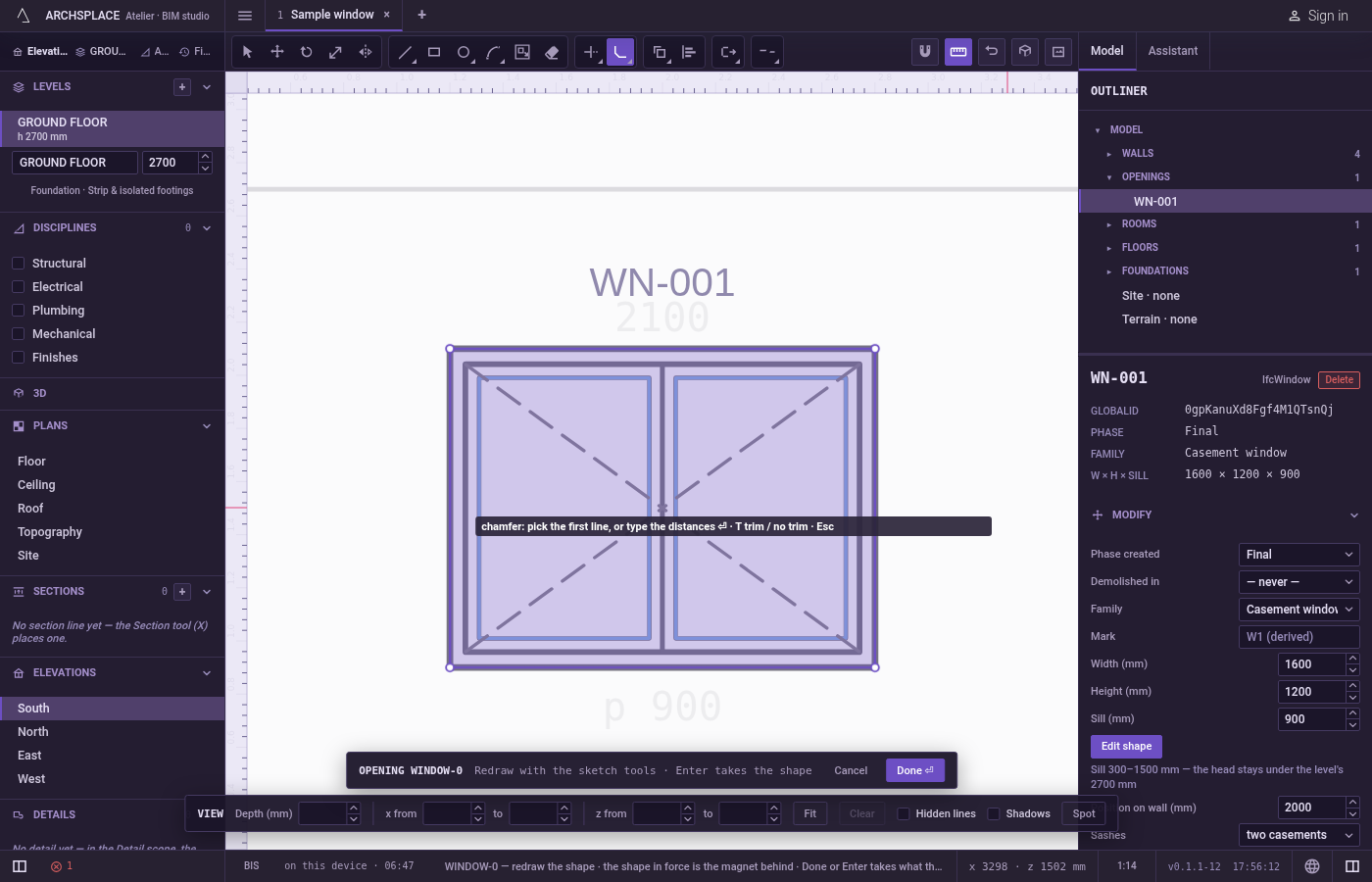
Pick the first line. Click it on the side you want to keep. Chamfer reads the pointer exactly, with no magnet.
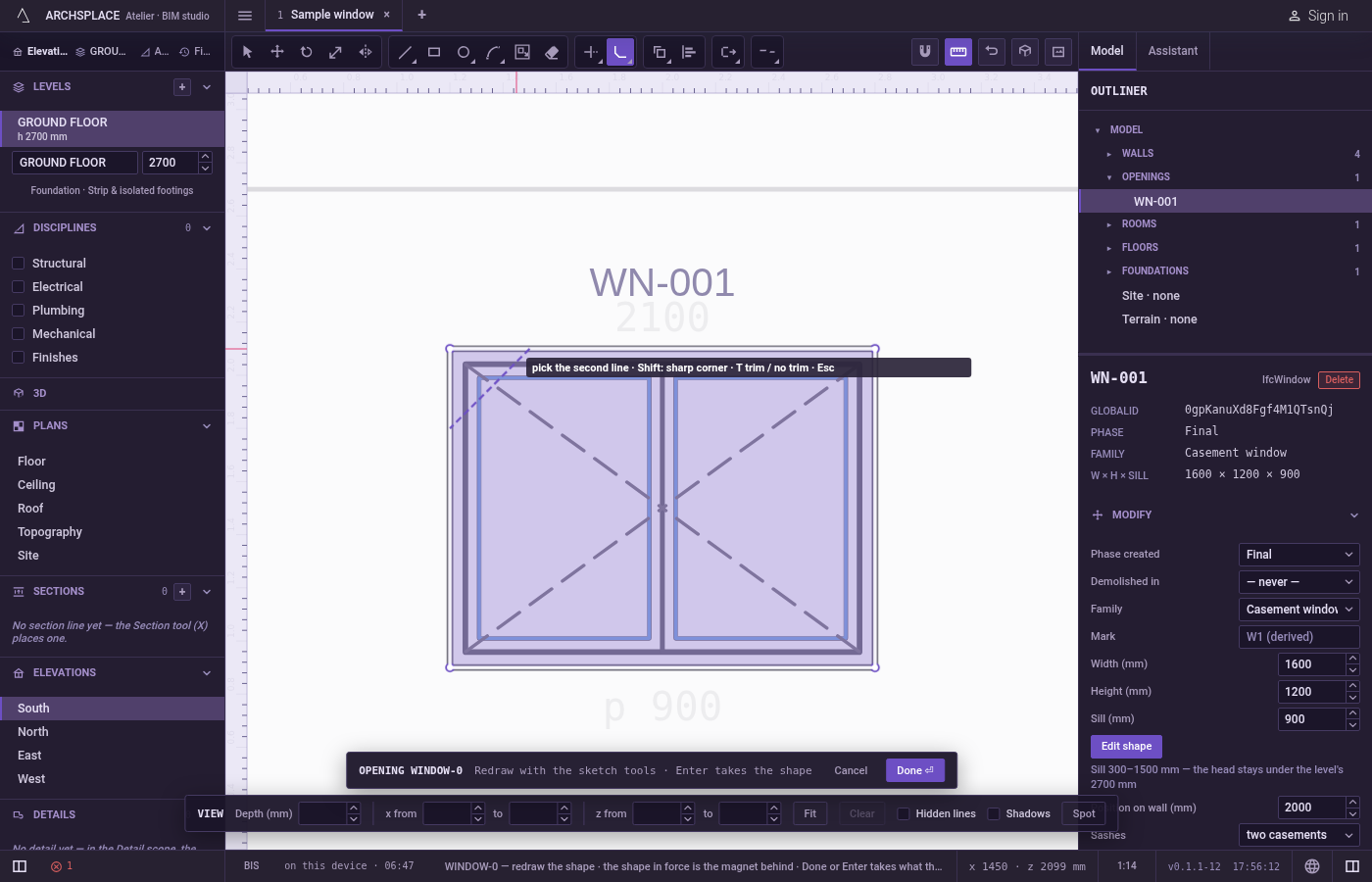
Pick the second line. While you point, the bevel that would be made is drawn. Click on the side of the second line to keep. The corner is cut, and Chamfer waits for the next first pick. Keep
Shiftpressed on this click for a sharp corner instead.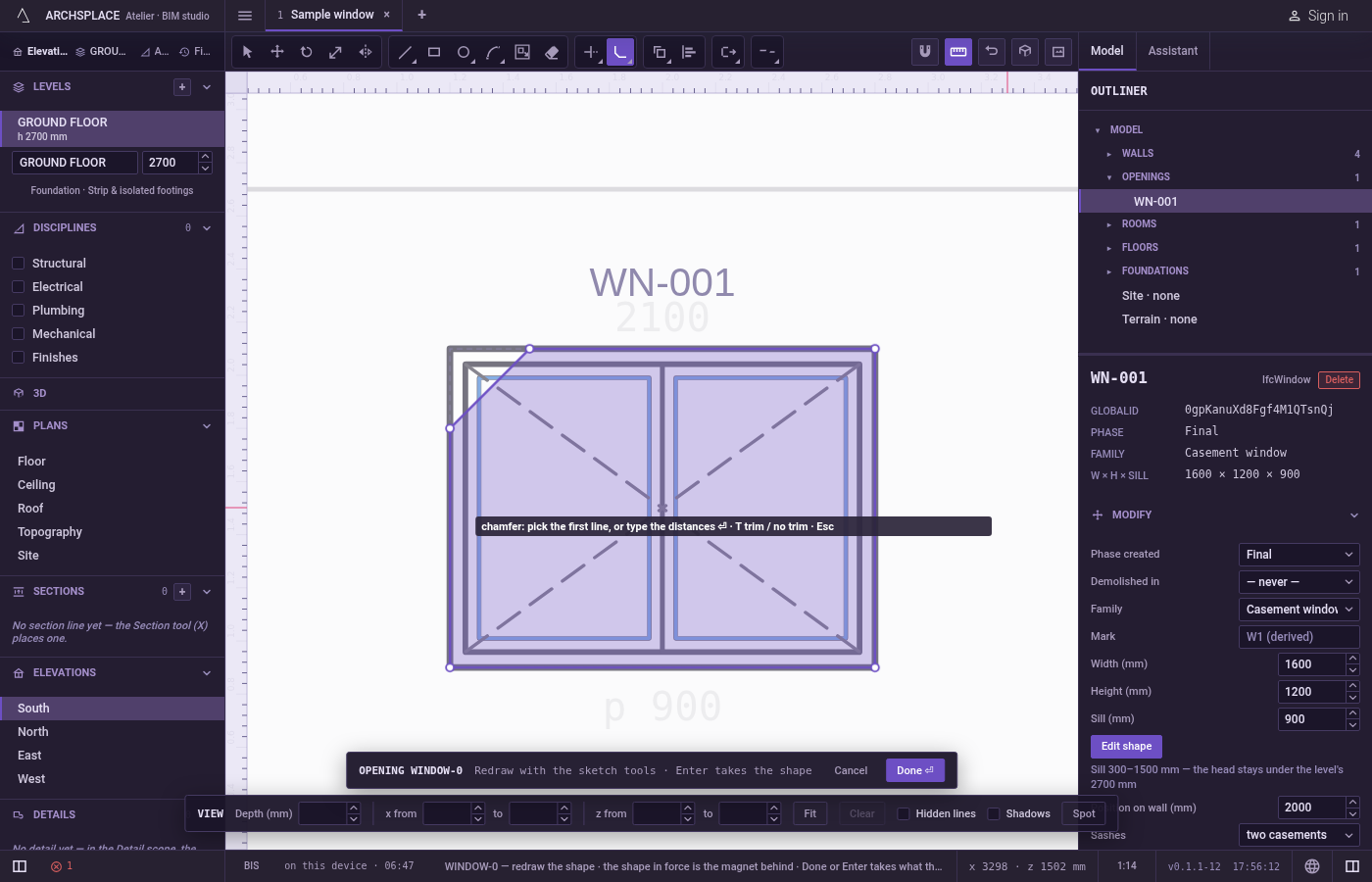
Or bevel a whole selection. Select lines with Select before picking Chamfer, set the distances, then press
Enterwithout picking: every corner of the selected lines that takes the bevel is cut. The hint tells you how many corners were treated and how many were left as they were.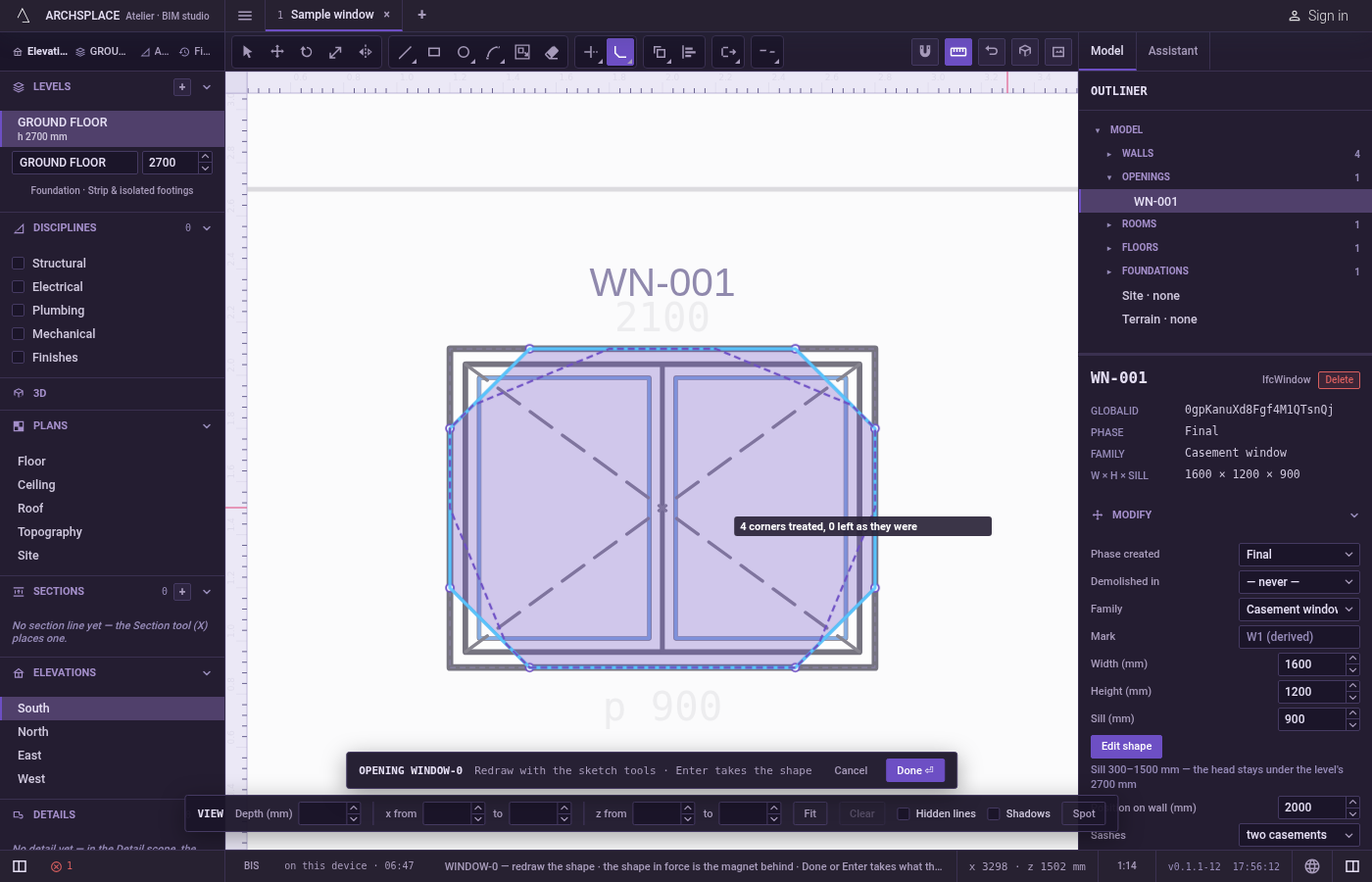
Trim or not. Press
Tto switch to no trim: the bevel is added and both lines stay whole.Escapetakes back the first pick, then goes back to Select.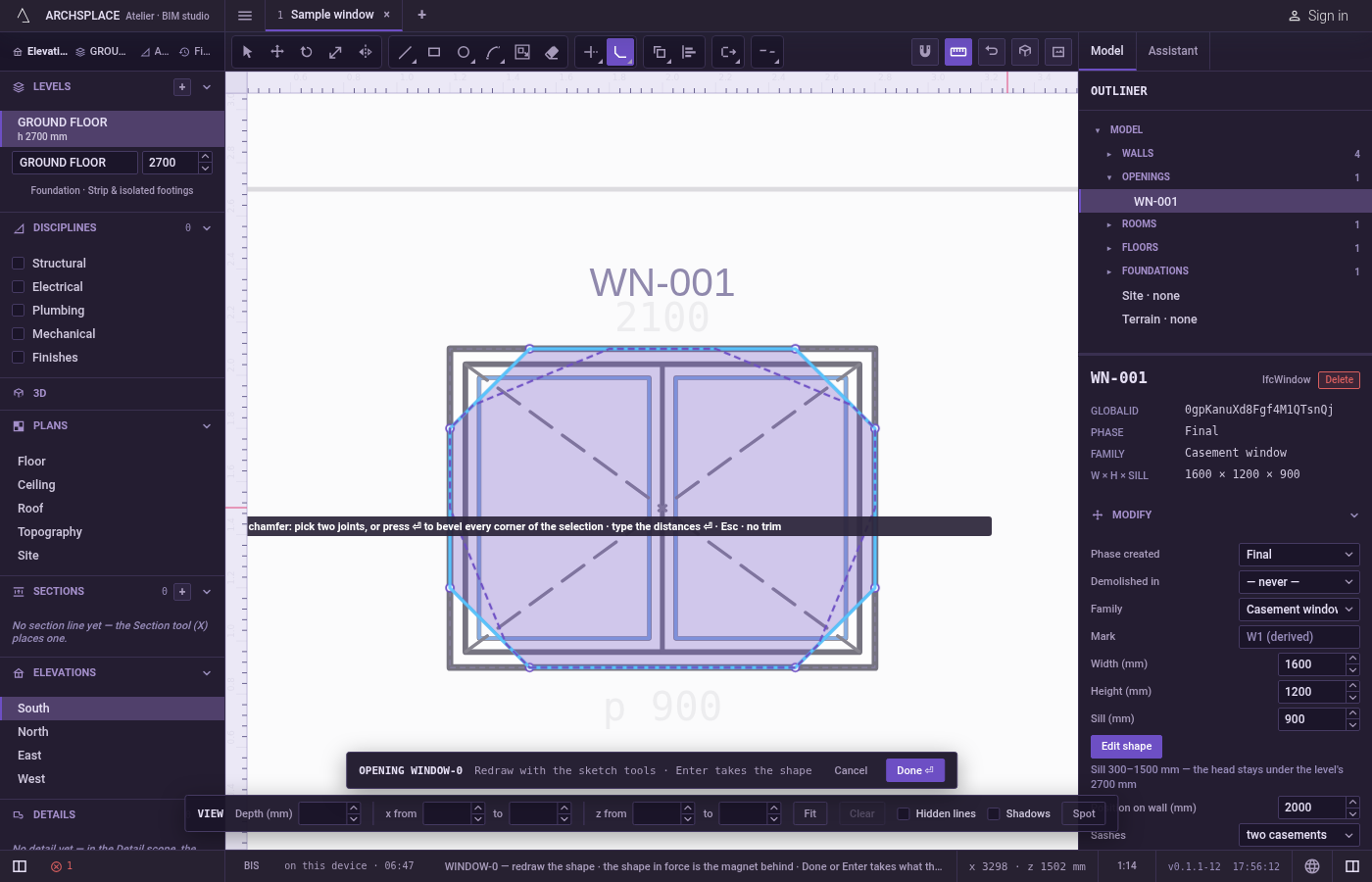
What it refuses
- An arc. The hint says a chamfer joins straight lines only. Use Fillet where an arc is involved.
- A pick on nothing. The hint says no line or arc there.
- The same segment twice. The hint says pick a second, different segment.
- Parallel lines. The hint says these edges never meet.
- A bevel that does not fit. When a distance is longer than the side on which it is laid, the hint says the corner does not fit these edges.
- A cut in the middle of a line. Two sides of one outline that are not neighbours, or a closed outline and another line, are refused: this would cut a line in its middle.
- Negative distances. A negative or unreadable number is ignored, and the distances stay as they were.
What it writes to the contract
Nothing until you press Done. Every corner is one step inside the editor, and Ctrl+Z goes back through them. The contract changes when you press Done, or Enter with nothing in progress, as one step that you can undo: what the lines enclose becomes the profile of the window or door, points [u, v] in metres across the wall and up from the floor, or the outline of the pattern area in the floorAreas or ceilingAreas of the room, points [x, y] in plan metres.
A bevel is one more straight side: the corner point is replaced by two points. A window of 1.2 by 1.2 metres with its top right corner chamfered at 10 centimetres each way:
Common questions
How do I set two different chamfer distances?
Type the first distance, x, the second, and press Enter, for example 0.2x0.1. The first distance is laid on the first line you pick and the second on the second line.
Can I chamfer a corner next to an arc?
No. Chamfer joins straight lines only. Use Fillet for a corner that involves an arc.
Why does my chamfer make a sharp corner?
The distances start at zero every time you pick Chamfer. Type them and press Enter before you pick the lines.