Plan
Wall joints
A wall joint is a point where walls meet, and selected walls show a grip on every such point. Dragging a grip carries every wall meeting there, Alt pressed leaves that joint behind, and the panel of the joint accepts typed coordinates, lengths and angles.
What it is
Walls that meet share a joint: one common point for the ends of all the walls that come together there. When you select walls, the plan shows a grip at the end of each one, and a grip at a corner stands for every wall meeting at that corner. The same grips appear on selected pipes and beams, which are runs of the same kind.
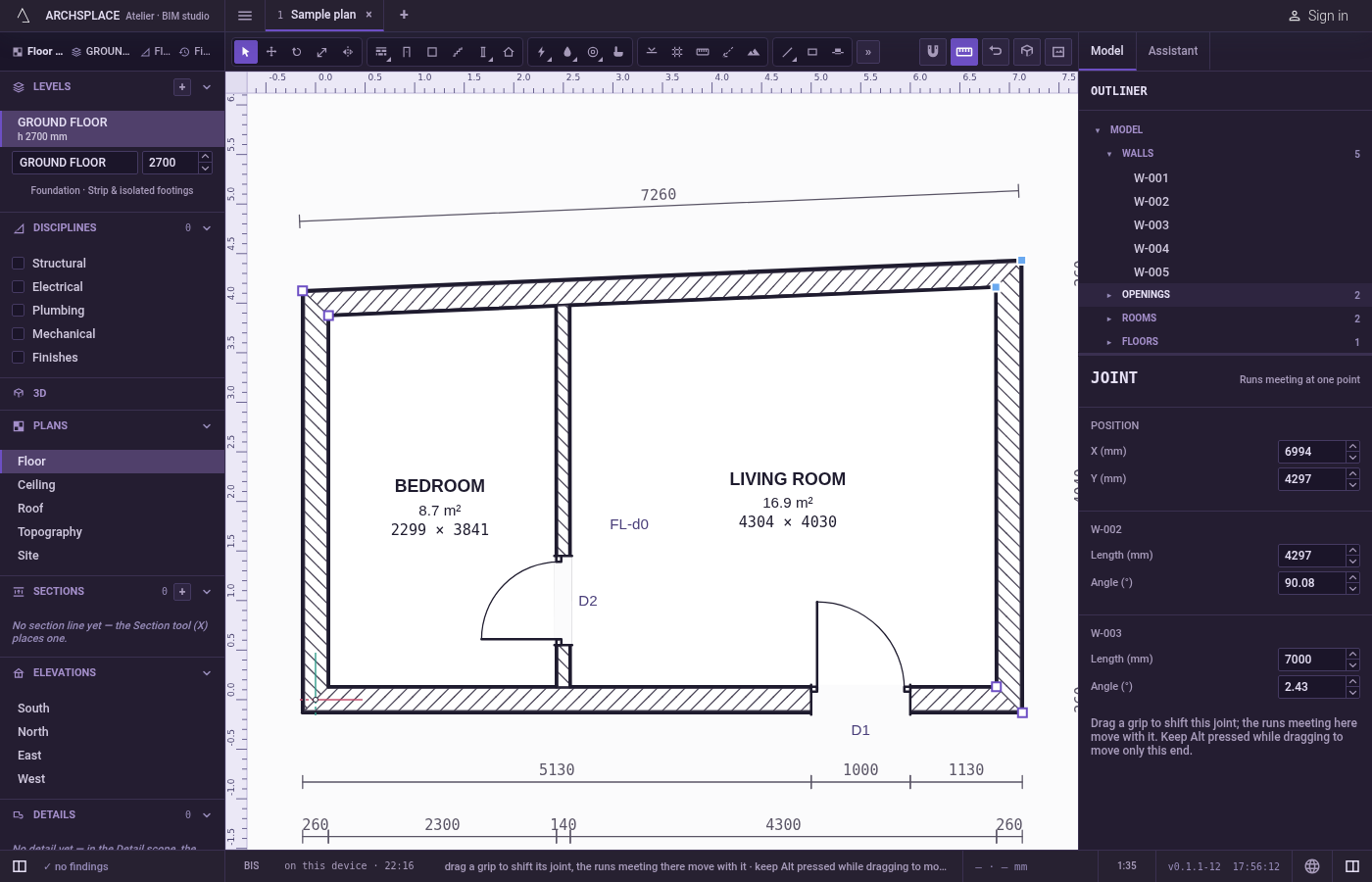
A joint moves as one. Dragging its grip carries the ends of every wall meeting there, and a wall that ends against the face of a moved wall slides so that it stays on it. With Alt pressed, the drag moves only the end you held and leaves the others. A selected joint opens its own panel, where you type its position, and the length and angle of every wall meeting there.
When to use it
- To correct a corner from a site survey to its measured position.
- To make a room deeper by dragging the corners of its far wall.
- To give a wall its exact length while the walls at its corner follow.
- To detach one wall from a corner before moving it elsewhere.
The steps
Select the walls. With Select, click a wall or draw a box over several. A grip appears at each end; the status bar tells you that a grip drags its joint, that Alt moves only that end, and that a click selects the joint.
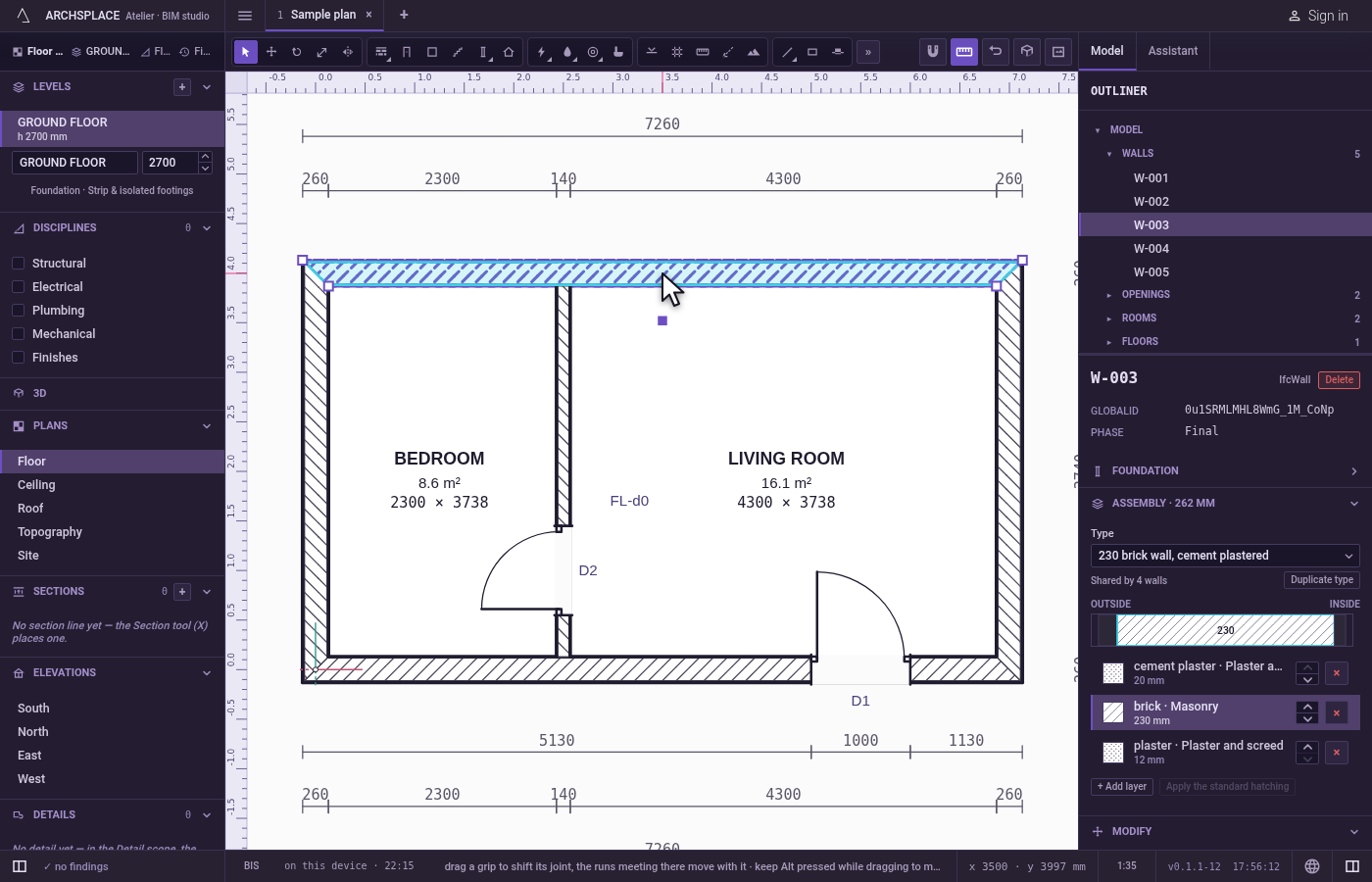
Drag a grip. Press on a grip and drag. A ghost shows every wall the move carries, and the magnet holds the cursor on nearby points and lines, leaving out the walls that are moving. Shift, or F8 while it is on, keeps the face you held square. Release: the joint lands where the ghost was. A distance typed during the drag, followed by Enter, places it at that distance in the direction you are pulling.
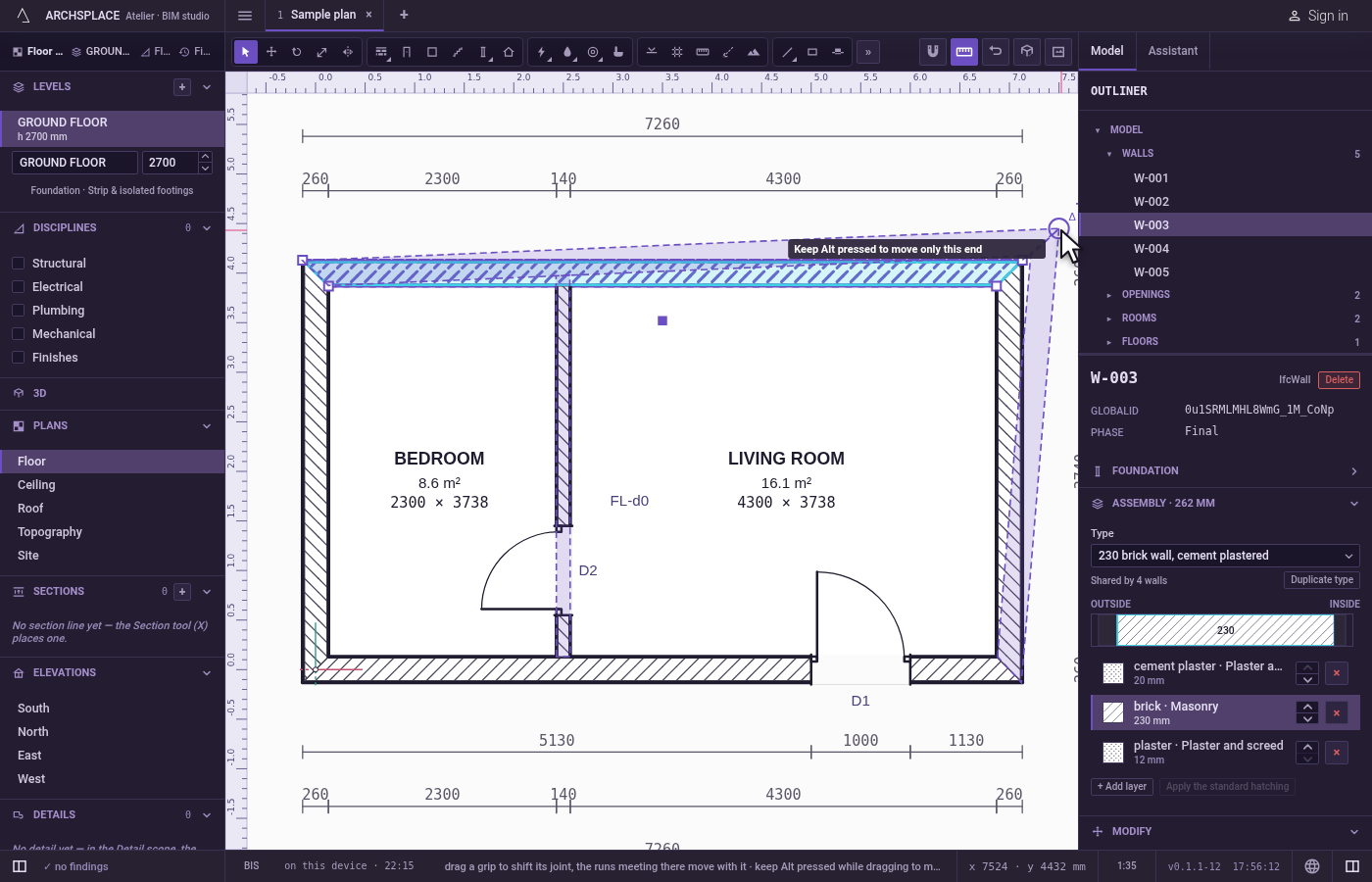
Detach one end with Alt. Keep
Alt(Option on a Mac) pressed as you release the button: only the end you held moves. The words beside the cursor change between "Keep Alt pressed to move only this end" and "Detached: only this end moves" as you press and release the key.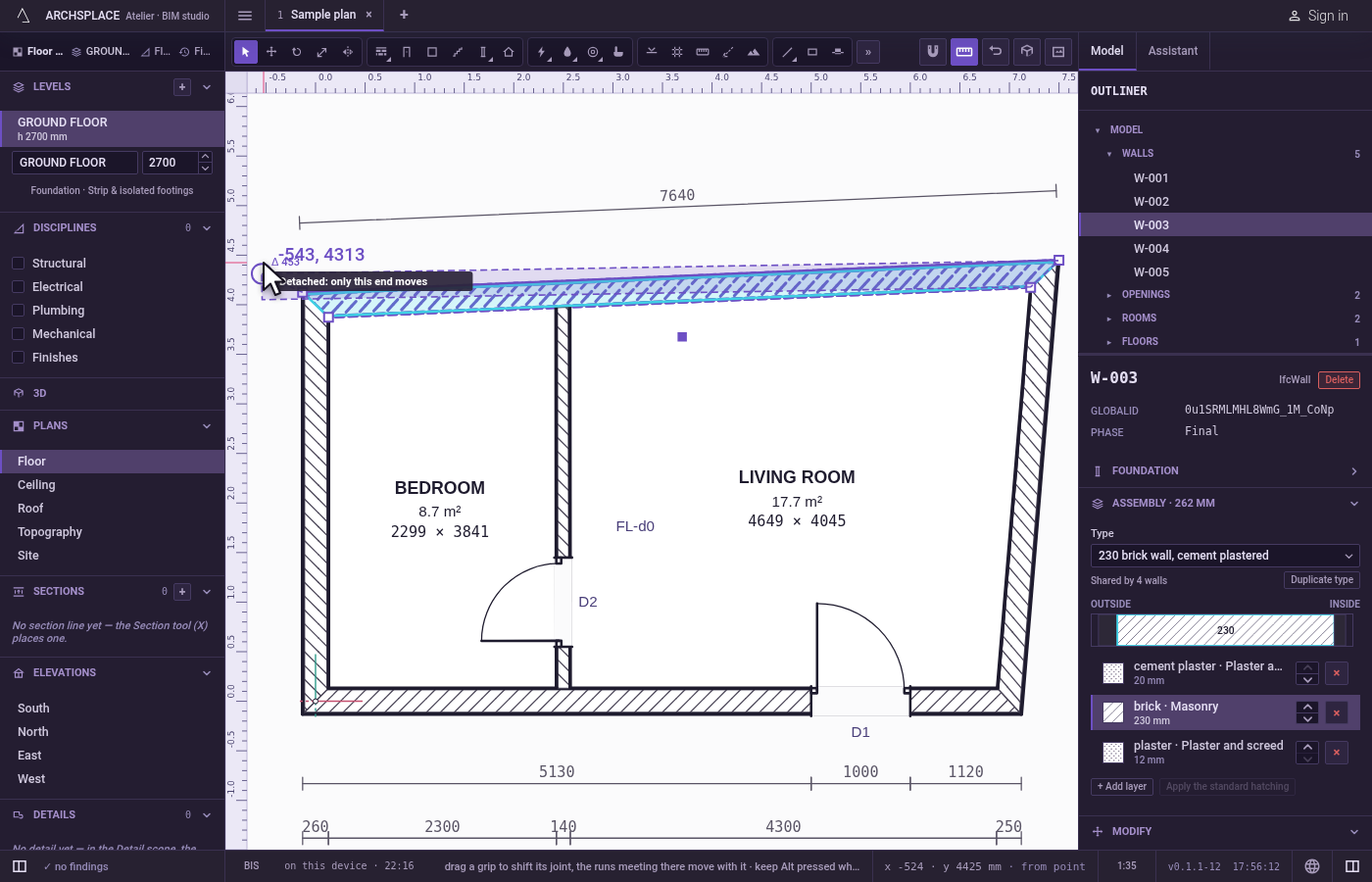
Select the joint. Click a grip without dragging: the joint is selected and its panel opens on the right. Shift with a click adds another joint, or removes it.
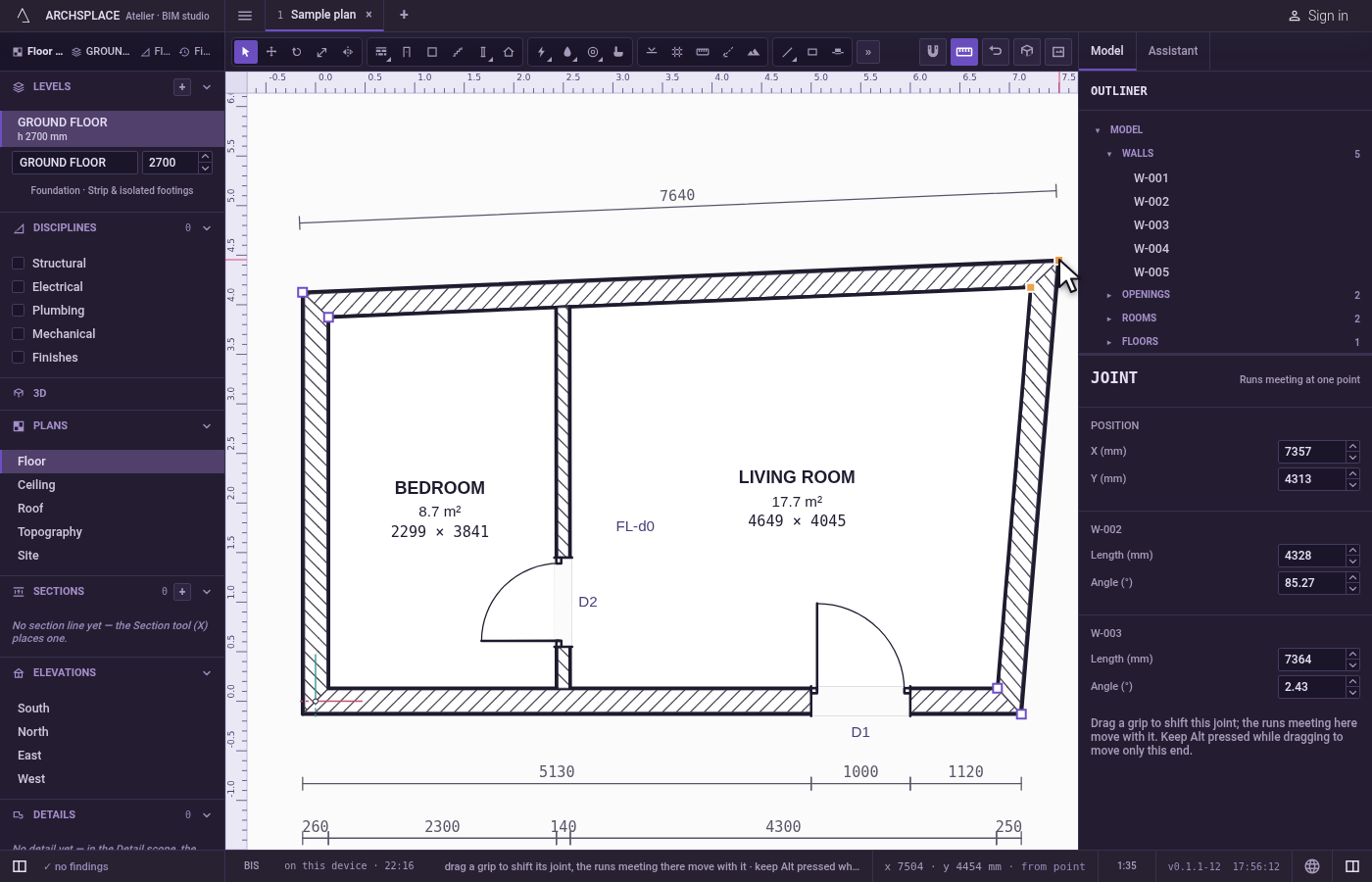
Type in the joint panel. The panel tells you what kind of joint it is (runs meeting at one point, an end resting on a wall's face, or a free end), its X and Y, and for every wall meeting there, its length and its angle. Type a value and press Enter: the joint moves exactly there, and every wall meeting there follows. An end resting on the face of another wall names that wall.
What it refuses
- A wall shorter than one centimetre. A move that would leave any wall that short is refused, the ghost turns to the refusal colour and stays at its last valid position, and the reason appears beside the cursor.
- An end on a face taken off that face. An end resting on the face of another wall can only slide along it, so a typed position it cannot reach is refused with that reason, and the panel shows the joint as it stands.
- Copying a joint. A joint has nothing of its own to copy: copy the walls instead.
- Deleting a joint. A joint goes with its walls: delete the walls that meet there.
What it writes to the contract
One step, which one undo reverses. The ends of all the walls meeting at the moved joint are written at the new point, and the ends of walls resting on their faces are written where they now rest. With Alt, only the end of the wall you held changes. The joint itself is never stored: it is simply the point where those ends coincide.
Concepts
Common questions
How do I move a corner without breaking the walls?
Select one of the walls, then drag the grip on the corner. Every wall meeting at that corner follows, and walls that end on their faces stay on them.
How do I pull one wall away from a corner?
Drag its grip and keep Alt (Option on a Mac) pressed when you release. Only the end of the wall you held moves; the other walls stay where they are.
Can I type the exact position of a corner?
Yes. Click the grip to select the joint: its panel shows its X and Y, and the length and angle of every wall meeting there. Type a value and the corner moves exactly there.