PlanVin the studio
Select
Select picks up elements of the plan so that you can work on them: a click picks what you point at, Shift adds or removes, Alt reaches what lies underneath, and a box picks up many elements at one go. The selected element opens its panel on the right, and every other command, from Move to Delete, then works on it.
What it is
Select is your hand on the plan. It picks up walls, openings, rooms, stairs, columns, beams, roofs, electrical points, pipes, sanitary appliances, dimensions and every other element drawn on the plan, and on its own it never changes anything. The selected element is highlighted on the plan, its panel opens on the right, and the other commands then work on it: Move, Rotate, Scale and Mirror, Copy and Paste, Delete, the arrow keys and the right-click menu.
The same rules apply in every view of the studio, so a selection made on the plan behaves the same way in a section or in 3D. When you select several walls, pipes or beams, the corners where they meet show grips that you can drag (see Wall joints).
When to use it
- To open the panel of an element and check or change its type, its size or its phase.
- To gather several elements before moving, copying or deleting them together.
- To reach a door lying under the tint of a room, or an electrical point fixed on a wall, with Alt-click.
- To enter the edit mode of a stair, a roof or the terrain with a double-click or Enter.
The steps
Pick the tool. Press
V, or click the Select button at the start of the toolbar. Esc also brings Select back from any other tool. The status bar at the bottom of the window reminds you of the gestures: a click, Shift, Alt and the two directions of a box.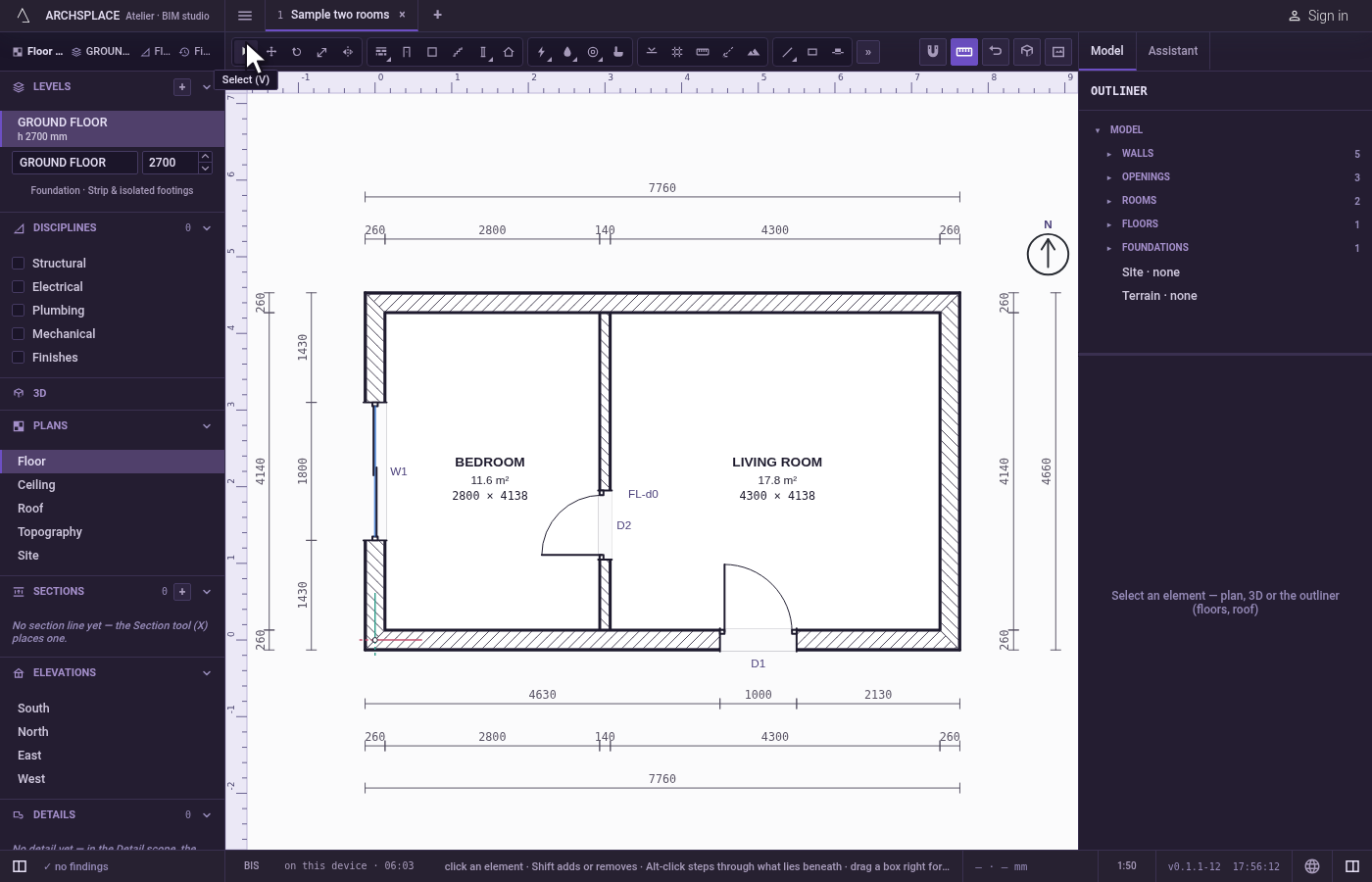
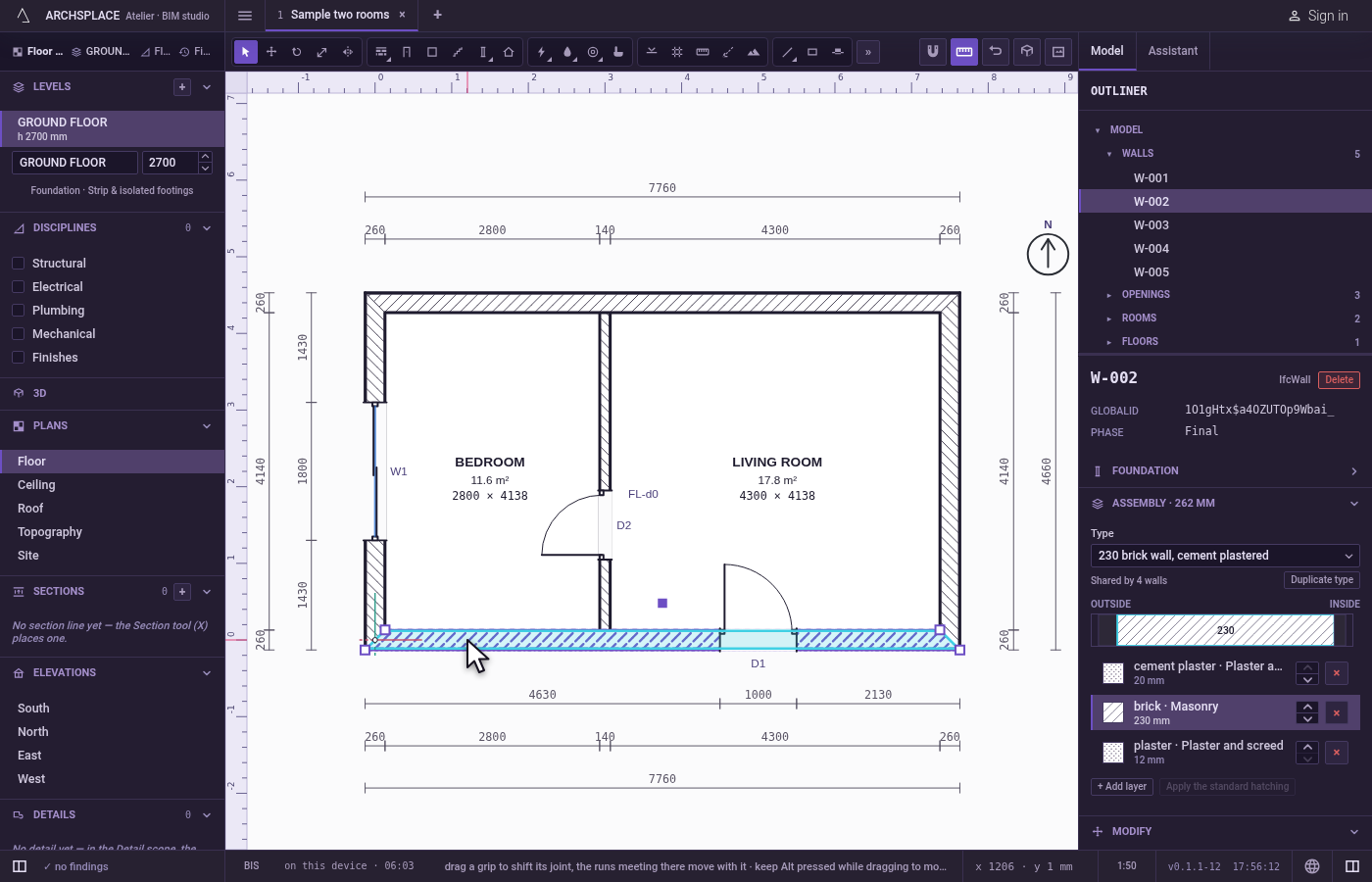
Click an element. The element under the pointer is highlighted while you hover, and a click selects it alone, releasing whatever was selected earlier. Its panel opens on the right. When you click a wall, the panel also opens the row of the layer on which the pointer was resting.
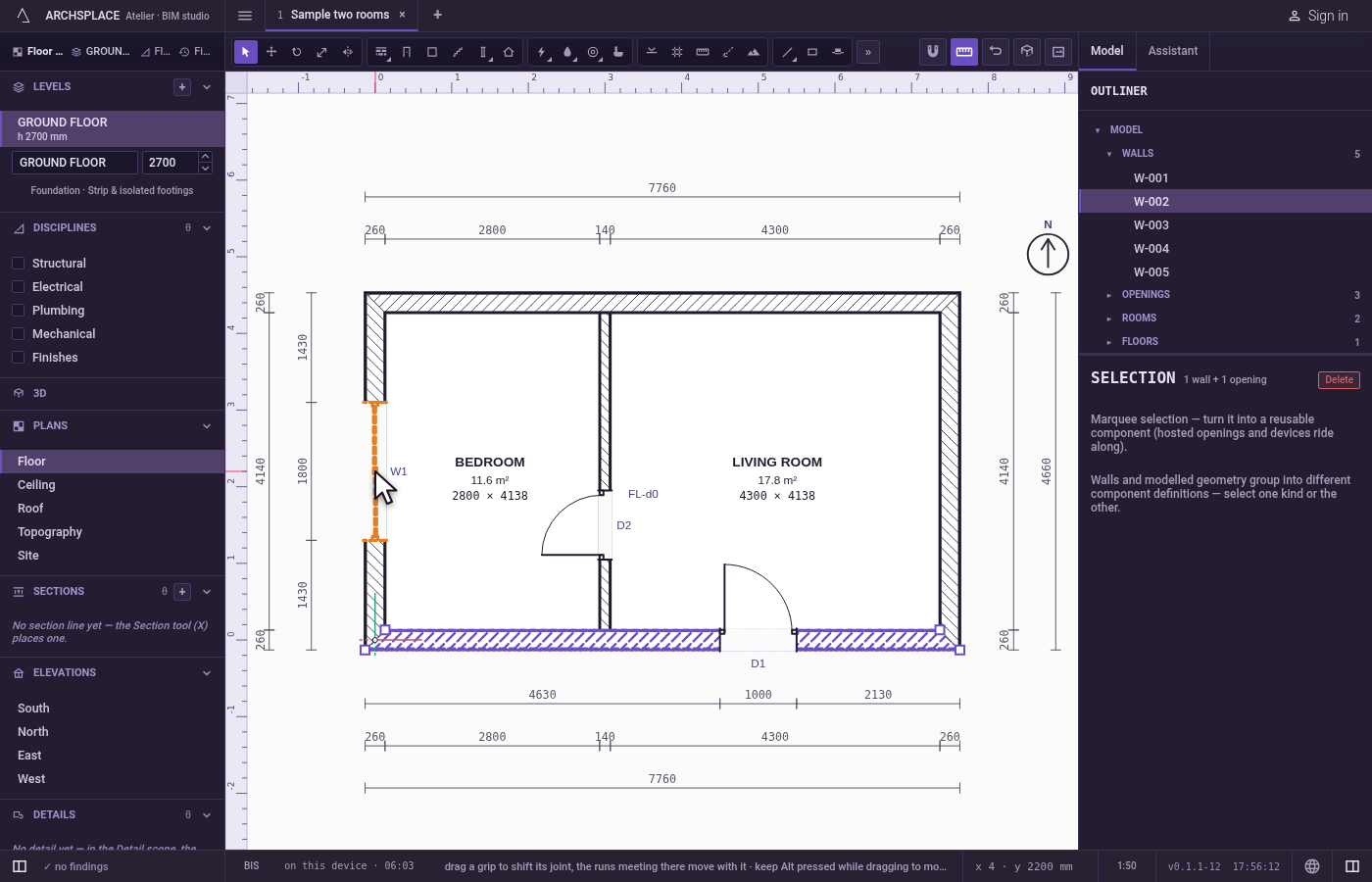
Add or remove with Shift. Shift with a click adds an element to the selection, or removes it if it was already selected. A Shift-click on empty space leaves the selection as it is.
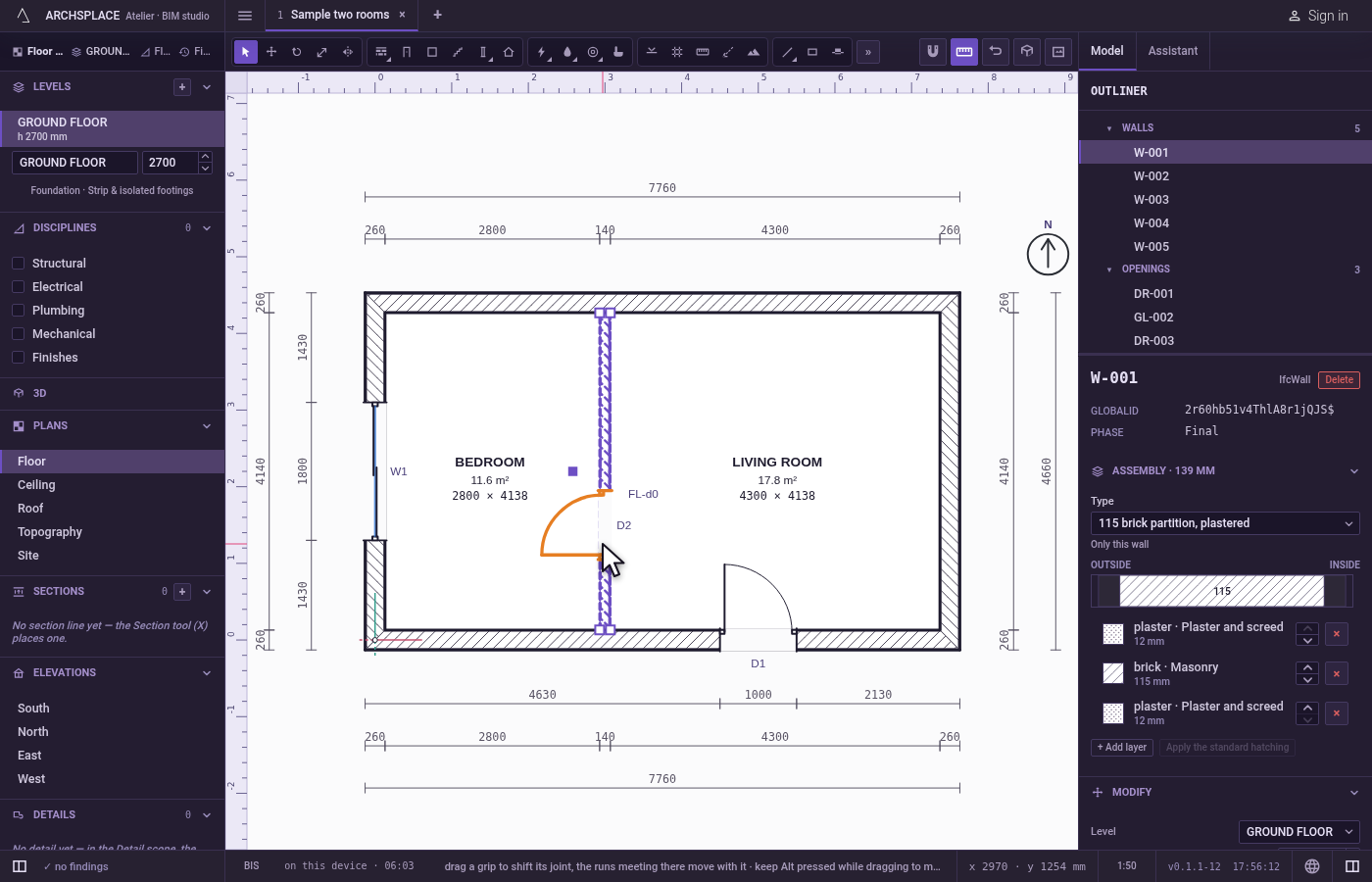
Reach what lies underneath with Alt. Where elements overlap, Alt with a click (Option on a Mac) picks the next one below the pointer. Alt-click again to go one level deeper; after the last one it comes back to the top.
Drag a box for many elements. Press on empty space and drag. A box dragged to the right picks up what lies fully inside it. A box dragged to the left picks up everything it touches. With Shift pressed, every element the box picks up is switched in or out of the selection.
Ctrl+A(⌘Aon a Mac) selects everything the view shows, just as a box over the whole view would.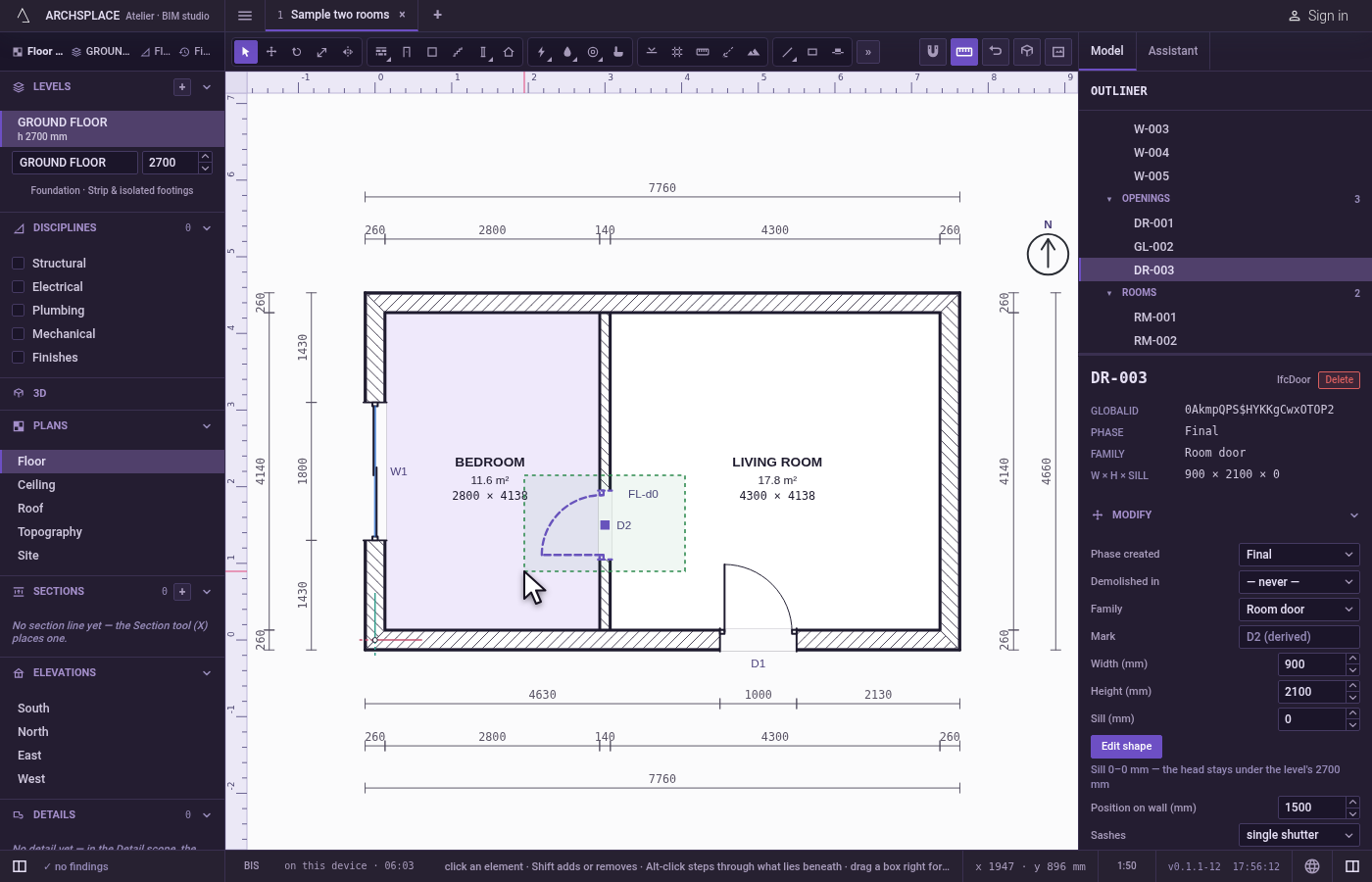
Work on the selection. Press
Deleteto remove it, use the arrow keys to nudge it (Shift for bigger steps, Ctrl for finer ones), right-click for the menu of commands, or pick Move, Rotate, Scale or Mirror. Double-click a stair, a roof drawn with its own footprint or the terrain to edit its points in its own edit mode; Enter does the same for the selected one. Double-click a window or a door to redraw its shape on the elevation that shows it best.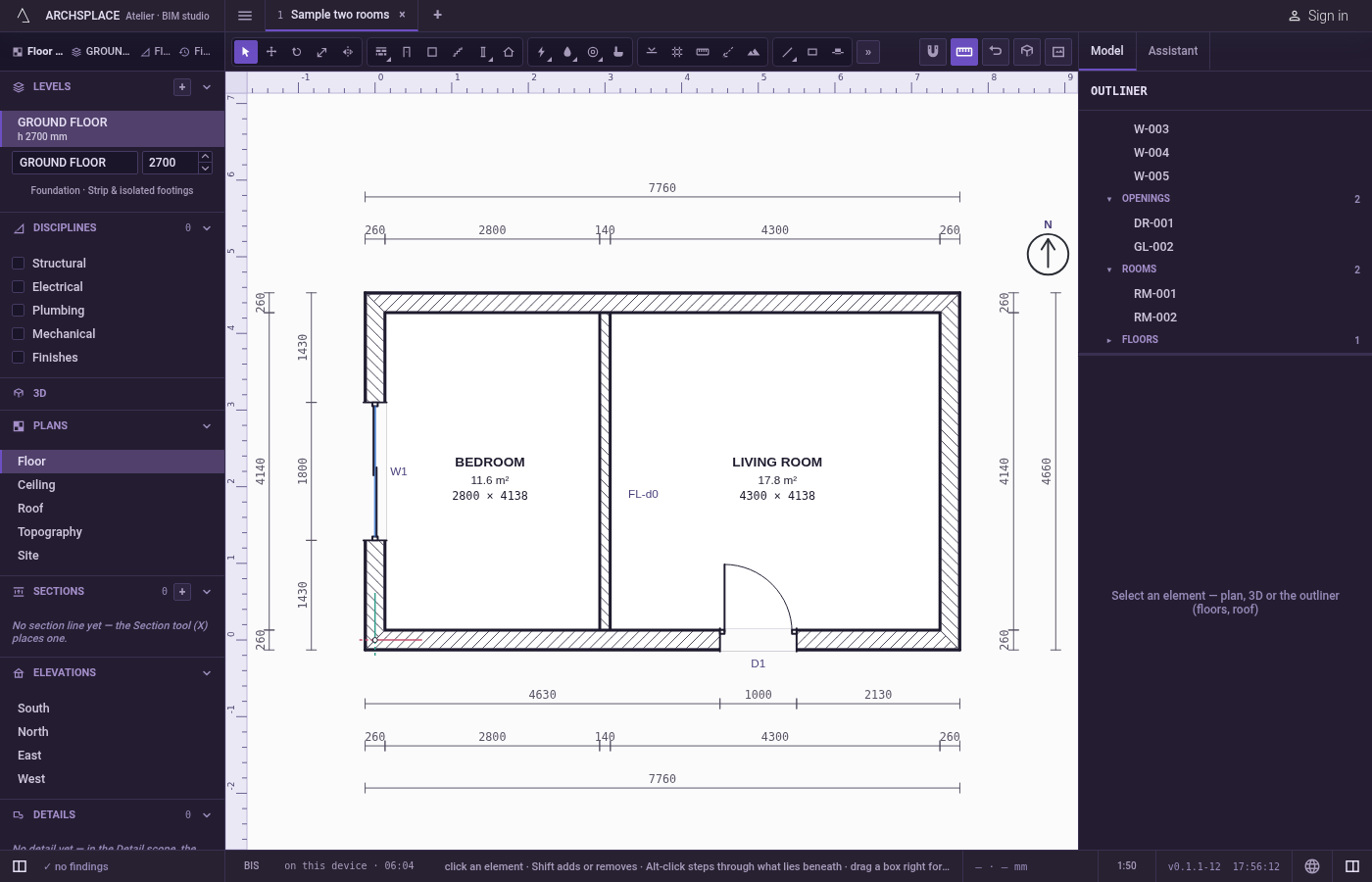
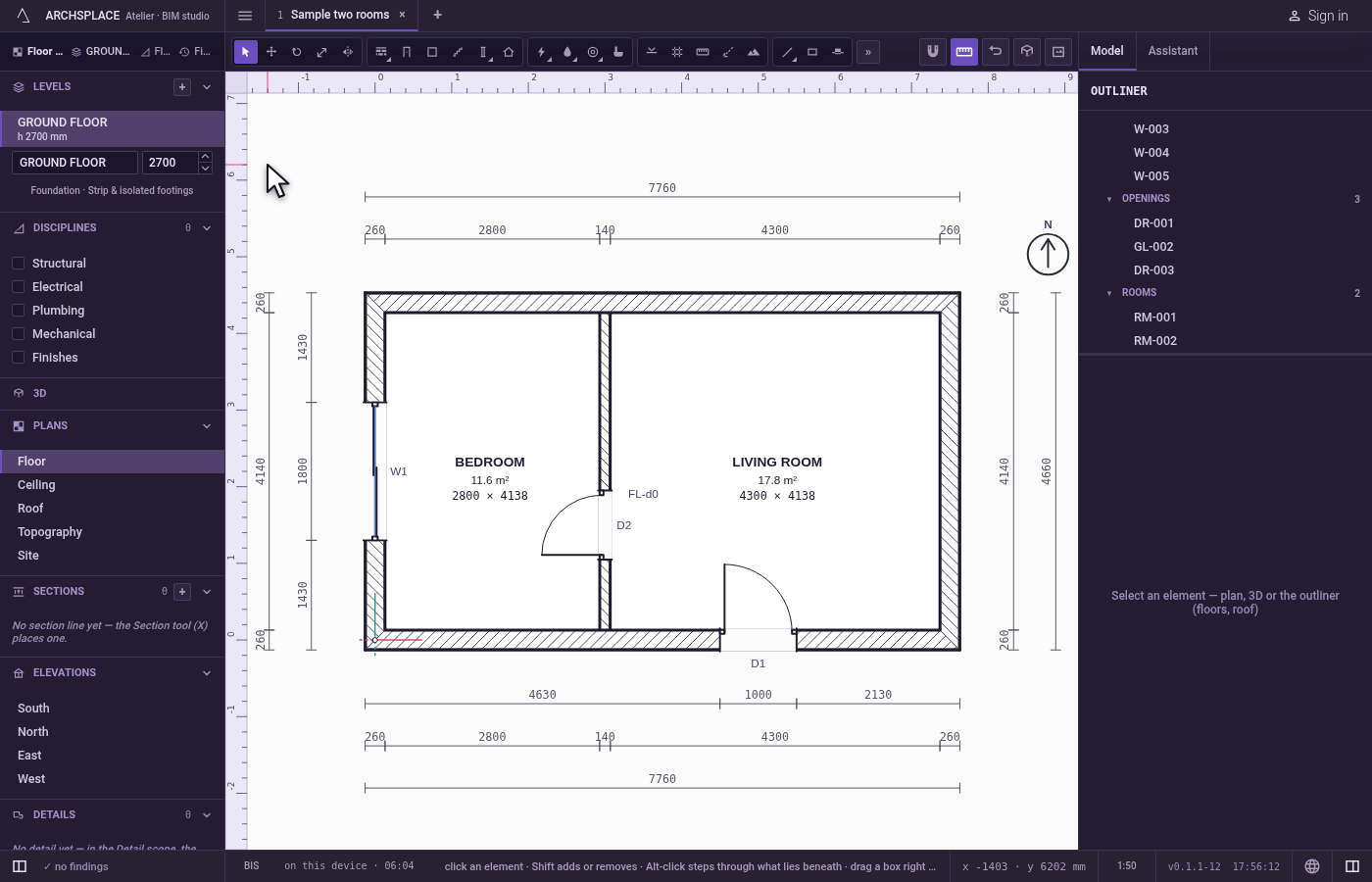
Release everything. A click on empty space clears the selection, and so does Esc.
What it refuses
- A box over references. A box, and Select all, never pick up a level, a section or elevation line, a grid line, a guide, the frame of a detail, a pattern, the terrain or the underlay. Click them one by one.
- Deleting what cannot go on its own. Delete refuses, and gives the reason in a message at the top right, for things that belong to something else: a slab follows the outline of its level, a joint goes with the runs meeting there, the ground is deleted through its spot heights, and the underlay is removed from the level sidebar.
- A click when no project is open. With no project open, the studio says so in the status bar and nothing can be selected.
What it writes to the contract
Nothing. A selection stays in the studio and is never saved in the project. Only the commands you then use on it, such as Move or Delete, change the contract, each one as a single step that one undo reverses.
Concepts
Related
Common questions
What is the difference between a box dragged to the right and one dragged to the left?
A box dragged to the right picks up only what lies fully inside it. A box dragged to the left picks up everything it touches, even partly.
How do I select an element that is hidden under another one?
Keep Alt (Option on a Mac) pressed and click. Every Alt-click picks the next element under the pointer, and after the last one it starts again from the top.
Why does a box never pick up my section lines or my levels?
A box picks up what the plan contains, never what the plan refers to. Levels, section and elevation lines, grid lines, guides, the frame of a detail, a pattern, the terrain and the underlay are selected by a click only, so Select all followed by Delete can never remove them.