PlanAUin the studio
Ventilation unit
Ventilation unit places the unit to which the ducts run, with one click in a room; once the phase has one, a click shifts it there and its ducts follow. Ctrl with a click adds another unit instead.
What it is
The ventilation unit is where the ducts go. Its tool places it once and then shifts it: the first click in a room places the unit, and every click after that shifts the unit of the phase you are drawing in to the room you click, giving it the kind chosen in the list. The ducts follow at once. With Ctrl pressed, a click adds another unit.
The list offers the units of your template; in a project under BIS, the Indian practice: a ventilation unit for extract only, a ventilation unit with heat recovery, and a ductable AC. A ductable AC is a unit of its own kind: placing or shifting one never moves the ventilation unit, and the other way round.
When to use it
- To place the unit of a new ventilation system.
- To shift the unit to another room, such as the roof space or a utility, and see the ducts laid again.
- To switch between a central exhaust unit and an HRV unit.
The steps
Pick the tool. Type
Aand thenUquickly, or pick it on the toolbar, where it shares one button with the air terminal and the outdoor unit. The status bar tells you that a click in a room moves the phase's unit there and that Ctrl with a click adds another one.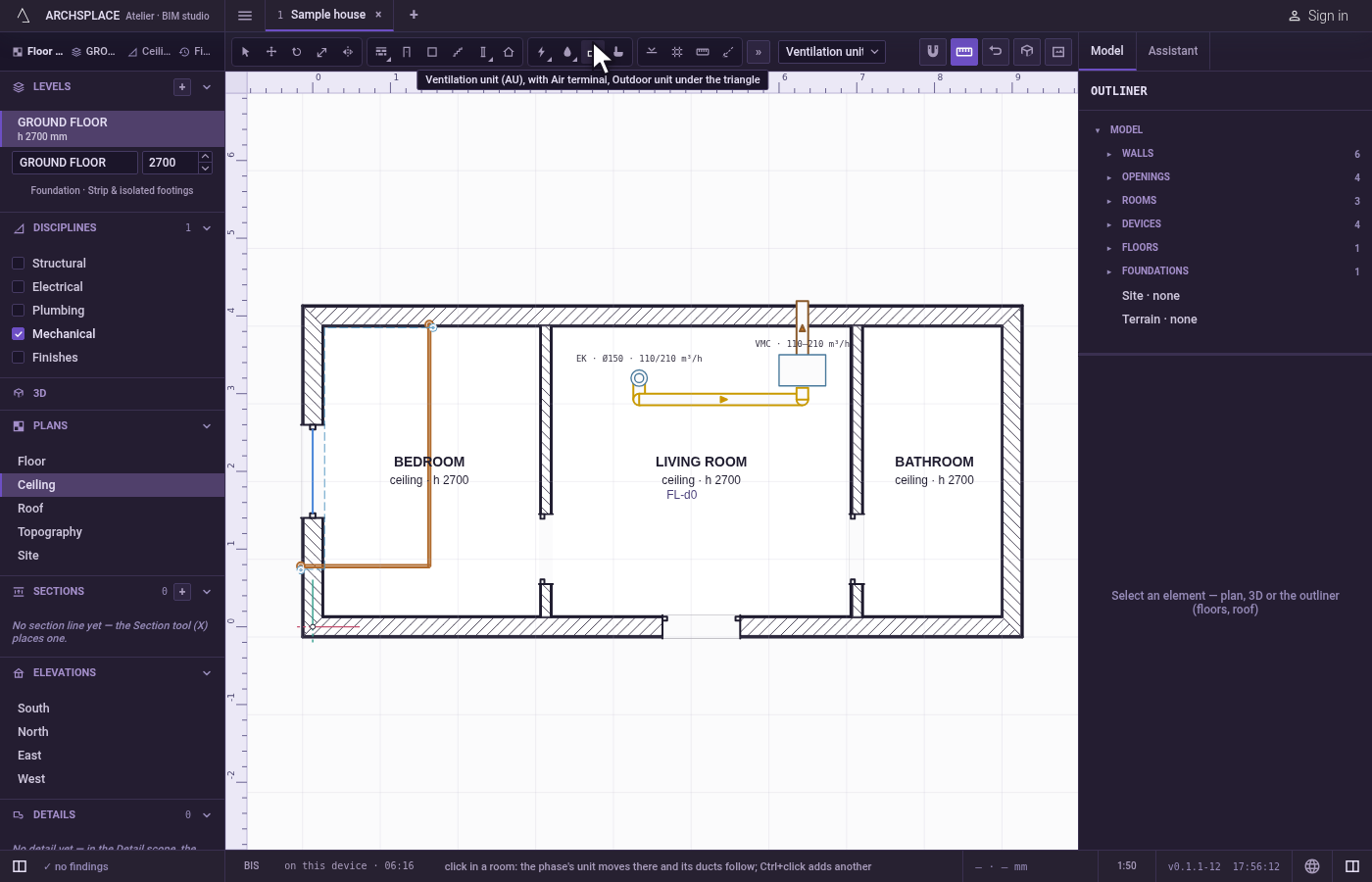
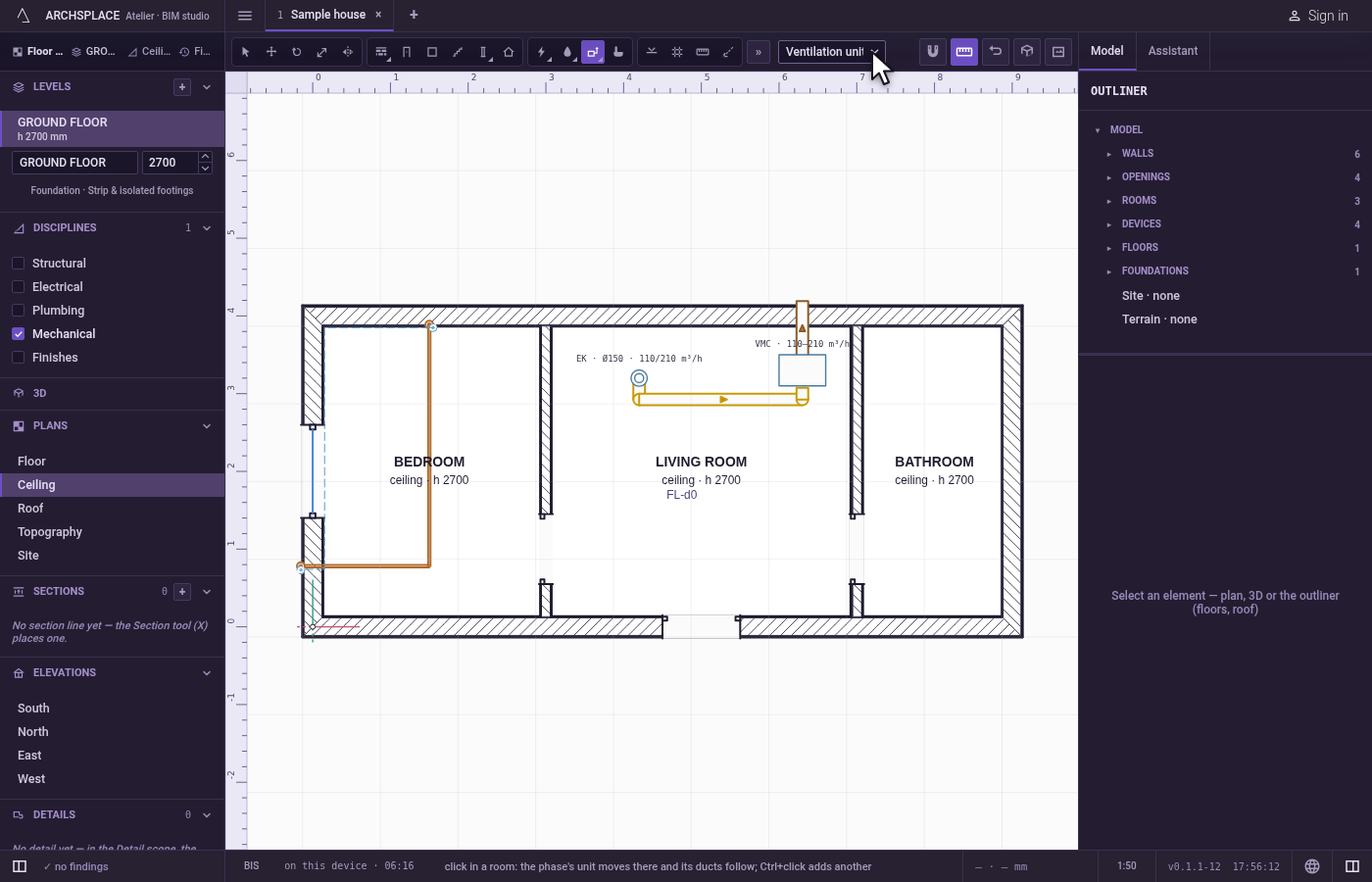
Choose the kind. Pick the unit from the list beside the tools.
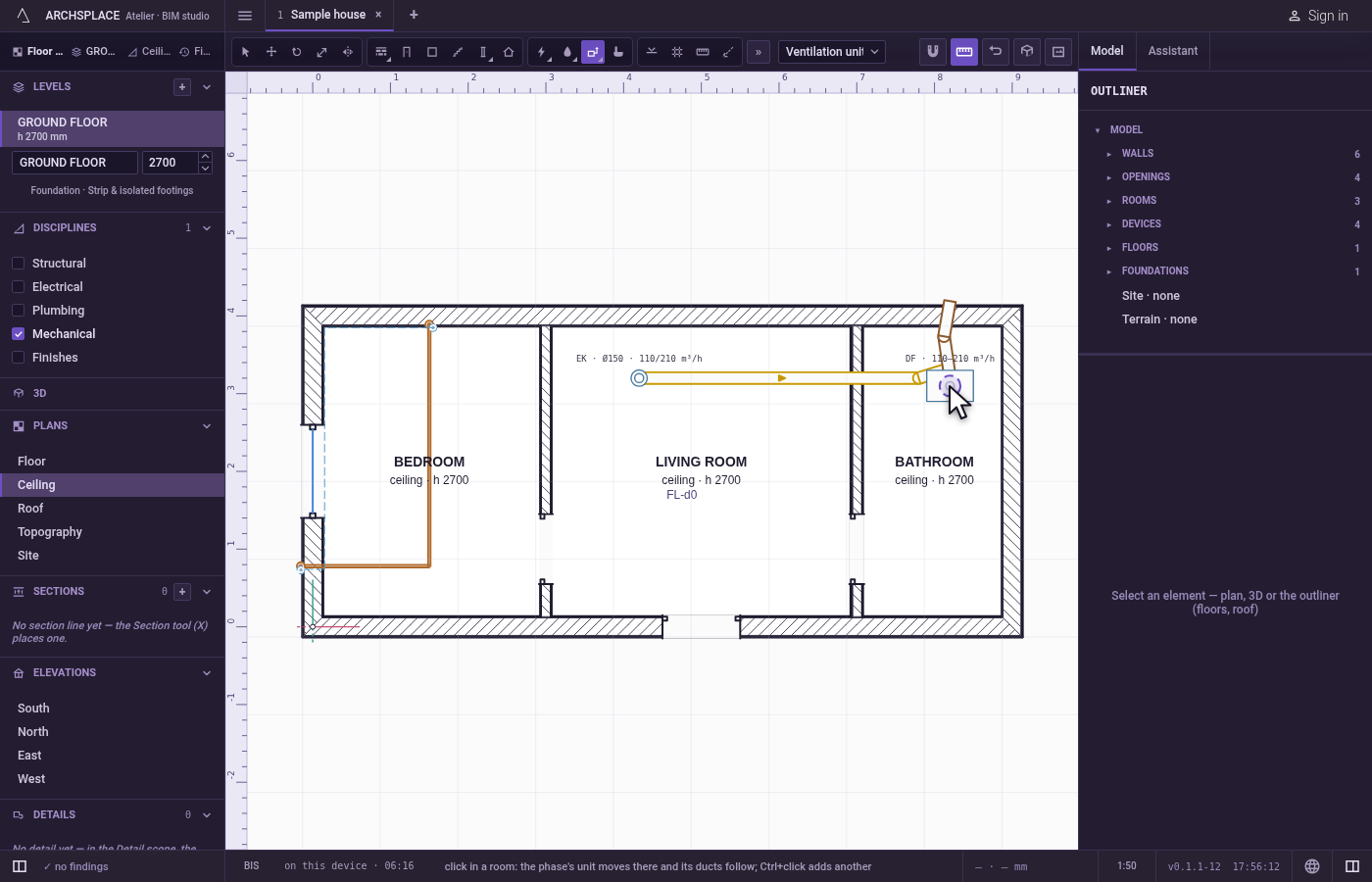
Click inside a room. If this phase has no unit of that kind yet, it is placed at the click. If it has one or more, the first one placed moves there and takes the kind you chose, and the ducts follow.
Add another one with Ctrl. Keep
Ctrl(⌘on a Mac) pressed as you click: a new unit is placed.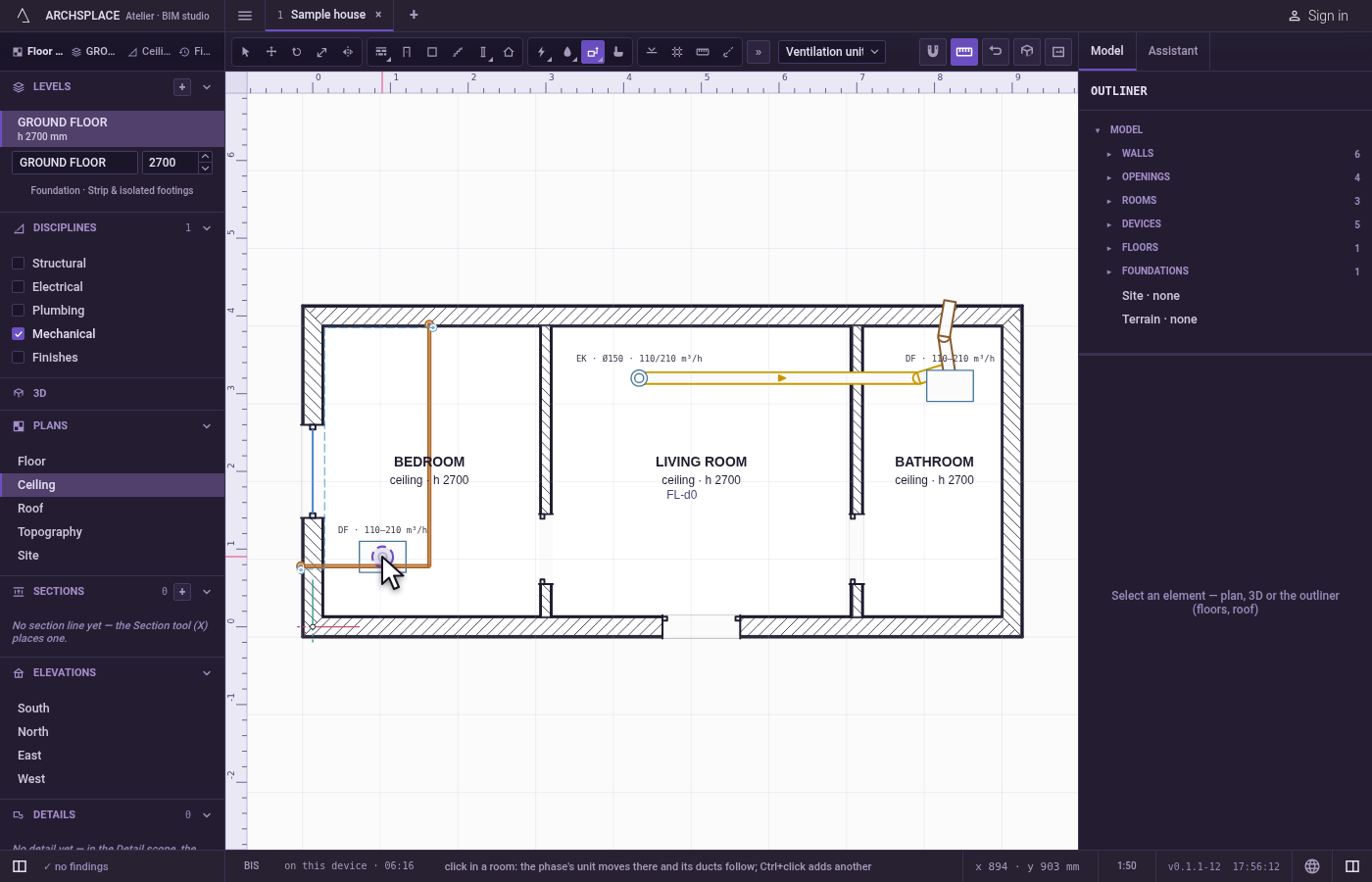
What it refuses
- A click outside a room. Outside every room enclosed by walls, a message asks you to click inside a room, and nothing is placed or moved.
- A unit that no duct can reach. A unit standing where no duct can reach it, such as below a hole in the slab, is flagged by the project, and no duct is laid to it.
What it writes to the contract
One step, which one undo reverses. The first unit, and every unit added with Ctrl, adds one entry to the list of points: its kind, its room, its position in metres and its phase. A shift changes the kind, the room and the position of the unit that moved. The ducts are never written: they are worked out every time the project is built.
Concepts
Common questions
How do I shift the ventilation unit to the roof space?
Open the plan of the level where it should stand, pick the Ventilation unit tool and click inside the room. The unit moves there and every duct is laid again to it.
How do I change an extract-only unit for one with heat recovery?
Choose the other kind from the list beside the tools and click where it stands: the unit of the phase moves there and takes the kind you chose.