3DEin the studio
Eraser
The Eraser removes lines from the modelled geometry in the 3D view, one with a click or many by sweeping across them. With Shift pressed it hides a line instead, with Ctrl it softens it, and with both it brings a hidden or softened line back.
What it is
The Eraser works on the lines you drew in the 3D view: the lines and arcs of the Line, Arc, Rectangle and Circle tools, and every line those lines became part of. A click on a line erases it; a press followed by a sweep erases every line the pointer passes over, all together when you release.
To the Eraser, an arc or a circle is one curve: touching any part of it removes the whole curve. Erasing a line opens every face it closed, and two lines left in one straight line merge into one.
The same tool also hides and softens. A hidden or softened line is no longer drawn, but it still bounds its faces, so the surface stays whole. This is how you clean up the look of a model without changing its shape.
When to use it
- To remove a line drawn by mistake, or one that splits a face you want whole again.
- To open a face so that you can draw it again differently.
- To hide the lines that show where flat faces meet, so that a surface reads as one.
- To bring back a line you hid or softened earlier.
The steps
Pick the tool. Press
E, or click Eraser in the first group of the bar.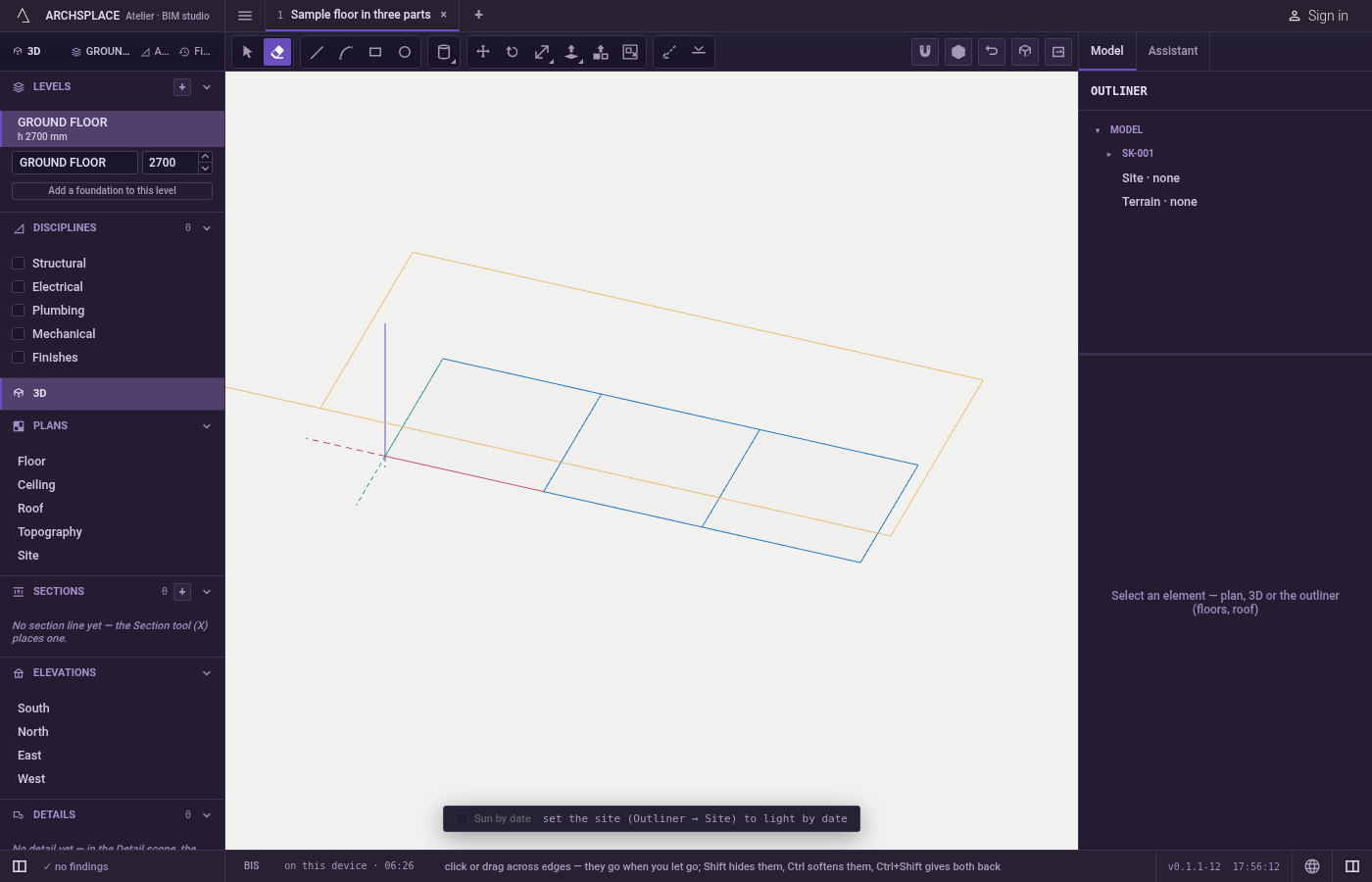
Point at a line. The line under the pointer is highlighted in orange. A hidden or softened line is highlighted too: the Eraser still finds it.
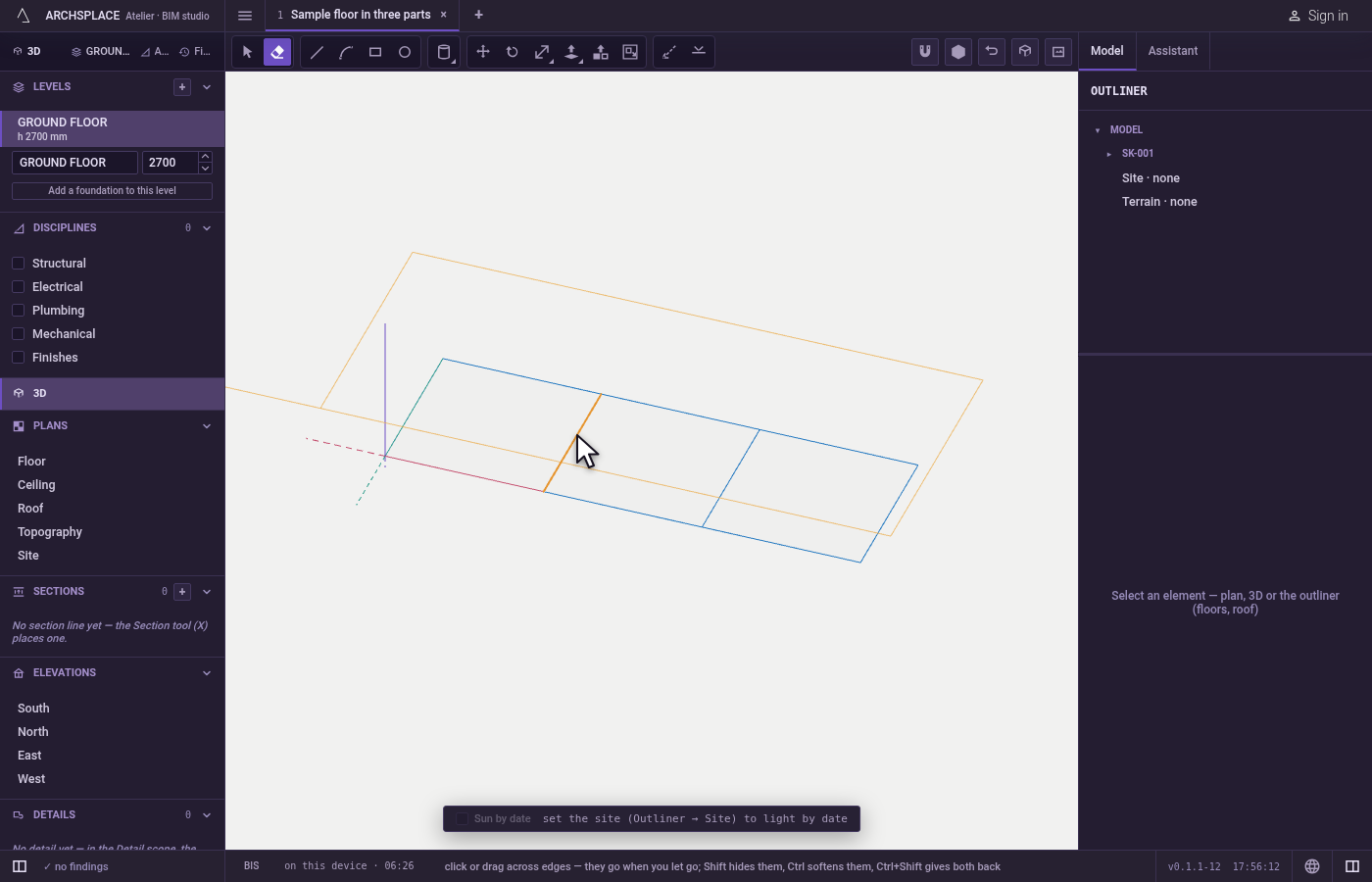
Click or sweep. Click to pick one line, or press and drag across several. Every line the pointer passes over stays highlighted while you sweep.
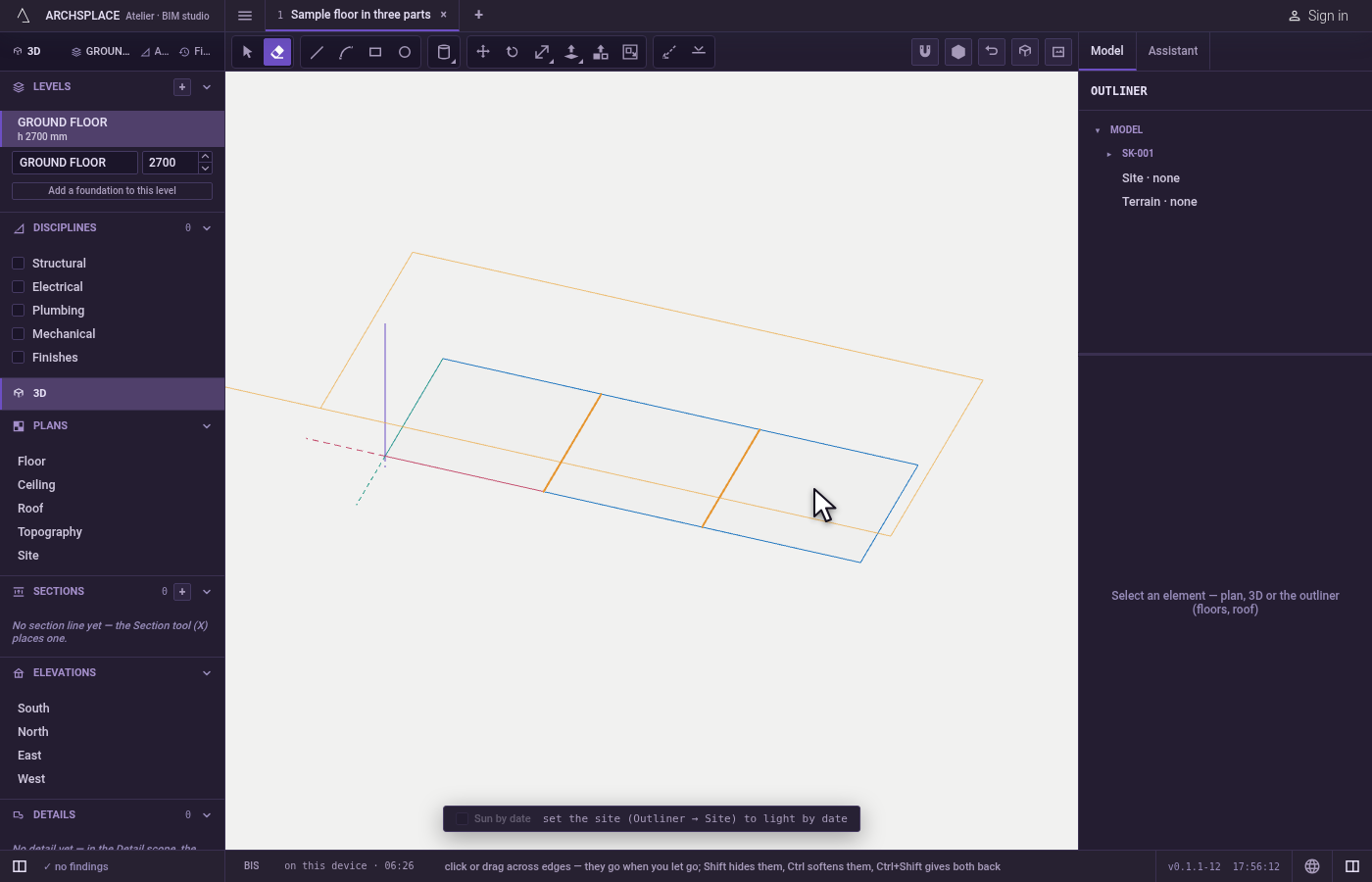
Release with the key that says what to do. With no key, the lines are erased. With
Shiftpressed as you release, they are hidden. WithCtrl(⌘on a Mac), they are softened. WithCtrlandShifttogether, hidden and softened lines are brought back. Every release is one step thatCtrl+Zundoes.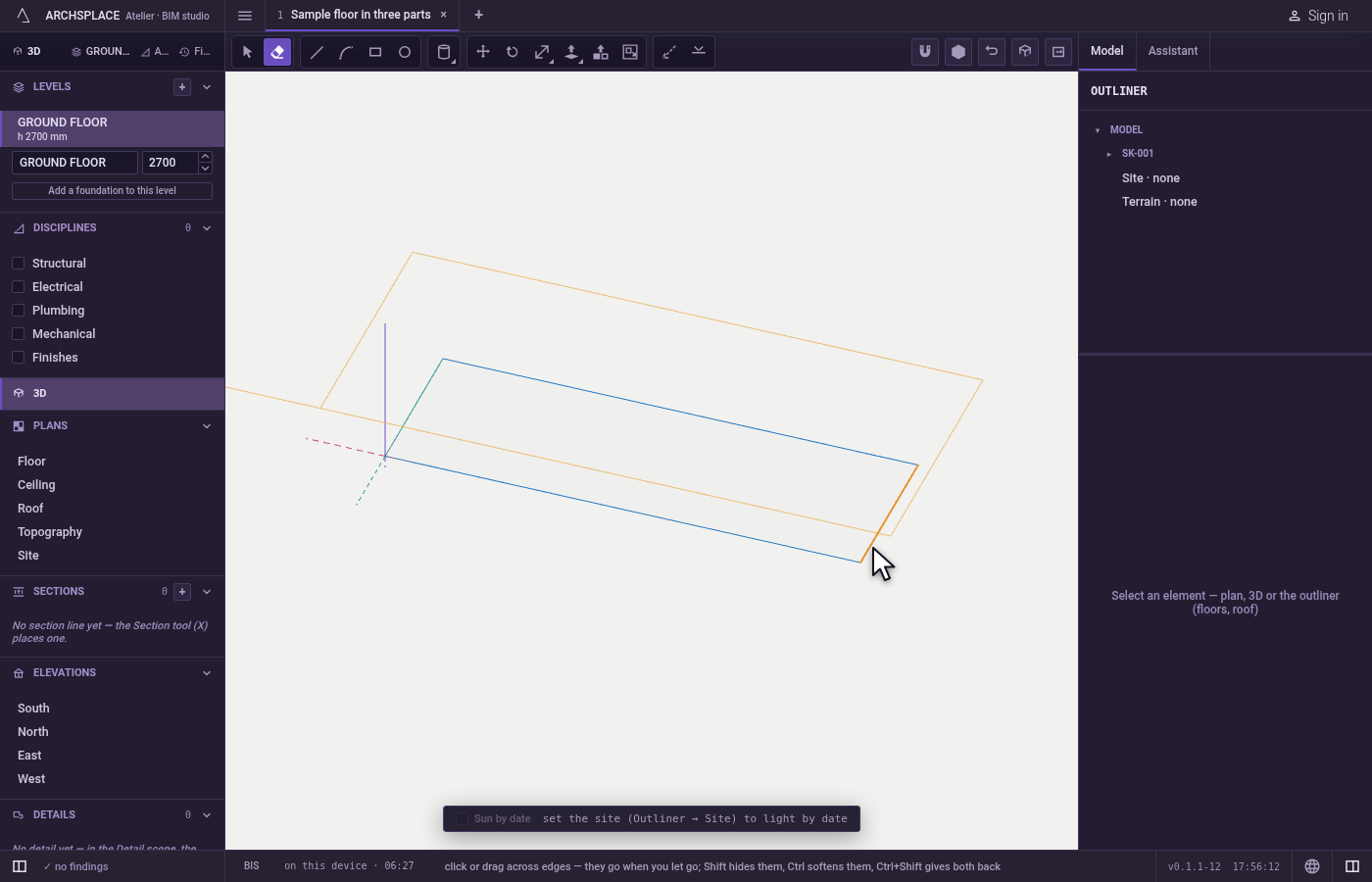
What it refuses
- The edges of a solid body. The edges of a body are its shape, so erasing one is refused, and a notice says that they cannot be hidden or softened either. Reshape the body with Push/Pull or Move instead.
- What is not a line. A face, a wall, a slab or a component is not picked by the Eraser; select it and press
Delete. - The inside of a closed component. Open the component first, then erase its lines.
What it writes to the contract
An erase removes the lines from the modelled geometry of the model, or of the component you have open, and the faces they closed are worked out again from the lines that remain. Hiding and softening keep the lines and mark them, so they are no longer drawn but still bound their faces; bringing them back removes the mark. Every release is one undoable step.
Common questions
What happens to a face when I erase one of its lines?
The face opens: without that line its outline is no longer closed, so the face goes while the other lines remain. Two lines left in one straight line after an erase merge into one.
How do I hide a line without opening the face?
Keep Shift pressed as you release the mouse button. The line is no longer drawn, but the faces it bounded stay whole. Keep Ctrl pressed instead to soften it, and Ctrl and Shift together to bring hidden or softened lines back.
Can I erase the edge of a solid body?
No. The edges of a body are its shape. The Eraser refuses them, and Shift or Ctrl refuse to hide or soften them. Push, pull or delete the body instead.