Panels
Level panel
A level is one storey of the project: its name, its height, and the level at which it stands, given by the levels below it. The Levels list in the sidebar adds, orders, renames and removes them and opens the foundation of each level, and the level panel shows the level picked by its frame in the 3D view, where its plan cuts and the way into its plan.
What it is
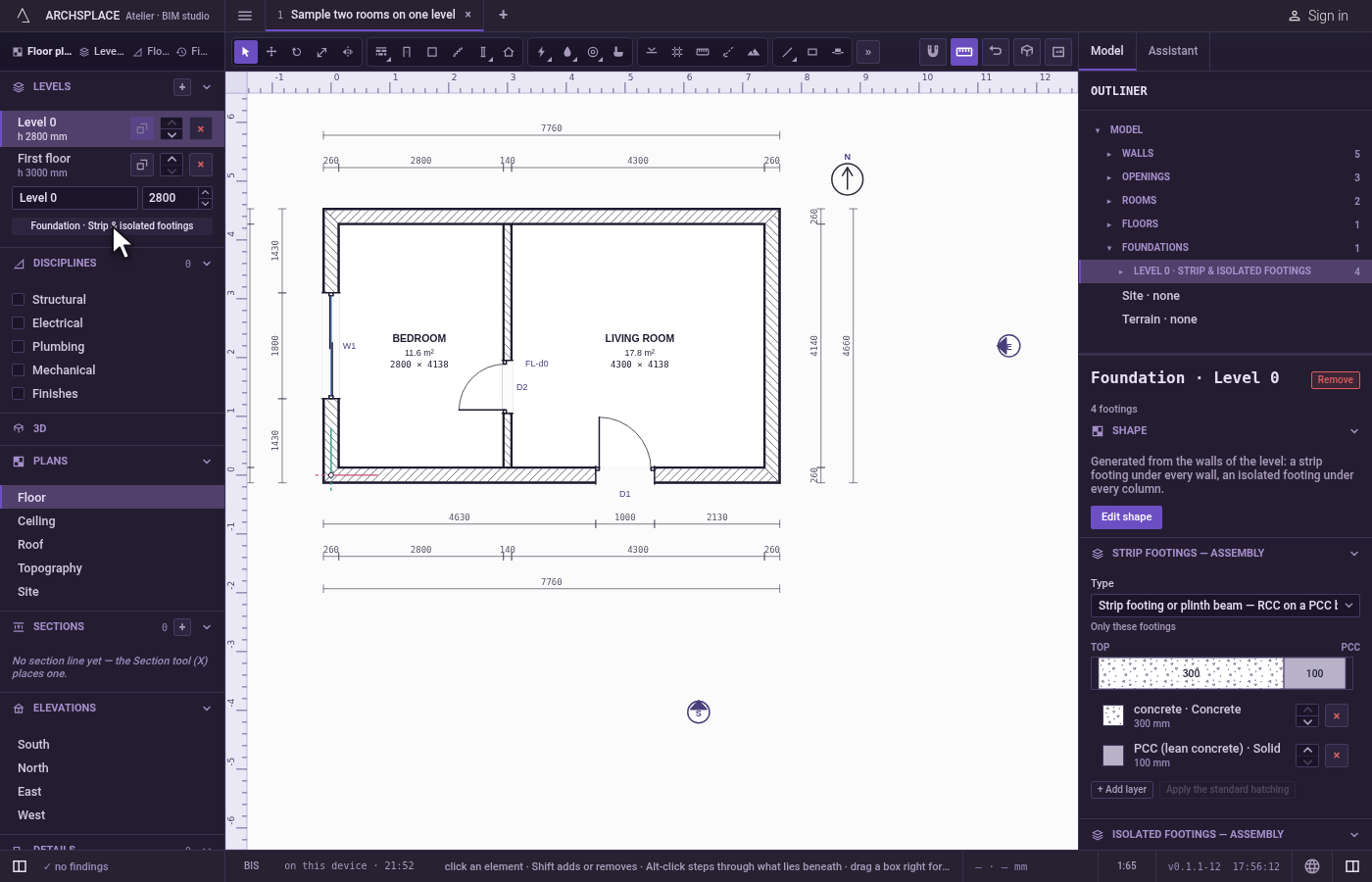
Every project has at least one level, Level 0, 2.80 m high to begin with. Its levels are kept in the Levels section of the sidebar, with Add level. Each level is a row with its name and its height, such as h 2.80 m; a click on a row takes that level in hand, and the plan shows it. When the project has more than one level, each row carries:
- the trace button, which draws that level below the plan of the level in hand and lets the magnet catch its lines;
- two arrows that move it up or down the stack;
- a × that removes it.
Below the list, the level in hand is edited: its name and its height. Below them, Add a foundation to this level, or, once it has one, Foundation and its system, opens the foundation of the level in the panel on the right.
The level at which a floor stands is never typed. It is the sum of the heights of the levels below it: the levels restack whenever a height changes, or a level is added, moved or removed. The floor of a level is its datum: its slab stands in the band just below it.
In the 3D view, a level can also be picked by its frame. The column on the right then shows the level panel: LEVEL and its name, where its plan cuts (1 m above its floor), its Name and Height, Cut the 3D view, which cuts the 3D view at the cut of that plan, and Open its plan. A line reminds you that levels are added and removed in the Levels list.
When to use it
- To add the storeys of a house, one above the other.
- To set the floor to floor height of a storey.
- To draw an upper floor over the lower one, traced below it.
- To give the ground level its foundation.
The steps
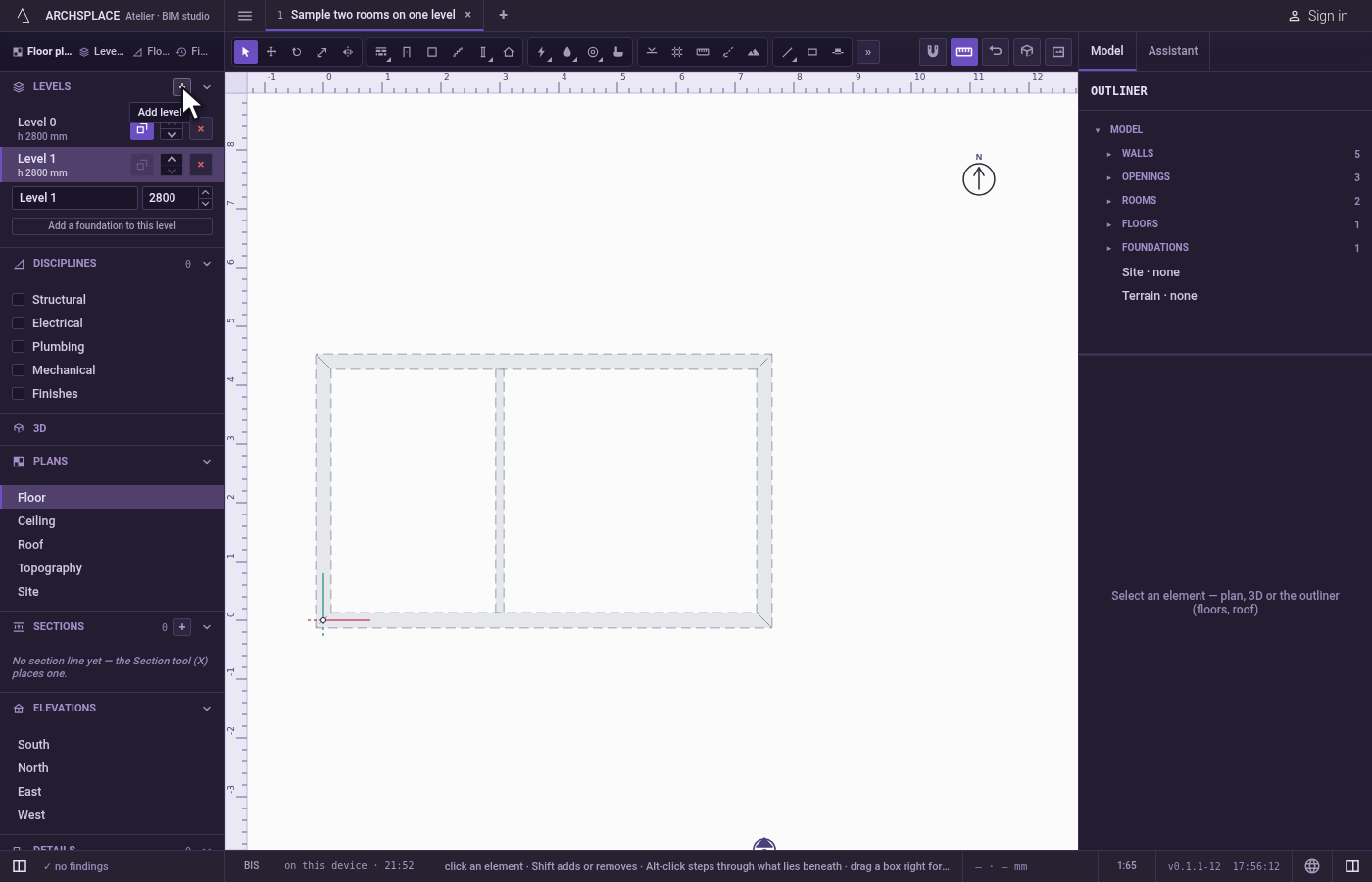
Add a level. In the sidebar, click Add level. Level 1 joins the list, 2.80 m high, standing on Level 0, and the plan shows it.
Rename it. In the name field below the list, type First floor and press
Enter.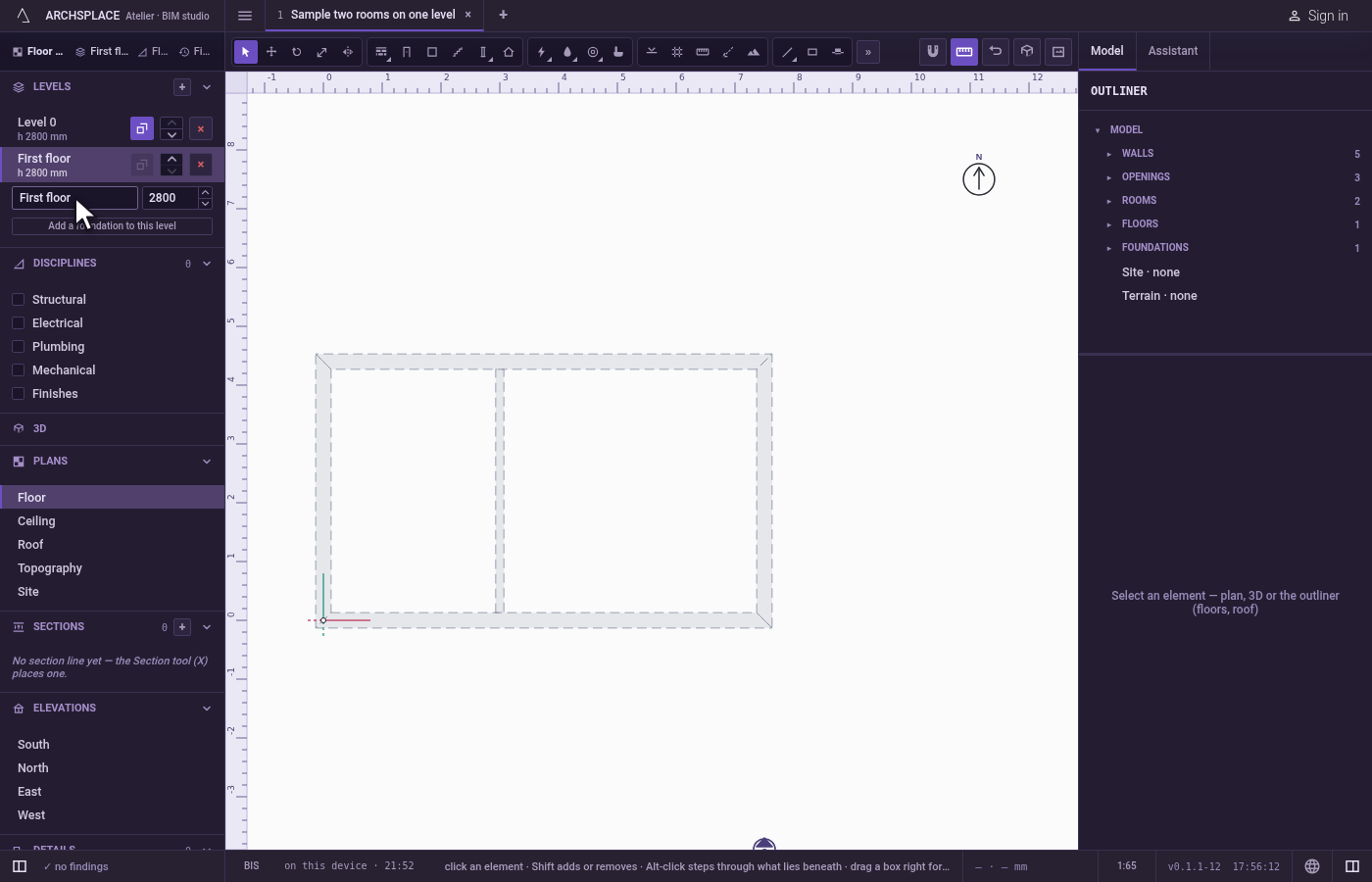
Change its height. In the height field, type 3000 and press
Enter. Its row shows the new height, and every level above it moves up.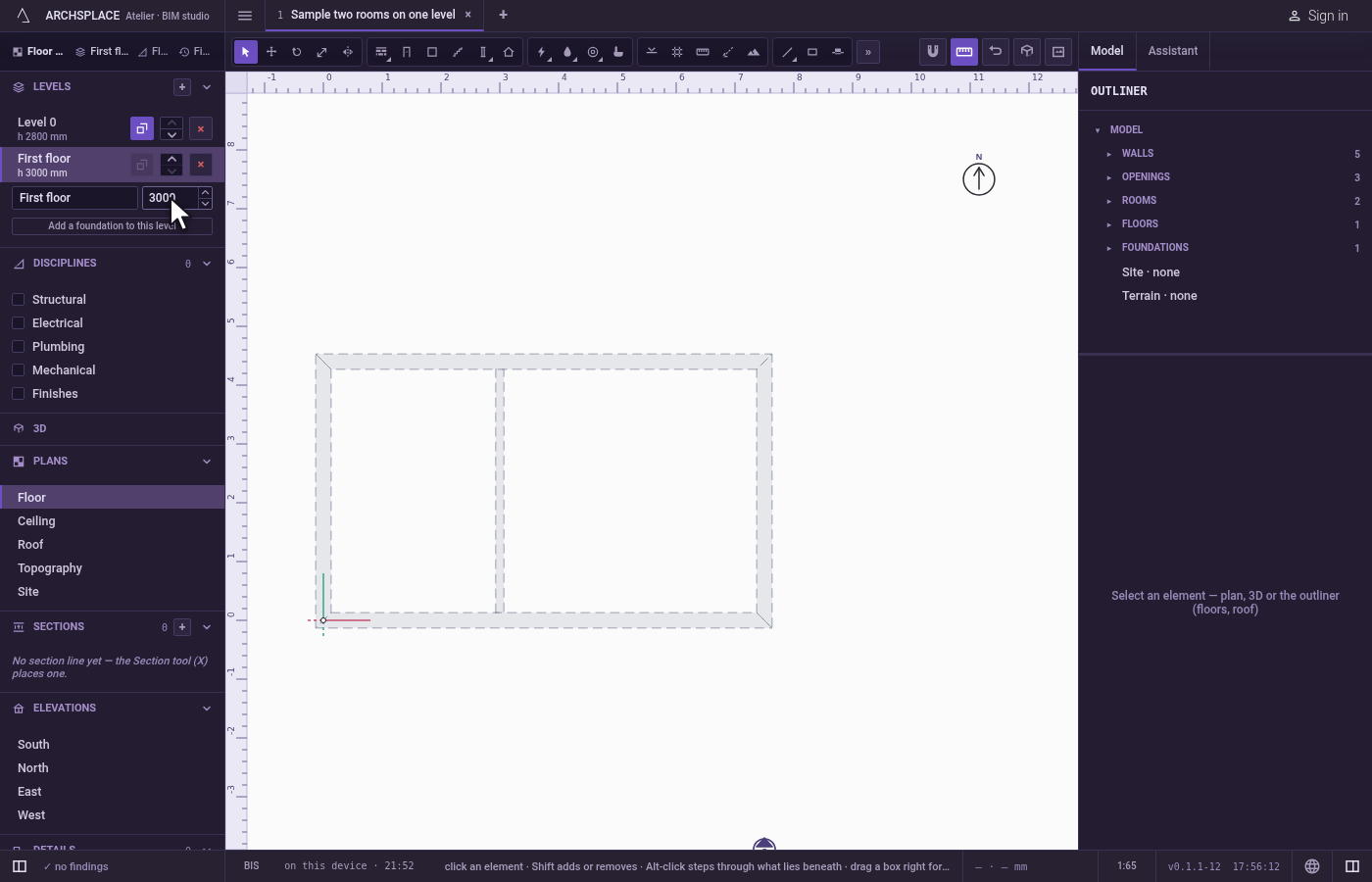
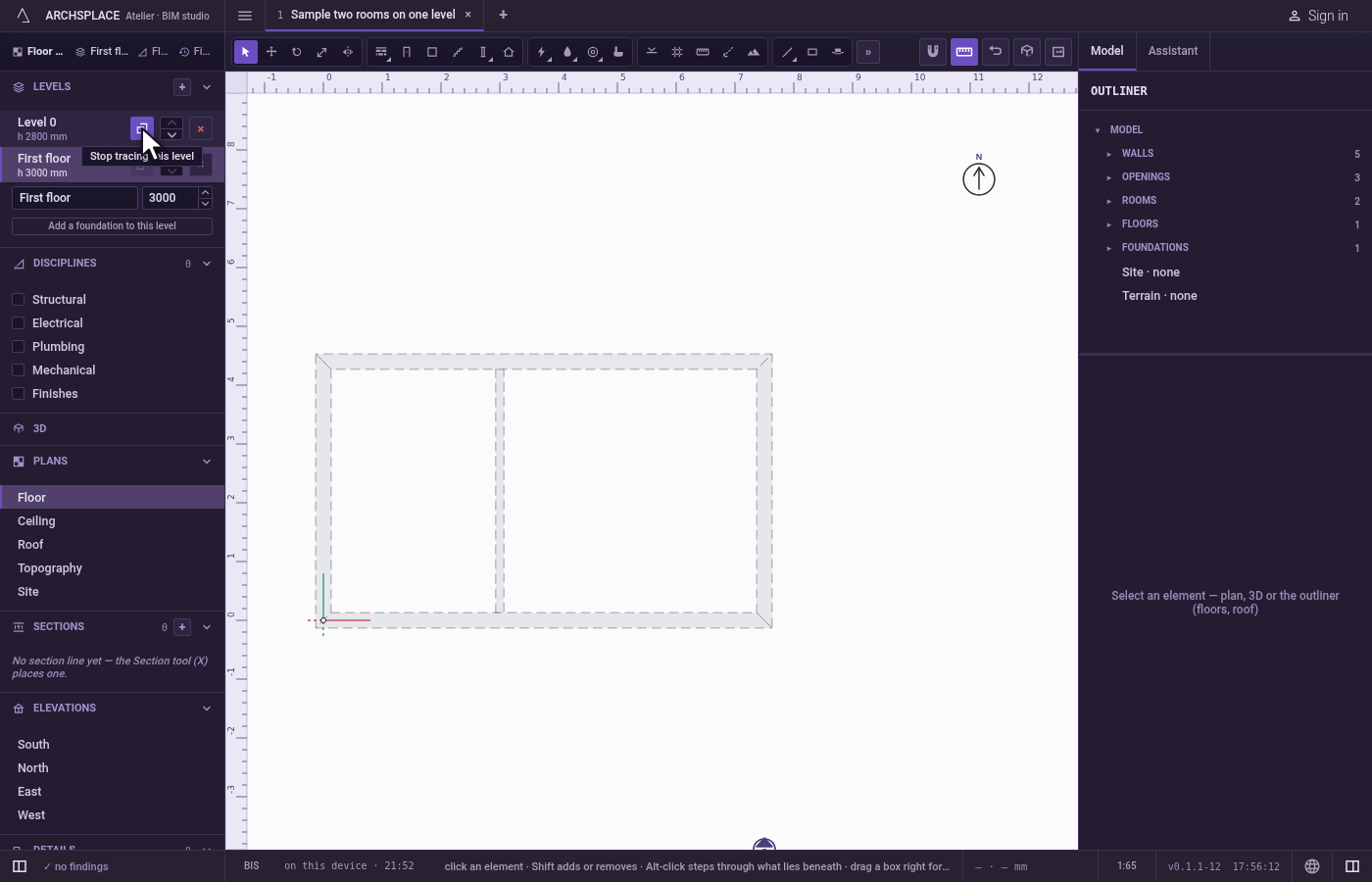
Trace the level below. On the first floor's plan, Level 0 is drawn faintly under it and the magnet catches its walls. Click the trace button on Level 0's row to stop tracing it, and click it again to trace it.
Open the ground level's foundation. Click Level 0, then Foundation · Strip & isolated footings under the list. The level's footings stand under its walls, and its foundation shows in the panel on the right.
What it refuses
- A height of 1 m or less in the Levels list: the field keeps the value it had.
- Removing a level that still holds elements, or the only level: nothing is removed.
- Tracing the level in hand below itself. Its trace button is greyed out and says so.
- Typing a floor level. There is no such field: the level at which a floor stands follows the heights.
What it writes to the contract
The levels are the levels of the project, in order from the bottom, each with its name, its height in metres and its elevation, which the atelier writes again from the heights after every change. Moving a level swaps the level of every element standing on the two levels; removing one takes away its dimensions and details and brings the levels above it down. Add a foundation to this level writes the foundation system of the level, with footings. Each of these is one step that one Ctrl+Z reverses. The trace and Cut the 3D view write nothing: they belong to the session.
Related
Common questions
How do I change the height of a storey?
Click the level in the Levels list of the sidebar and type its new height in the field below the list, then press Enter. Every level above it moves up or down to stand on it.
Can I type the level at which a floor stands?
No. The level of a floor is the sum of the heights of the levels below it, and it follows them whenever a height changes or the levels are reordered.
Why can I not remove a level?
Because it still holds elements, such as walls, rooms or staircases, or because it is the only level. Move or delete what stands on it first.