SketchLENin the studio
Lengthen
Lengthen changes the length of an open line or arc in the sketch editor at the end you click: by a change you type, to a percentage of its length, to a total length, or to where you drag the end. Only the last stretch of the line moves.
What it is
Lengthen moves one end of an open line or arc along the direction of the line itself, or around the circle of the arc, so that the line becomes longer or shorter. The end that moves is the one nearest to where you click, measured along the line. Only the last stretch of the line changes; a chain of several lines keeps its other corners.
There are four ways to say how much: a change (delta), a percentage of the whole length, a total length, or dynamically, by dragging the end to a point. The result is previewed, with the length before and after.
When to use it
- To trim or grow a line by an exact amount when there is no other line to reach.
- To set a line to an exact total length.
- To extend an arc along its own circle.
The steps
Pick Lengthen. In the sketch editor (see Select for the ways in), type
L,E,Nquickly, or click Lengthen on the toolbar of the editor. The hint at the cursor tells you to type a delta, percentage or total, withD,PandT, or to drag the end, withY. Lengthen starts with a delta.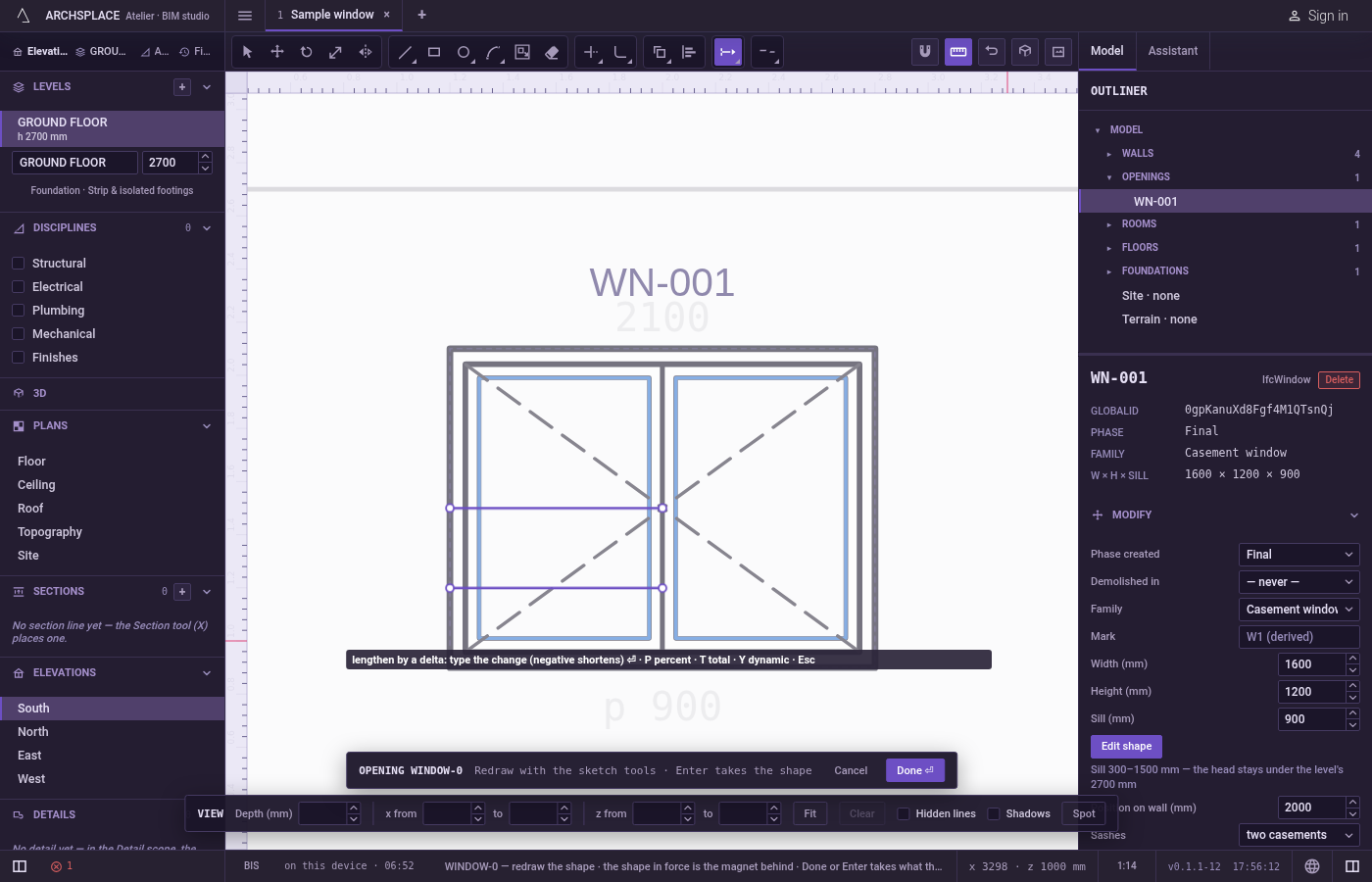
Choose the way. Press
Dfor a change in length,Pfor a percentage of the length,Tfor a total length, orYto drag the end. Each switch clears the value typed before.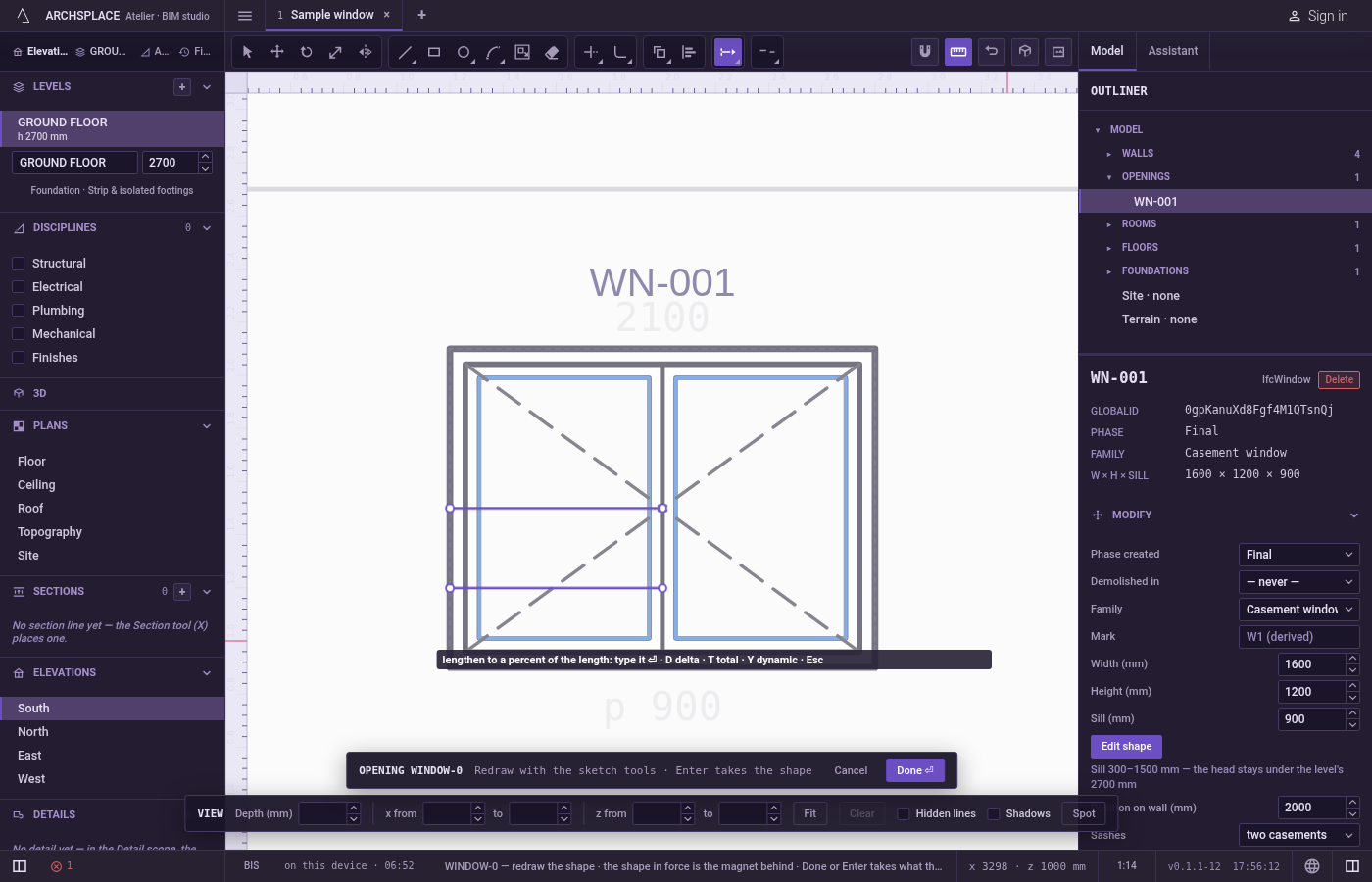
Type the value. For a delta, type the change in the project units, negative to shorten. For a percentage, type it:
50halves the line. For a total, type the length you want. PressEnter. The hint shows the value in force, such as delta 0.200 m in a metric project.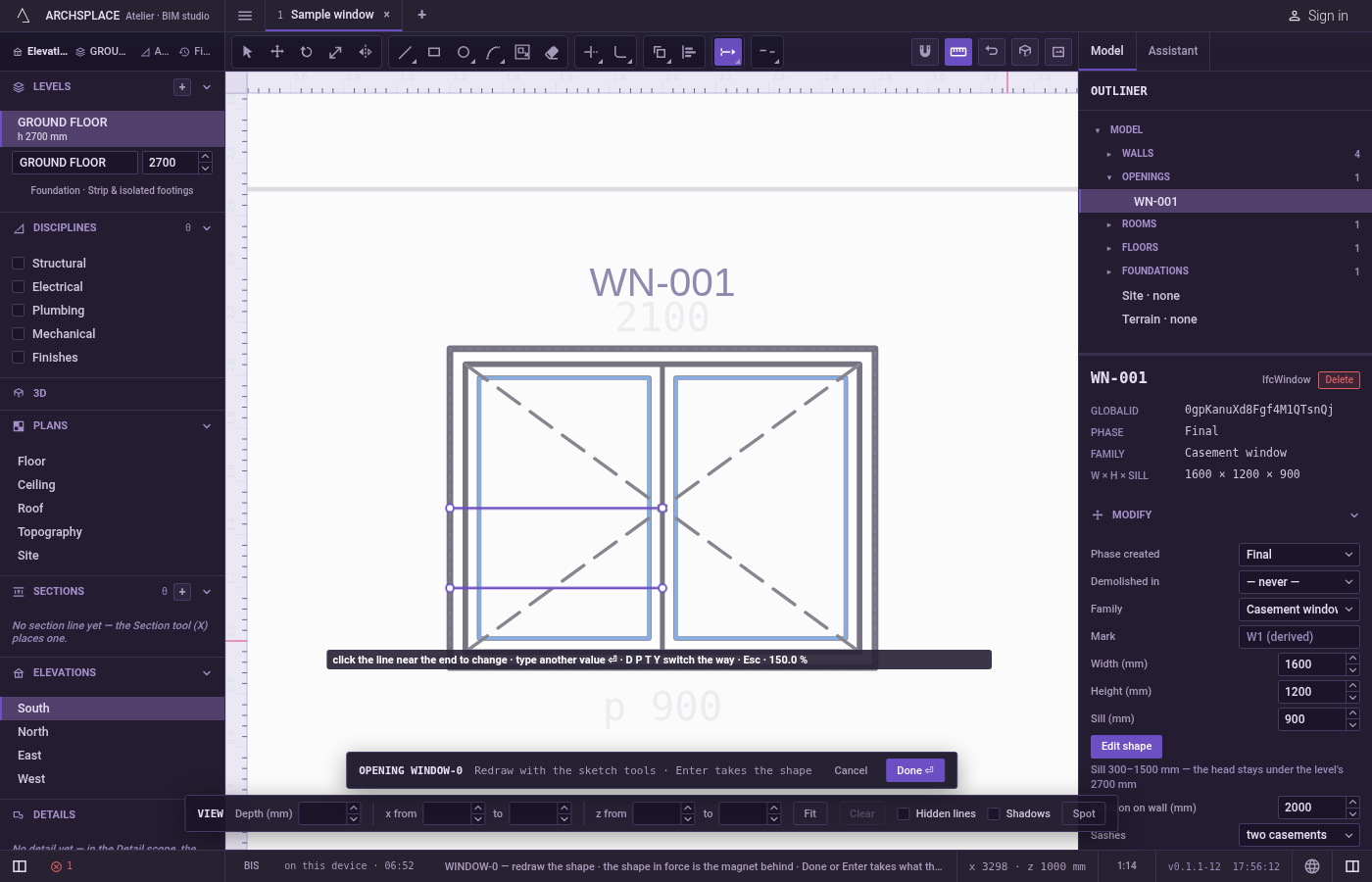
Click the line near the end to change. The preview shows the new end and the hint shows the length before and after. The click changes it, and the value stays, so every further click changes another end in the same way. Lengthen reads the pointer exactly here, with no magnet.
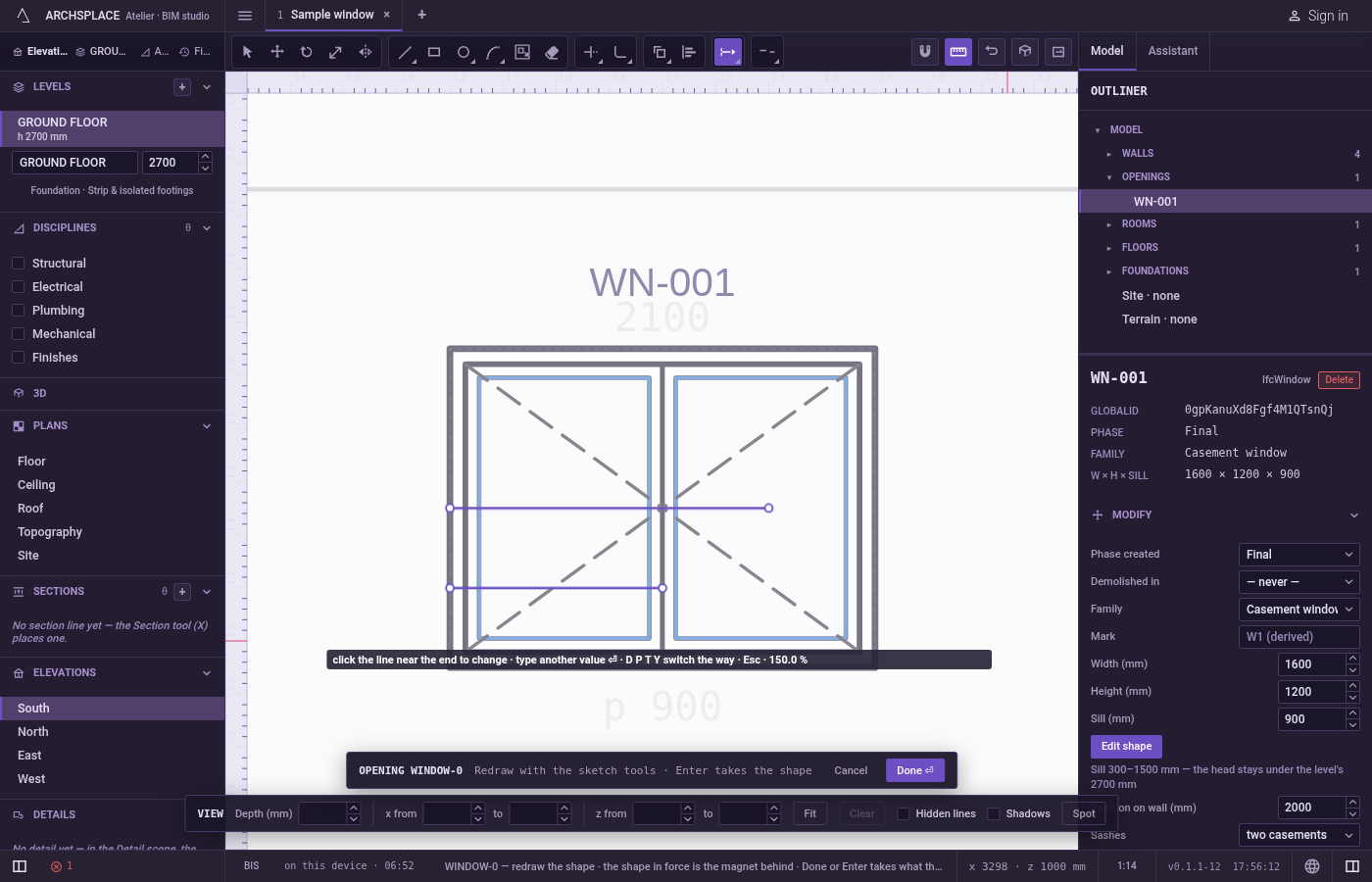
Or drag the end. In the
Yway, click the line near the end to move, then click where the end should go: the end follows the pointer along the line, or around the arc, and the second click sets it. This second point snaps like every point of the editor.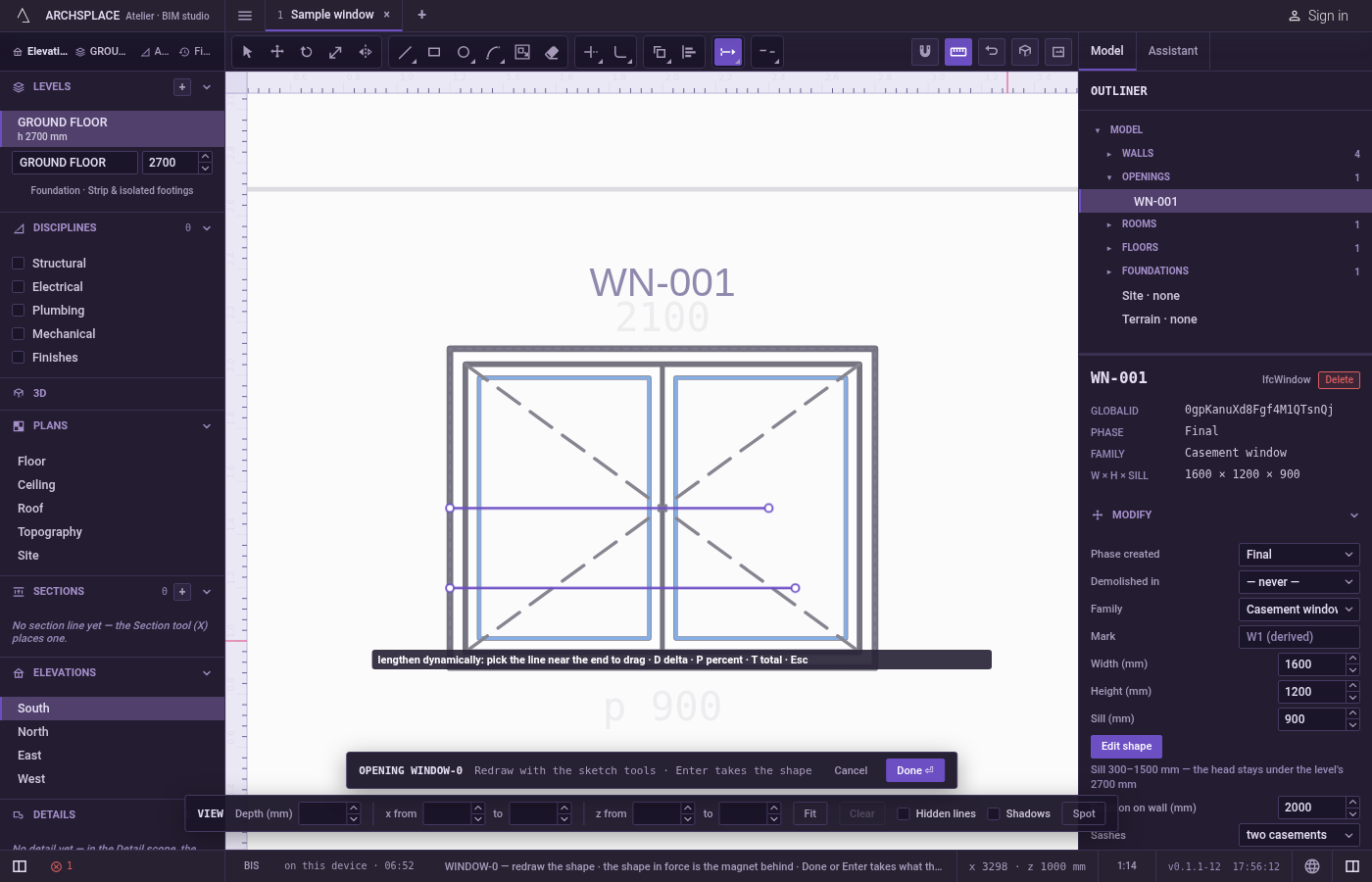
Carry on.
Escapedrops a line picked for dragging, then goes back to Select.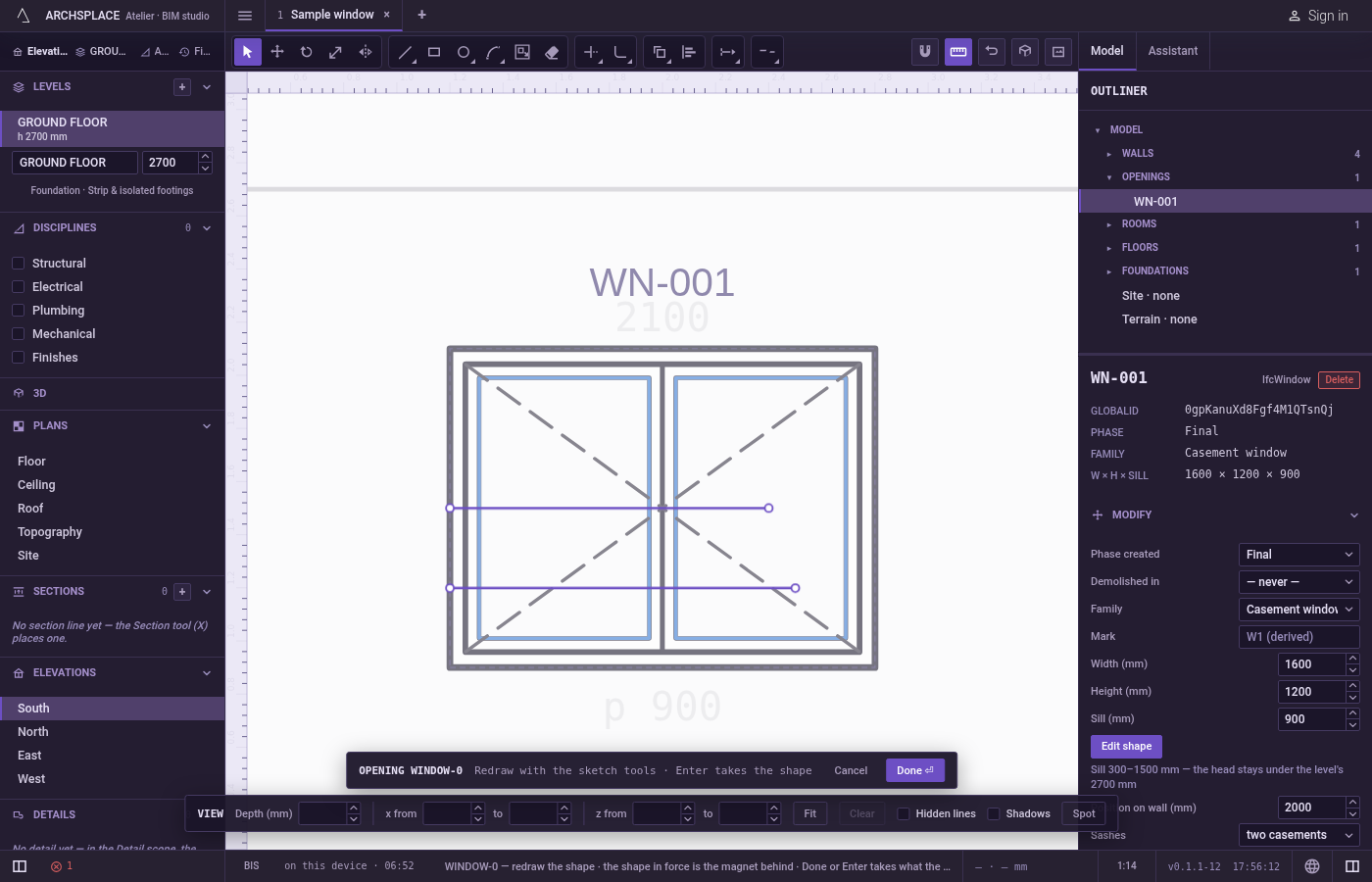
What it refuses
- A closed line. A rectangle, a circle or any closed outline has no end. The hint refuses it as a length that would leave nothing. Explode it first.
- A click before the value. In the delta, percentage and total ways, a click with no value typed only repeats the request to type it.
- A length of nothing. A change that would bring the line to zero or below is refused, and so is an arc pushed beyond a full circle.
- A click on nothing. The hint says nothing under the pointer.
- Reaching another line. Lengthen does not stop at other lines. To grow an end until it meets one, use Extend.
What it writes to the contract
Nothing until you press Done. Every change is one step inside the editor, and Ctrl+Z goes back through them. The contract changes when you press Done, or Enter with nothing in progress, as one step that you can undo: what the lines enclose becomes the profile of the window or door, points [u, v] in metres across the wall and up from the floor, or the outline of the pattern area in the floorAreas or ceilingAreas of the room, points [x, y] in plan metres.
The moved end is a new point on the same line. For an arc, the bulge on its starting point, the third number, is worked out again for the new sweep, and the radius does not change.
Common questions
How do I shorten a line by 5 centimetres?
Press L, E, N quickly, type -0.05 and press Enter, then click the line near the end that should become shorter. The value stays, so every further click shortens another end by the same amount.
How do I make a line exactly 1 metre long?
Press T to switch to a total length, type 1 and press Enter, then click the line near the end that should move.
Can I lengthen a side of a rectangle?
No. A rectangle is one closed line with no end. Explode it first to make its sides separate lines.