3DQin the studio
Rotate
Rotate turns what you hold in the 3D view about a vertical axis through a point you choose: a pivot, a starting direction, then the angle, clicked or typed in degrees. With Ctrl it leaves the original and turns a copy, which you can repeat around the same pivot.
What it is
Rotate turns a selection, or the thing you point at, about a vertical axis. The axis stands on the pivot you click. You then show a starting direction and the direction it turns to, on the level plane through the pivot; a protractor drawn around the pivot marks every 15 degrees, and the angle settles on a mark when it comes within 1.5 degrees of it. While you turn, a ghost of what you hold stands where it would land.
Rotate works on bodies, loose lines, components and the elements of the building, such as walls, columns and staircases. On loose lines, a part you selected (a face, some edges) turns on its own and the rest of the lines stay; a face, an edge or a corner of a body that you selected turns the whole body.
When to use it
- To turn a component or a body to face another way.
- To turn walls and the runs joined to them.
- To place copies around a point, such as chairs around a table.
The steps
Choose what turns. Select it first, or pick the tool and point at it: what the first click would pick is highlighted in orange. With nothing selected and nothing under the pointer, the hint asks you to select something first.
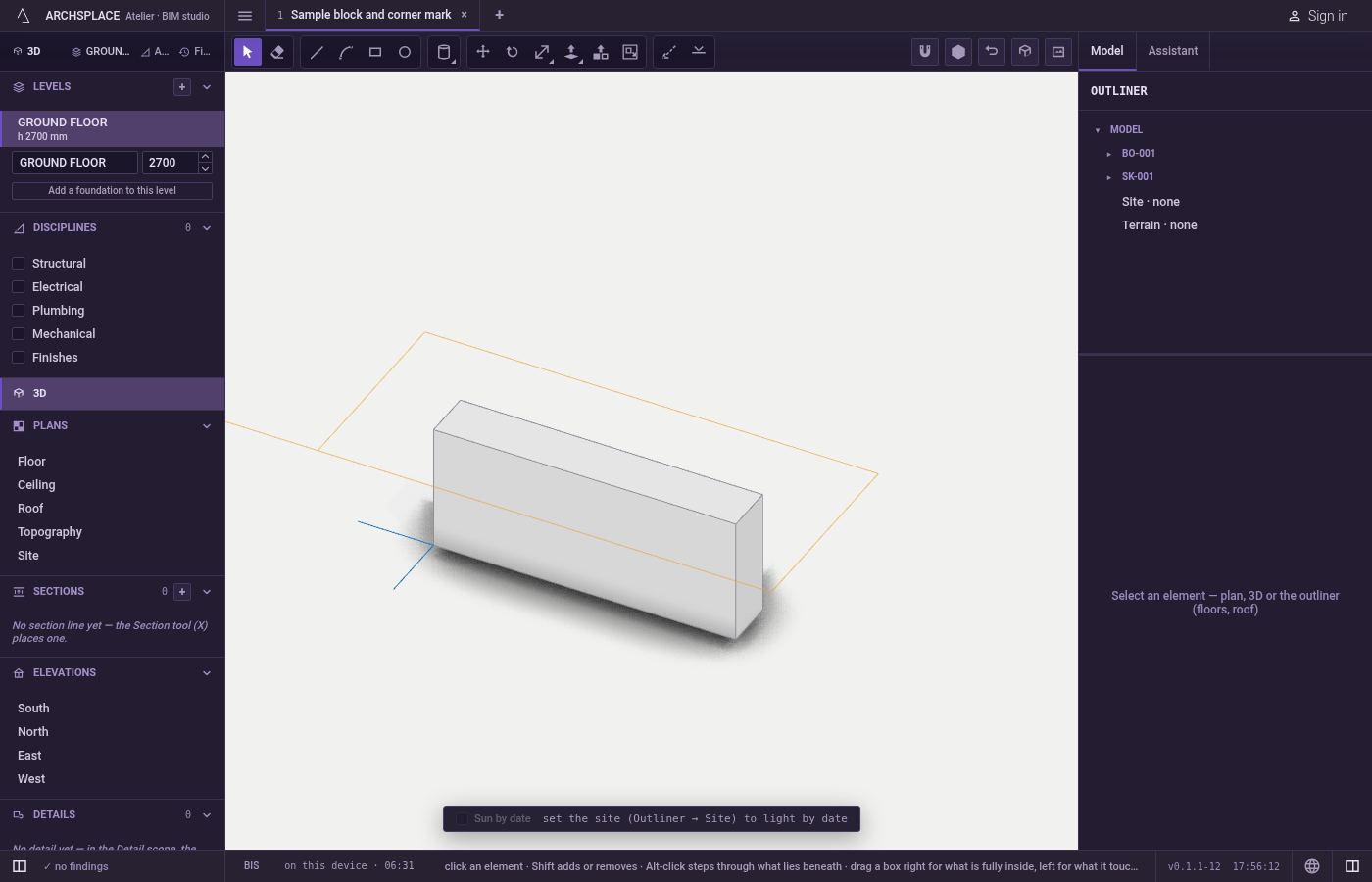
Pick the tool. Press
Q, or click Rotate.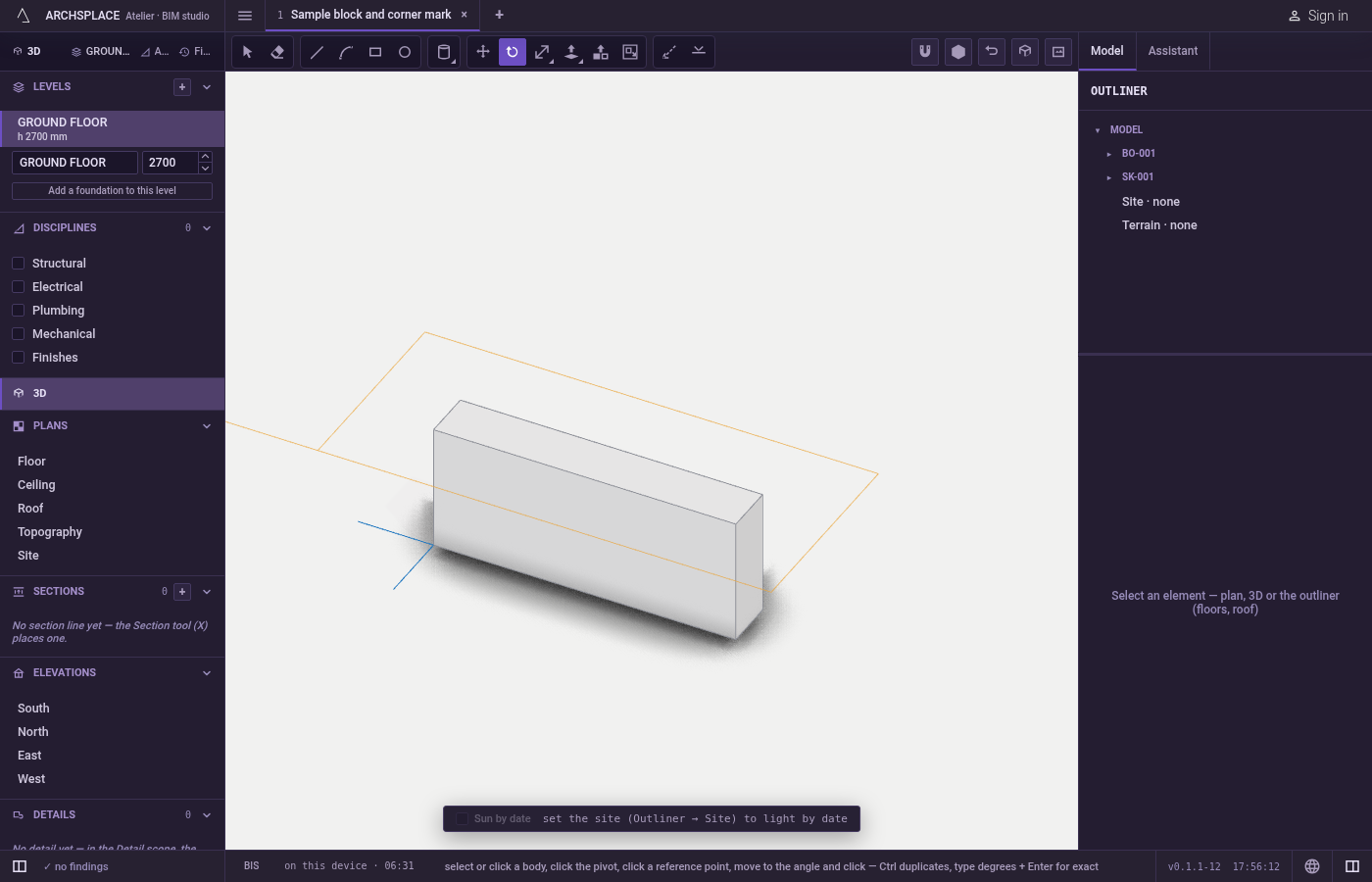
Click the pivot. The marker shows what the click picks: a corner, a midpoint, an edge or a face, of anything, including what you are turning. With nothing selected, this click also picks the thing under the pointer.
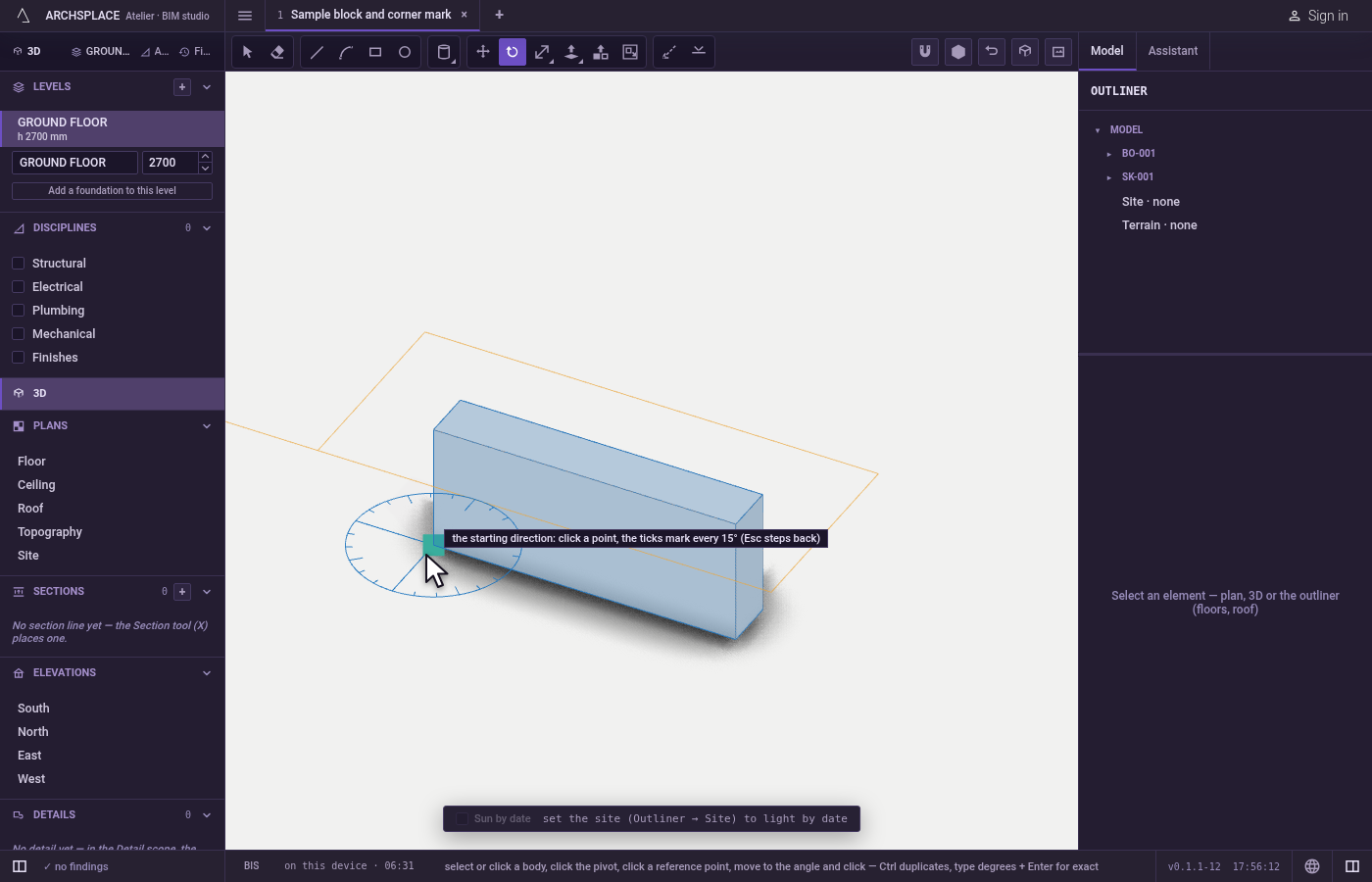
Click the starting direction. Point from the pivot along a line you know, such as an edge, and click.
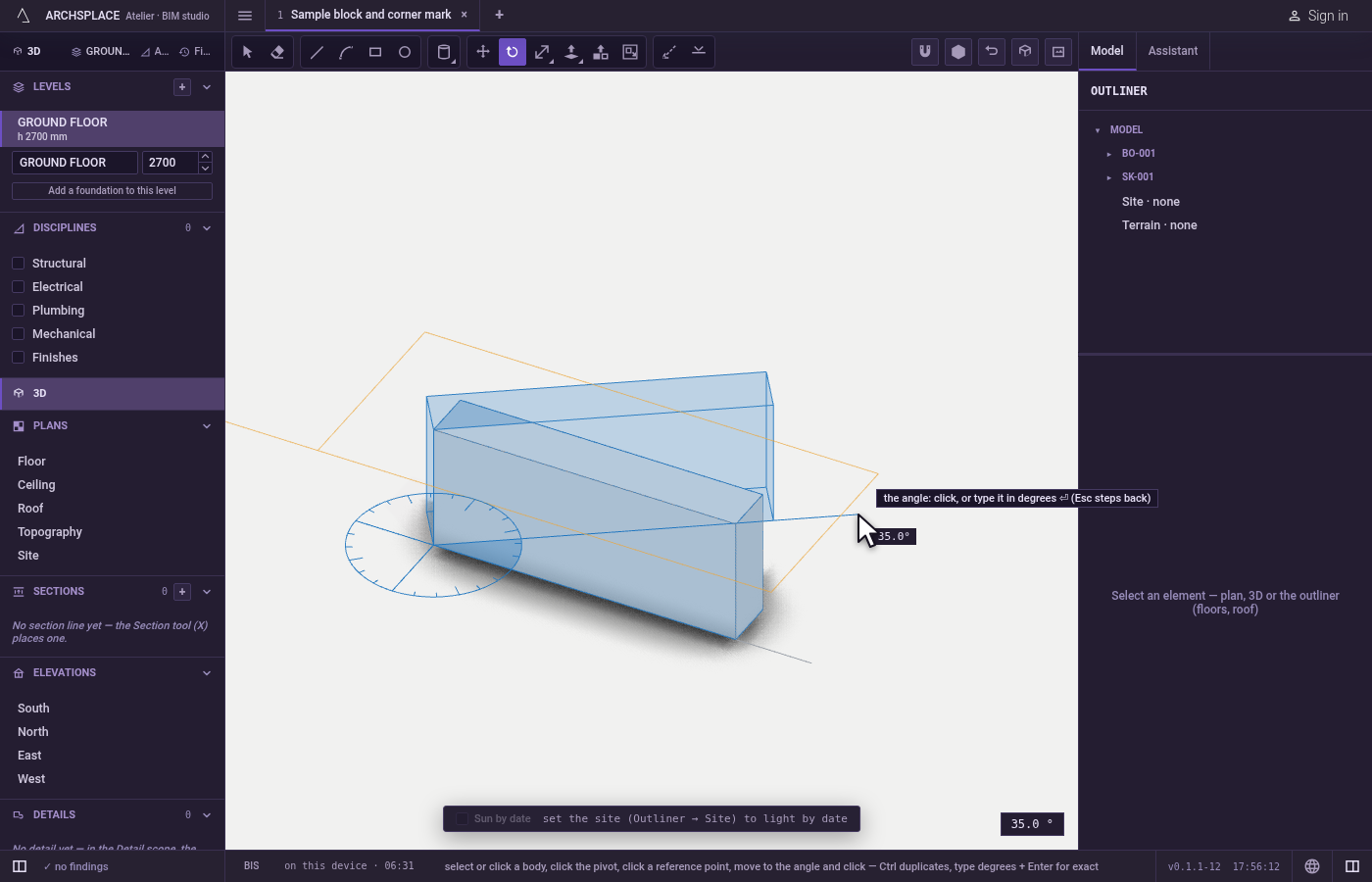
Turn and click. Move to the new direction and click, or type the angle in degrees and press
Enter. You can type the angle right after the pivot, without the starting direction. KeepCtrl(⌘on a Mac) pressed on the last click, or onEnter, to turn a copy and leave the original.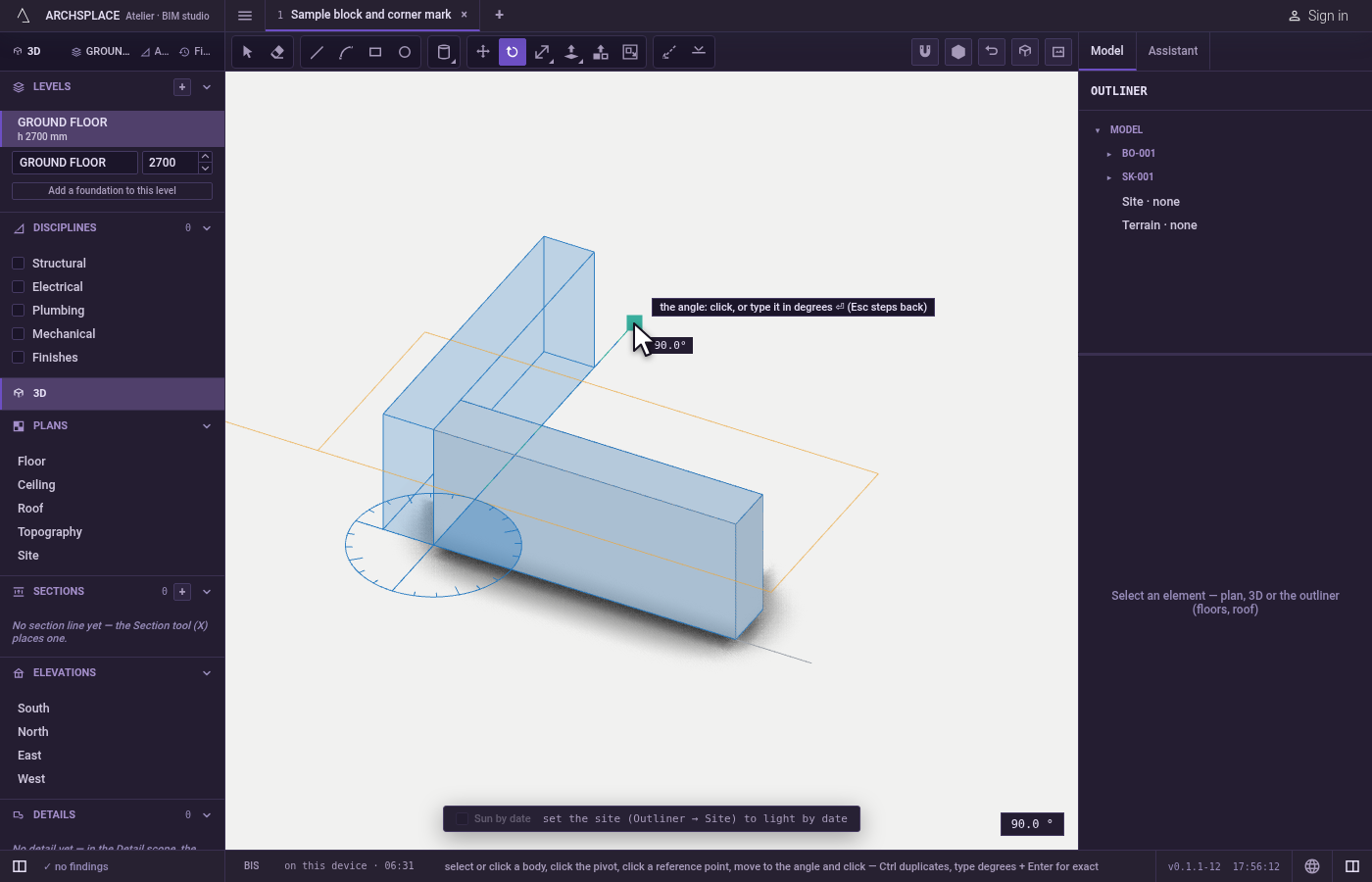
Repeat the copy if you want. Right after a copy, type
xand a number, thenEnter, to continue around the pivot at the same angle.Escapegoes back one point at a time: the angle, then the starting direction, then the pivot.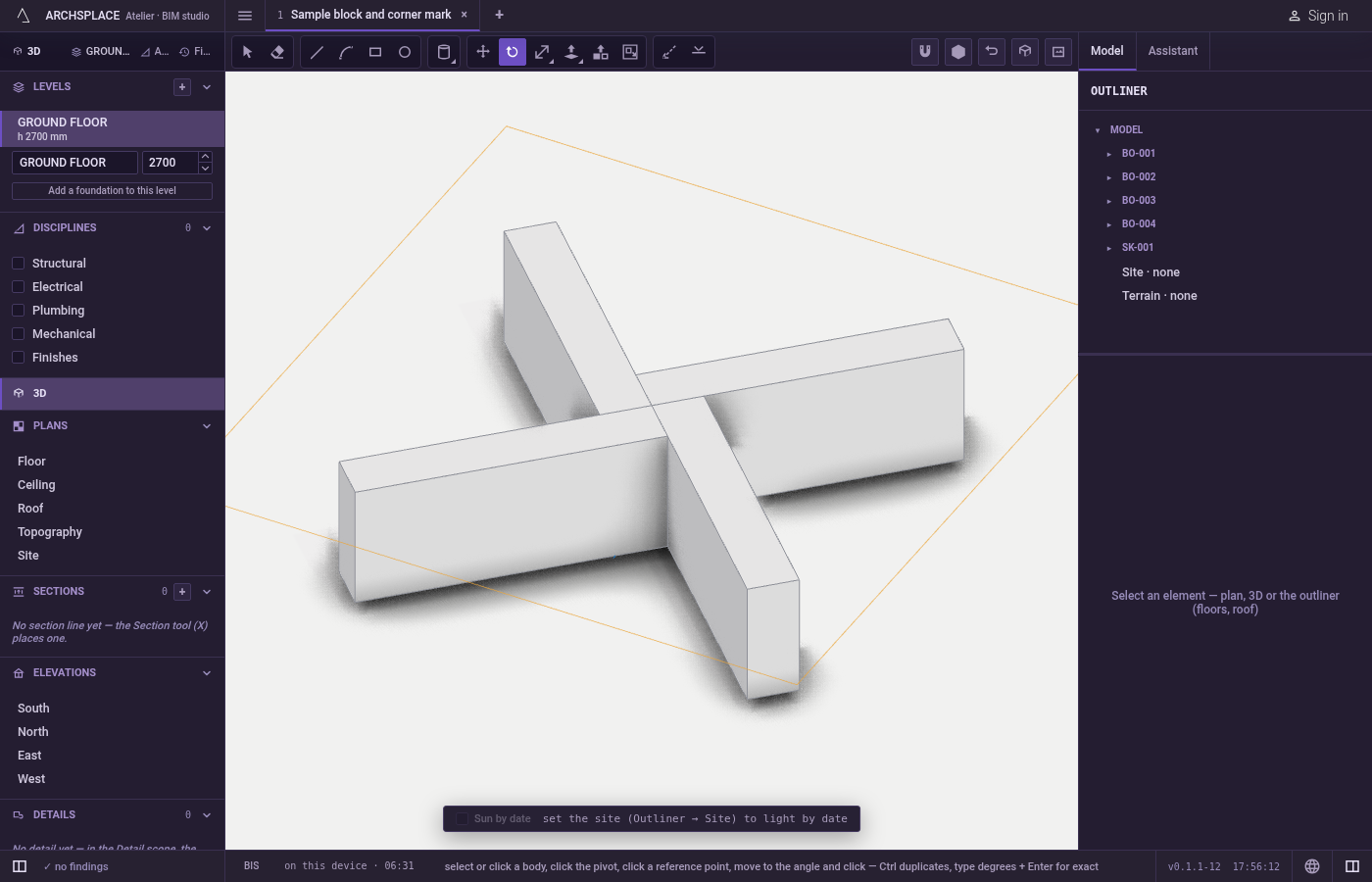
What it refuses
- A tilt. The axis is always vertical; the tool never turns anything about a horizontal axis.
- A turn of nothing. An angle of zero changes nothing.
- Nothing to turn. A first click with nothing selected and nothing under the pointer asks you to select something first, or to click a body or a wall.
What it writes to the contract
One turn is one undoable step. A body, loose lines or a component take their turned position; the placement of a component keeps its turn as an angle. Walls, columns, beams and staircases turn just as the Rotate of the plan turns them, with the runs joined to a turned wall following it. A copy adds new bodies, lines or placements, and a repeat adds the rest of the row.
Common questions
How do I rotate by an exact angle?
Click the pivot, then type the angle in degrees and press Enter. The reference click is not needed when you type. A positive angle turns anticlockwise when seen from above.
How do I make copies around a point?
Rotate once with Ctrl pressed at the last click to turn a copy. Then type x and a number, for example x6, and press Enter: the copies continue around the pivot at the same angle.
Can I tilt something with Rotate?
No. The 3D Rotate tool always turns about a vertical axis, as a rotation on plan does. To tilt geometry, move its corners or edges with Move.