PlanIin the studio
Mirror
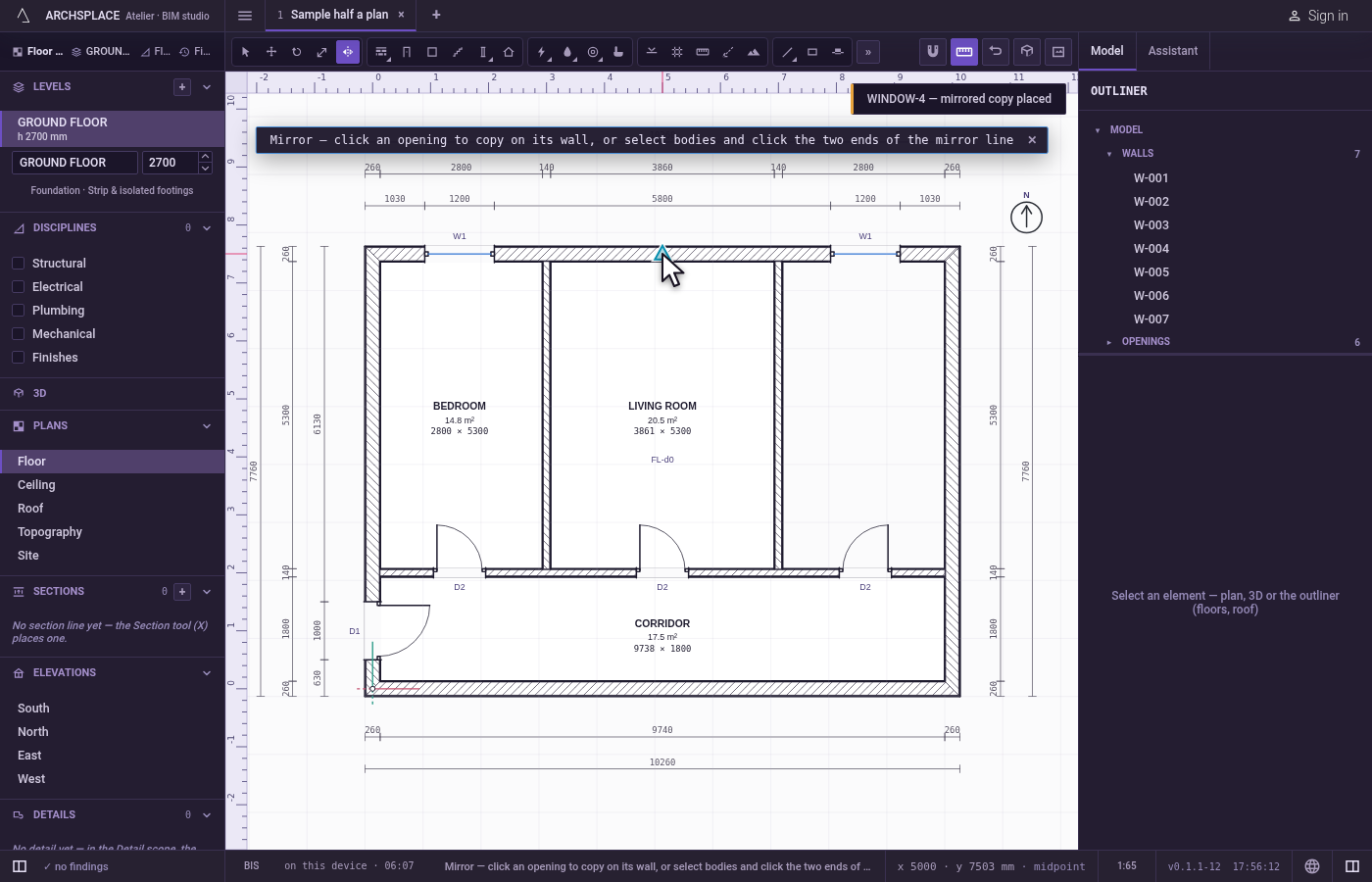
Mirror reflects what you have selected across a line you give with two clicks. With Ctrl pressed it keeps the original and places the reflected copy beside it; with a single window or door it places a mirrored copy across a point on the same wall.
What it is
Mirror reflects the selection across a mirror line. The line is given by two clicks and can run in any direction. Walls, stairs, rooms, columns, beams, sanitary appliances, pipes and the other elements of the plan are all reflected the same way, by the same reflection that Mirror applies in 3D. Without Ctrl the elements are reflected in place; with Ctrl the originals stay and the reflections are added.
A single window or door has a gesture of its own: you click it, then a point on its wall, and a mirrored copy is placed across that point on the same wall.
When to use it
- To draw one half of a symmetrical plan and mirror it to get the other half.
- To make a mirrored pair of flats or toilets on either side of a common wall.
- To pair a window or a door on an elevation, symmetrical about a point of the wall.
The steps
Select what is to be reflected. Select the elements with Select. To mirror one window or door, select nothing, or only that opening, and go to step 5.
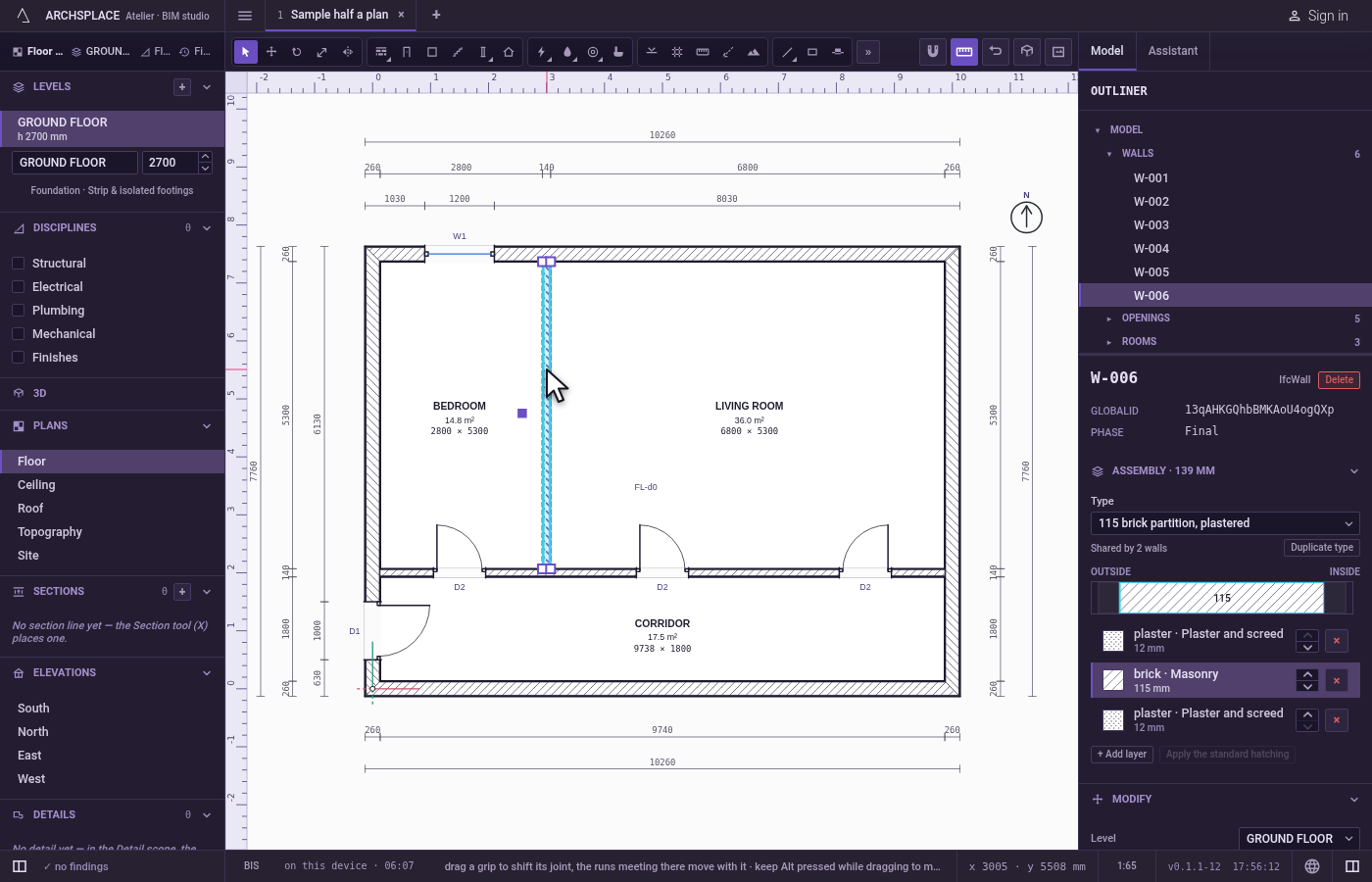
Pick the tool. Press
I, or click the Mirror button.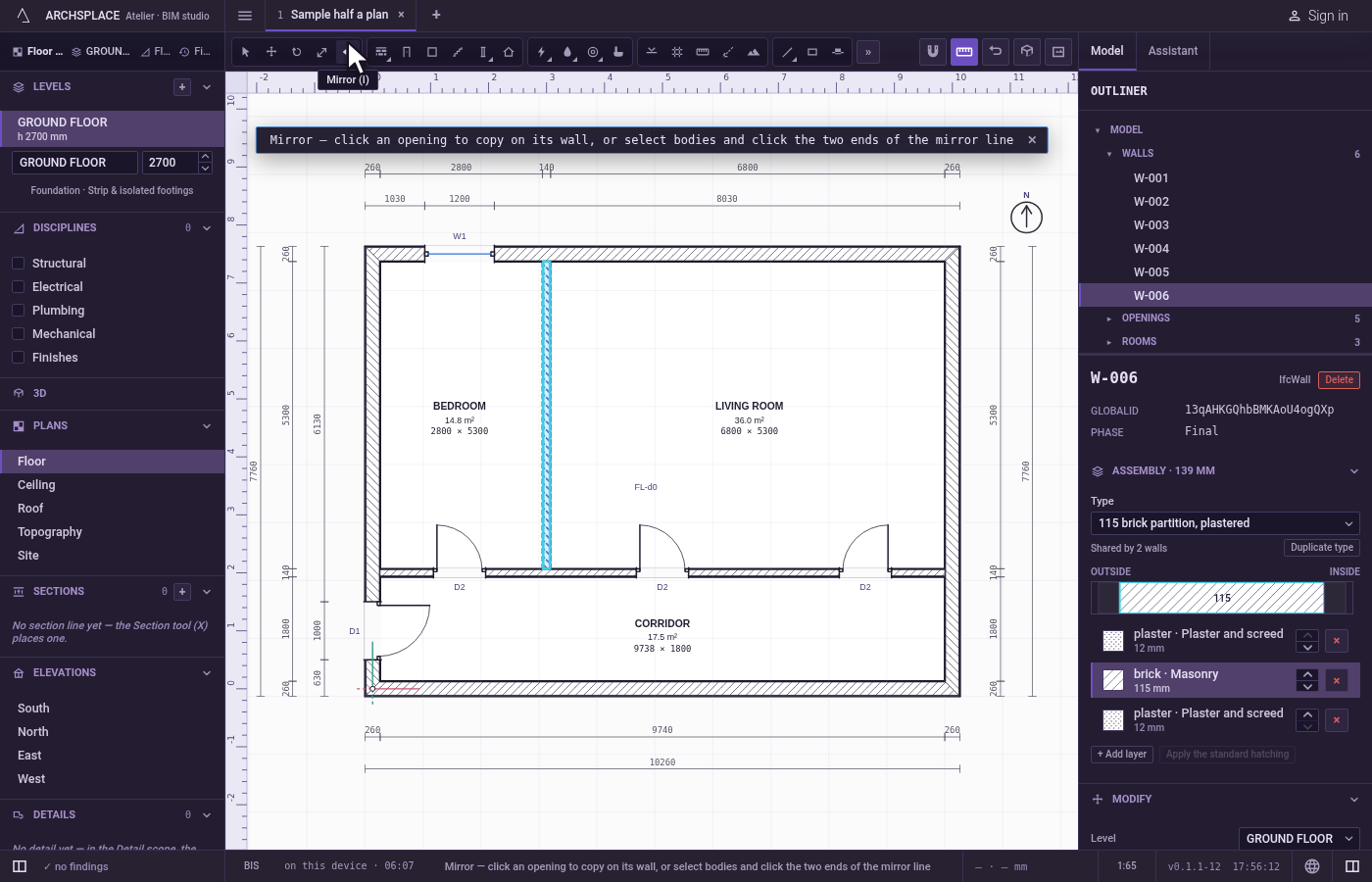
Click the first end of the mirror line. The magnet holds the click on the nearest point within reach. From then on, the mirror line runs from that point to the cursor.
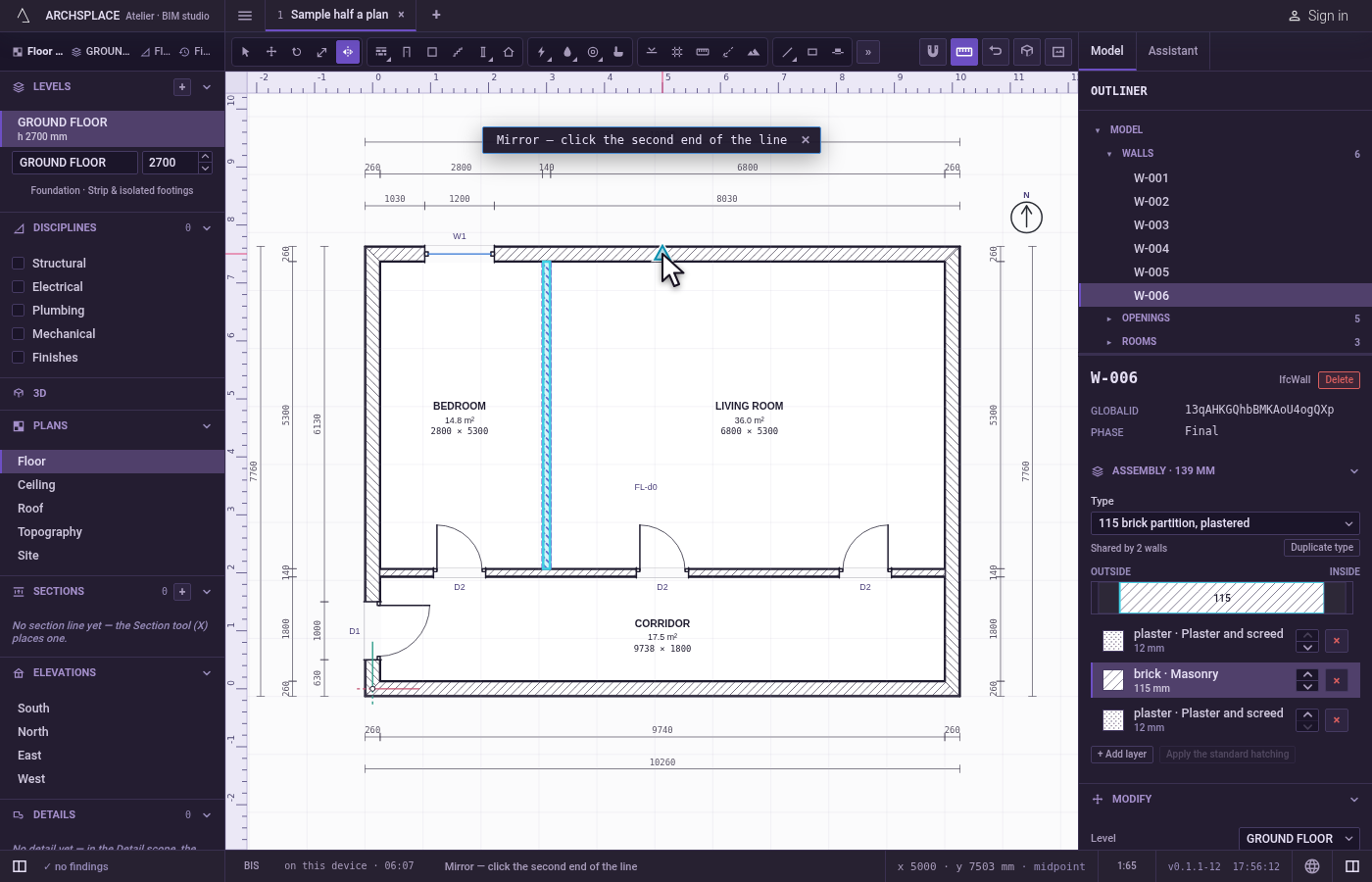
Click the second end. The selection is reflected across the line. Keep
Ctrl(⌘on a Mac) pressed as you click to keep the original and add the reflection as a copy.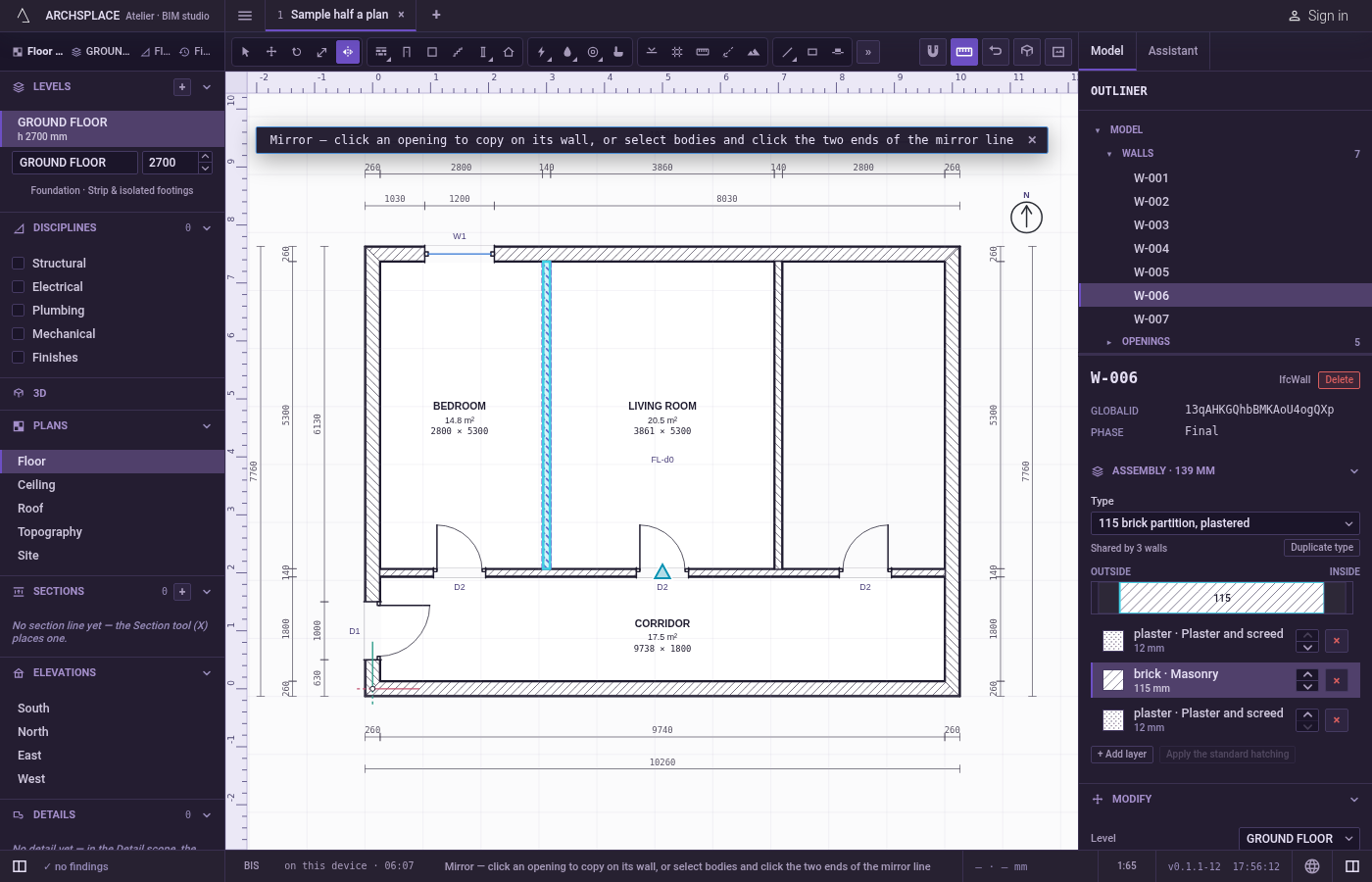
For one opening, click it and then a point on its wall. Click on or near the window or door. Then click the point of its wall about which the copy should be symmetrical. A mirrored copy is placed on the other side of that point, and a message at the top right confirms it.
What it refuses
- A mirror line without length. Two clicks on the same point reflect nothing, and a message says that the two ends must be different.
- A click on nothing when an opening is expected. With nothing selected, a click that finds no window or door nearby places nothing, and a message asks you to click a window or a door.
- A mirrored opening that does not fit. The copy is first tried on the project. If it would not fit on its wall, for example over another opening, it is refused with the reason and nothing is added.
- A component turned inside out. A component instance keeps its handedness: a message asks you to enter the component to mirror its geometry.
- A hosted element on its own. A window, a door or a point on a wall that is part of a mirrored selection without its wall stays where it is, and a message says that it belongs to its wall.
What it writes to the contract
One step, which one undo reverses. Without Ctrl, every reflected element receives its new points, and the walls, pipes and beams joined to them keep their joints. With Ctrl, the reflections are added at the end of their lists. The opening gesture adds one new opening on the same wall, at the mirrored distance along it.
Concepts
Common questions
How do I keep the original when I mirror?
Keep Ctrl (Command on a Mac) pressed when you click the second end of the mirror line. The original stays in place and the reflection is added as a copy.
How do I make a pair of symmetrical windows on one wall?
With nothing selected, press I, click the window, then click the point of its wall about which the pair should be symmetrical. A mirrored copy is placed on the other side of that point.