Workflows
Export IFC, DXF, image and PDF
The exports deliver the project as the files that other people and programs read: the model as IFC, the view on screen as DXF or as a PNG image, an open sheet as a PDF and an open schedule as CSV or XLSX. Each file is named after the project and what it holds, and goes wherever every file of the atelier goes.
What it is
The exports stand in the File menu, each greyed out, with its reason in its tooltip, until what it needs is on screen:
- Export IFC…: the whole model as an IFC4 file, for the phase in view. The IFC project takes the name of the project.
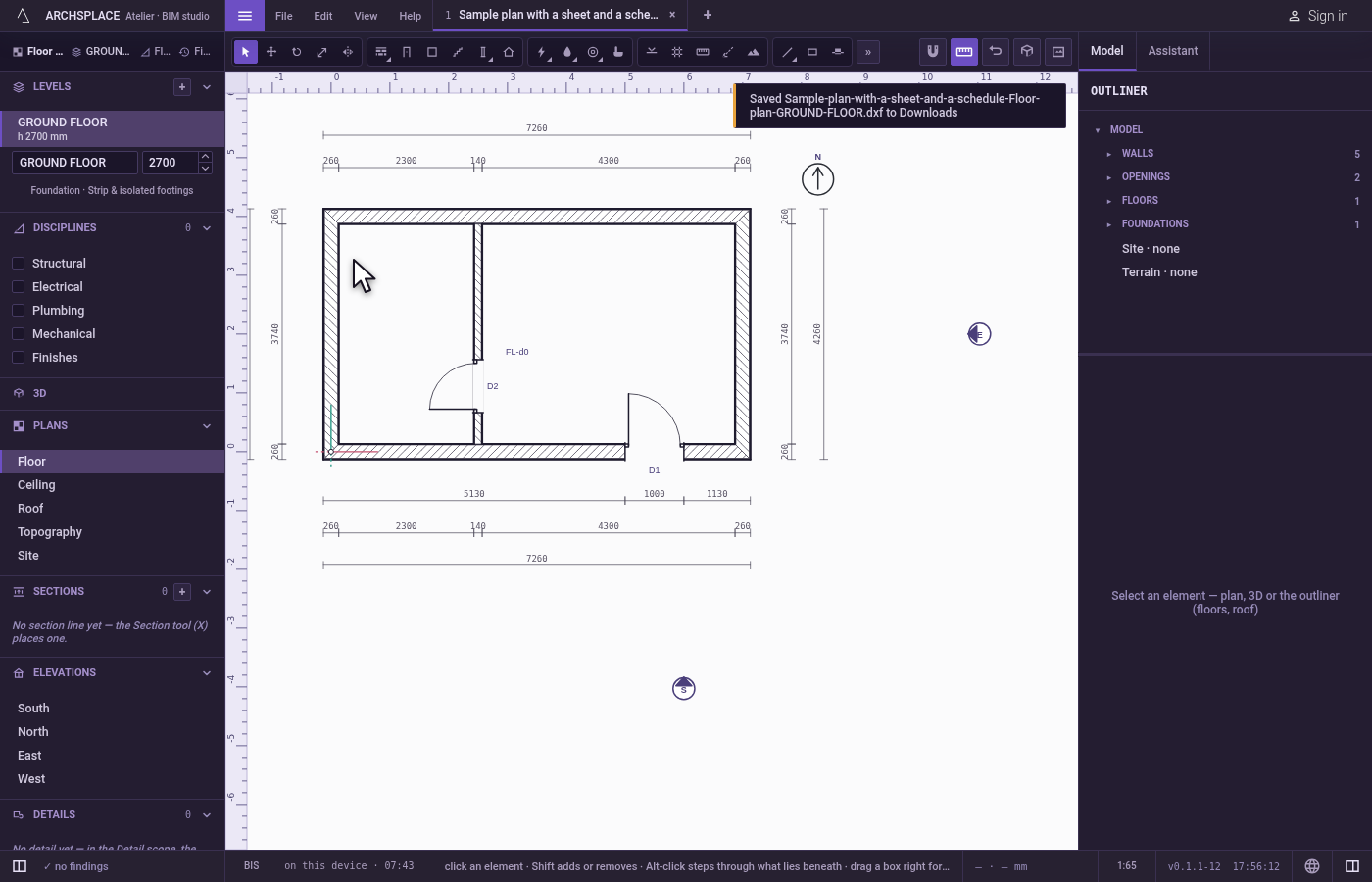
- Export this view as DXF…: the drawing on screen, when it is a plan, a section, an elevation, the site plan, a schedule or a legend, with its level, its discipline, its overlays and its phase as you see them, and its dimensions when they are shown.
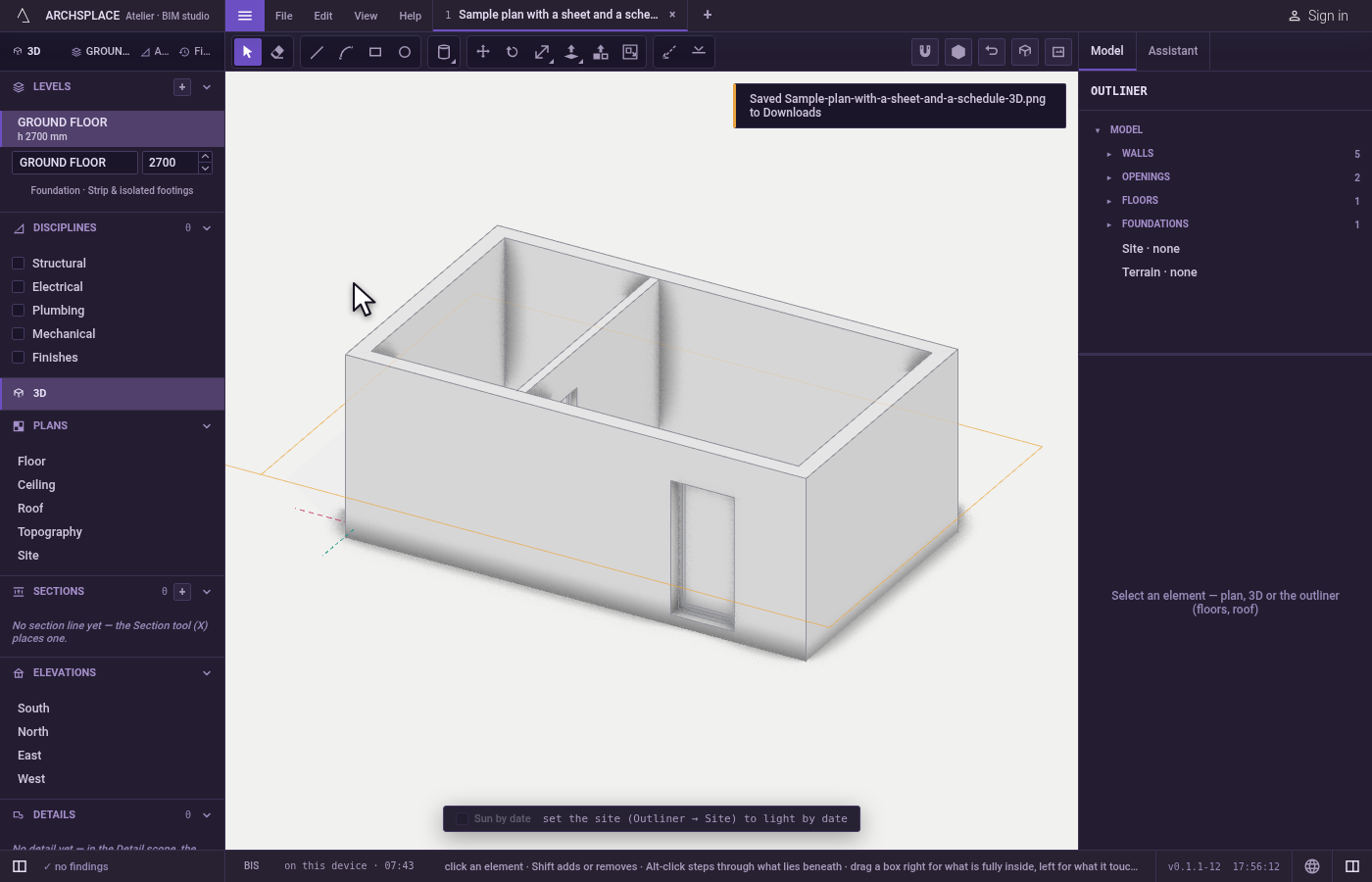
- Export this view as image (.png)…: a picture of the view on screen. The 3D view gives the picture it renders; every drawing is drawn again at twice the size it has on screen. The aids of the screen itself, such as the snap marker or the hint at the cursor, are left out.
- Export this sheet as PDF…, or
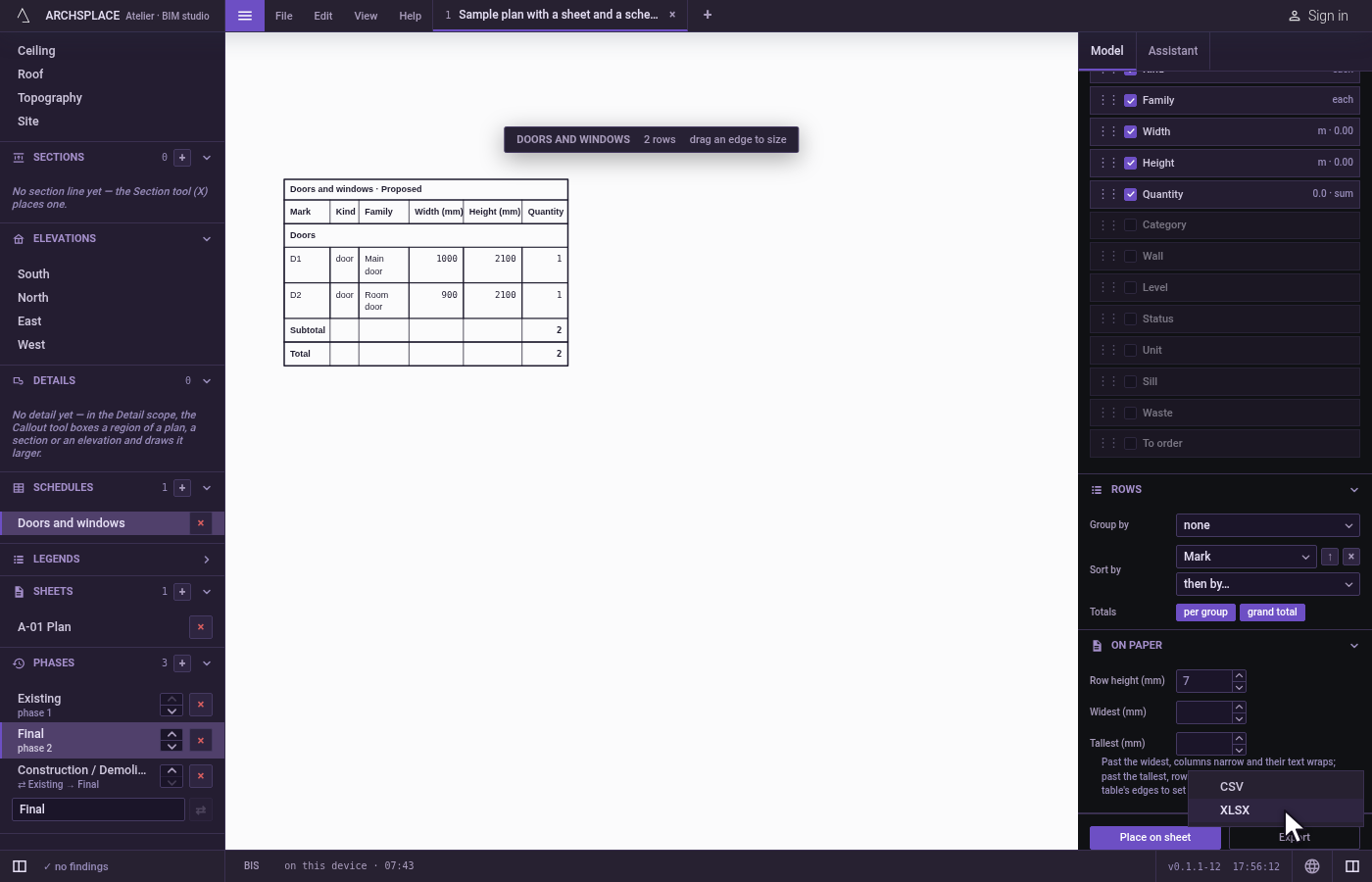
Ctrl+P(⌘Pon a Mac): the open sheet as a vector PDF, drawn from the same objects as the screen, with its paper, its viewports and its title block. - Export this schedule… (.csv, .xlsx): opens the Export menu of the open schedule, in the panel on the right, which offers CSV and XLSX.
Each file is named after the project and then what it holds, joined by hyphens: Sharma-Residence.ifc, or the project, the view and its level for a plan. Hovering over an export tells you where the file will go: in a browser, the folder chosen in Preferences or your Downloads; in the installed atelier, your computer asks every time. Once written, a toast tells you where it went and under which name.
When to use it
- To hand over the model to a structural consultant, a services consultant or another BIM program, as IFC.
- To send a plan or a section to someone who works in CAD, as DXF.
- To put a view into a presentation, a message or a document, as an image.
- To print a sheet, or to send it for approval, as PDF.
- To work on a schedule in a spreadsheet, as CSV or XLSX.
The steps
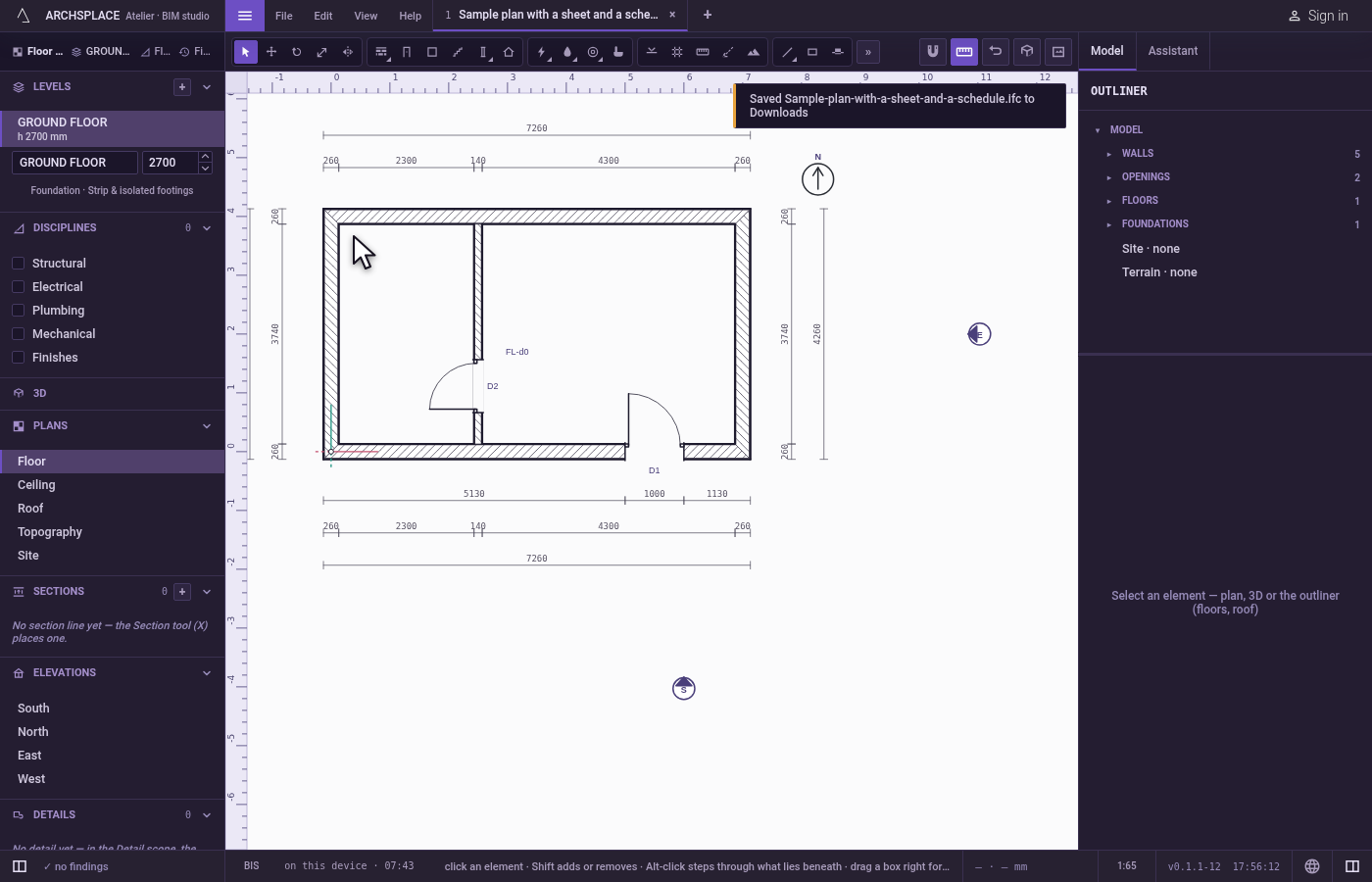
Export the model. Open File and click Export IFC…. A toast says that the IFC file was saved, and where.
Export the plan as DXF. On the floor plan, open File and click Export this view as DXF…. The DXF of the plan is written, named after the project, the plan and its level.
Export the 3D view as an image. Open the 3D view, frame the house, open File and click Export this view as image (.png)…. The PNG is the picture on screen.
Export a sheet. Open a sheet in the sidebar and press
Ctrl+P. Its PDF is written.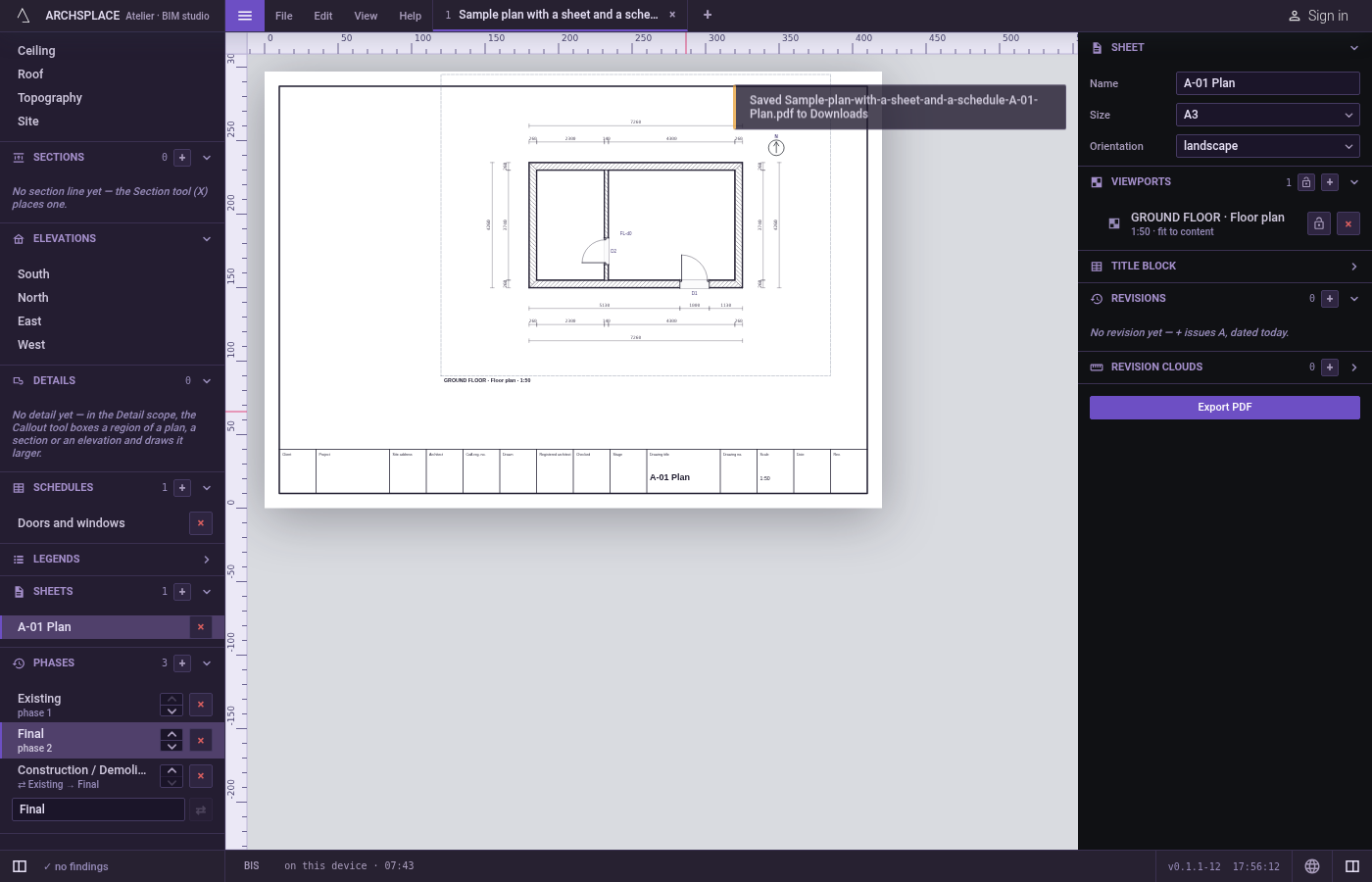
Export a schedule. Open a schedule, open File and click Export this schedule… (.csv, .xlsx). The Export menu of the schedule opens in the panel on the right: choose XLSX.
What it refuses
- DXF of the 3D view, a callout or a sheet. The item stays greyed out, its tooltip asking for a plan, a section, an elevation, a schedule or a legend.
- A PDF with no sheet open, or a schedule export with no schedule open: the item asks you to open one first.
- An image of a view that has nothing on screen yet, such as a 3D view still building.
- An image or a PDF that cannot be made. A toast says the export failed, and gives the reason.
- Any export with no project open.
What it writes to the contract
Nothing. An export reads the project and writes a file; the project itself does not change, and no export counts as a save.
Common questions
Which phase does the IFC export hold?
The phase in view: what stands in that phase, and nothing demolished before it. Export once per phase to deliver each one; the name of the file carries the phase when it is not the one on which the project opens.
Why is Export this view as DXF greyed out?
Because the view on screen is not a drawing it can write: DXF exports a plan, a section, an elevation, the site plan, a schedule or a legend. The 3D view and a sheet are not drawings of that kind; export the 3D view as an image and a sheet as a PDF.
How do I print a sheet?
Open the sheet and choose File, Export this sheet as PDF…, or press Ctrl+P. The PDF is vector, drawn from the same objects as the screen, ready for any printer or plotter.