SketchMin the studio
Move
Move shifts the lines and corners you have selected in the sketch editor from a base point to a target, or by a distance you type. Keep Ctrl pressed on the last click to keep the original and drop a moved copy, and with nothing selected the whole drawing moves.
What it is
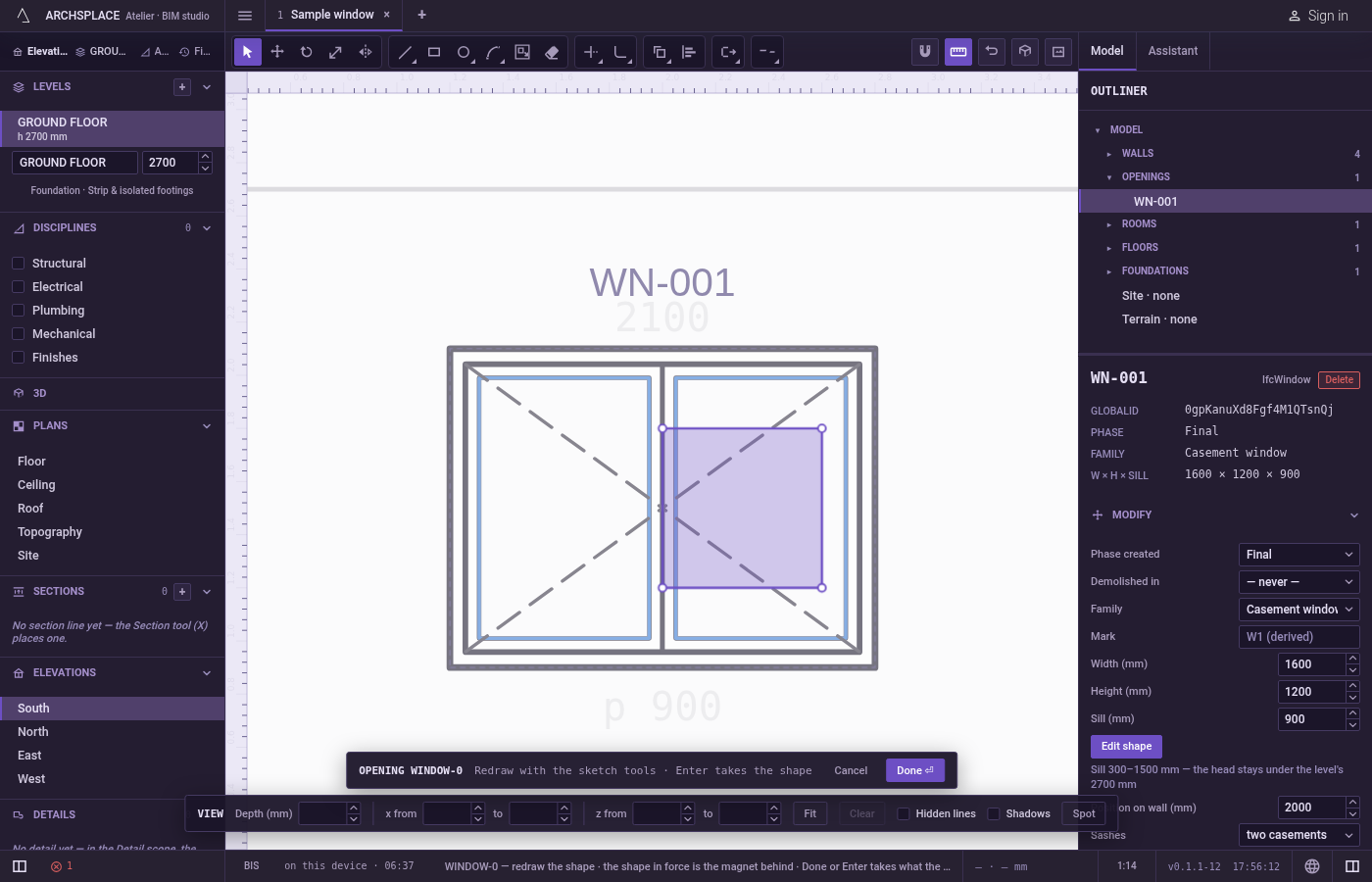
Move takes what you have selected in the sketch editor and shifts it by the step from a base point to a target. The lines attached to a moved corner follow it, and a curve whose two ends both move keeps its bend. With nothing selected, Move takes everything you have drawn in the editor.
The step is set by two clicks, or by one click and a typed distance. Keeping Ctrl (⌘ on a Mac) pressed on the second click keeps the original where it was and adds the moved copy.
When to use it
- To slide a whole outline into place, for instance to centre an arched head over its window.
- To shift one side of a shape: select that line, then move it, and its neighbours stretch to follow.
- To make a second outline from the first, with
Ctrlpressed on the target.
The steps
Choose what to move. In the sketch editor (see Select for the ways in), pick the lines and corners you want with Select. Skip this to move the whole drawing.
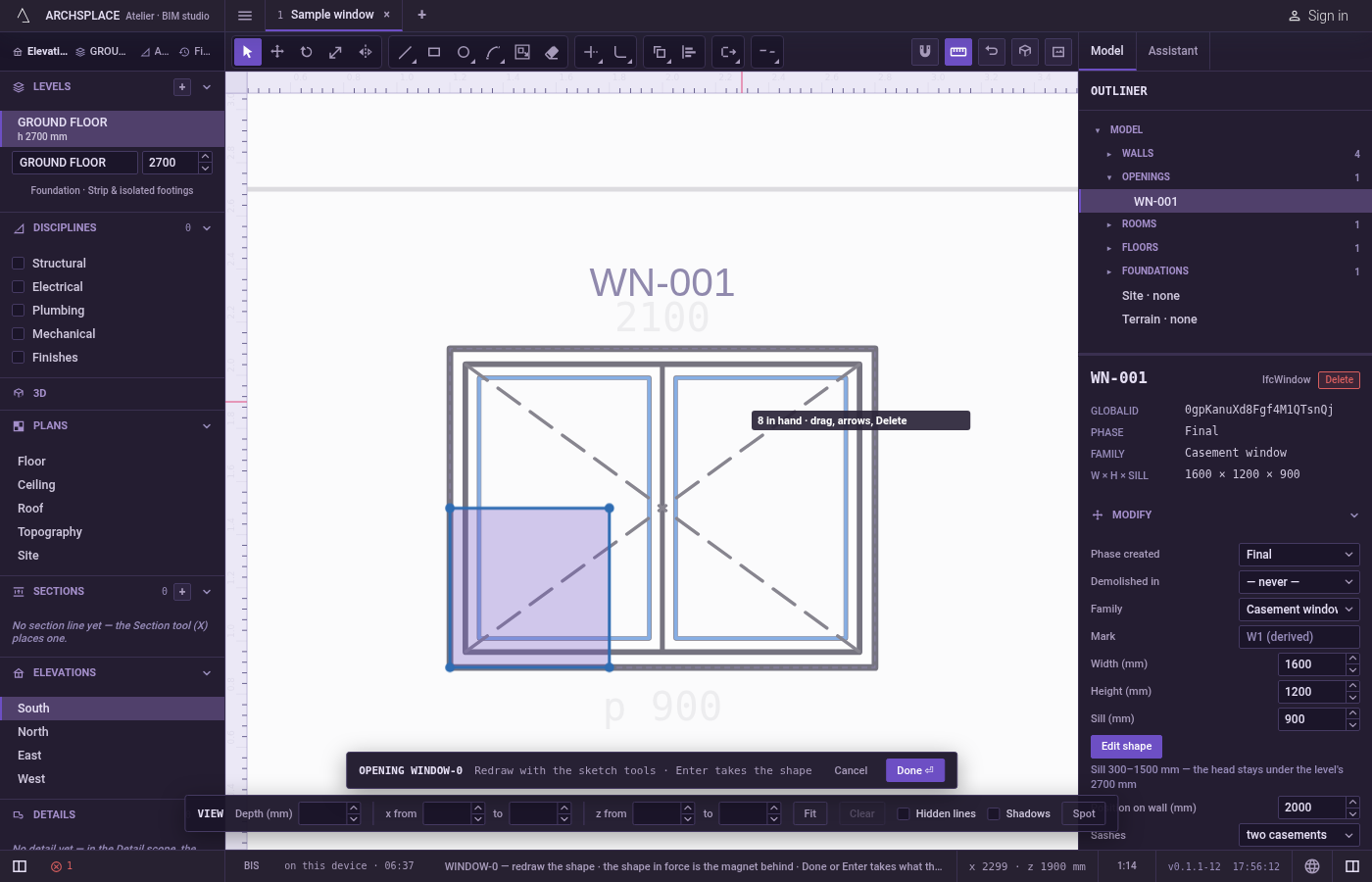
Pick Move. Press
M, or click Move on the toolbar of the editor. The hint at the cursor asks you to click the base point and then where it lands, or to type a distance, and tells you thatCtrlcopies. What you have selected stays selected.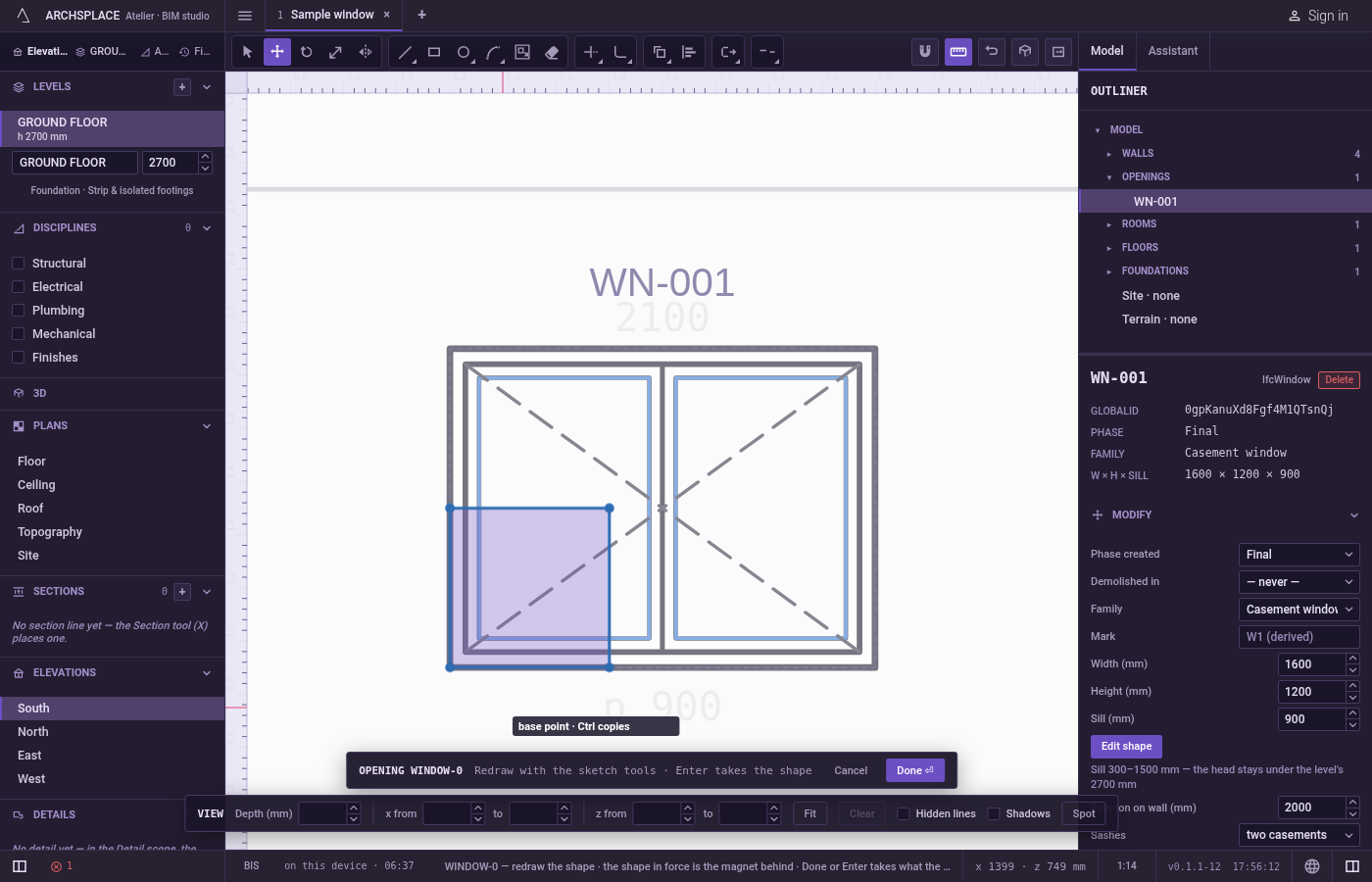
Click the base point. The point snaps to corners, midpoints, crossings, the dimmed shape in force and the lines of the view. The hint at the cursor says base point.
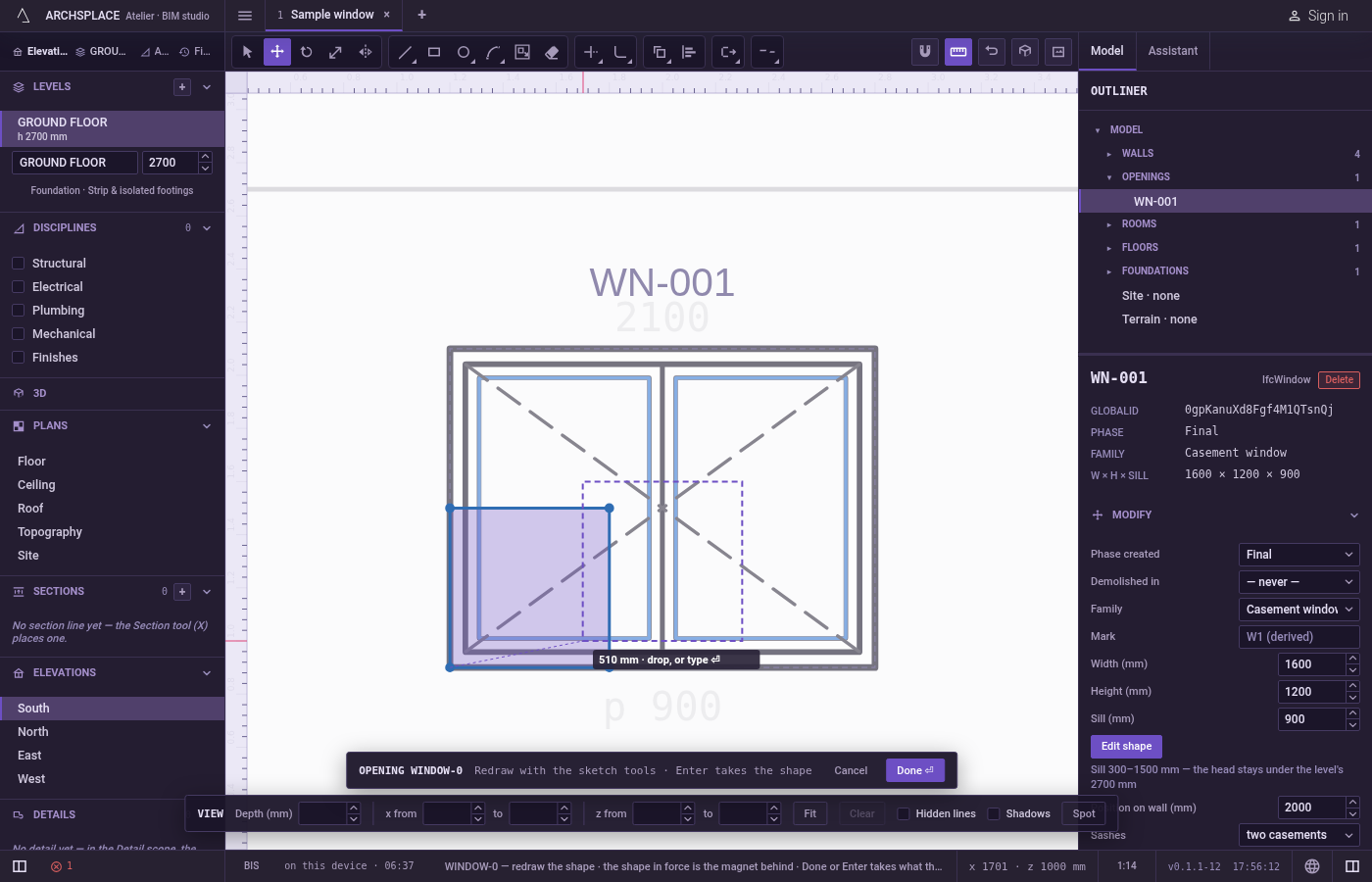
Click where it lands. A preview of the moved drawing follows the pointer, with a line from the base point, and the hint shows the distance. Click to drop it. You can also press at the base point, drag and release at the target. Keep
Ctrlpressed as you click to keep the original and add the copy.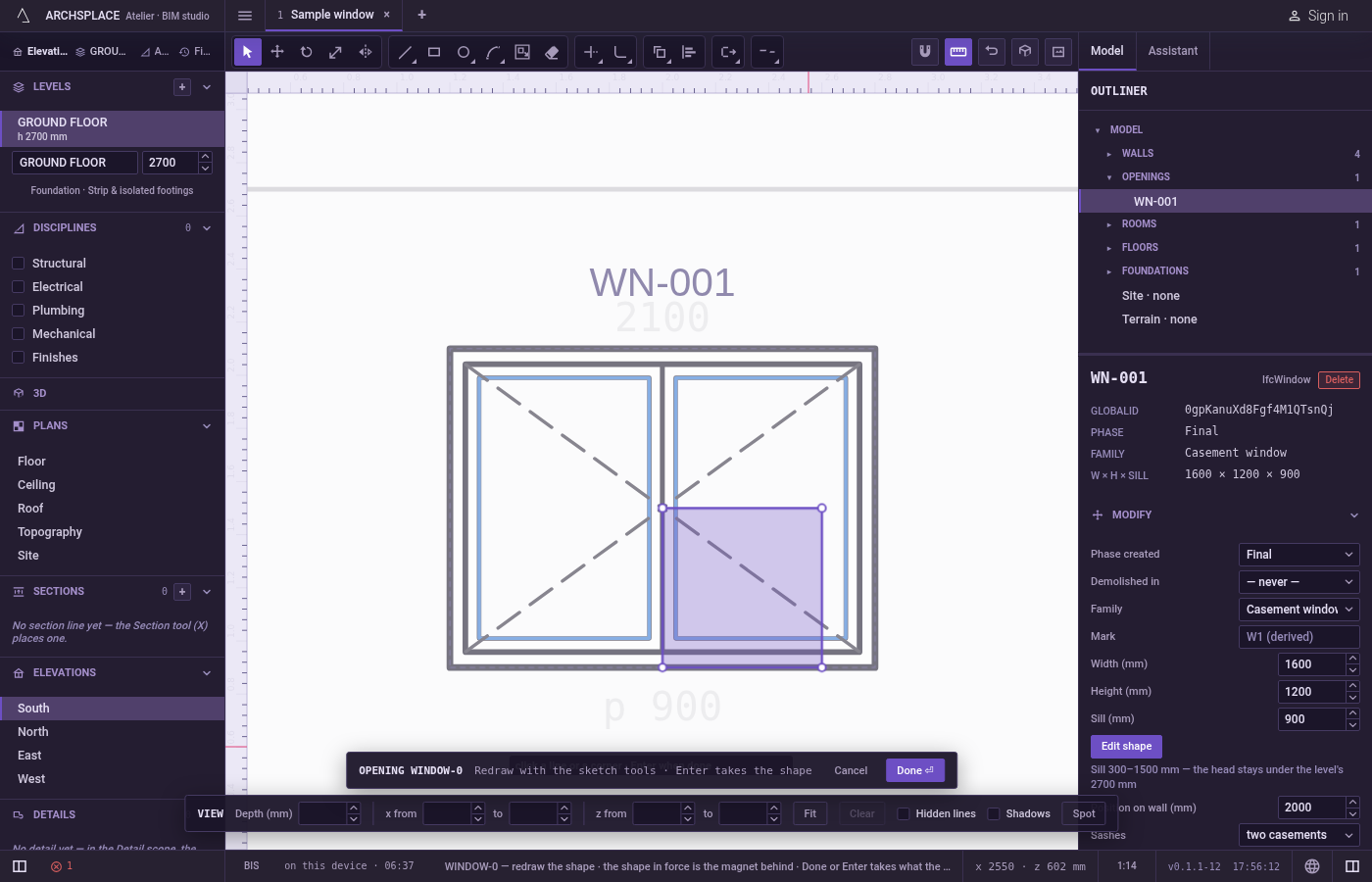
Or type the distance. After the base point, point in the direction you want, type the distance in the project units and press
Enter. The drawing lands that far from the base point along the line to the pointer.Backspaceremoves the last character you typed.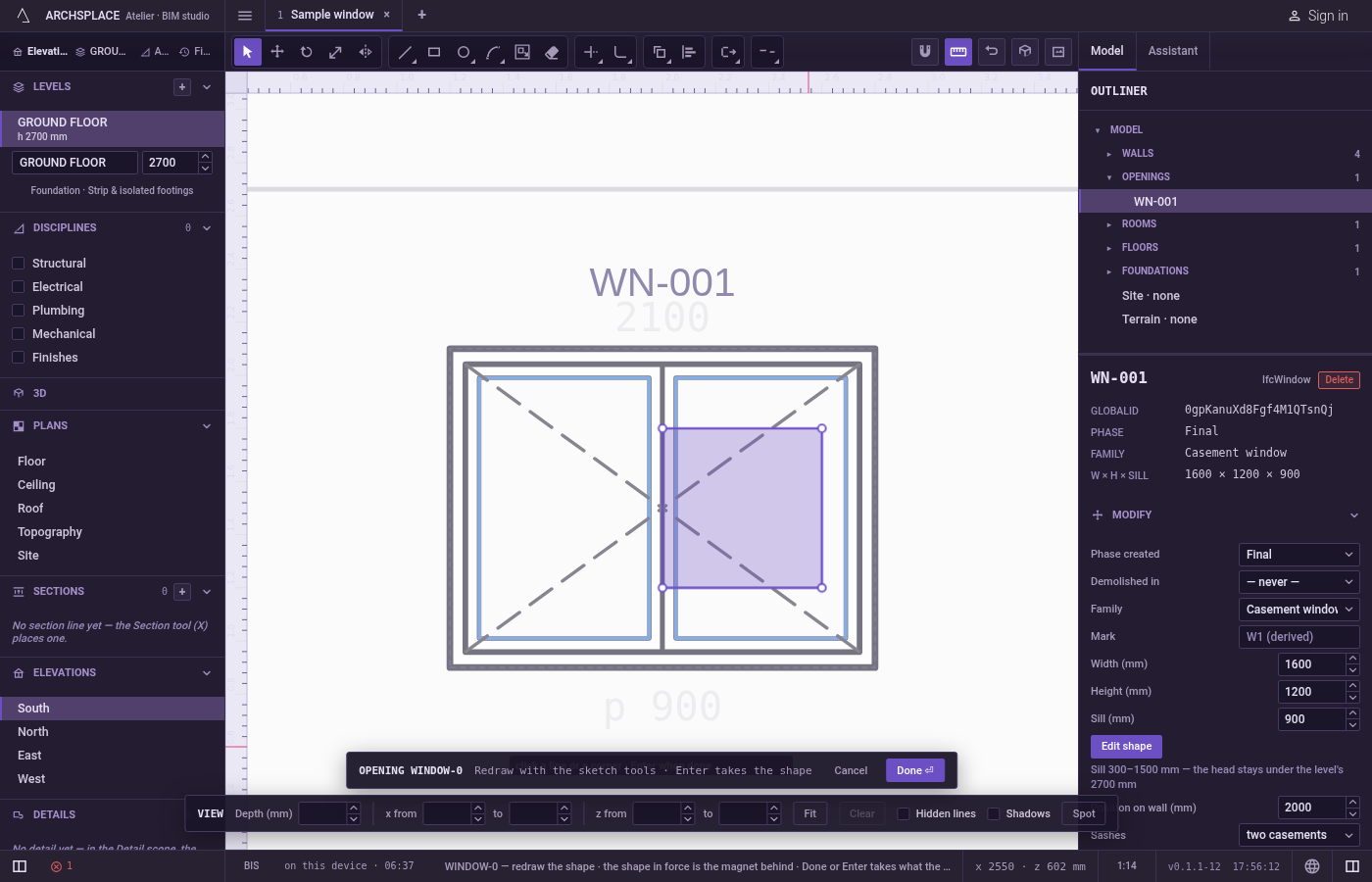
Carry on. Once it lands, the editor goes back to Select and releases what was selected.
What it refuses
- A target on the base point. A second click on the base point itself does nothing; the tool keeps waiting.
- A distance typed too early. Digits count only once the base point is set. Typed before that, they are dropped.
- A copy from a typed distance. A typed distance always moves. To copy by an exact distance, use Copy.
- The shape in force. The dimmed shape behind your drawing never moves. Moving everything moves only what you drew.
- A clean copy of part of an outline. A copy carries the whole outline that holds what you selected, with only the selected corners moved. Select every line of a shape before you copy it with
Ctrl. - A bend on a curve with one end moved. A curve keeps its bend only when both its ends move. If only one end is selected, that side comes out straight.
Escape drops the base point, then releases what is selected. Pressed once more with nothing left, it closes the editor and drops the drawing.
What it writes to the contract
Nothing until you press Done. The move changes only the drawing inside the editor, where Ctrl+Z goes back through it. The contract changes when you press Done, or Enter with nothing in progress, as one step that you can undo: what the lines enclose becomes the profile of the window or door, points [u, v] in metres across the wall and up from the floor, or the outline of the pattern area in the floorAreas or ceilingAreas of the room, points [x, y] in plan metres.
A move adds the same step to every point it takes and keeps the bulge of each curve, so a window head moved up by 0.3 metres keeps its exact arc:
Common questions
How do I move my sketch by exactly 30 centimetres?
Press M, click a base point, point in the direction you want, type 0.3 and press Enter. The drawing lands 0.3 metres from the base point in that direction.
How do I copy instead of moving?
Keep Ctrl (Command on a Mac) pressed when you click the target point. The original stays and a moved copy is added. A typed distance always moves and never copies.
What moves when nothing is selected?
Everything you have drawn in the editor. The dimmed shape in force behind your drawing never moves.