PlanQin the studio
Rotate
Rotate turns elements of the plan about a centre you click, by the angle between a reference point and a third point, or by the degrees you type. With Ctrl pressed it turns a copy and keeps the original in place.
What it is
Rotate turns what you have selected about a centre. It takes four clicks, the same as in the 3D view: the element (or the selection you already have), the centre, a reference point that marks where the turn starts, and the point that marks where it ends. The angle between the reference and the last point is the turn. Once the centre is set, you can also type the angle in degrees.
Walls, pipes and beams turn as one network: the corners they share with walls that are not selected follow them, and a wall that ends on the face of a turned wall stays on it. Columns and sanitary appliances turn their own orientation with them. With Ctrl pressed, Rotate turns a copy and leaves the original where it was.
When to use it
- To set one wing of the plan at an angle to the rest.
- To turn a sanitary appliance or a column so that it faces the right way.
- To lay out copies around a centre, such as columns on a circle, with one copy and a typed count.
The steps
Pick the tool. Press
Q, or click the Rotate button. If you already have a selection, that is what turns.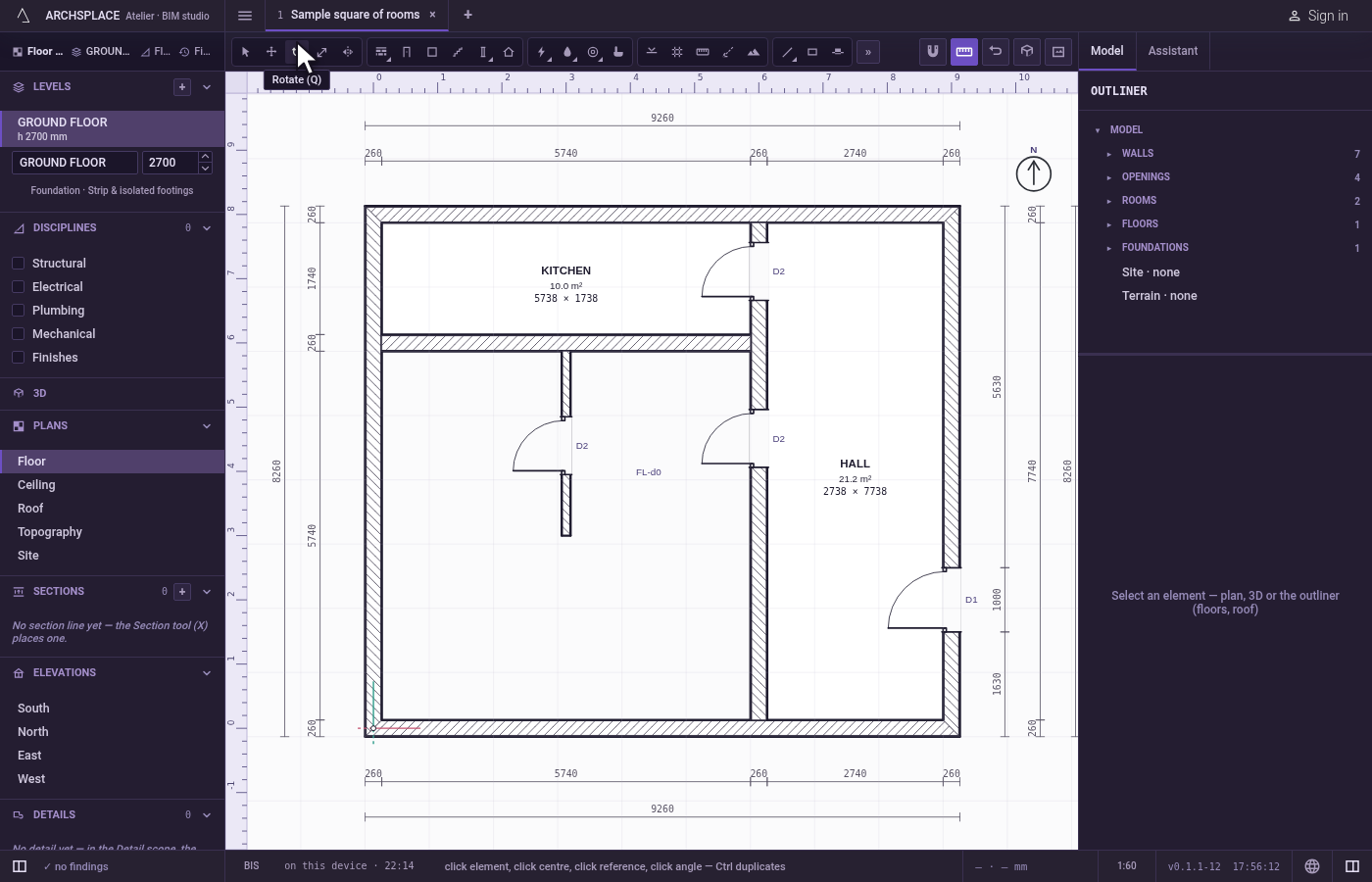
Click the element. Click the element to be turned; with several elements selected, a click on any one of them turns all of them. If you already have a selection, a first click on empty space skips this step and is taken as the centre.
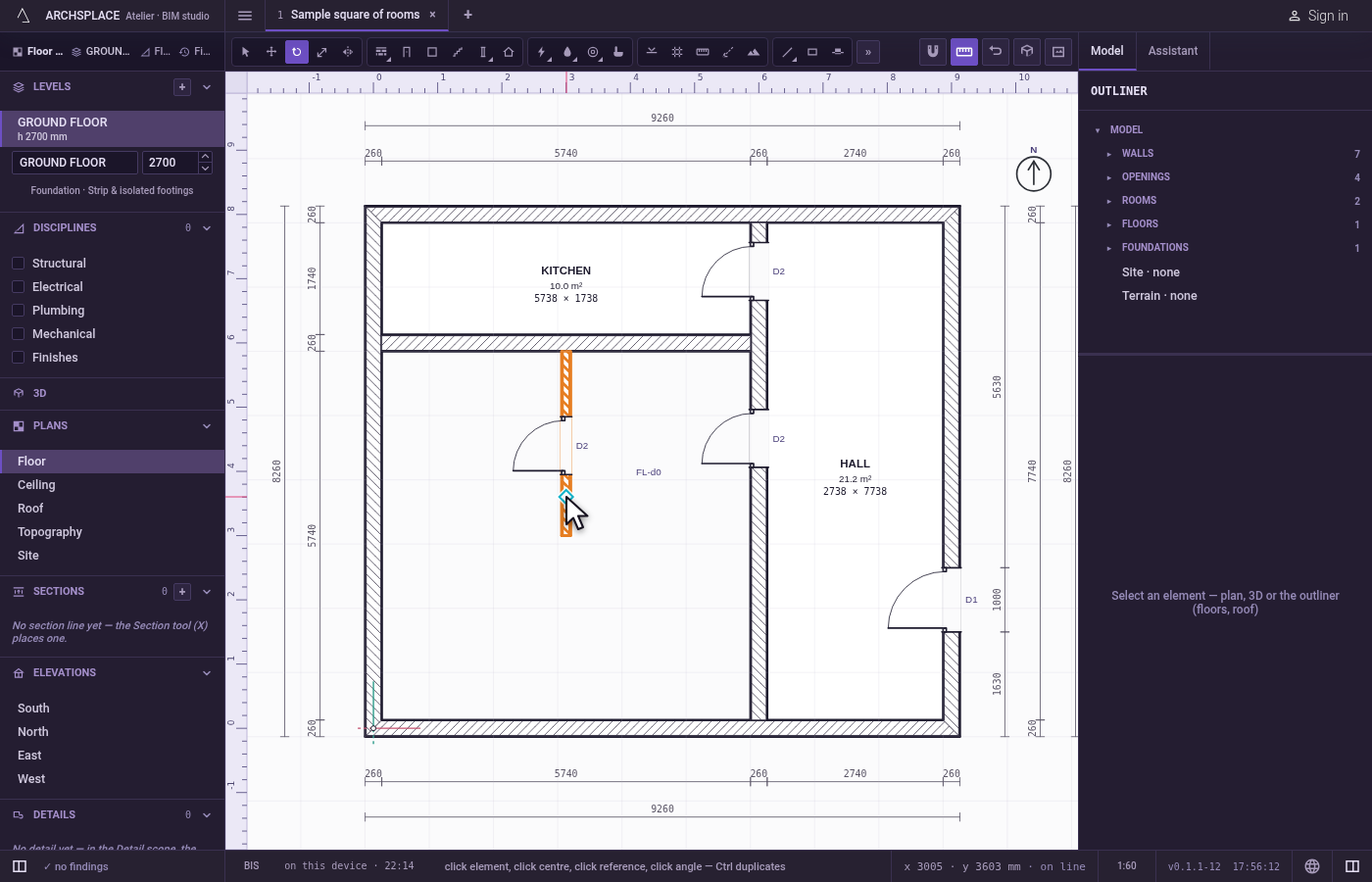
Click the centre. The magnet holds the click on the nearest corner, midpoint or crossing within reach, so the turn pivots exactly there.
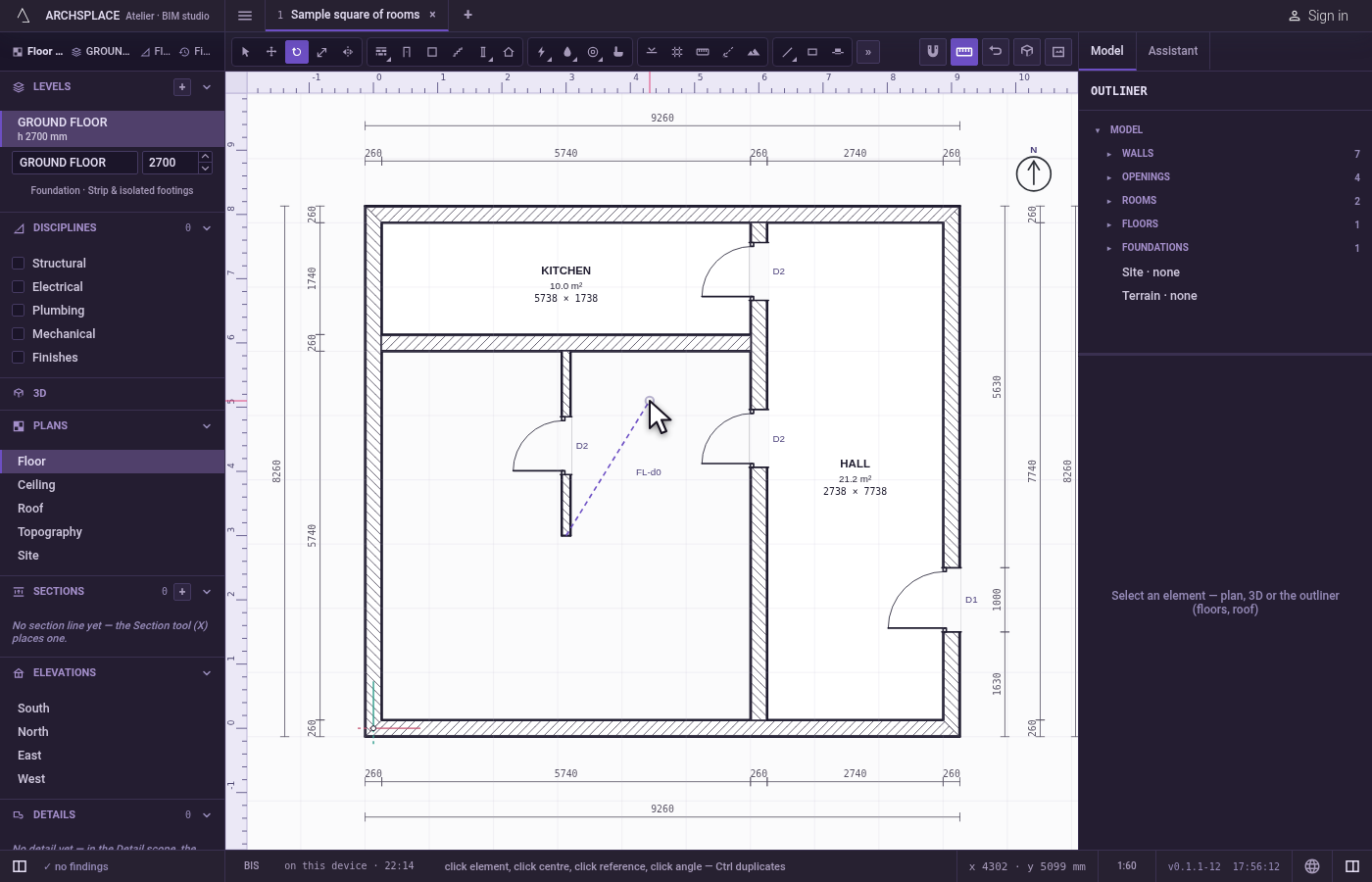
Click the reference. Click a point that marks where the turn starts, often one end of the element itself. From here on, a ghost of the turned elements follows the cursor.
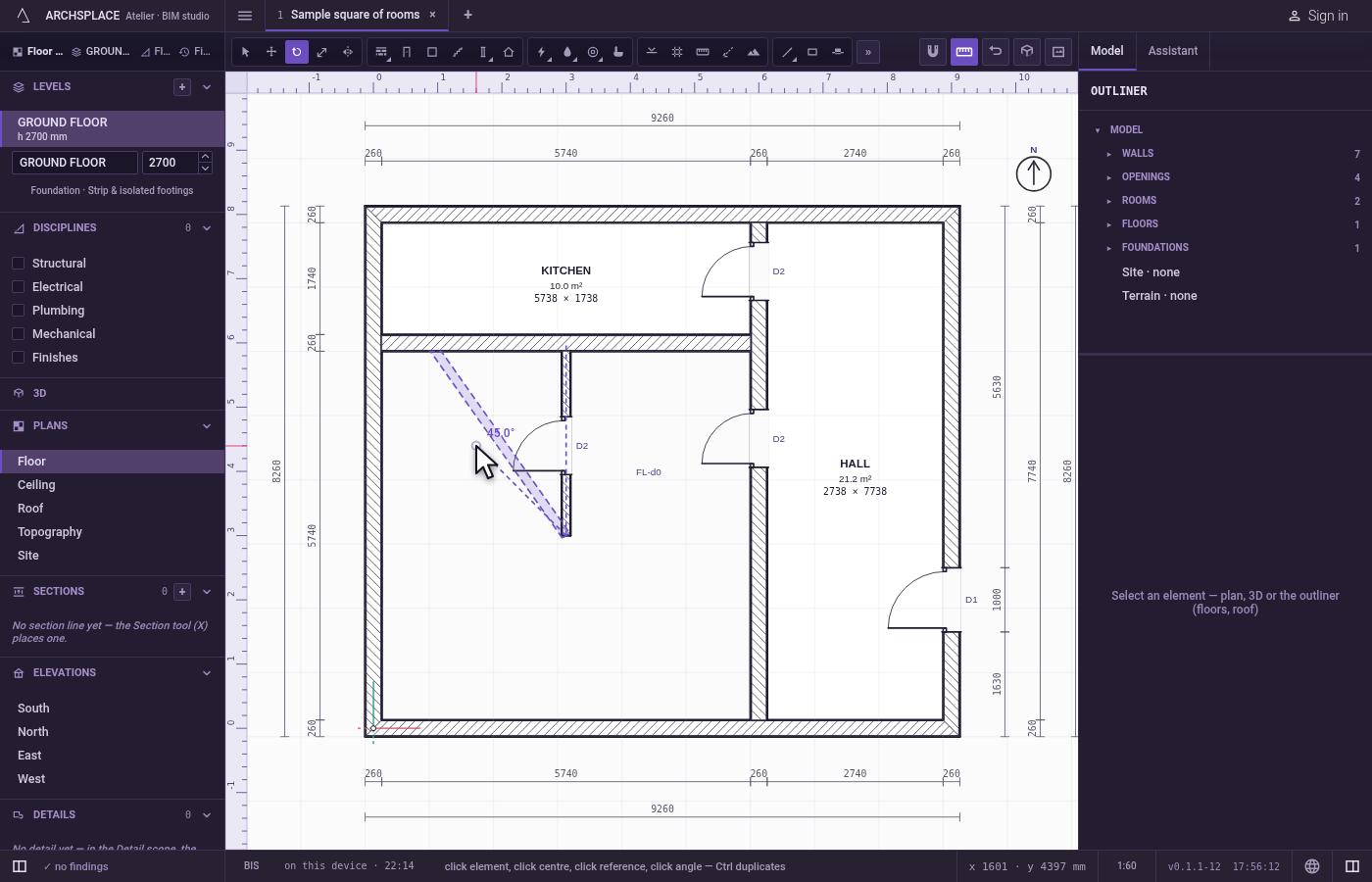
Click the angle, or type it. Move the cursor until the ghost is where you want it and click. Shift keeps the angle to steps of 15 degrees, and F8, while it is on, to steps of 90 degrees. Or type the angle in degrees and press Enter: the elements turn by that many degrees, anticlockwise for a positive number. Keep
Ctrl(⌘on a Mac) pressed as you click or press Enter to turn a copy.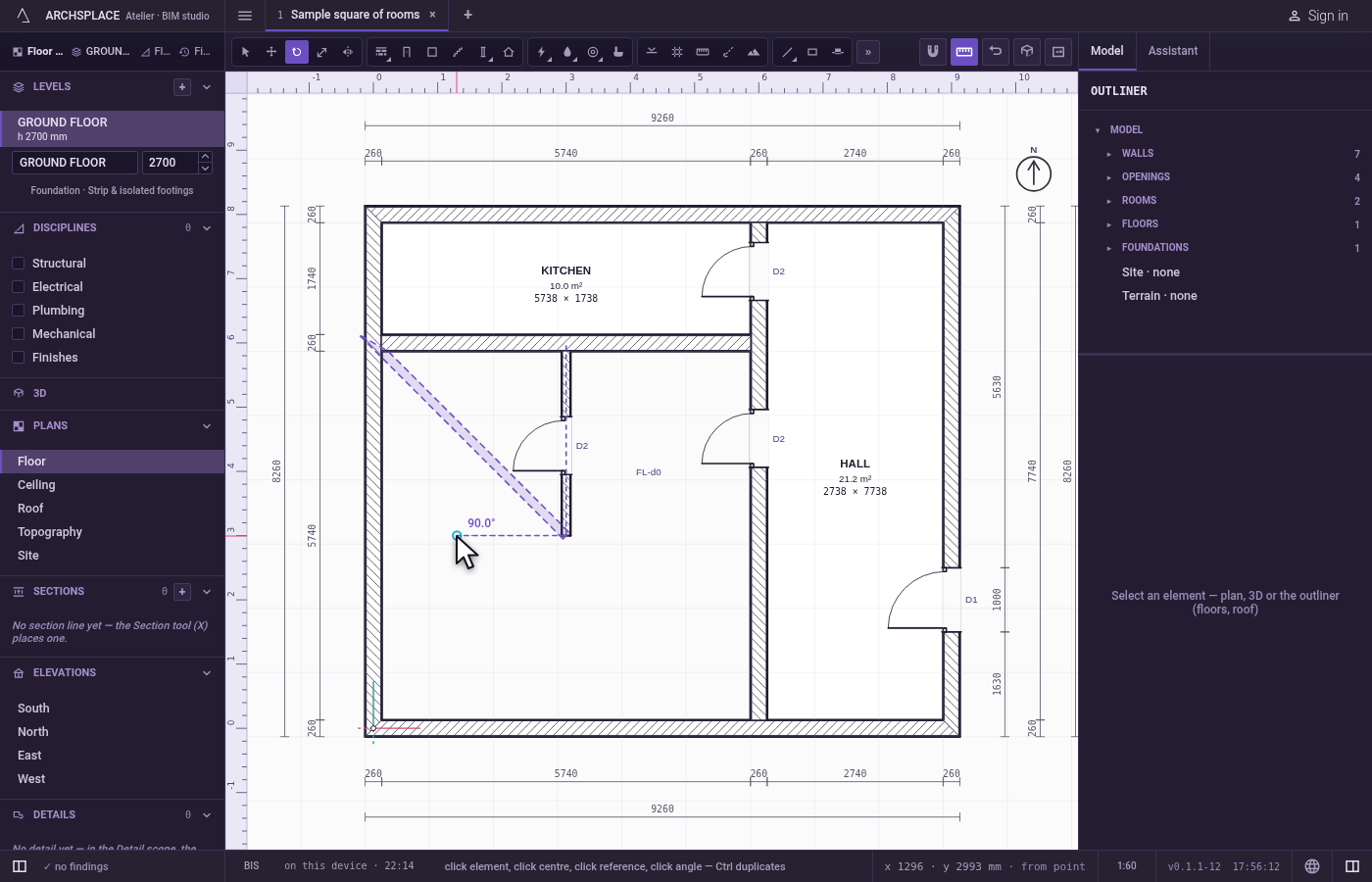
Carry on around. Right after a turned copy, type
xand a number, then Enter, to repeat the same turn about the same centre until there are that many copies.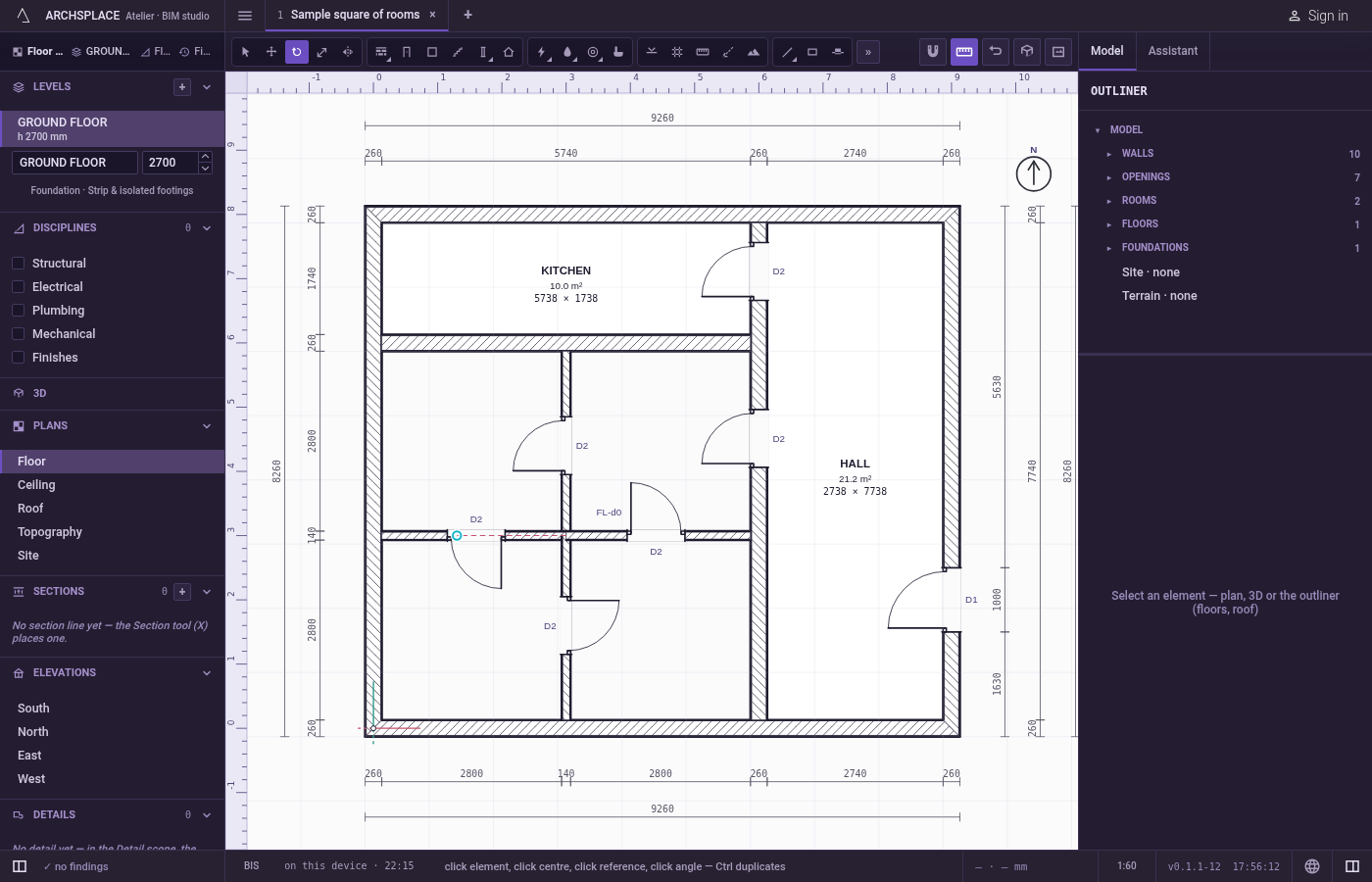
What it refuses
- A hosted element on its own. A window, a door or a point on a wall belongs to its wall. Turned on its own, it stays as it was and a message asks you to rotate the wall instead.
- A component turned inside out. A component instance turns, but never changes its size or its handedness.
- A turn that would break a joint. A turn that would leave a wall, a pipe or a beam shorter than one centimetre writes nothing and gives the reason.
- Annotations. A dimension, a detail or a callout frame does not turn with Rotate.
What it writes to the contract
One step, which one undo reverses. Every turned element receives its new points: the two ends of a wall, the position and angle of a column, the position and angle of a sanitary appliance, the walk line of a stair, the corners of a roof. The ends of the walls, pipes and beams joined to them are written too. A copy adds new entries at the end of their lists instead of changing the originals.
Concepts
Common questions
How do I rotate by an exact angle?
Select the elements, press Q, click the centre, then type the angle in degrees and press Enter. A positive angle turns anticlockwise.
Can I rotate a single window or a socket?
No. A window, a door or a point fixed on a wall belongs to its wall: the studio tells you so and leaves it as it is. Rotate the wall instead, and everything it carries turns along with it.
How do I copy elements around a centre?
Rotate them once with Ctrl pressed, then type x and the total count, for example x6, and press Enter: the same turn is repeated around the same centre.