Panels
Patterns
Patterns are the tiles laid on the surfaces of the project and the hatches with which its layers are cut: those of the template, and those of the project itself. The Patterns section of the standard panel lists each one with how many times it is used, opens each in the pattern editor, copies it, and resets a standard pattern that the project has changed.
What it is
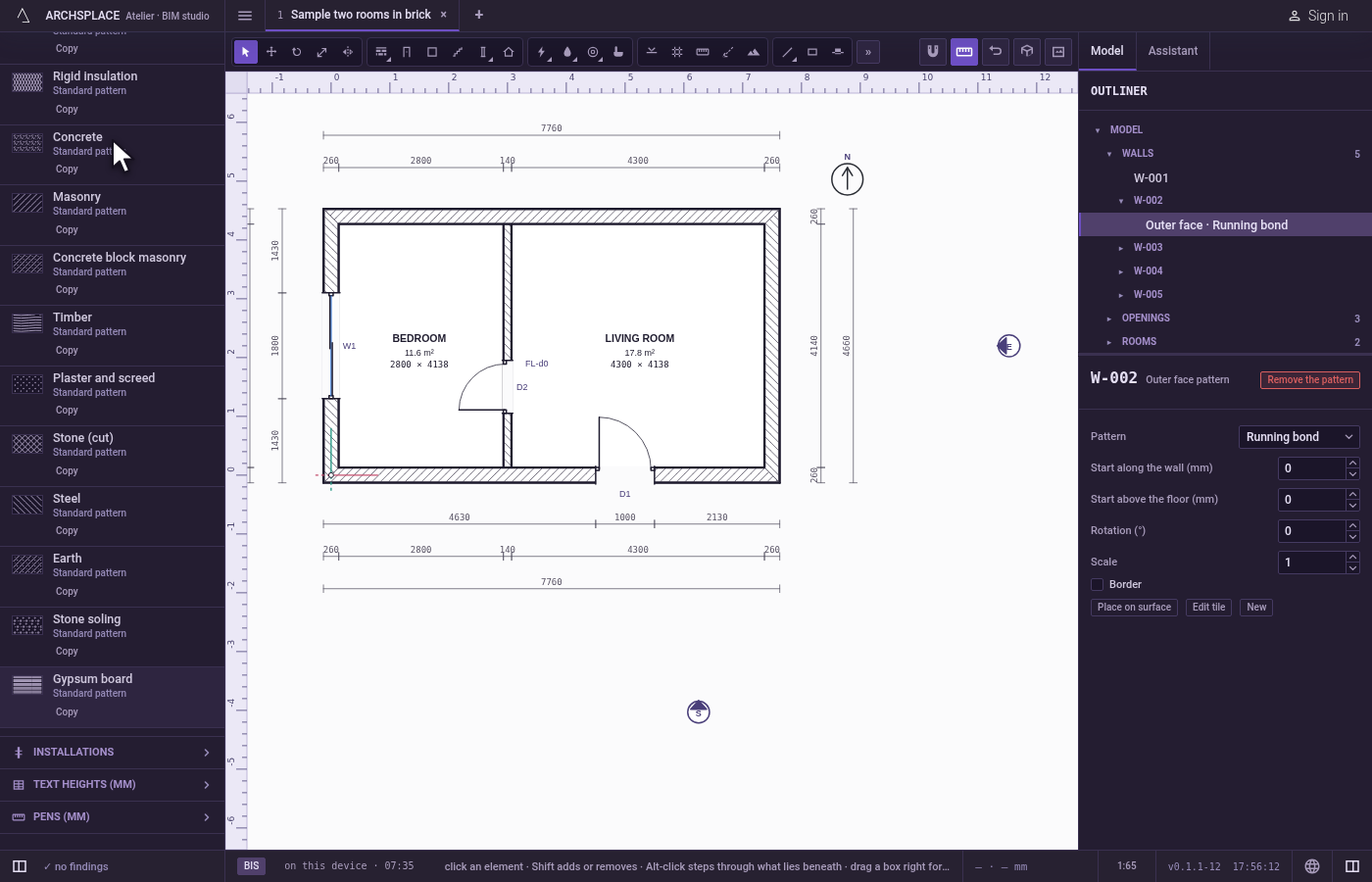
The patterns of the project are listed in the Patterns section of the standard panel, opened from the key of the standard in the status bar. Its title carries how many patterns there are and + New. Each pattern is a row on two lines: a swatch of its tile, its name and, beside it, how many times it is used, or Standard pattern, or Not used, with modified when the project has changed a standard pattern. Its commands wrap below the name:
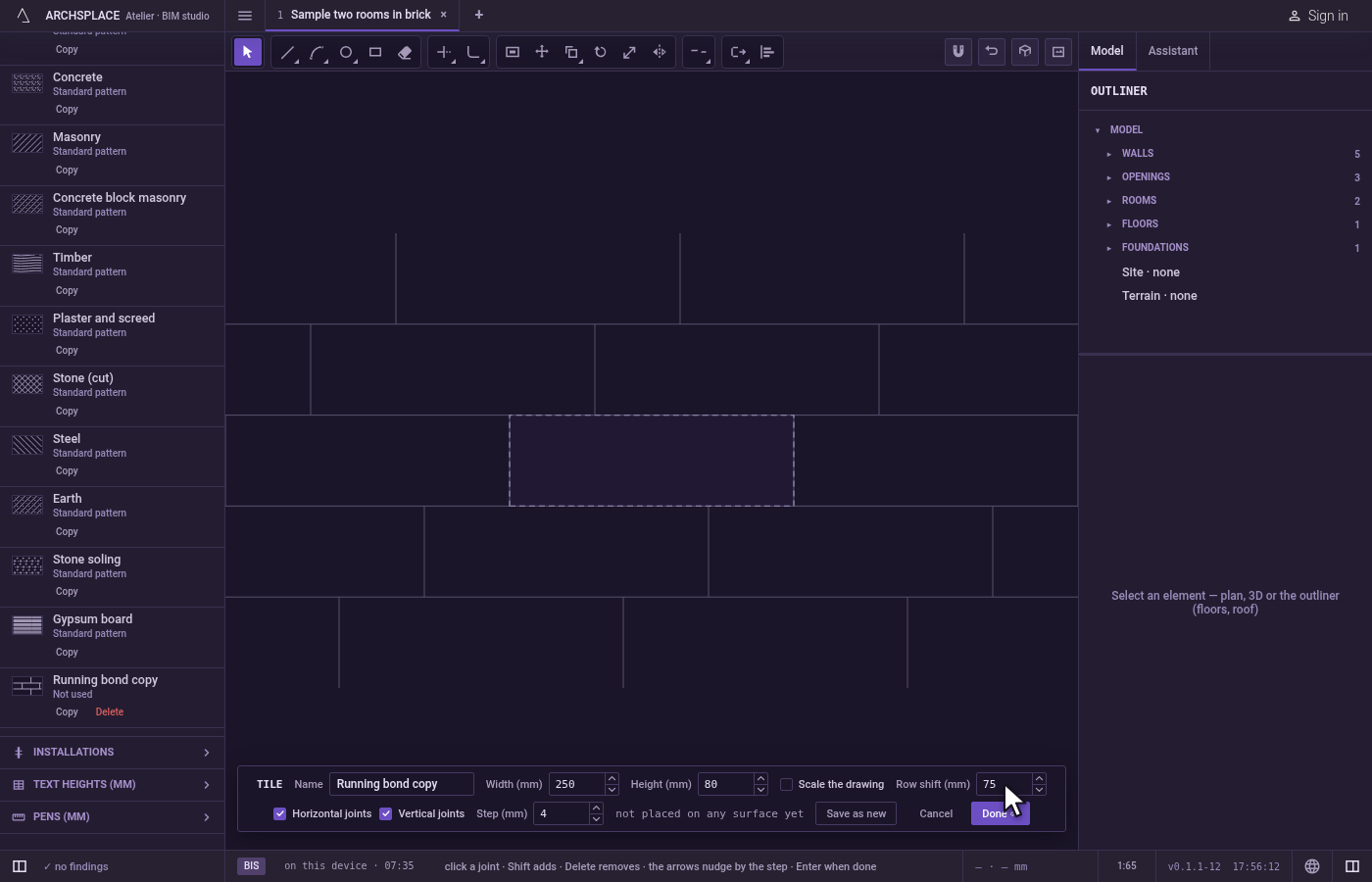
- a click on the row opens the pattern in the pattern editor, where its tile, its joints and its edges are drawn;
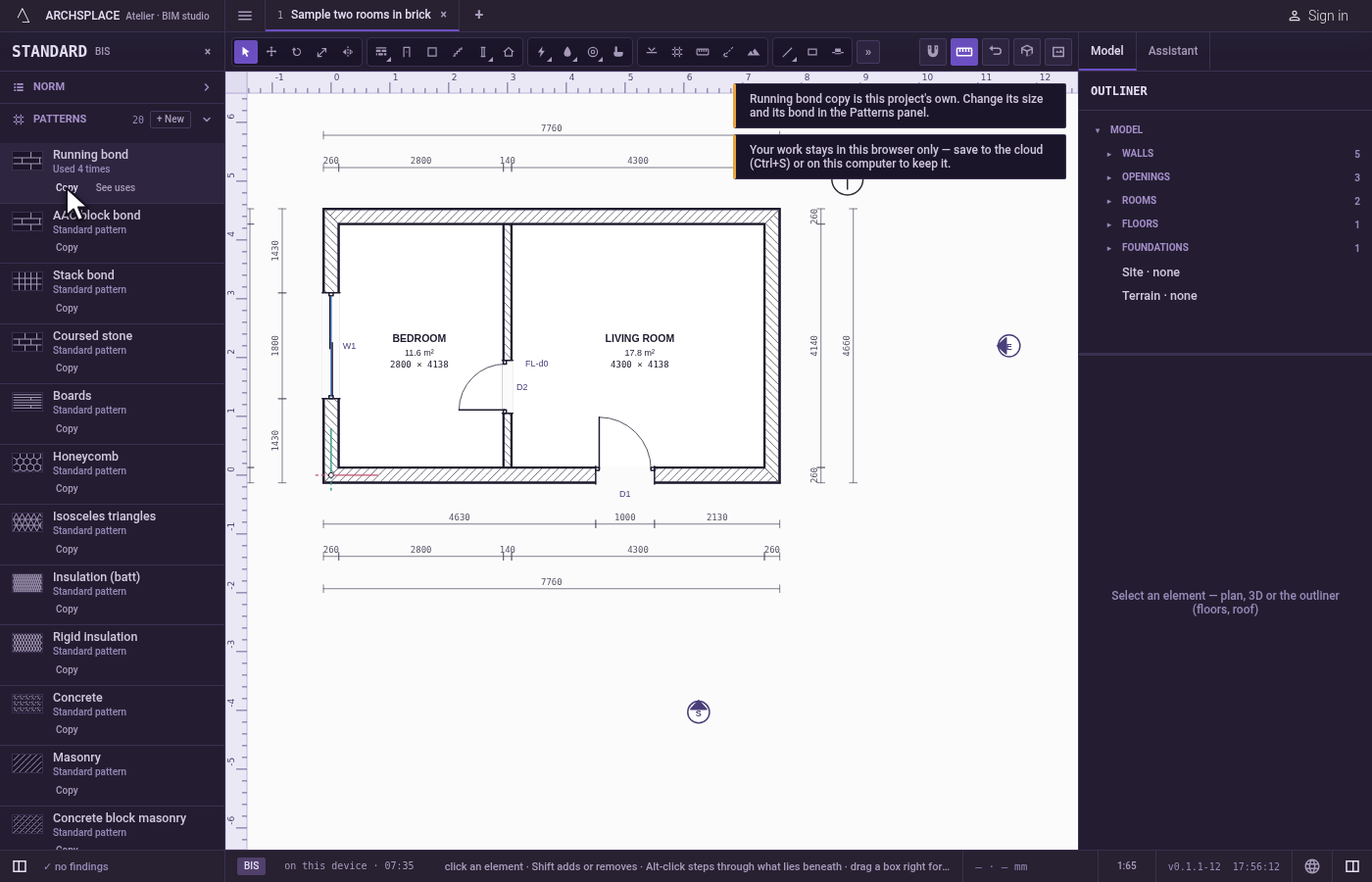
- Copy makes a new pattern of the project from it, named after it with copy;
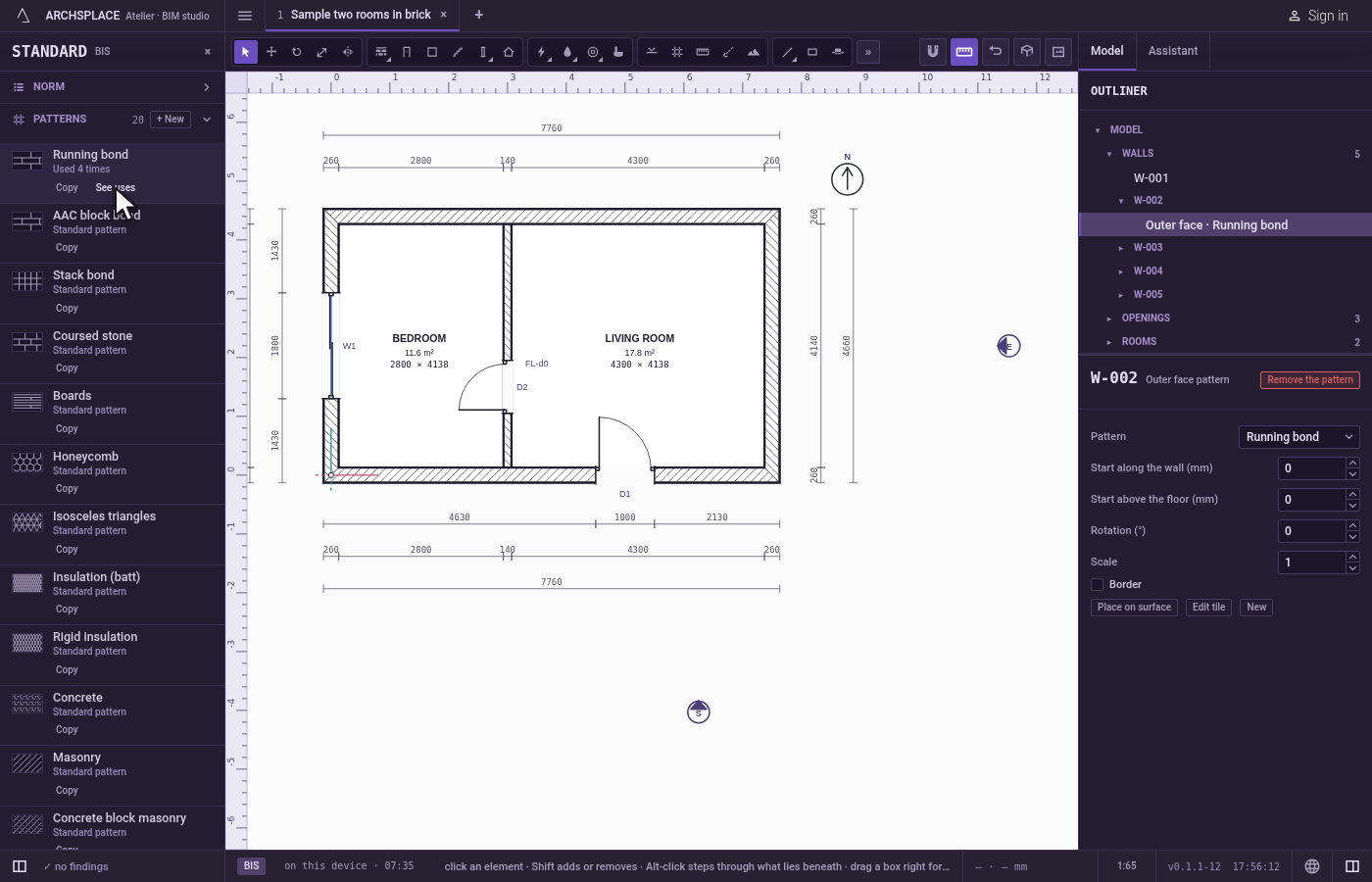
- See uses, while a surface lays it, selects the first one in the outliner;
- Reset to the standard, on a standard pattern that the project has changed, gives the tile of the template back to every surface that lays it;
- Delete, on a pattern of the project itself, removes it, and works only while nothing uses it.
The list holds the surface patterns of the template, its cut hatches, then the patterns of the project itself. A standard pattern can be edited: Done in the pattern editor writes the project's own version of it under the same name, and every surface that lays it follows. The template itself is never written.
The same list opens from the panel of a wall or a room, through Patterns… in its Patterns section, as the PATTERNS panel of the left column. There the patterns of the template show the size of their tile, with Copy and, once changed, ↺; each pattern of the project itself folds open on its Name, its Material, its Tile width, its Tile height and its Row shift, how many surfaces lay it, Edit tile and Delete.
When to use it
- To make a pattern of your own, such as the stone bond of a house you are surveying.
- To change the size or the bond of a pattern of the template for this project.
- To find which surfaces lay a pattern.
- To clean the project of patterns that nothing uses.
The steps
Open the patterns. Click the key of the standard in the status bar, then open Patterns. The rows show every pattern with its uses.
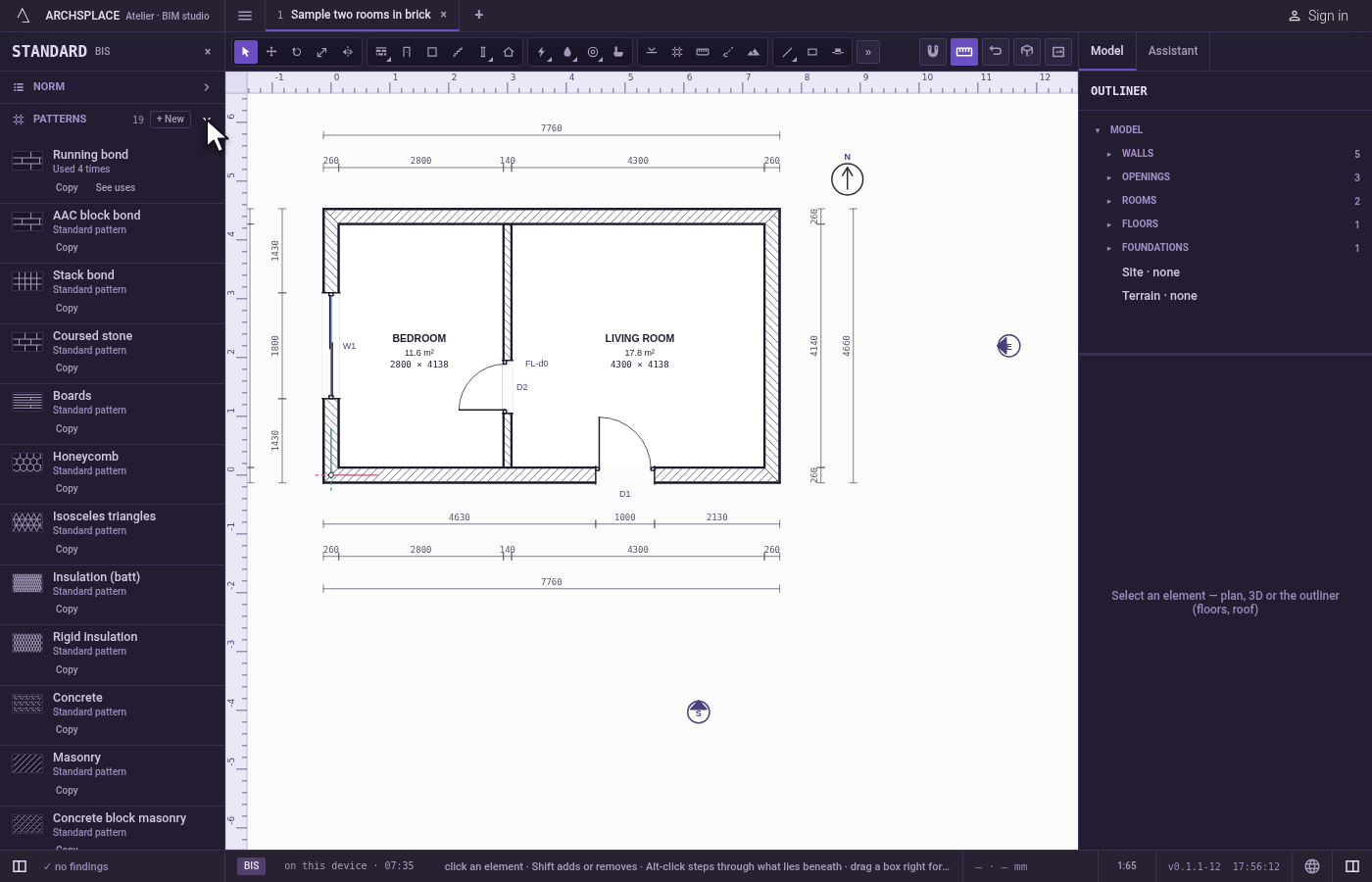
Copy a pattern. In a project under ISO, on Stretcher bond, 2M × 1M, click Copy. A toast says that Stretcher bond, 2M × 1M copy belongs to the project, and its row joins the list.
Change its bond. Click the row of the copy. The pattern editor opens on its tile: change its width and its row shift, and click Done.
See where a pattern is used. On a pattern used several times, click See uses. The first surface that lays it is selected in the outliner.
Delete the copy. On the copy, which nothing uses yet, click Delete. It leaves the project.
What it refuses
- Deleting a pattern that a surface lays. Delete is greyed out and says it is in use: take it off every placement first.
- Deleting a standard pattern. It has no Delete; a changed one has Reset to the standard instead.
- A row shift as wide as the tile, or a tile narrower than its row shift, in the PATTERNS panel: the fields refuse it.
- A pattern the engine refuses. Its row has no swatch and cannot be opened, and says it was refused; the findings give the reason.
What it writes to the contract
Every change is one step that one Ctrl+Z reverses. The patterns of the project are its patterns, each under its id, with its label, the module of its tile (width and height in metres), its offset (the row shift), its joints, its material and, when an edge is not a joint, its edges. Copy writes a new entry under the next free id; + New writes one named New pattern when Done in the editor saves it. Done on a standard pattern writes the project's version under the id of the standard itself, and Reset to the standard removes it. Delete removes the entry. Where a pattern is laid is written on the surfaces, never here.
Common questions
How do I make my own tile pattern?
In the Patterns section of the standard panel, click + New. The pattern editor opens on an empty tile of 0.20 × 0.10 m: set its size, draw its joints and click Done. The pattern joins the project under a name of its own.
Can I change a standard pattern?
Yes. Click its row to open it in the pattern editor and click Done: the project gets its own version under the same name, and every surface that lays it follows. Its row is then marked modified, and Reset to the standard gives back the tile of the template.
Why can I not delete a pattern?
Because a surface still lays it. Its row says how many times it is used; See uses selects the first one. Take it off every surface first. A standard pattern has no Delete at all.