PlanNin the studio
Callout
Callout boxes a region of a plan, a section or an elevation with two clicks and makes it a view of its own: the same region drawn again at a larger scale, 1:20 unless you choose another. The view it comes from keeps a dashed box and a bubble that names the callout and the sheet on which it is placed.
What it is
Callout is the last tool of the detail group, on the toolbar of every plan, section and elevation. Two clicks box a region of the view, and the region becomes a view of its own: the same drawing worked out again inside the box, at a larger scale, 1:20 unless you give it another. Nothing is copied. The callout is drawn from the model every time it opens, so it follows every change to the walls, floors and openings inside the box.
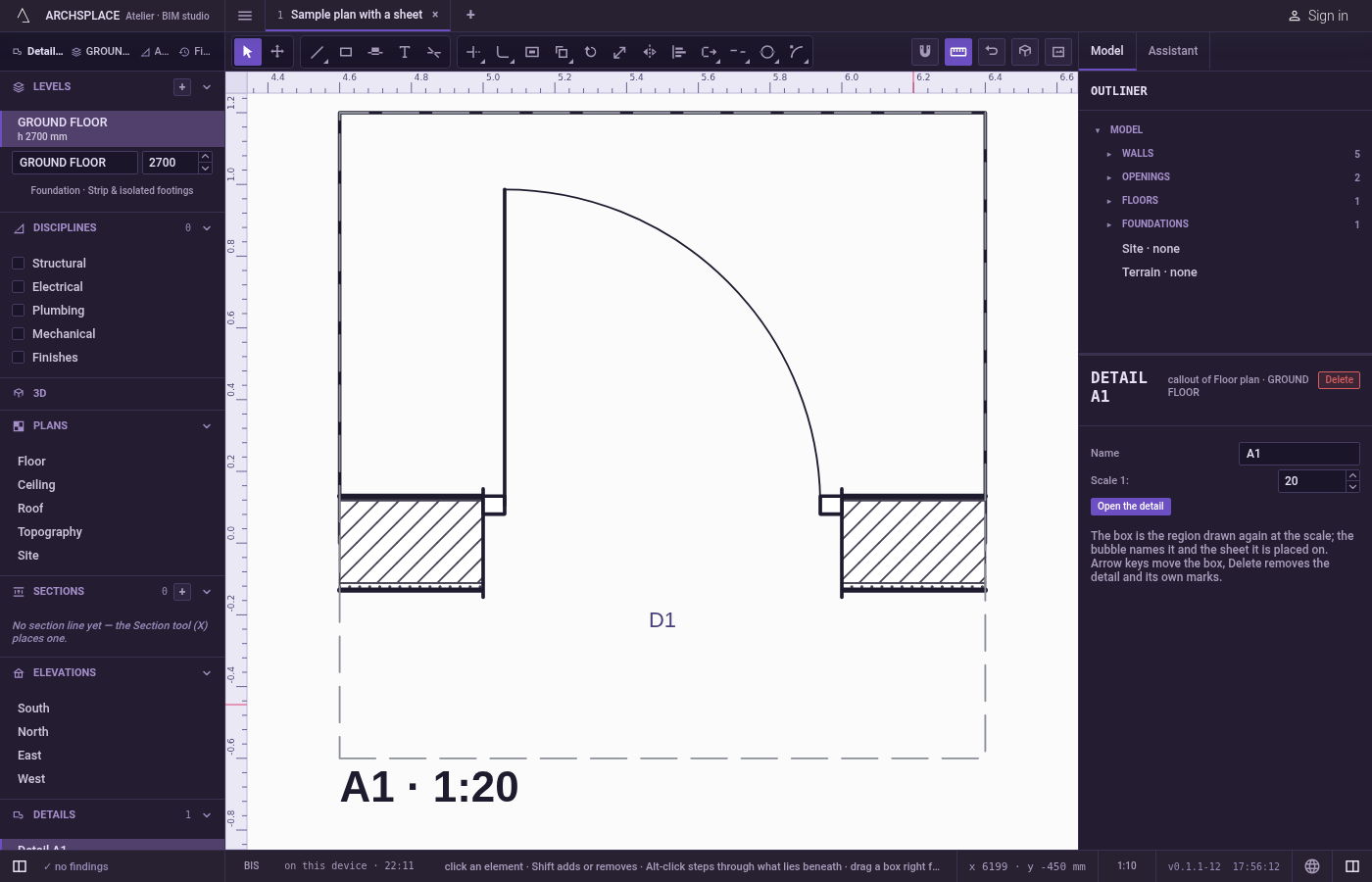
The view from which the callout comes shows the region as a dashed box with a bubble at its top right corner. The bubble names the callout, D1 for the first one, D2 for the next, and below the name gives the sheet on which the callout is placed, or a dash while it is on none. A click on the bubble opens the callout. The sidebar lists every callout under Details, as Detail D1, and from there it can be dragged onto a sheet, where it prints at its own scale with the caption Detail D1.
The view of the callout draws only the model. The marks, the notes and the dimension chains of the view from which it comes are not carried in. Inside it, the detail tools draw marks that belong to the callout alone.
When to use it
- To draw an eaves, a threshold or a footing from a section at a larger scale, to show how it is built.
- To give a region its own notes and lines, kept apart from the section or the elevation.
- To place an enlarged detail on a sheet beside the drawing from which it comes.
The steps
Open the view and pick the tool. Open a section, an elevation or a plan, then press
N, or click Callout, the last tool of the detail group. The status bar asks you to click two corners of the region to detail, and tells you that it becomes a view of its own at 1:20.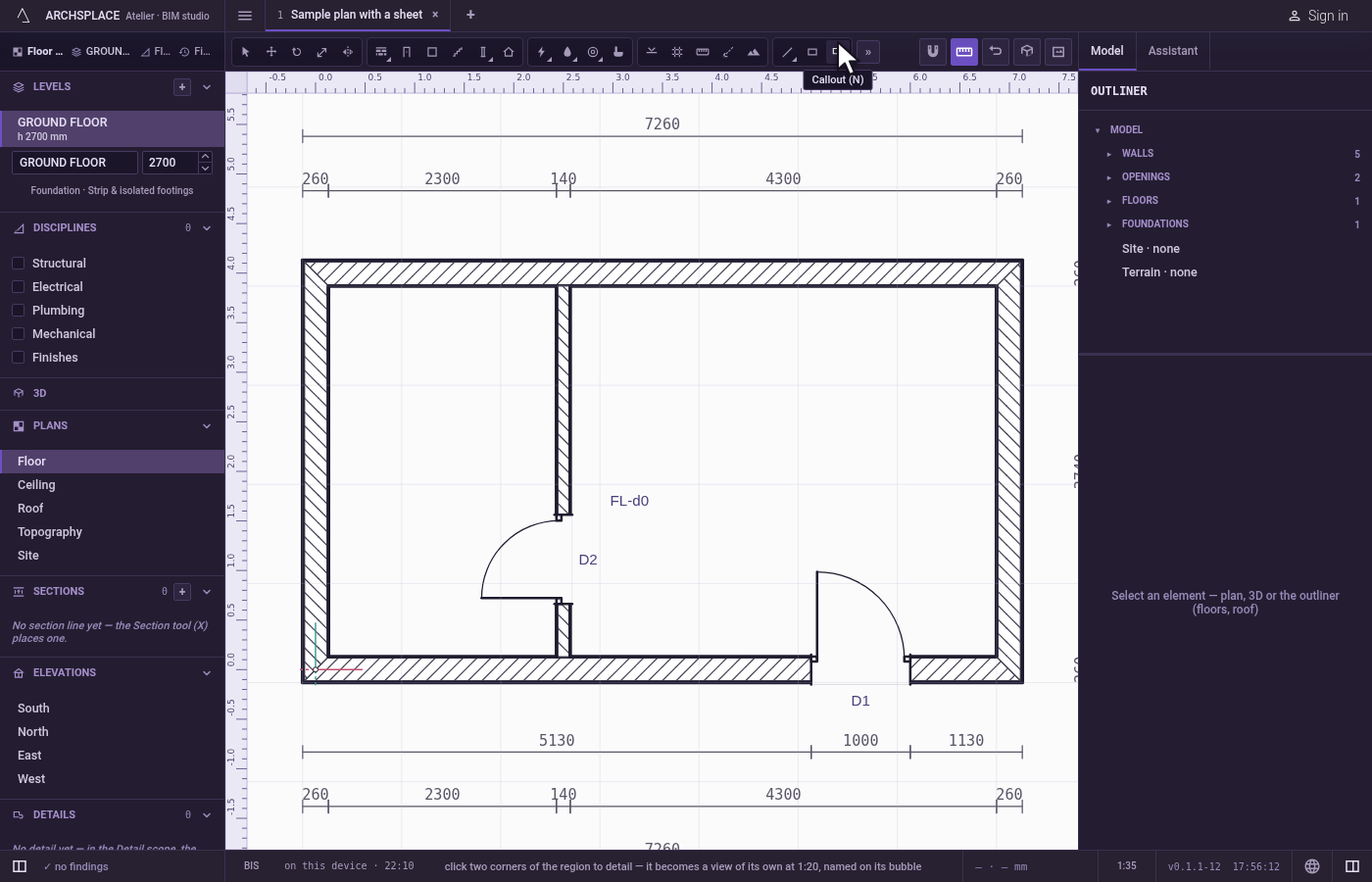
Click the first corner of the region. Every line of the drawing pulls the pointer onto its corners, midpoints and edges. After the click, a dashed rectangle runs from that corner to the pointer.
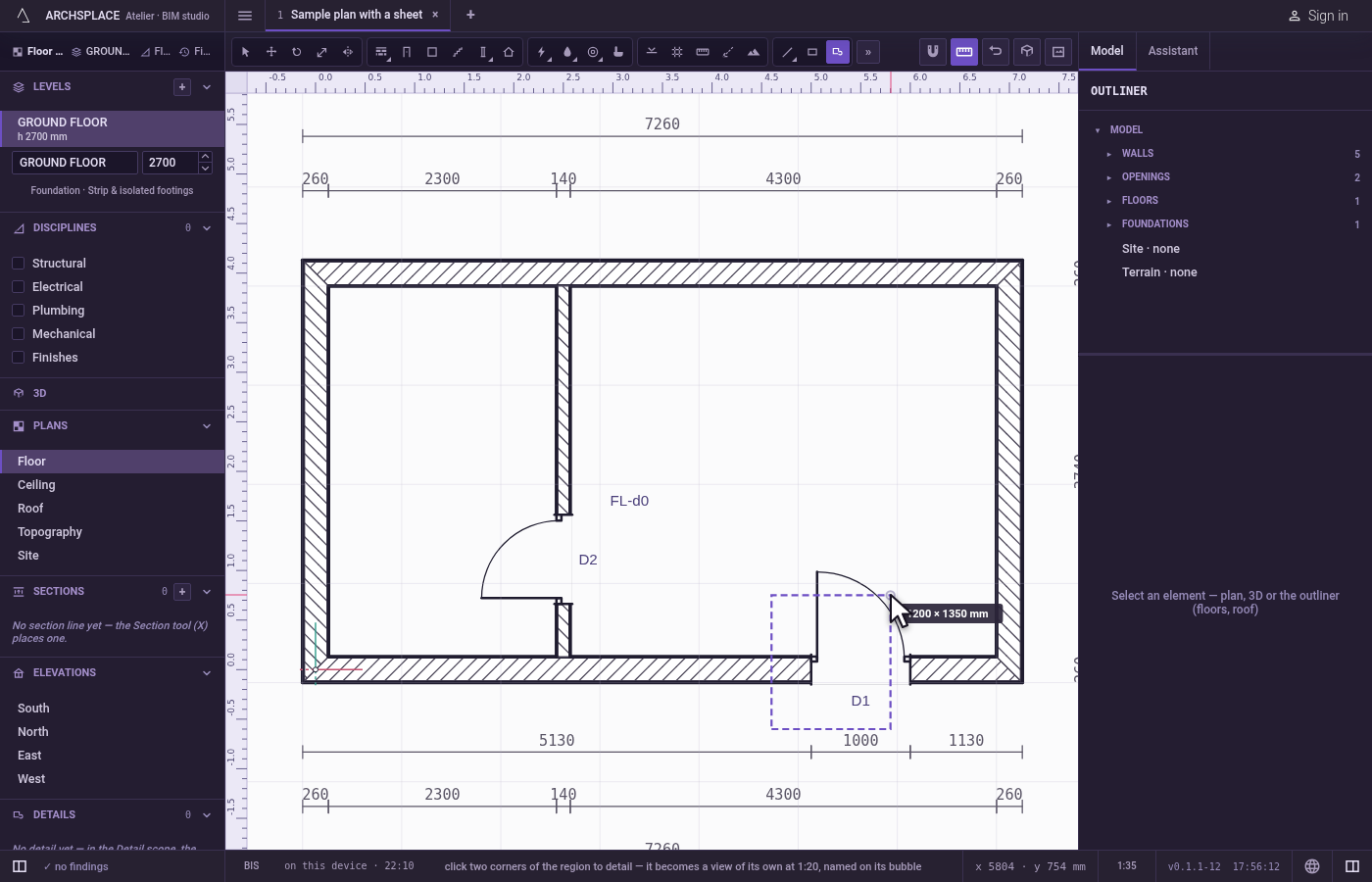
Click the opposite corner. The callout is made at once, in one step that one
Ctrl+Zreverses. The view draws the dashed box and its bubble, and the callout is selected: its panel reads DETAIL D1 and the view of which it is a callout, with the fields Name and Scale 1:, the button Open the detail, and a Delete button. The tool stays active for another callout.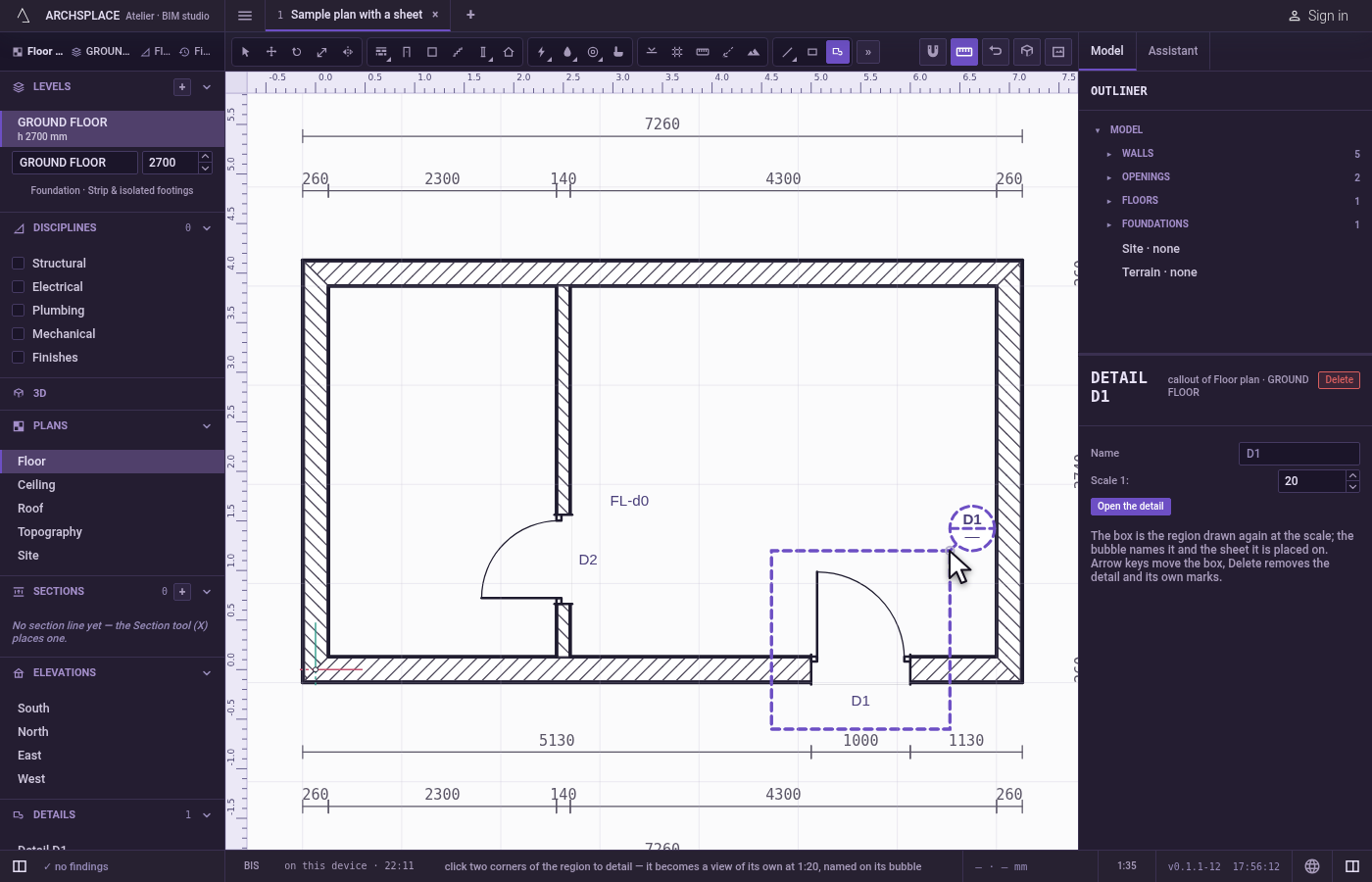
Name it and set its scale. Type a name in Name and press
Enter: the bubble, the title of the view and the sidebar show it in place of D1. Scale 1: sets the scale at which the region is drawn, 20 unless you type another number.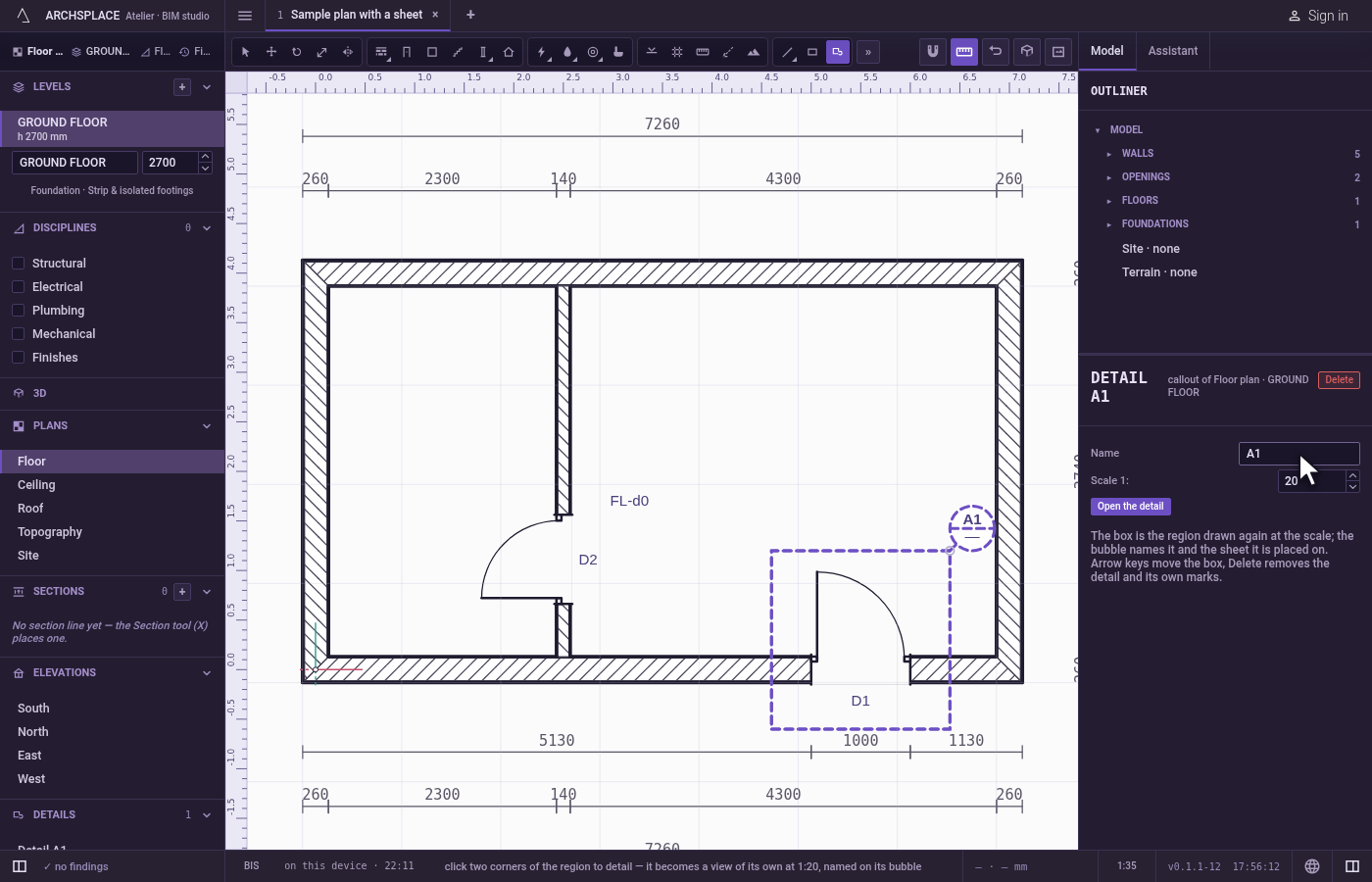
Open it. Click its bubble, click Open the detail in its panel, or click it under Details in the sidebar. The region fills the screen, drawn again at its scale, framed with a line and titled with its name and scale, such as D1 · 1:20. The toolbar now holds Select, Move and the detail tools, without Callout.
Annotate it. Press
Z, click what the arrow points at, click where the words stand, type them and pressEnter. The note belongs to the callout alone: it shows in the callout and on the sheets that place it, never on the view from which it comes. Line, Rectangle, Mask and Hide work here in the same way.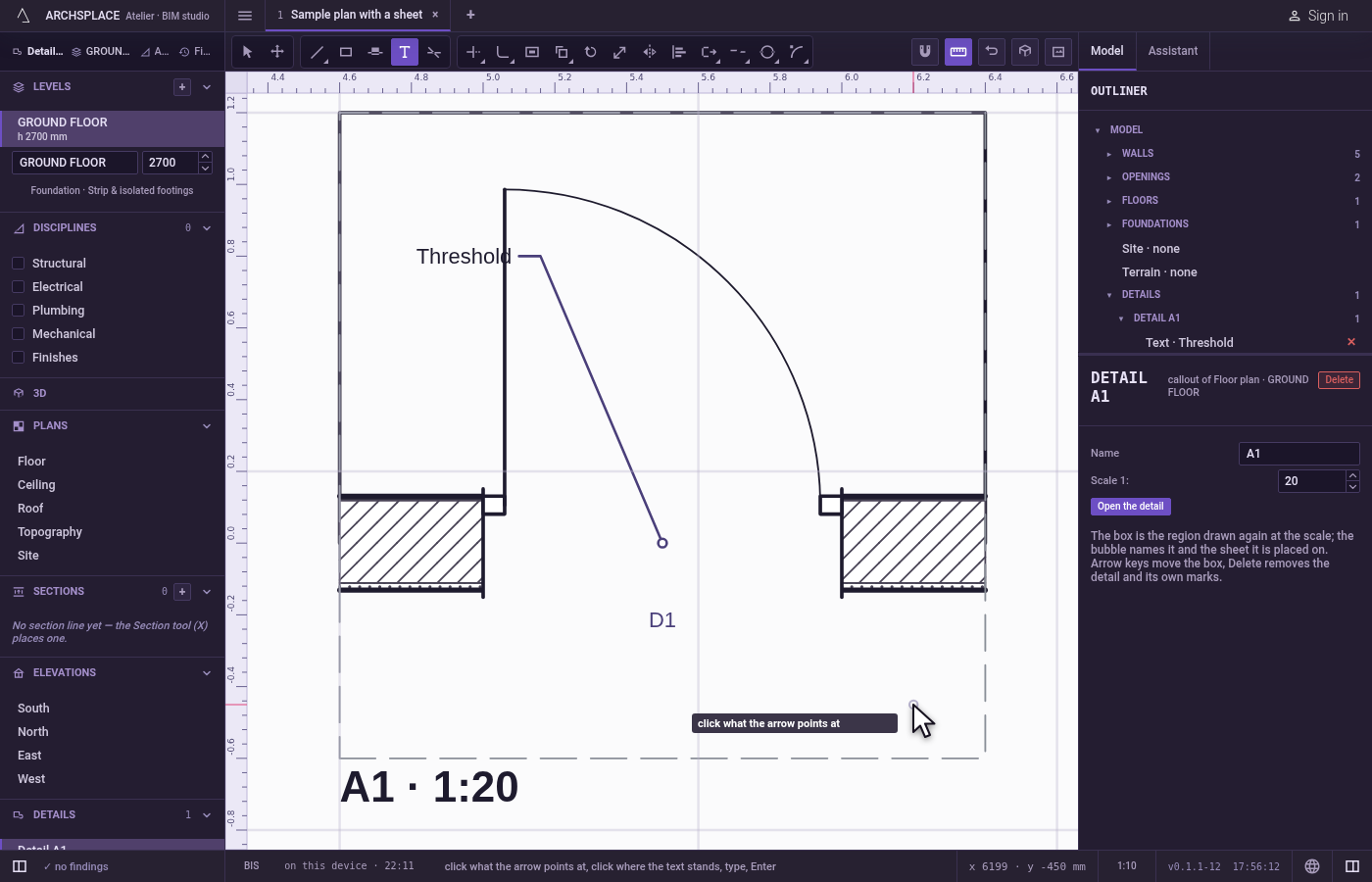
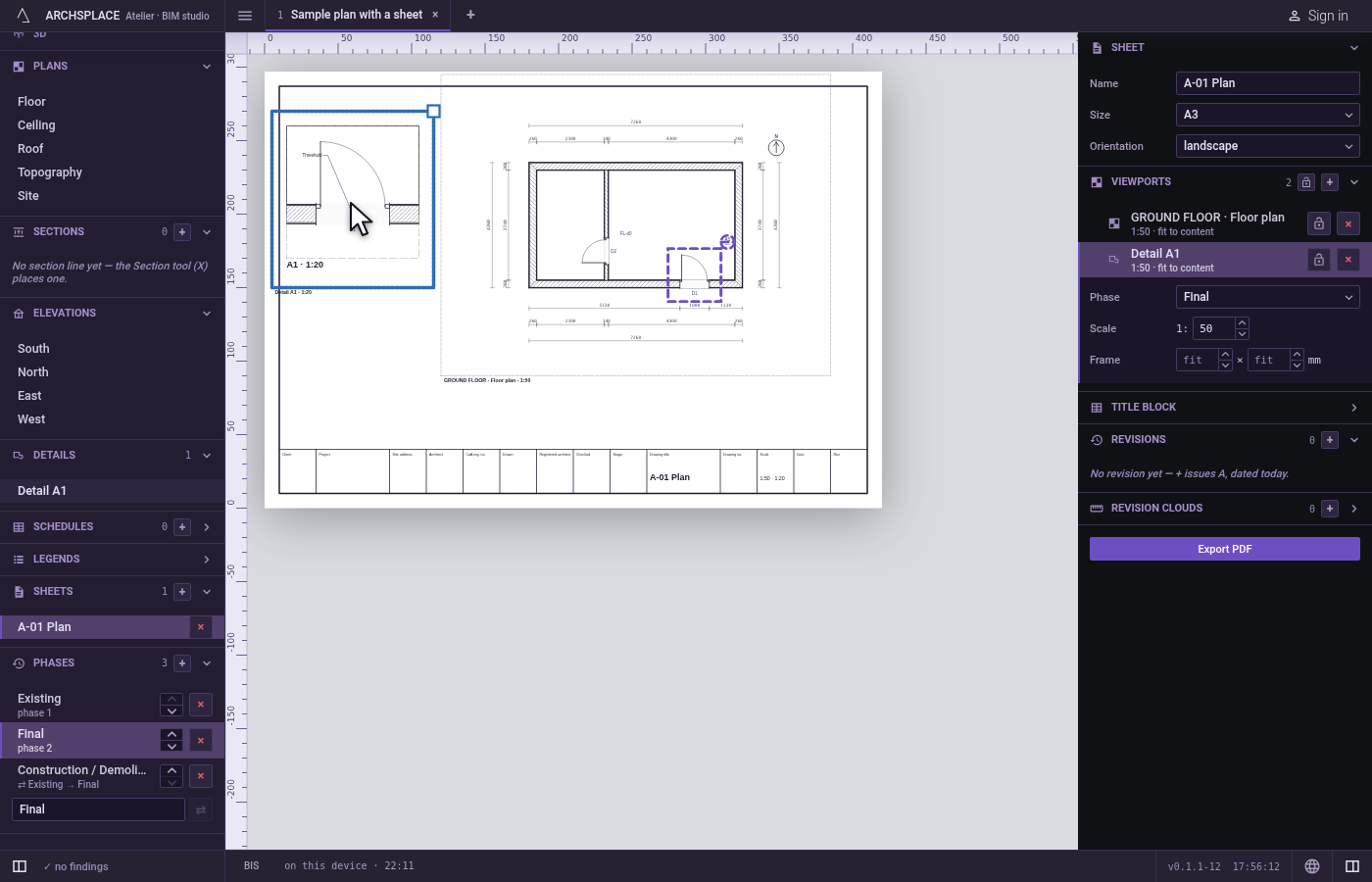
Place it on a sheet. Open a sheet, then drag Detail D1 from Details in the sidebar onto it. The sheet prints the region at the scale of the callout, and the bubble on the original view now names that sheet.
What it refuses
- A callout of a callout. Inside the view of a callout, the toolbar has no Callout tool. If one is asked for all the same, the studio says that a detail cannot come from another detail, and asks you to box the region on the plan, the section or the elevation from which it comes.
- A box with no width. A second corner on the same horizontal or vertical as the first, within a centimetre, boxes nothing, and the tool waits for another second corner.
- Esc before the second corner.
Escdrops the first corner and writes nothing. A secondEscputs the tool down. - Moving it with Move. Move leaves a callout where it is and says that a callout moves with the arrow keys, or is deleted and boxed again.
- Copying it. Copy says that a callout is drawn once, and asks you to box another with the Callout tool.
- Tools with no project open. With no project open, the status bar asks you to open or create one, and the tool does nothing.
What it writes to the contract
Every callout adds one entry to the callouts of the contract, the moment its second corner is clicked. It names its view the way a detail does: station for a section, by its place in stations; elevation for an elevation, by its side; level and discipline for a plan. box holds the two corners you clicked, in the coordinates of that view itself, rounded to the nearest millimetre: for a section or an elevation, [u, z], along the view and up.
A name typed in the panel adds label; an empty name leaves it out, and the bubble reads D1, D2 and so on by the place of the callout in the list. A scale other than 20 adds scale, as a whole number. The view of the callout is never written: it is the model drawn again every time.
What is drawn inside the callout is written to details like any other mark, keyed to it by its place in callouts, in the coordinates of the view from which it comes: { "kind": "TEXT", "callout": 0, "target": [4.1, 2.9], "at": [4.6, 3.4], "text": "Drip mould" }. With the callout selected, the arrow keys move its box, and Delete takes out its entry together with the marks drawn on it, in one step that one Ctrl+Z reverses.
Common questions
How do I draw part of a section at a larger scale?
Open the section, press N, click one corner of the region and then the opposite corner. The region becomes a view of its own at 1:20, listed under Details in the sidebar. Click its bubble on the section to open it.
Can I change the scale of a callout?
Yes. Select the callout and type another number in Scale 1: in its panel, for example 10 for 1:10. The detail is drawn again at that scale, and its title follows.
Can I make a callout inside a callout?
No. The view of a callout has no Callout tool of its own. Box the smaller region on the plan, the section or the elevation from which the first callout comes.