SketchEin the studio
Erase
Erase removes lines from the drawing in the sketch editor, one click at a time or in one sweep with the button kept pressed. A straight line goes only between the two nearest corners or crossings, a curve goes whole, and what remains is the shape.
What it is
Erase removes lines from your drawing in the sketch editor. Lines are cut wherever they cross or meet, so a straight line is erased only between its two nearest corners or crossings, the way a pencil line is rubbed out between two other lines. A curve goes whole: the full arc you drew, even where other lines cross it. A circle is four quarter arcs, so a click removes the quarter under the pointer.
What is left after erasing is your shape. A closed outline with a piece taken out becomes an open line.
When to use it
- To remove the straight side that an arch replaces, so that the arch alone closes the head of the window.
- To clean up construction lines and stray strokes before you press Done.
- To open an outline where two shapes should become one.
The steps
Pick Erase. In the sketch editor (see Select for the ways in), press
Eor click Erase on the toolbar of the editor. The hint at the cursor says click or sweep a line.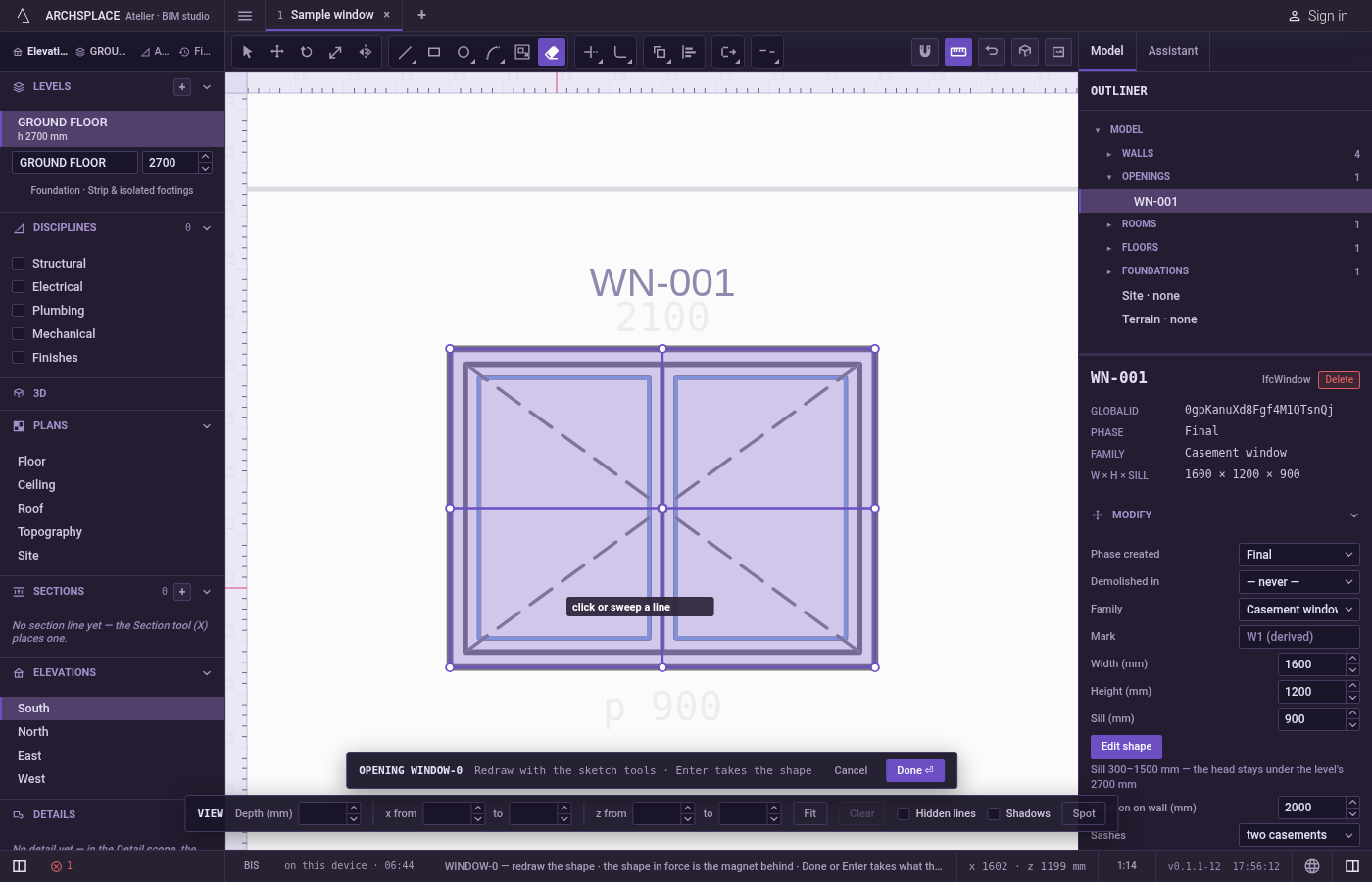
Point at a line. The piece under the pointer is highlighted: that is what a click will remove.
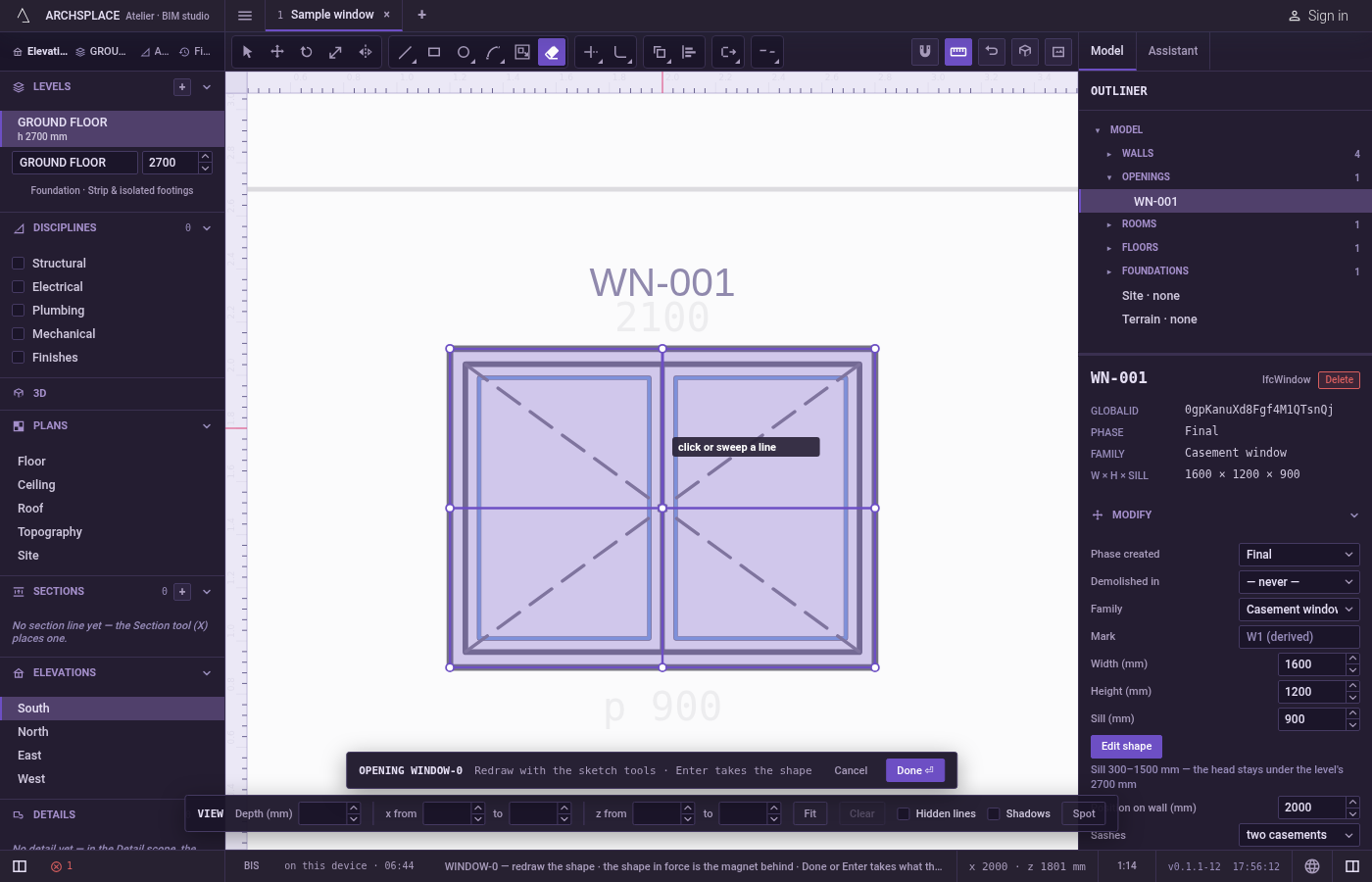
Click to erase it. The piece is gone at once.
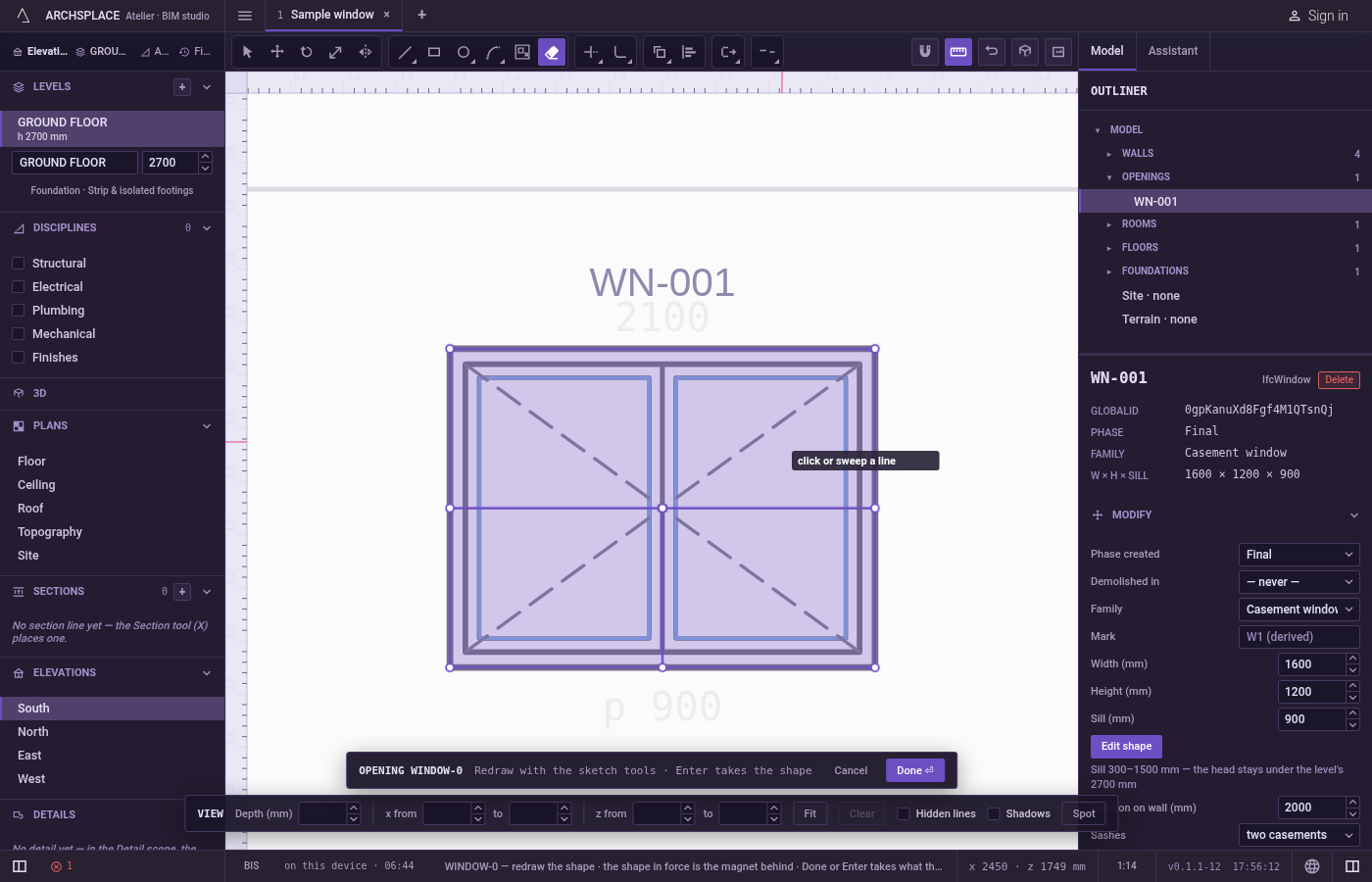
Or sweep. Press, keep the button down and drag across several lines. Every piece the pointer passes over is erased as it goes.
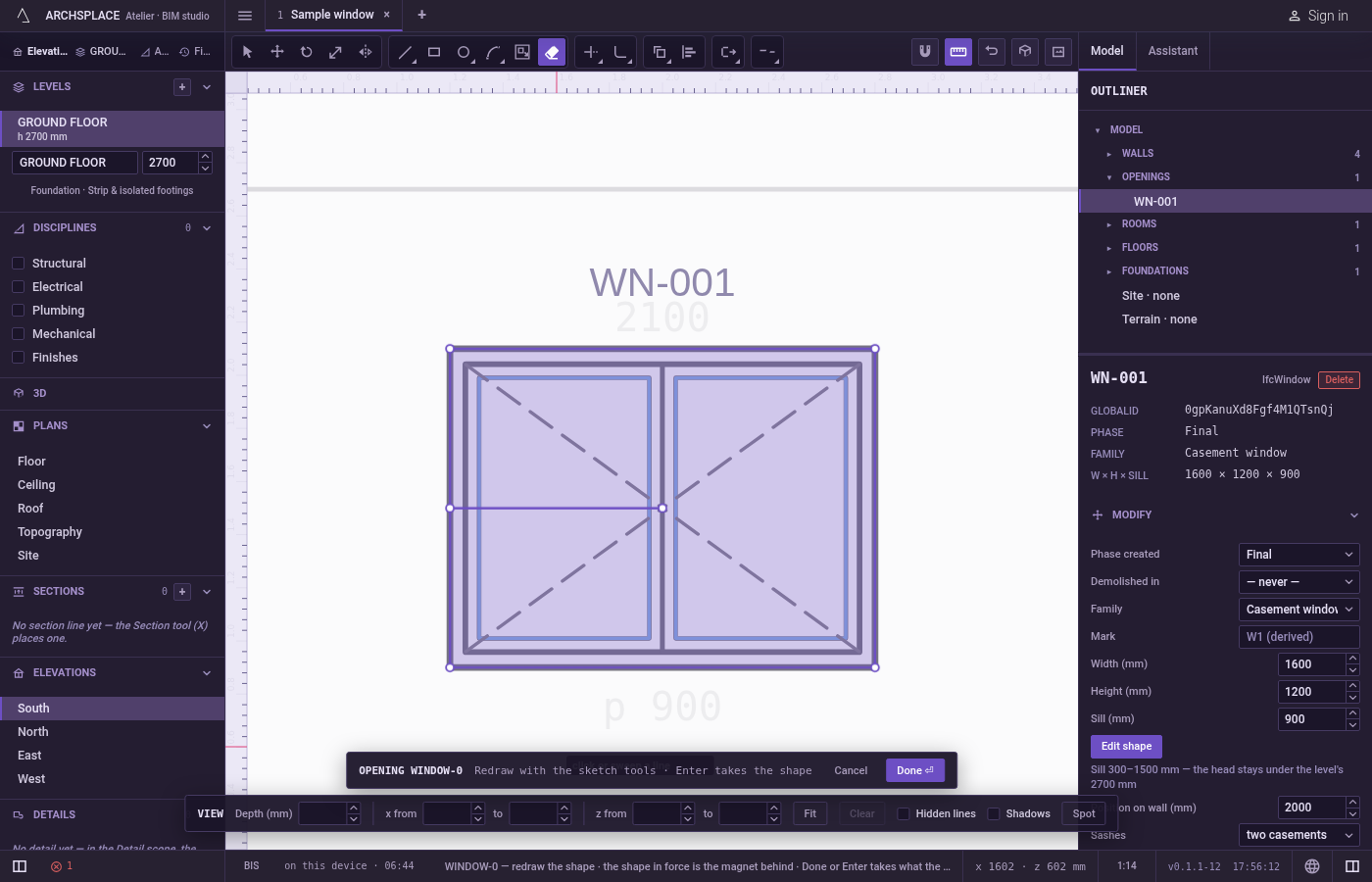
Check the shape.
Ctrl+Zbrings back the last piece erased, one step per piece.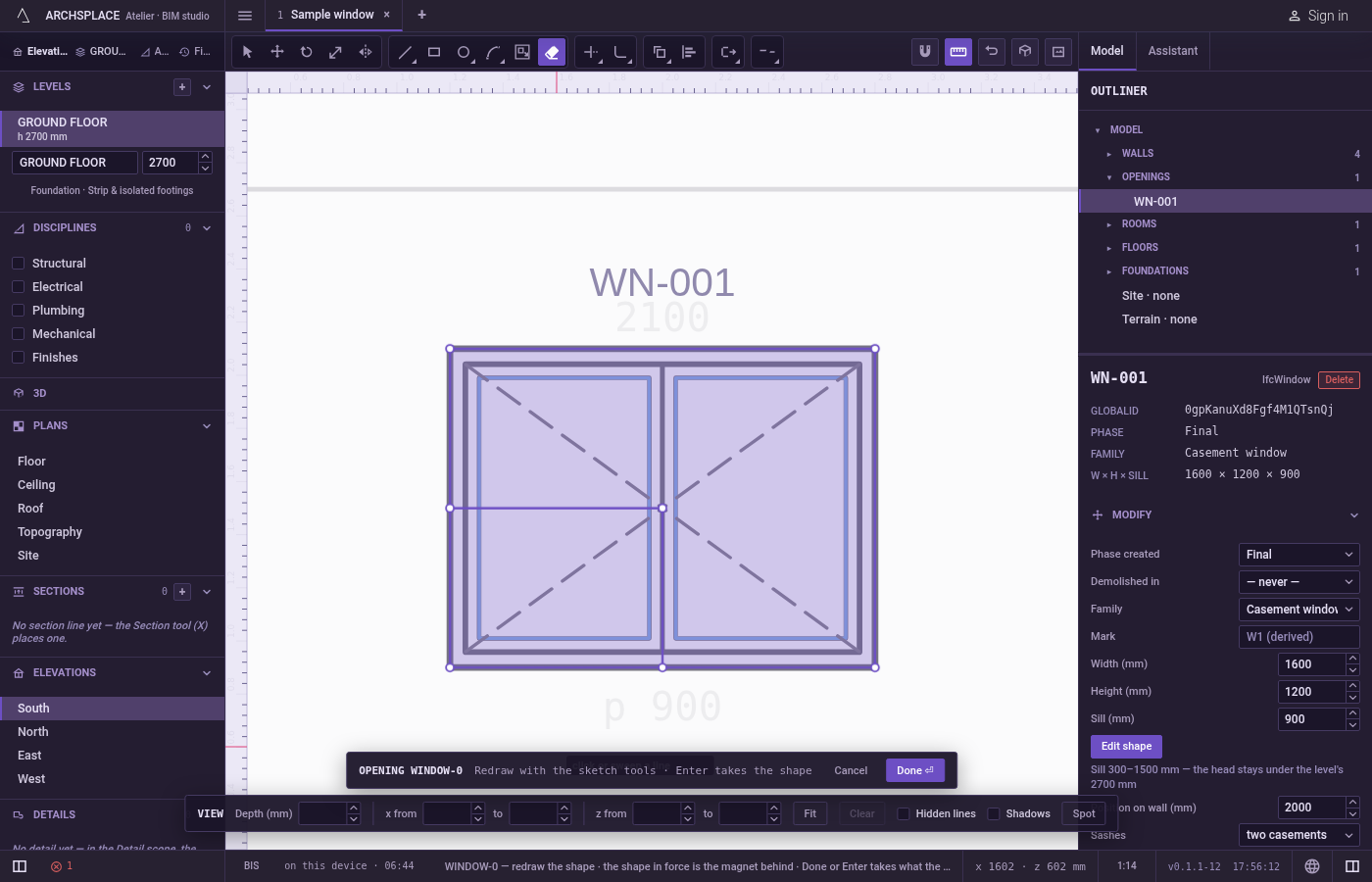
What it refuses
- A click near a corner. Near a corner, the pointer picks the corner, and a corner is not a line: nothing is erased. Click on the line away from its ends. The same holds during a sweep.
- The shape in force. The dimmed shape behind your drawing cannot be erased. It is never part of the result unless you draw over it.
- Part of a curve. A curve always goes whole. To keep part of an arc, cut it with Trim or Break instead.
- Snapping. Erase follows the pointer exactly, with no magnet, so a sweep removes what it actually crosses.
With Erase active and nothing selected, Escape closes the editor and drops the drawing. Press V to go back to Select instead.
What it writes to the contract
Nothing until you press Done. Every piece erased is one step inside the editor, and Ctrl+Z goes back through them. The contract changes when you press Done, or Enter with nothing in progress, as one step that you can undo: what the remaining lines enclose becomes the profile of the window or door, points [u, v] in metres across the wall and up from the floor, or the outline of the pattern area in the floorAreas or ceilingAreas of the room, points [x, y] in plan metres.
Erasing the top of a rectangle below a semicircular arch leaves one outline, with the arch kept as a bulge on its starting point:
Common questions
How do I remove the straight top of a rectangle below an arch?
Press E and click the top side between the two corners where the arch starts and ends. Only that piece goes, and the arch closes the shape.
Why does a click near a corner erase nothing?
Near a corner, the corner is what the pointer picks, and Erase removes only lines. Click on the line a little away from its ends.
Can I erase the dimmed shape behind my drawing?
No. The shape in force is only a reference and a magnet, and Done takes only what you drew.