Panels
Standard panel
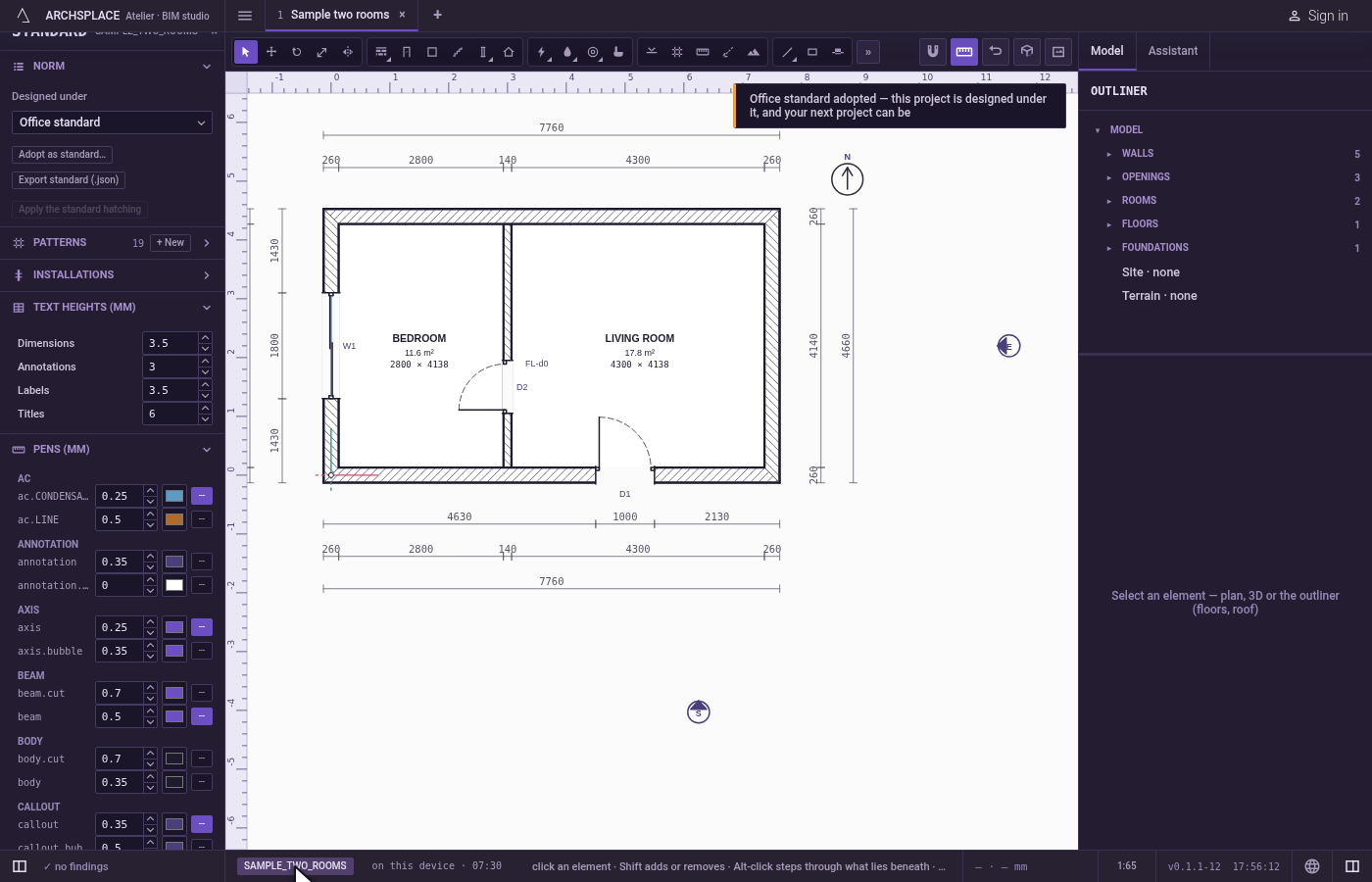
The standard panel is the template under which the project is designed, opened from the key of the standard in the status bar into the left column: the norm and its rules, the patterns, the services, the heights of the texts of the drawings and every pen. A height or a pen you change is written into the project as its own exception, every drawing follows it at once, and the exceptions of the project can become a standard of their own.
What it is
The status bar shows the key of the standard under which the project is designed, such as ISO or BIS. A click on it opens the standard panel in the left column, in place of the sidebar; a second click, or the × at the head of the panel, gives the column back. The head of the panel reads STANDARD and the key. Its sections each fold under their title, folded at first:
- Norm:
- Designed under: the templates on offer, ISO and one for each country, then the standards of your library and the one the project embeds. Choosing another one asks first, through the template switch.
- Not checked yet, when the template lists them: the rules of that practice which the atelier does not check, each with its reference.
- Adopt as standard…, which turns the exceptions of the project into a standard of its own, and Export standard (.json), which writes the standard under which the project is designed, with its exceptions folded in, as a file.
- Apply the standard hatching: every layer of the wall and slab types of the project itself that states no hatch, or one the template lacks, takes the hatch that the standard gives its material. It is greyed out when there is nothing to write.
- Patterns: the patterns of the template and those of the project, with their count and + New. Its own page explains all of it.
- Installations: the choices of the project for Electrical, Plumbing and Ventilation & AC, the same as those the New project dialog offers.
- Text heights (mm): the heights of the Dimensions, Annotations, Labels and Titles of the drawings, in millimetres on paper.
- Pens (mm): every pen of the template, gathered under the family it draws, such as wall or opening. Each row gives the key of the pen, its weight in millimetres, its colour and ┄, which makes it dashed or solid.
A height or a pen that the project has changed is marked, with ↺ to go back to the value of the standard. Every drawing and every print follows a change at once.
When to use it
- To make the dimension figures, the labels or the titles bigger or smaller on every drawing.
- To change the weight, the colour or the dash of a pen.
- To keep the pens and text heights of an office as a standard for the next projects.
- To see which rules of a country the atelier does not check.
- To set how the services of the project are routed.
The steps
Open the standard. Click the key of the standard in the status bar. The left column shows the standard panel, with STANDARD and the key at its head.
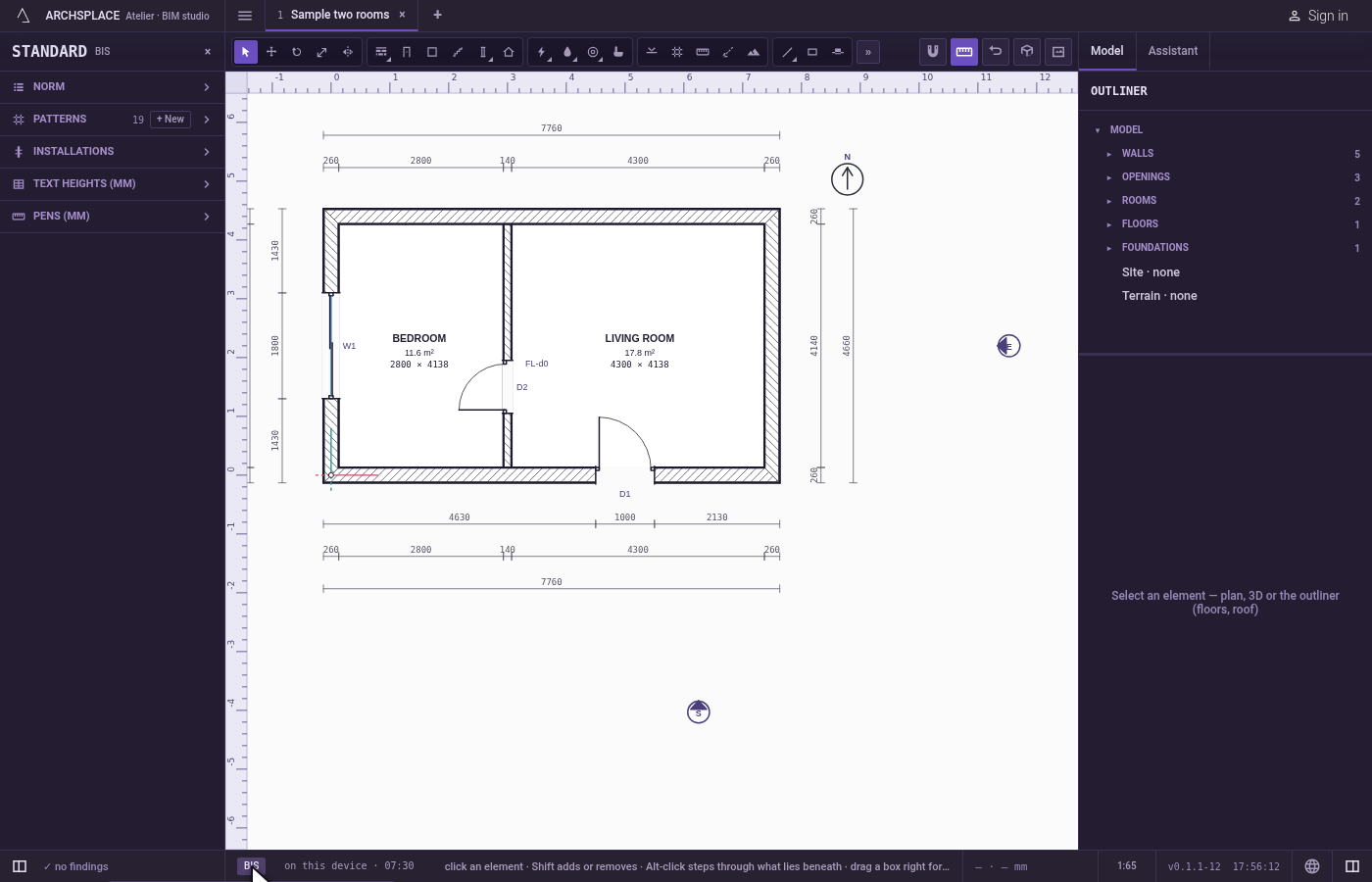
Enlarge the dimensions. Open Text heights (mm). In Dimensions, type 3.5 and press
Enter. The dimension figures on the plan grow, and the row is marked, with ↺.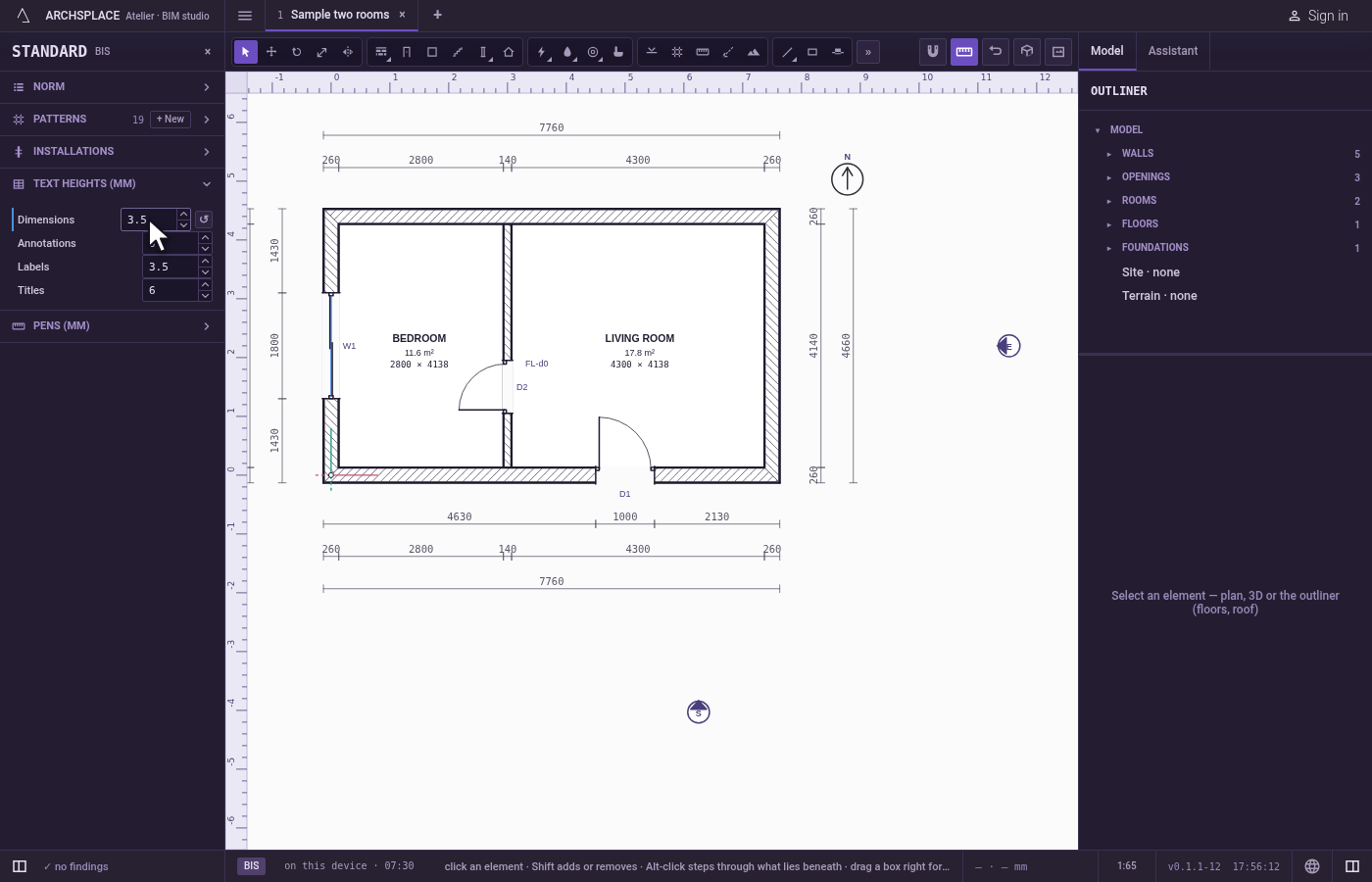
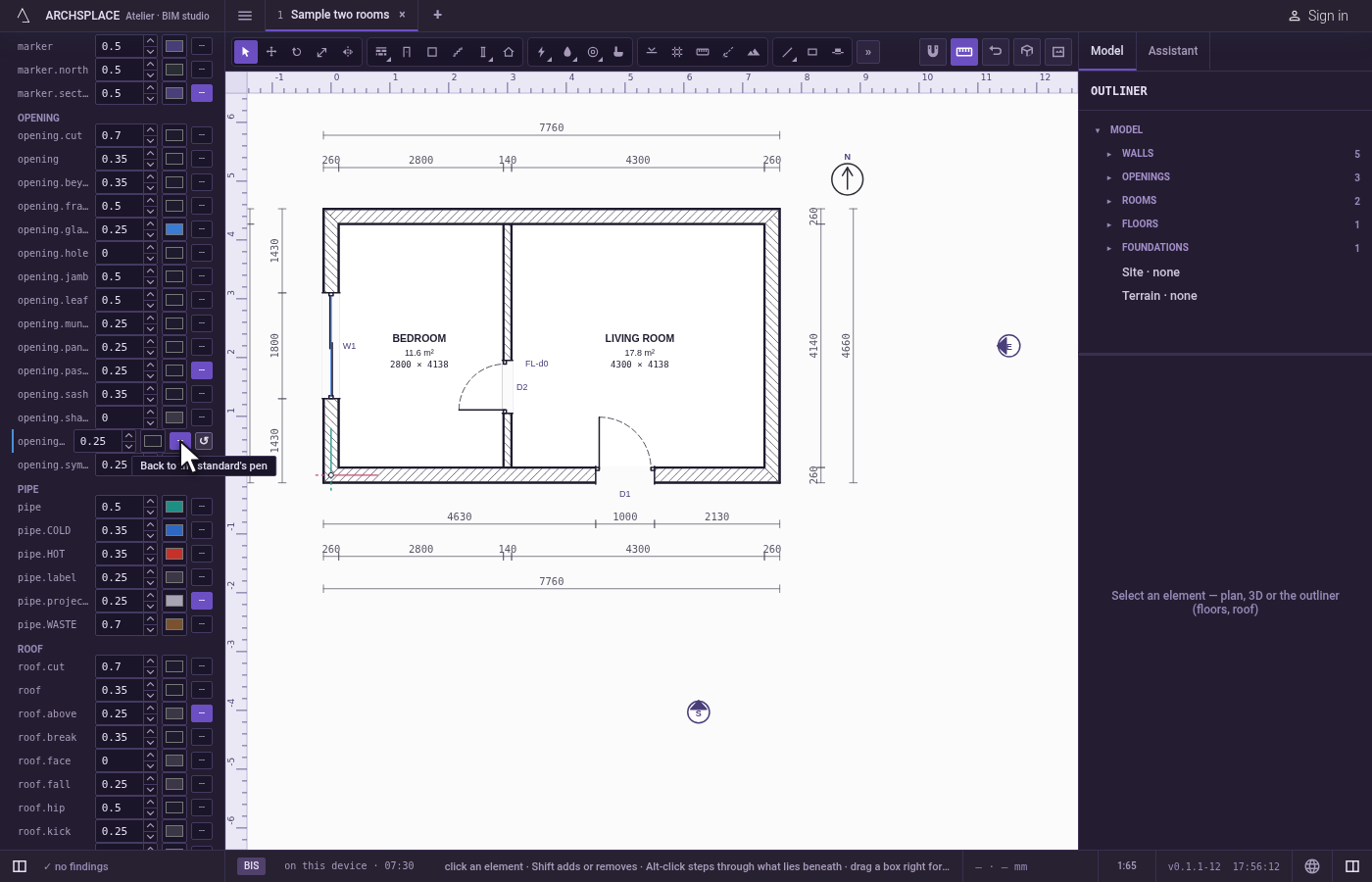
Dash the door swings. Open Pens (mm). Under the family of the openings, click ┄ on the pen of the swing. The swings of the doors on the plan become dashed.
Adopt the changes. Open Norm and click Adopt as standard…. A window asks for the Id of the new standard, offered from the name of the project, and its Name, and says on what it is based.
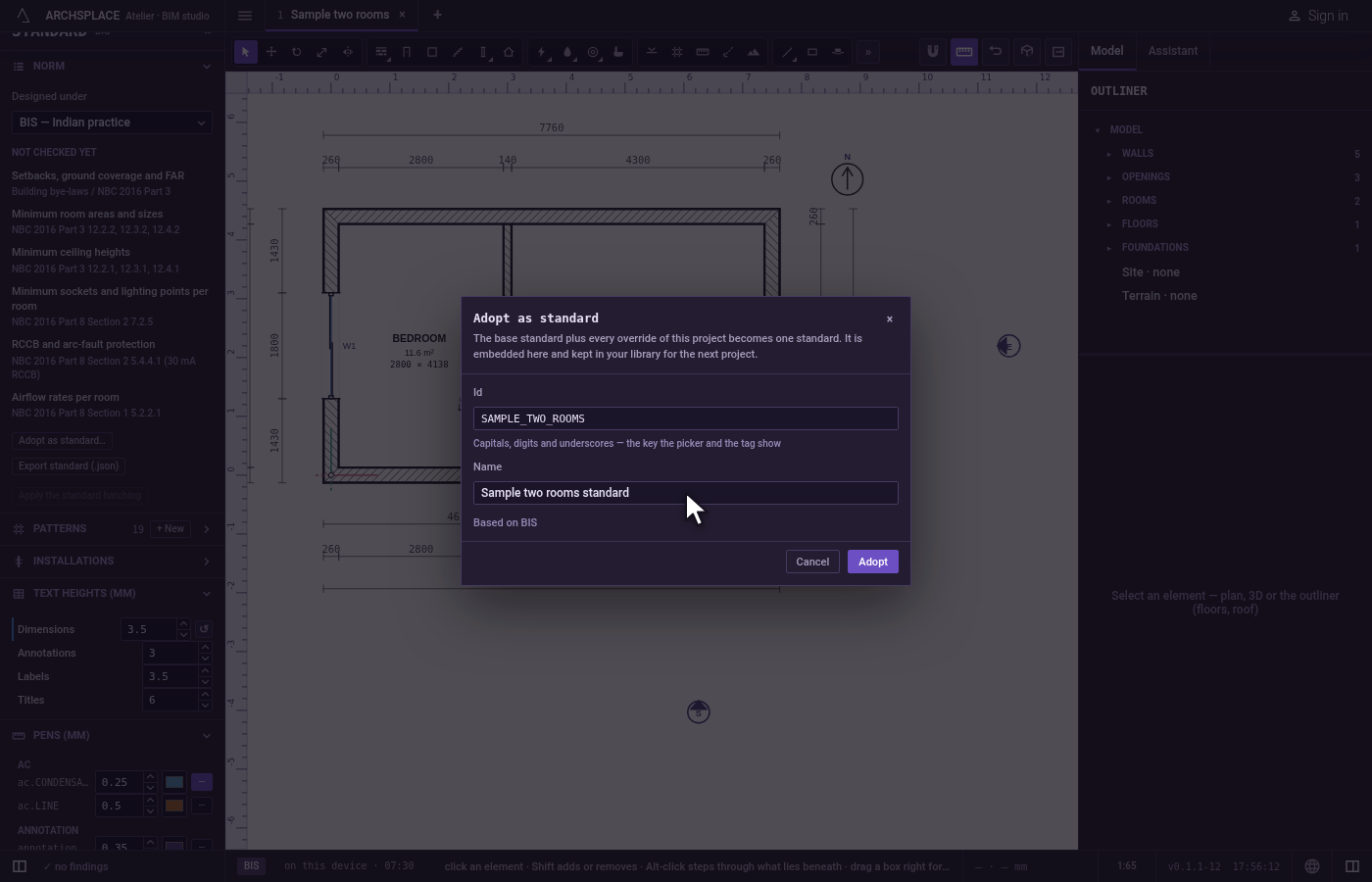
Name it and adopt it. Type Office standard in Name and click Adopt. A toast says it is adopted. The key in the status bar now reads the new id, and no row is marked any more: the changes belong to the standard itself.
What it refuses
- A text height below 0.5 mm, or a field left empty: it is not written.
- A negative pen weight. A weight goes from 0 upwards.
- An id that is not a key, when adopting: Adopt stays greyed out until the Id is made of capitals, digits and underscores, and the Name is filled in.
- The id of a built-in standard, such as ISO or BIS: the window says that it is a built-in standard.
- Editing with no project open. The panel shows the standard, and its fields stay greyed out.
What it writes to the contract
Every change is one step that one Ctrl+Z reverses. Until it is adopted, a change is an exception of the project, in graphics: text holds each height changed, in millimetres, and pens each pen changed, with only its weight, its color or its dash as you set them, [2, 1] for dashed and [] for solid. ↺ takes the exception out.
Adopt folds the exceptions and the patterns of the project itself into a new standard, embeds it whole as standardTemplate, names it in standard, and takes graphics out of the contract. Your library in this browser keeps it too, which is not the contract. Designed under writes standard, through the template switch. Apply the standard hatching writes the pattern of the layers in the wallTypes and slabTypes of the project. Installations writes electrical, hydraulic and ventilation. Export standard (.json) writes a file, never the contract.
Common questions
How do I make the dimension figures bigger on every drawing?
Click the key of the standard in the status bar, such as ISO, to open the standard panel. Open Text heights (mm), type the new height in Dimensions and press Enter: every plan, section, elevation and sheet draws its dimension figures at that height.
How do I keep my pens and text heights for the next projects?
Once they are as you want them, click Adopt as standard… in Norm, give it an id and a name and click Adopt. The project is then designed under that standard, and your library keeps it, so that the New project dialog offers it next time.
What does Not checked yet mean?
Under the chosen template, some rules of the practice of that country are listed as not checked yet, such as setbacks, ground coverage and FAR. The atelier names them so that you know it does not check them for you.