3DBin the studio
Boolean
The Boolean tool cuts with a solid in the 3D view: click a solid body or component, and every other solid it touches loses the part it overlaps. By default the cutting solid goes once it has cut, leaving only the hollows; press Alt to keep it instead.
What it is
The Boolean tool is a cutter. The solid you click, a body or a whole component, is the tool: every other solid it touches loses the part they share, and the hole is lined with the faces of the cutting solid itself.
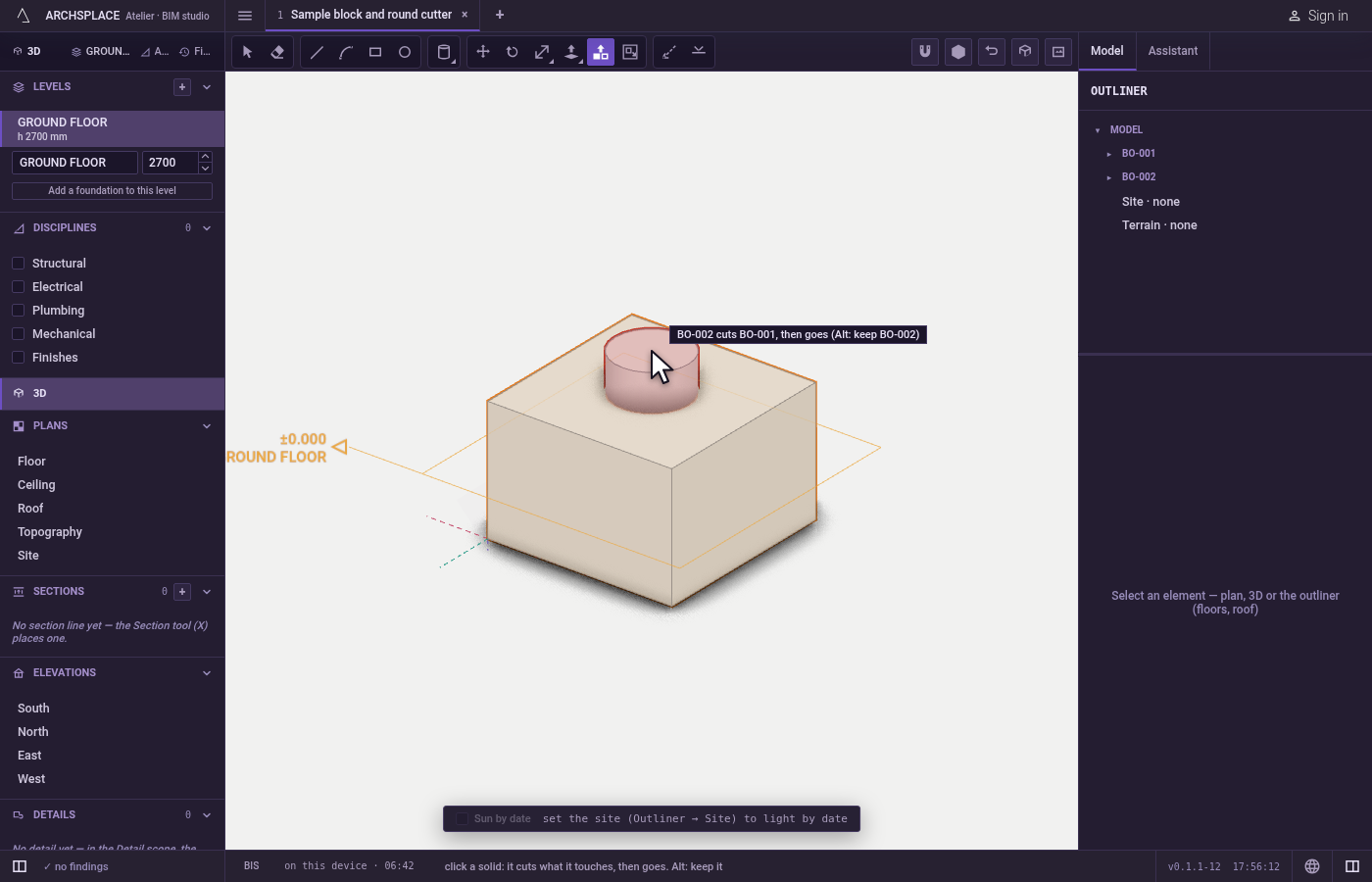
Before you click, the studio shows the outcome. The solid under the pointer is highlighted whole: red when the click will make it go, blue when it will stay. Every solid it will cut is highlighted in orange, and the hint at the pointer names them. Alt switches between the two outcomes: the cutting solid goes once it has cut, which is the default, or it stays.
The cut is read exactly from the lines of both solids, so a body that has already been cut can be cut again. When the solid being cut is a component, the cut is made inside its definition, and every copy of that component changes.
When to use it
- To carve a recess, a hole or a curved bite out of a body with a shape you modelled for it.
- To remove the volume of one body from several bodies at once.
- To shape a component, cutting all its copies together.
The steps
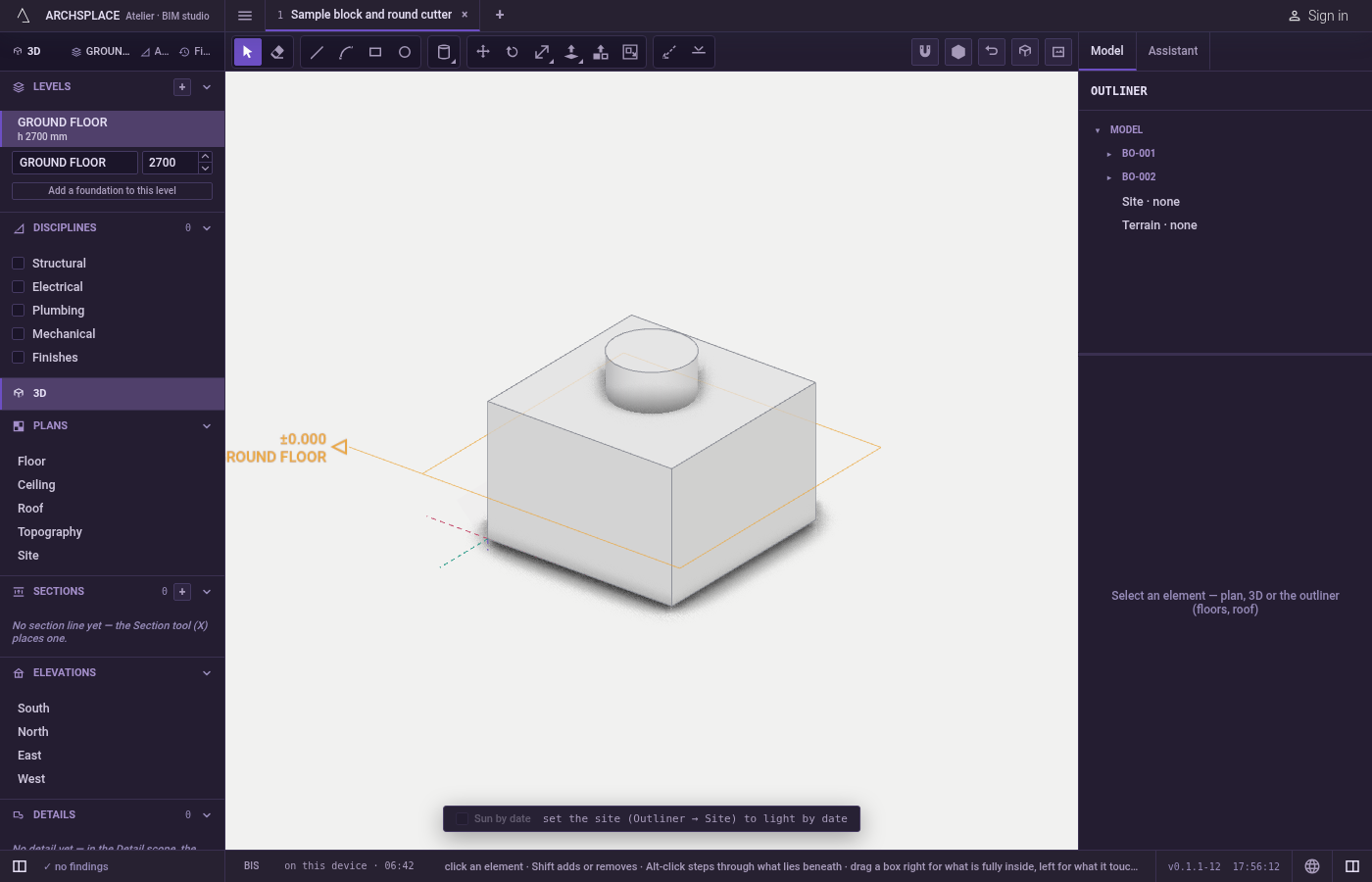
Place the cutter. Model the cutting solid, for example with Sphere, Cylinder or Push/Pull, and move it to where it overlaps what is to be cut.
Pick the tool. Press
B, or click Boolean.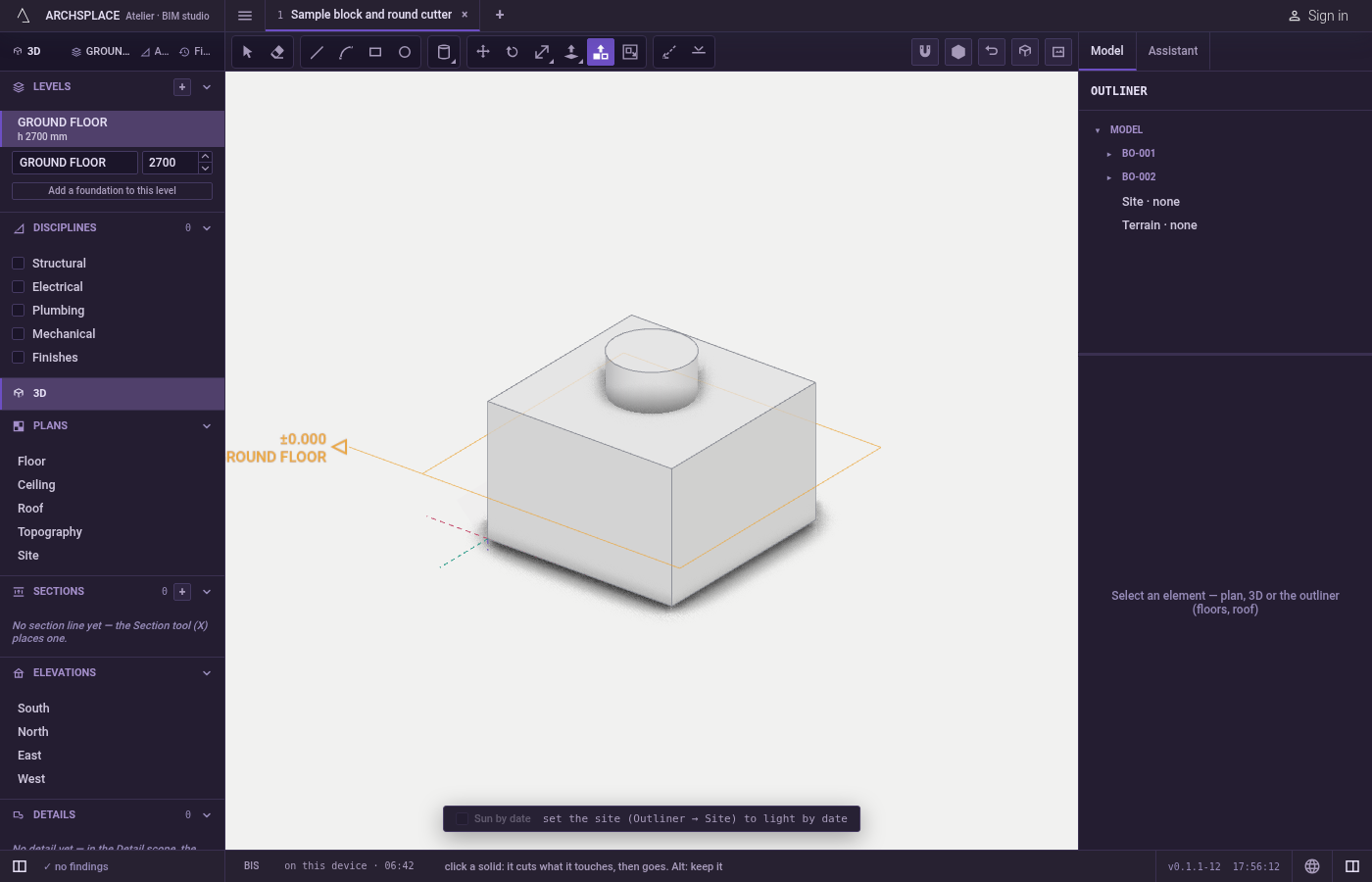
Point at the cutter. It is highlighted whole, the solids it will cut are highlighted in orange, and the hint names them. With nothing to cut, the hint says that the solid touches no other solid.
Choose whether it stays. Press
Alt(⌥on a Mac) to keep the cutter; press it again to let it go. The hint and the colour follow at once.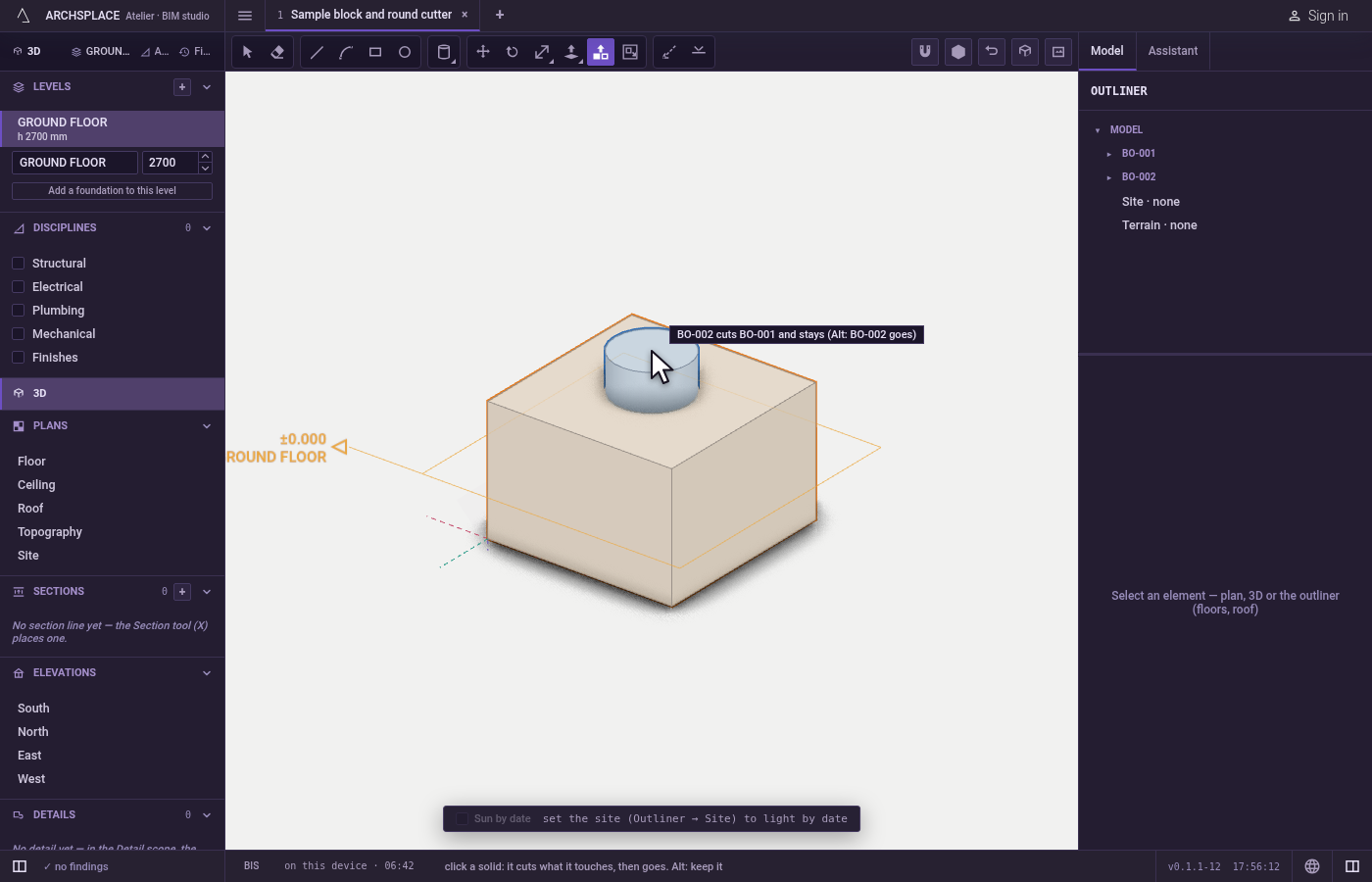
Click. Every solid it touches is cut, in one step that
Ctrl+Zundoes. When the cutter goes, nothing stays selected.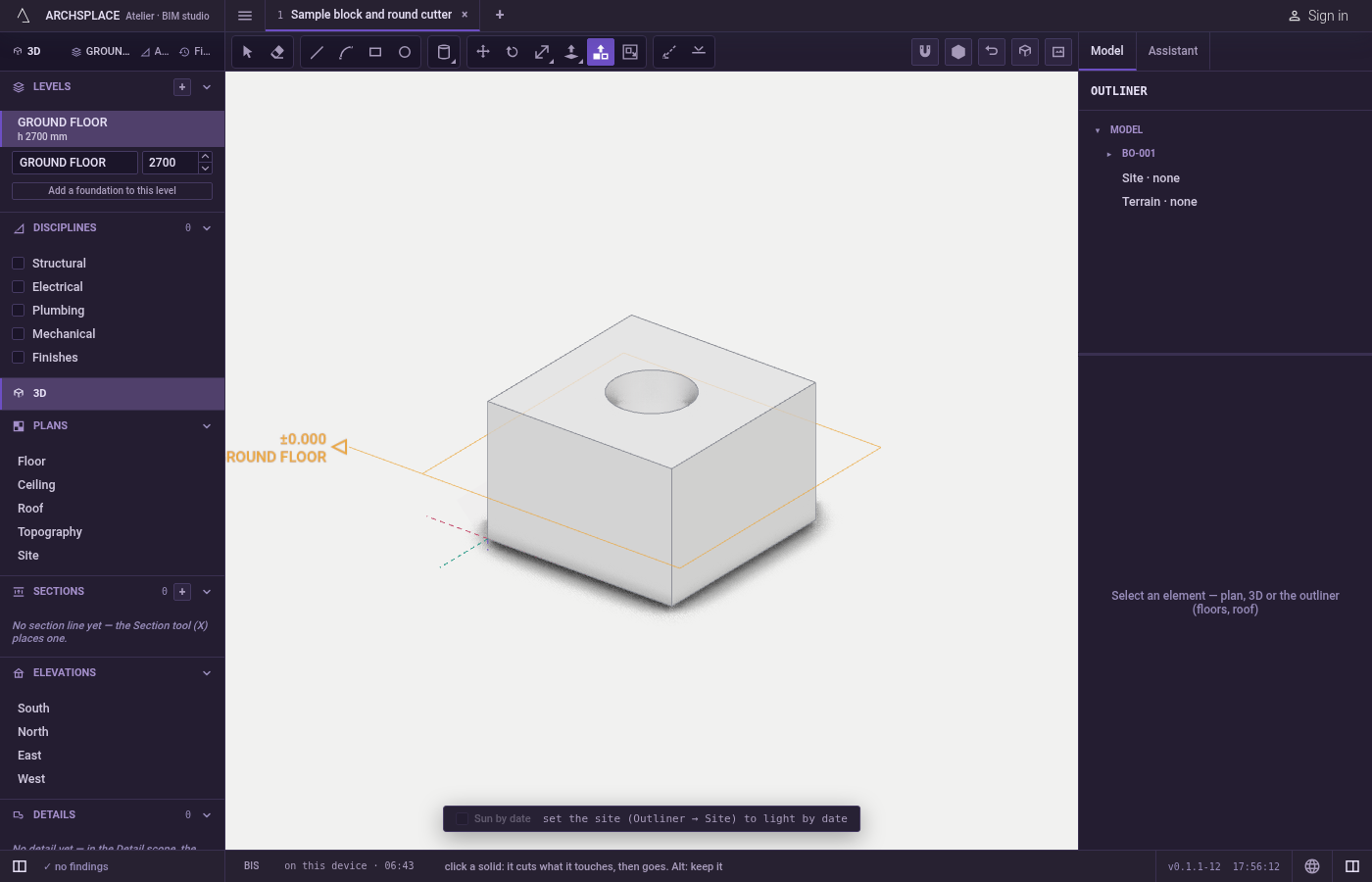
What it refuses
- A click on anything but a solid. A wall, a slab or empty space is not a cutter: the hint asks for a solid that touches another one.
- A cutter that touches nothing. Nothing is cut and a notice says so.
- A cut that would not leave a closed solid. The solid it could not cut cleanly stays as it was, and a notice names it.
- Walls, slabs and roofs as targets. This tool cuts bodies and components only.
What it writes to the contract
One undoable step changes the shape of every body that was cut, or the content of every component definition that was cut. In the default mode, the cutting body, or the placement of the cutting component, is removed from the project. No history of the cut is kept: the bodies are stored as they now stand.
Common questions
How do I carve the shape of one body into another?
Place the cutting body where it overlaps the other one, pick Boolean (B) and click the cutting body. The overlap is removed from every solid it touches, and the cutting body goes.
How do I keep the cutting body?
Press Alt (Option on a Mac) before the click. The hint then says that the solid cuts and stays, and its outline is highlighted in blue instead of red. Press Alt again to go back.
What happens when the solid being cut is a component?
The cut is made inside the component, so every copy of it changes, just as an edit inside the component would. When the component is placed more than once, a notice tells you that every copy was cut.