PlanEin the studio
Electrical point
Electrical places a socket, a switch, a light point, a data point or any other point of your template with one click, on a wall or inside a room. The circuits are not drawn by hand: the studio groups the points into circuits and lays their runs from the distribution board on its own.
What it is
The Electrical tool places the points of the electrical installation. The list beside the tools offers the points of your project template; in a project under BIS, the Indian practice, for example: a 16 A power socket, a 6 A socket, a combined 6/16 A socket, an AC power point, a cooking range point, a geyser point, an EV charging point, a switch, a two-way switch, a dimmer or fan regulator, a light point, a ceiling fan point, a recessed downlight, a bracket light point, an outdoor light point, a data point, a TV point, a call bell push, a thermostat and a smoke detector. Every kind of point knows where it stands: most of them on a wall, on the face you click, and a few in the room, on its ceiling.
You place the points; the studio does the wiring. Once a distribution board stands in the project (see Distribution board), the points are grouped into circuits as per the rules of your template, and the run of each circuit is laid from the board, up the walls and through the ceiling, on its own, and sized. None of this is stored: move a point and the circuits are laid again. They show with the Electrical overlay.
When to use it
- To place the sockets, switches and light points of a plan.
- To add a dedicated point, such as a cooking range point or an EV charging point, which takes a circuit of its own.
- To check the circuits the studio lays as you add points.
The steps
Pick the tool. Press
E, or click the Electrical button. The status bar asks you to click a wall or inside a room.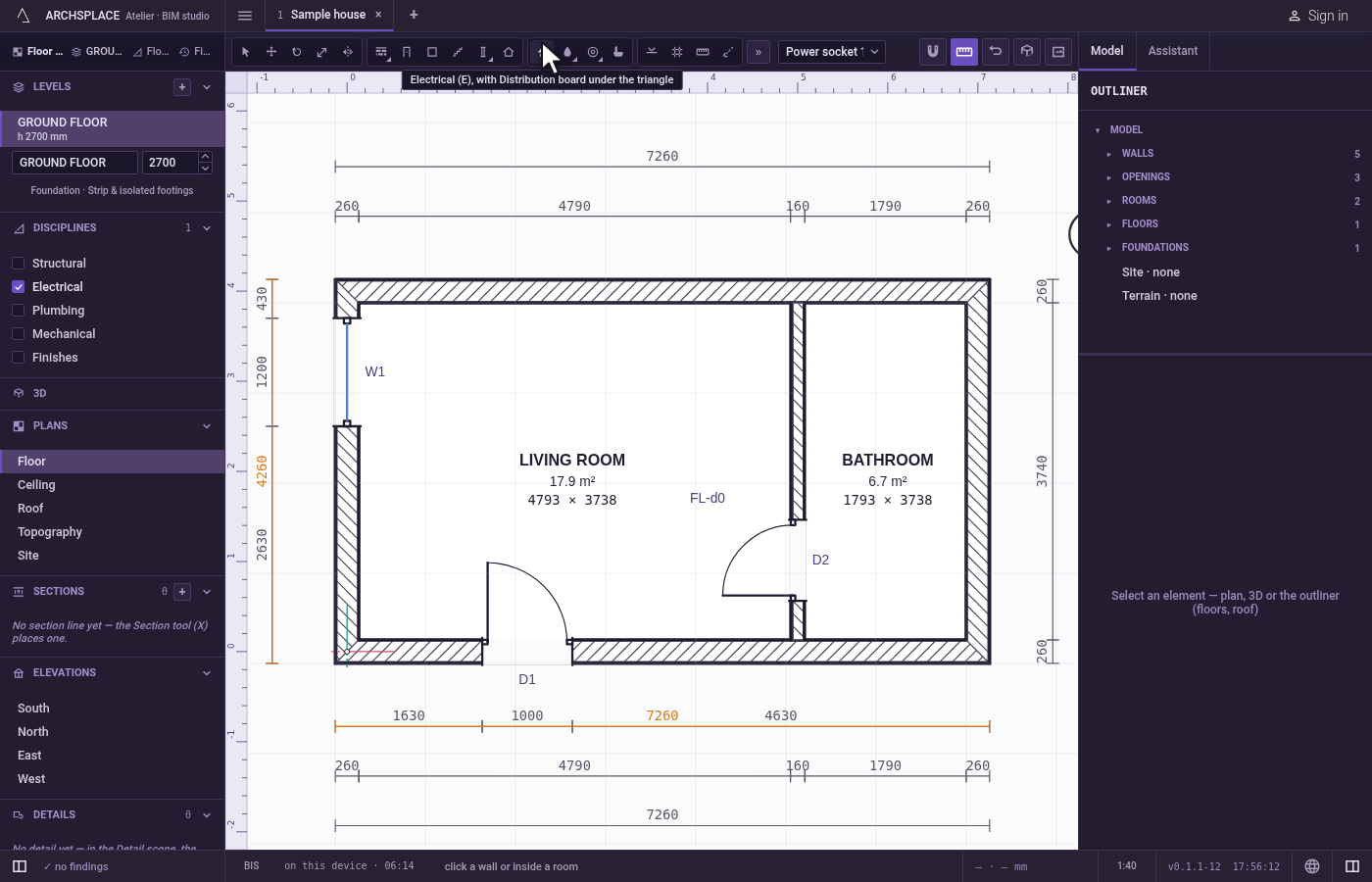
Choose the point. Pick it from the list beside the tools.
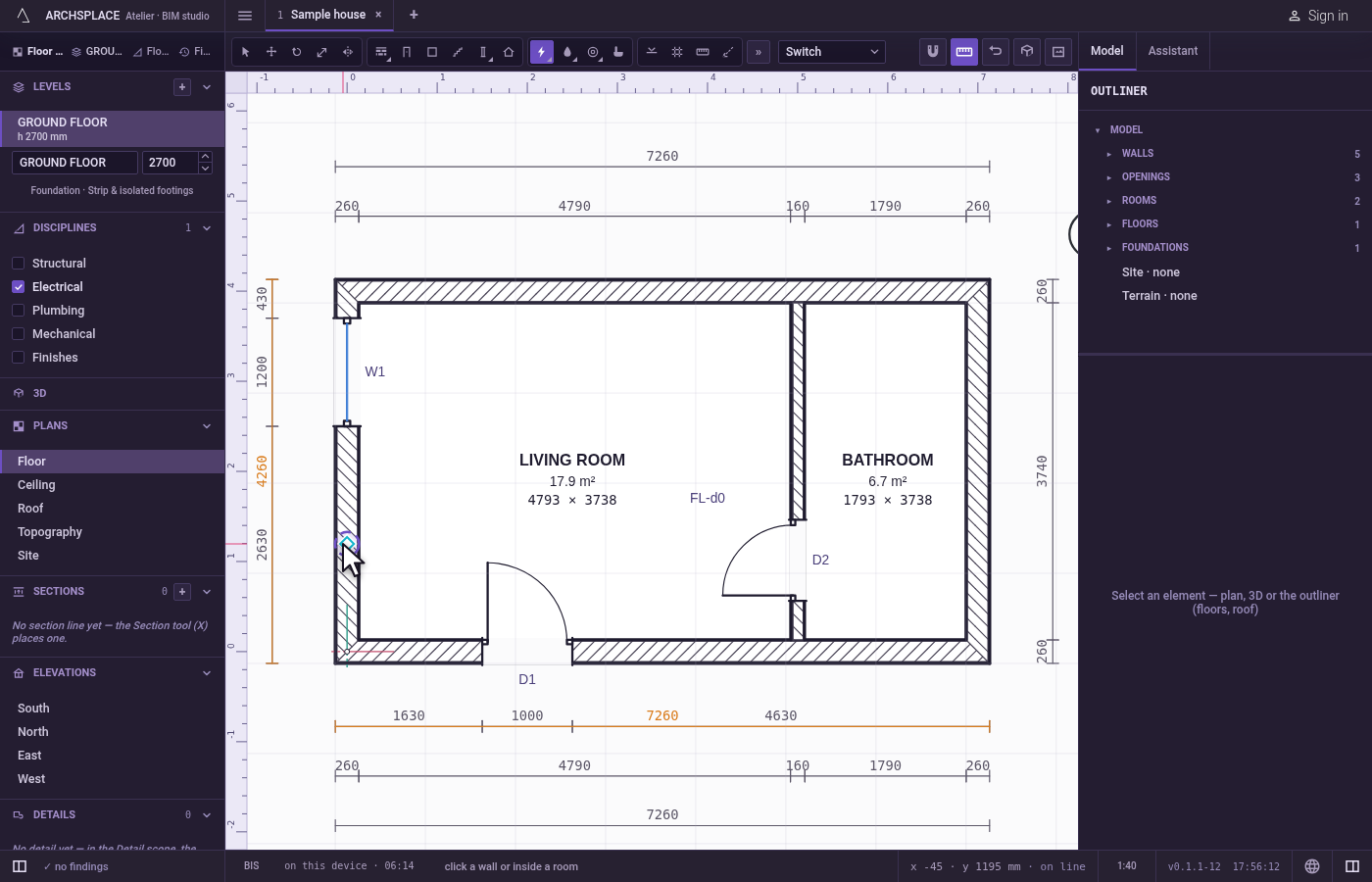
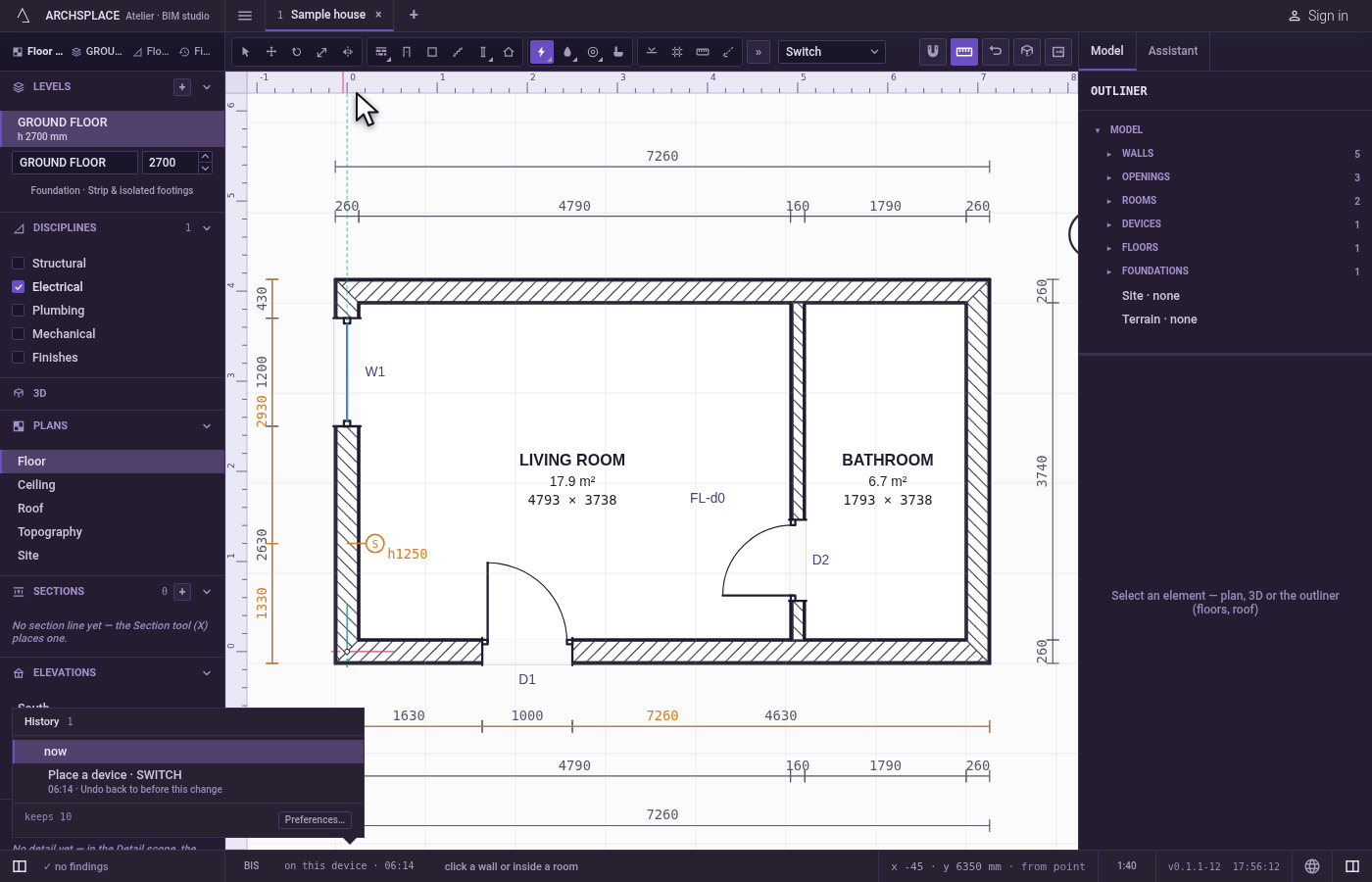
Click where it stands. For a wall point, click on the wall or within about 60 cm of it, on the side the point faces: it lands at the point of the wall nearest to the click, at least 10 cm from the ends of the wall. For a ceiling point, click inside a room. The tool stays active for the next one.
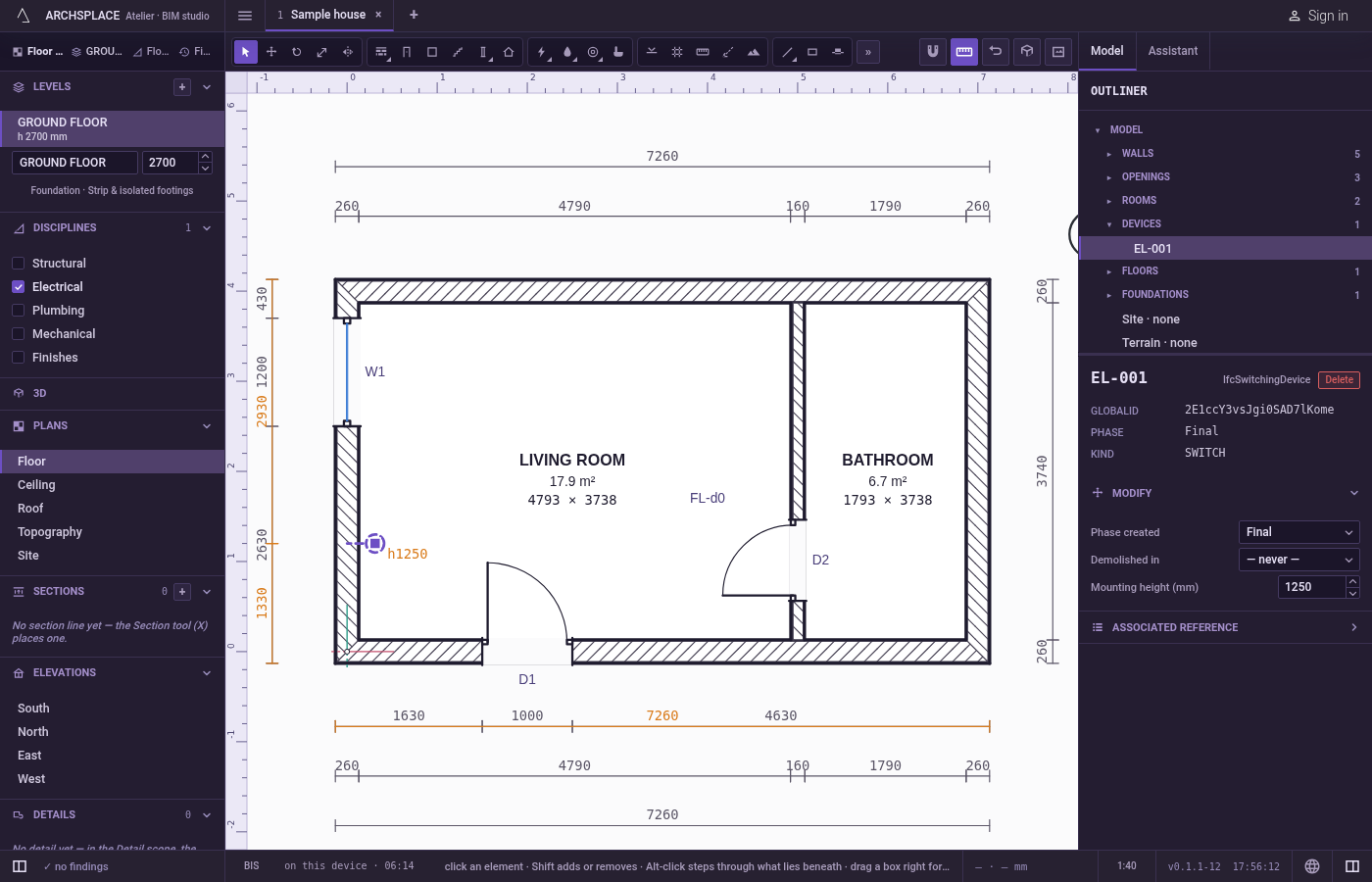
Adjust it in its panel. Select the point with Select. Its panel sets its mounting height and, once the project has more than one distribution board, the board that feeds it. To move it along its wall, use Move or the arrow keys.
What it refuses
- A wall point far from every wall. Farther than about 60 cm from any wall, nothing is placed.
- A ceiling point outside a room. Outside every room enclosed by walls, a message asks you to click inside a room, and nothing is placed.
- The same point twice. A point of the same kind on the same face of the same wall, within 5 cm of one already there, is refused with a message: place it beside the existing one.
- A point in an opening or where no run can reach it. The project flags a point that stands in a window or a door, is set above the ceiling, or hangs below a hole in the slab, and lays no run to a point that no run can reach.
What it writes to the contract
One new entry at the end of the project's list of points, as one step that one undo reverses: its kind, and either its wall, its distance along it to the nearest centimetre and its face, or its room and its position, along with the phase in which the view draws. The circuits, the runs, the wires and the MCBs are never written: they are worked out from the points every time the project is built.
Concepts
Common questions
Do I have to draw the wiring?
No. Once a distribution board stands in the project, the studio groups the points into circuits as per the rules of your template and lays the run of each circuit from the board, through the walls and the ceiling, on its own. Moving a point lays them again.
On which face of the wall does a socket go?
On the face on the side of your click. Click on the room side of the wall and the socket faces that room.
Why did my ceiling light point not appear?
A ceiling light point, a recessed downlight or a smoke detector stands in a room. Click inside a room enclosed by walls; outside every room, the studio says so and places nothing.