SketchVin the studio
Select
Select is the hand of the sketch editor: it picks the lines and corners you have drawn, moves them by dragging or with the arrow keys, and erases them with Delete. It also holds the way out of the editor, since Enter with nothing in progress hands what the lines enclose to the window, door or pattern area you are shaping.
What it is
Select is the first tool of the sketch editor, the one place where the shape of a window or a door and the outline of a pattern area are drawn again. It works on what you have drawn in the editor: every corner, and every line between two corners or two crossings. A curve counts as one line, so its inner points are never picked. The shape that was in force when you opened the editor stands behind your drawing, dimmed. It attracts your points but it is never selected, moved or erased.
With Select you pick lines and corners, drag them, nudge them with the arrow keys and delete them. Select is also where you finish: Enter with nothing in progress, or the Done button, hands what your lines enclose to the window, door or area.
When to use it
- To correct a drawing: moving a corner, sliding a line, removing a stray stroke.
- To choose what a tool will work on before you pick it, such as the lines that Move, Copy or Fillet should take.
- To finish: handing the outline over with
Enteror Done.
The steps
Open the sketch editor. For a window or a door, use Edit shape in its panel or in its right-click menu, or double-click it on the plan, in 3D or on an elevation. The editor opens on the elevation that shows the opening best, framed on it, with the rest of the elevation veiled. For a pattern area, switch on Finishes, open the plan of the level of the room, and use Add floor area or Add ceiling area in the panel of the room, or Edit outline in the panel of the area. Select is active, and the hint at the cursor says draw the new shape with the tools · Enter when done while the drawing is empty, then click a line or a corner · Enter when done. The editor of a window opens on an empty drawing with the shape in force dimmed behind it, and so does a new area, with the outline of the room and its other areas behind. Edit outline opens with the outline of the area as your drawing.
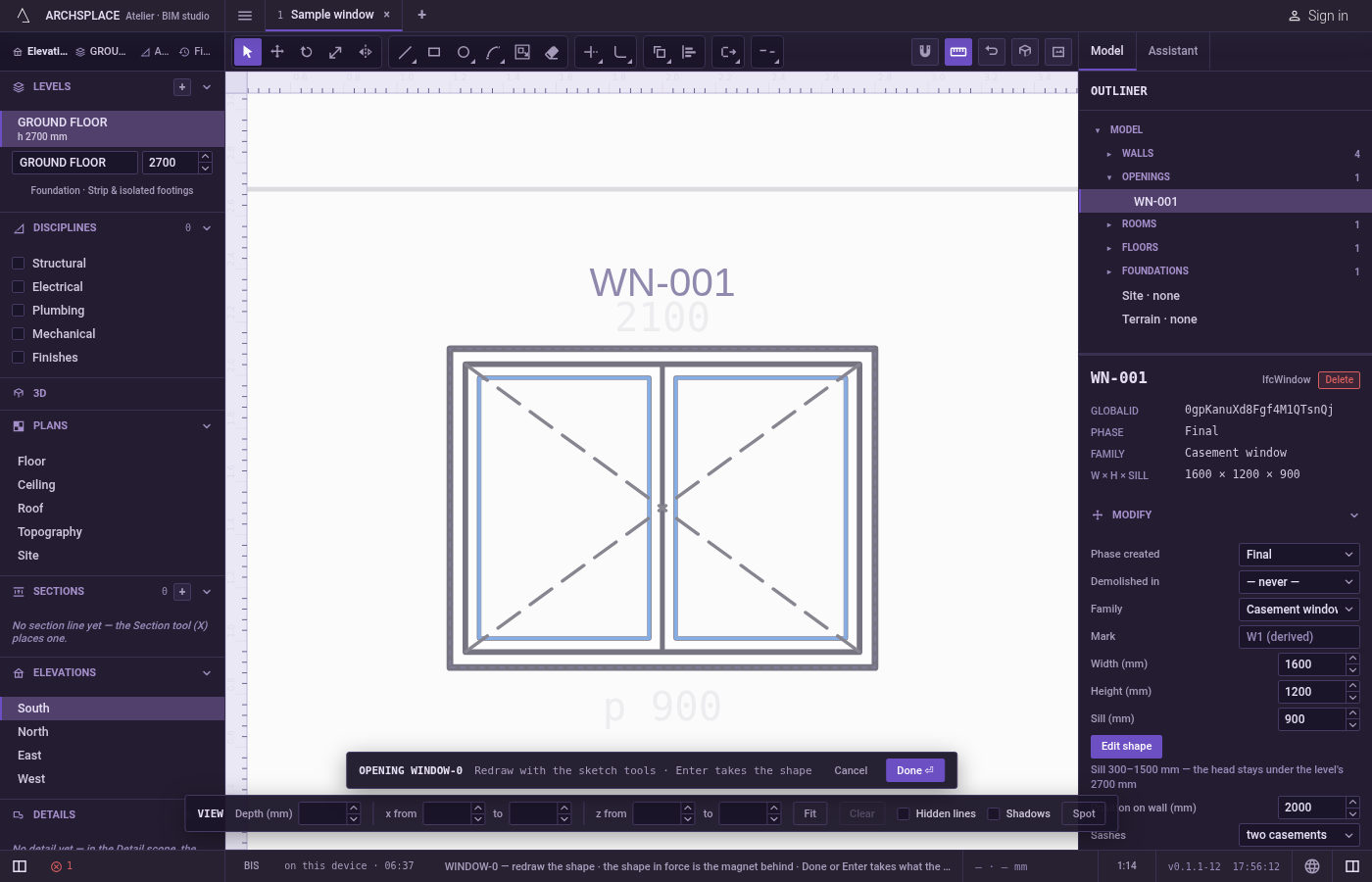
Click a line or a corner. Near a corner, the corner is picked; otherwise the nearest line within reach is. The hint at the cursor says how many things are selected.
Shiftwith a click adds what you click, or takes it out if it was already selected. A click on empty space releases everything, unless you keepShiftpressed.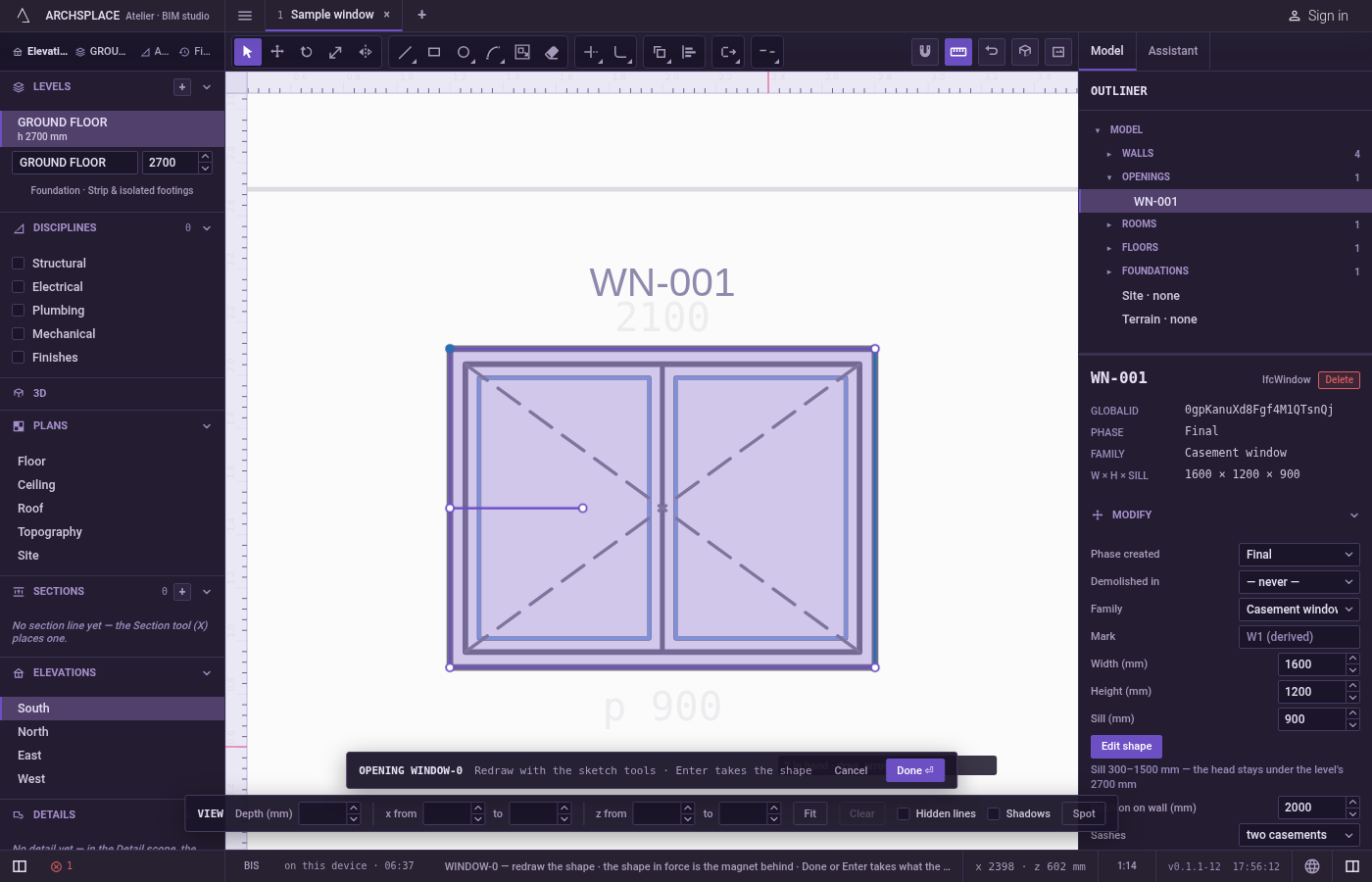
Or drag a box. Press on empty space and drag. When you release, every corner inside the box and every line lying fully inside it is picked, whichever way you dragged. With
Shiftpressed, each of them is switched in or out of what you already have.Ctrl+A(⌘Aon a Mac) picks every line of the drawing.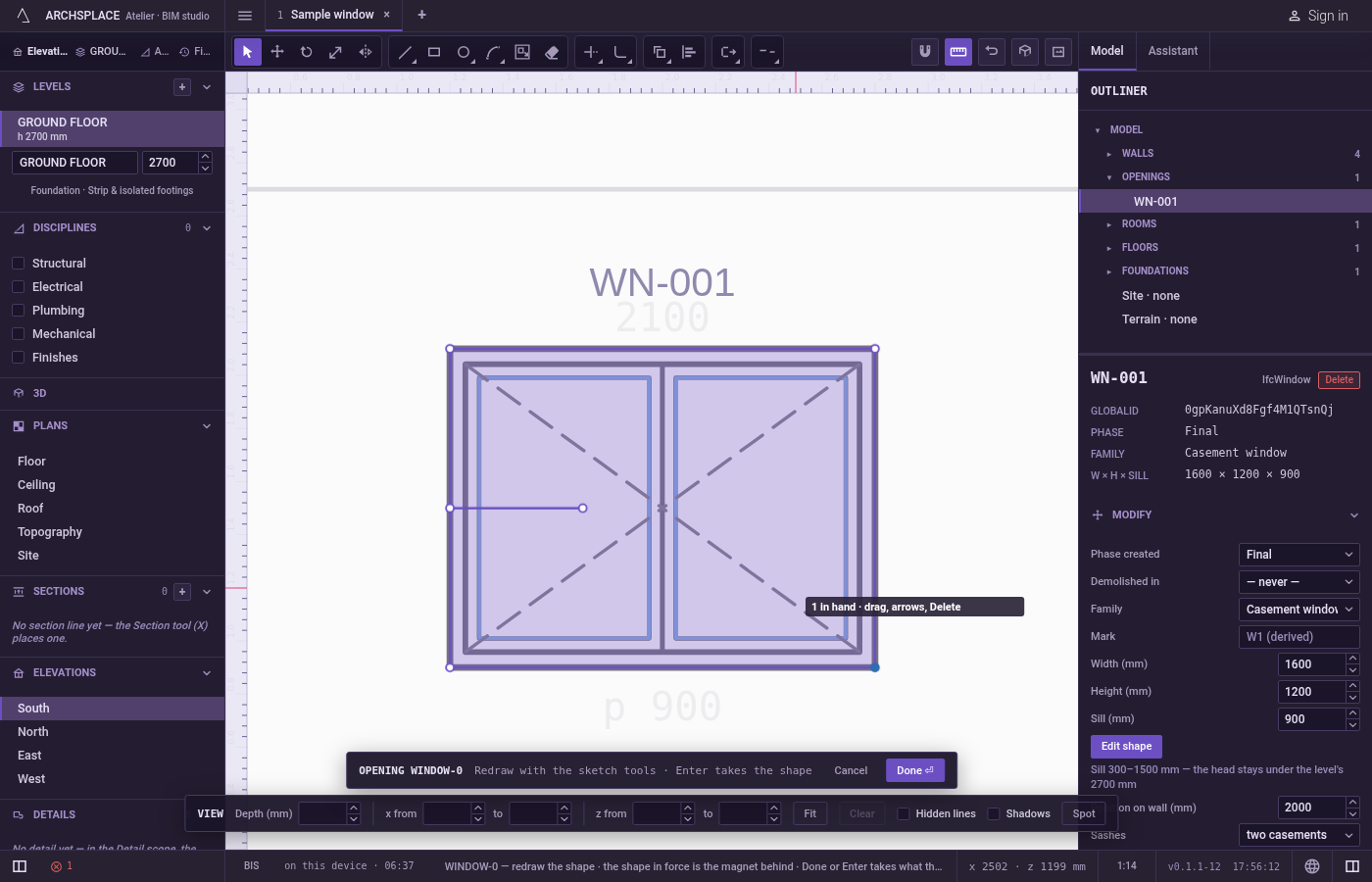
Drag to move. Press on something selected and drag: everything selected moves with the pointer, and the lines attached to it follow. While you drag, the points snap to the shape in force and to the lines of the view, not to the drawing you are moving. To move by an exact distance, type it while you still keep the button pressed and press
Enter: what is selected lands that far from where you pressed, in the direction you dragged.Escapeduring the drag puts everything back.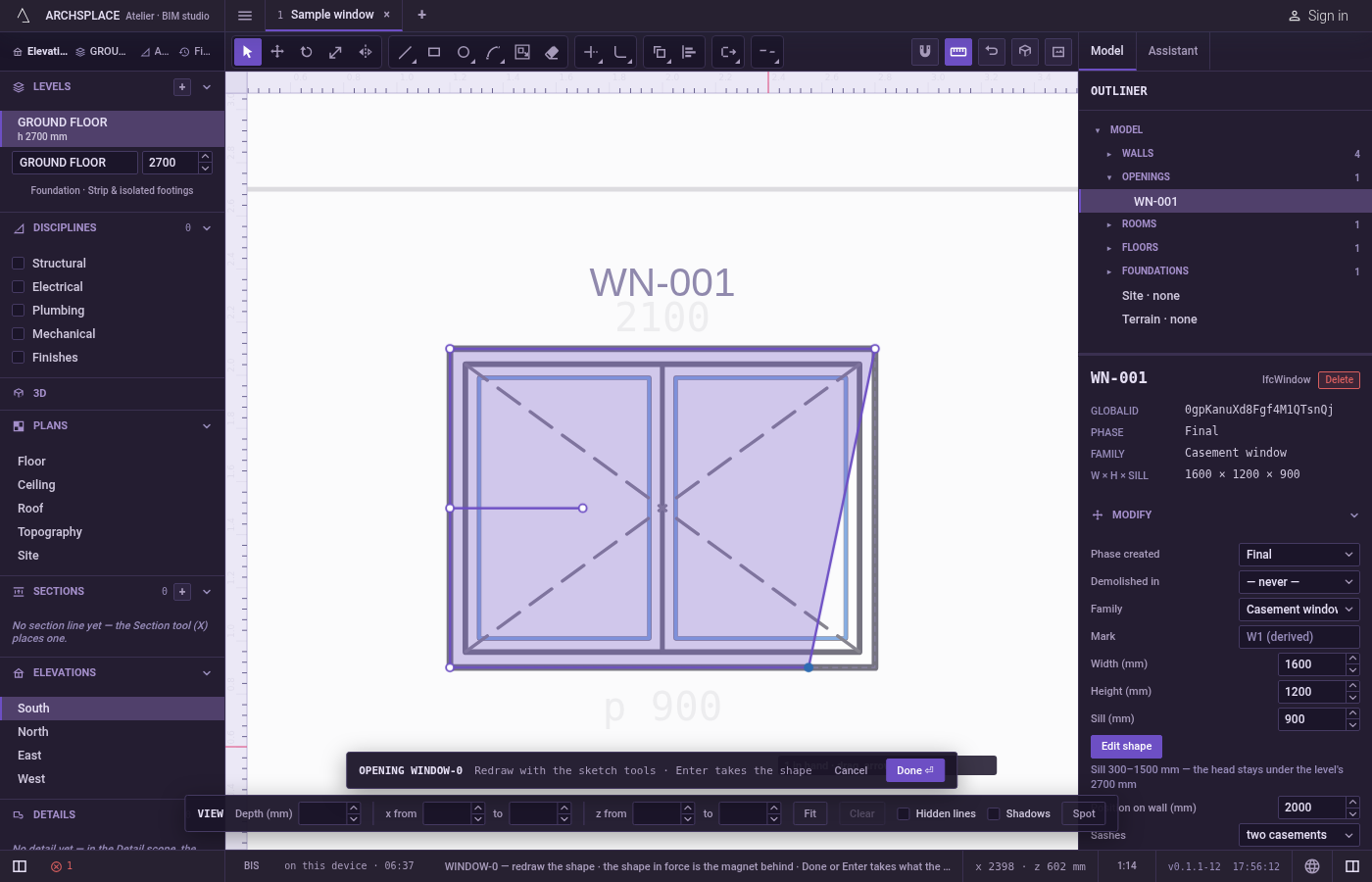
Nudge or delete. The arrow keys move what is selected by one centimetre on the plane, ten with
Shift.DeleteorBackspaceerases the selected lines and every line that ends on a selected corner; a curve goes whole.Ctrl+Zgoes back inside the editor andCtrl+Yforward again (⌘Zand⌘⇧Zon a Mac).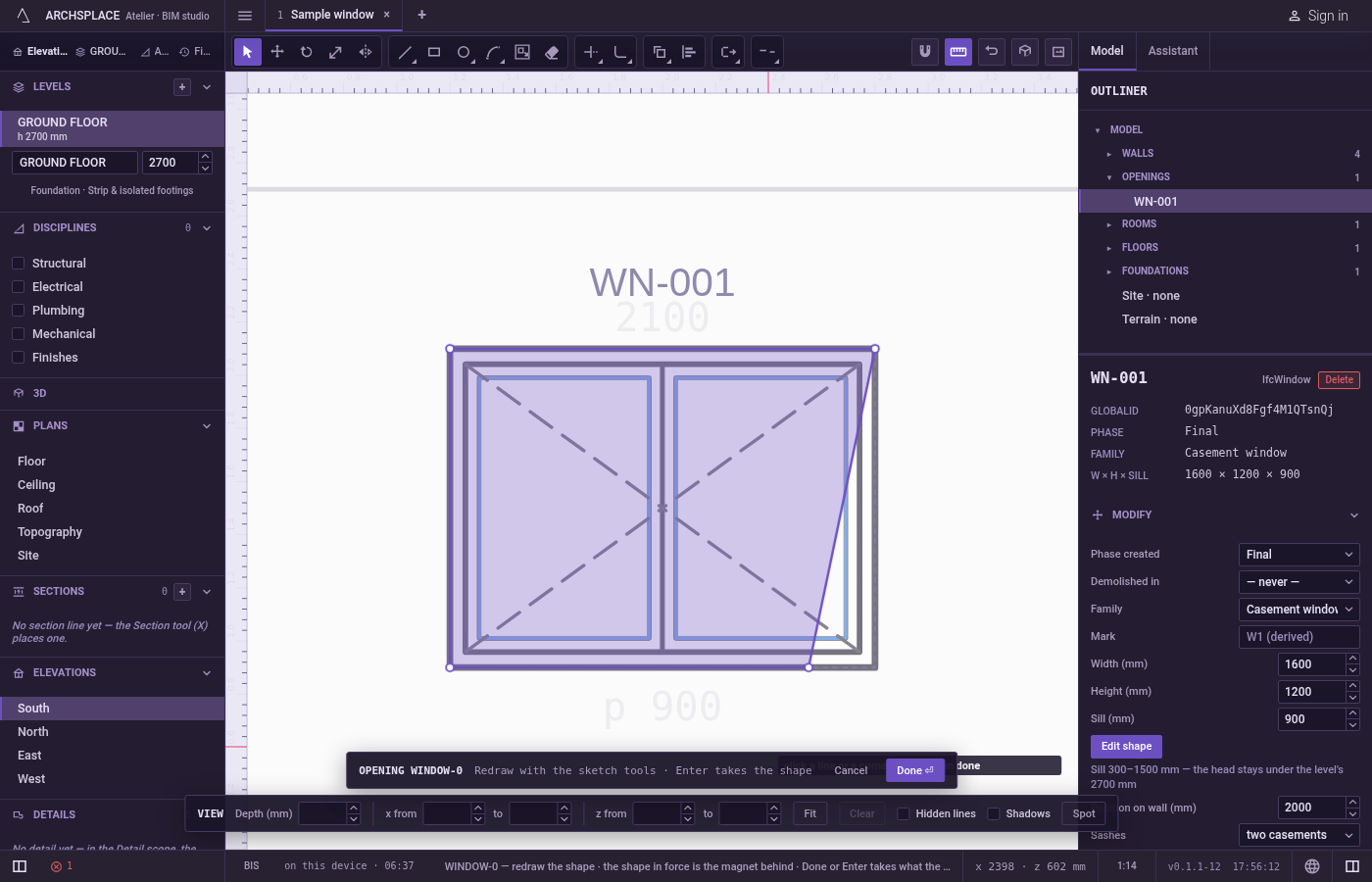
Hand the shape over. Press
Enterwith nothing in progress, or click Done on the bar of the editor. What the lines enclose is checked: a window or a door must get exactly one outline with no island in it, and so must a pattern area. When it passes, the editor closes and a notice confirms the new shape or area. The editor of a window brings you back to the view you opened it from; a pattern area is left selected on the plan.Escapewith nothing left to undo closes the editor without any change.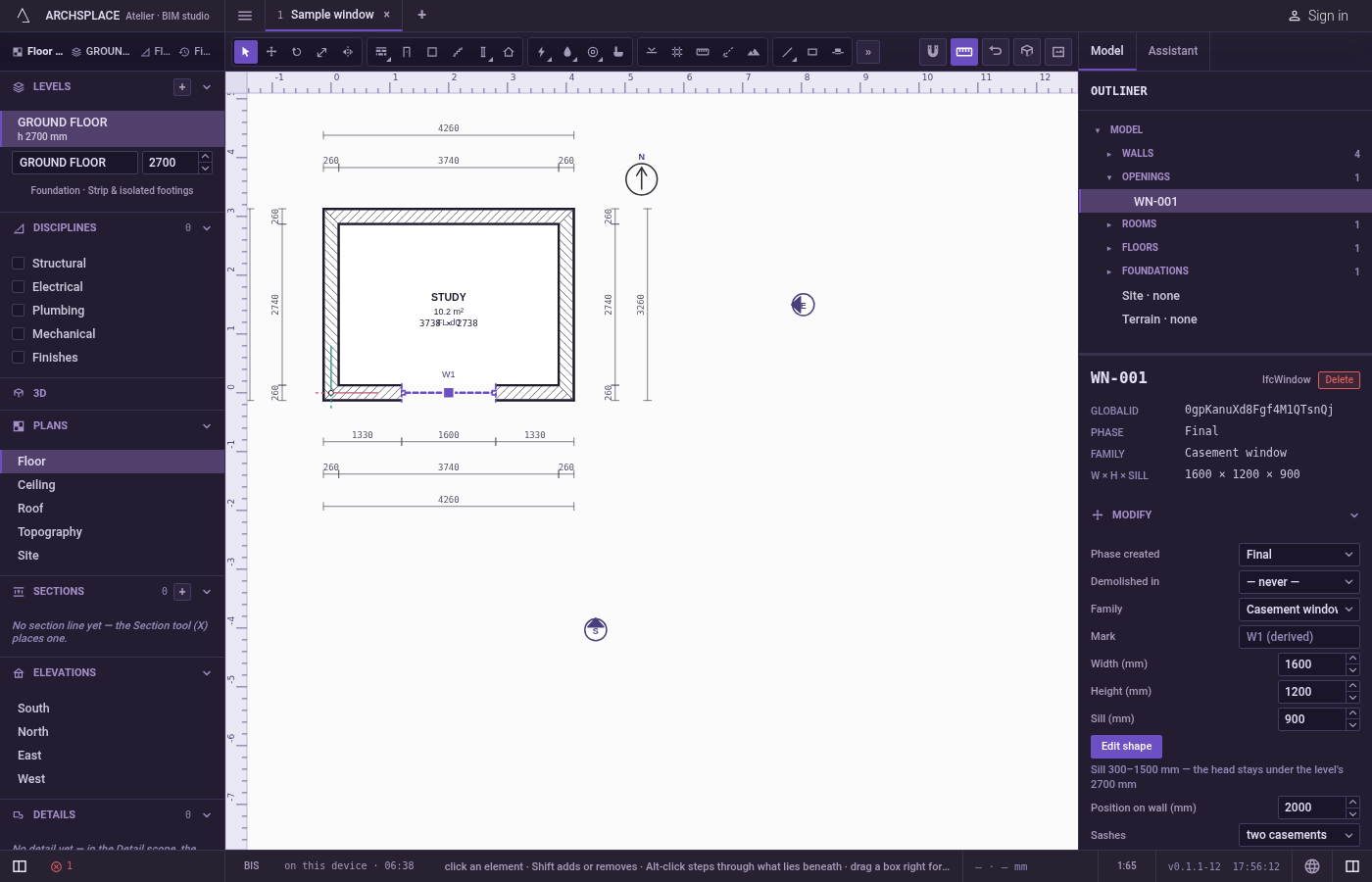
What it refuses
- The shape in force. The dimmed shape behind your drawing is never selected, dragged or deleted. It is there to snap to.
- The inner points of a curve. A curve is one line to the hand. Only its two ends are corners you can pick.
- Keeping a curve when only one end moves. A curve keeps its bend only when both its ends move together. Drag one end alone and that side becomes a straight line.
- Deleting with nothing selected. Nothing is erased. The Edit menu shows Delete greyed out, with the reason that nothing is selected in the sketch editor. Undo and Redo are greyed out in the same way when there is nothing to go through.
- A drawing that encloses nothing. Done refuses it in a notice (shape refused for an opening, area refused for a pattern area) and asks you to close an outline. The editor stays open.
- Several outlines, or an island. Lines that enclose more than one outline are refused, and so is an outline with another one inside it: a window has no hole, and an area is one plain outline. The editor stays open so that you can fix the lines.
- A shape the model cannot build. Before anything is written, the new shape is tried on the whole project. If the project would refuse it, a notice gives the reason and the editor stays open.
- Opening the editor on several openings at once. Edit shape works on a single window or door. For a pattern area, the editor does not open while Finishes is off, or away from the plan of the level of the room itself; a notice tells you which.
What it writes to the contract
Nothing while you work. Selecting, dragging, nudging and deleting change only the drawing inside the editor, and the editor's own undo goes through them. The contract changes once, when you press Done or Enter, as one step that you can undo in the project.
For a window or a door, the outline becomes its profile: a closed list of points [u, v] in metres, u across the wall from the position of the opening and v up from the floor, anticlockwise. A third number on a point is a bulge: the side from that point to the next is an arc, 1 for a half circle. A window 1.2 metres wide with a round head looks like this:
When the outline is the plain rectangle of the opening, within two centimetres, profile is removed instead, and the opening goes back to the rectangle given by its width, height and sill.
For a pattern area, the outline is written as outline in the floorAreas or ceilingAreas of the room, as points [x, y] in plan metres with the same bulges. A new area also gets a placement: the pattern of the room itself for that surface, with its turn and scale, or else the first pattern of the catalogue, anchored at the first point of the outline.
Common questions
How do I move one corner of my sketch by an exact distance?
Press V, click the corner, then drag it in the direction you want. While you keep the button pressed, type the distance and press Enter: the corner lands exactly that far from where you picked it up.
Why can I not select the dimmed shape behind my drawing?
The dimmed shape is the one in force before you started. It is a magnet for your points, never something you can pick. Draw over it, or offset it, to make it part of your drawing.
What happens if I press Escape with nothing selected?
Escape goes back one thing at a time: what you typed, a drag, a half-drawn shape, the selection. When nothing is left, it closes the sketch editor and drops the drawing, and the window or the area stays as it was.