3DCNin the studio
Cone
The Cone tool makes a solid cone in the 3D view from three inputs: the centre of its base, its radius, then the height of its apex, each clicked or typed. The cone is placed as a new component, with its base flat and its side smooth.
What it is
The Cone tool makes a solid cone standing upright. Its base is a level circle at the point you click, and its apex stands on the vertical through that point, above or below. The side is built of 32 steps around and marked smooth, so that it reads as one round surface; the base is a flat face.
The cone is placed as a new component, named Cone with a number, holding that one body. A click picks it whole; a double click opens it.
When to use it
- To model a spire, a funnel, a lamp shade or a pointed finial on a roof.
- To make a pointed cutter for Boolean.
The steps
Pick the tool. Type
Cand thenN, one right after the other, or click Cone among the shapes.Calone opens Circle; theNswitches to Cone.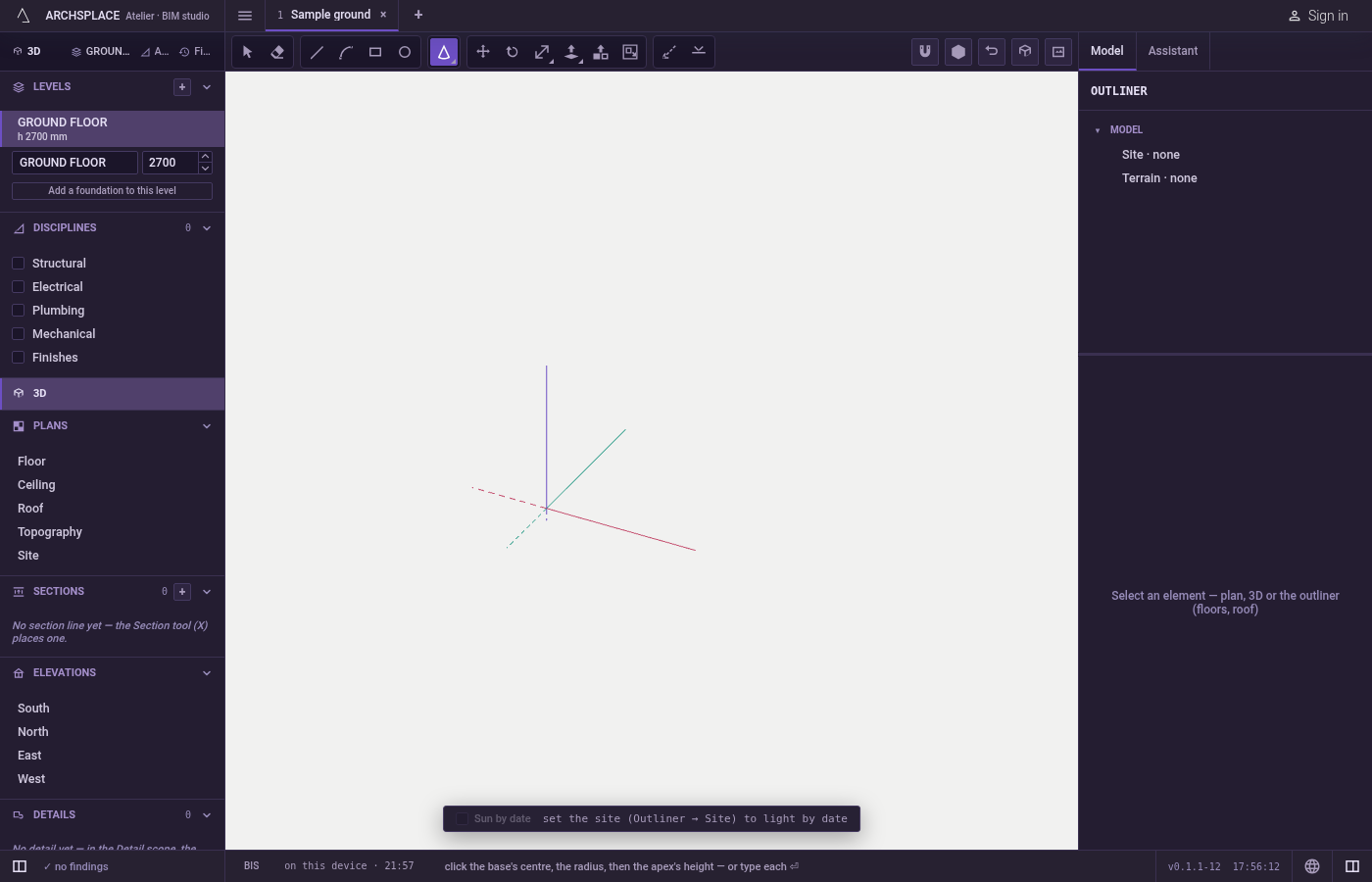
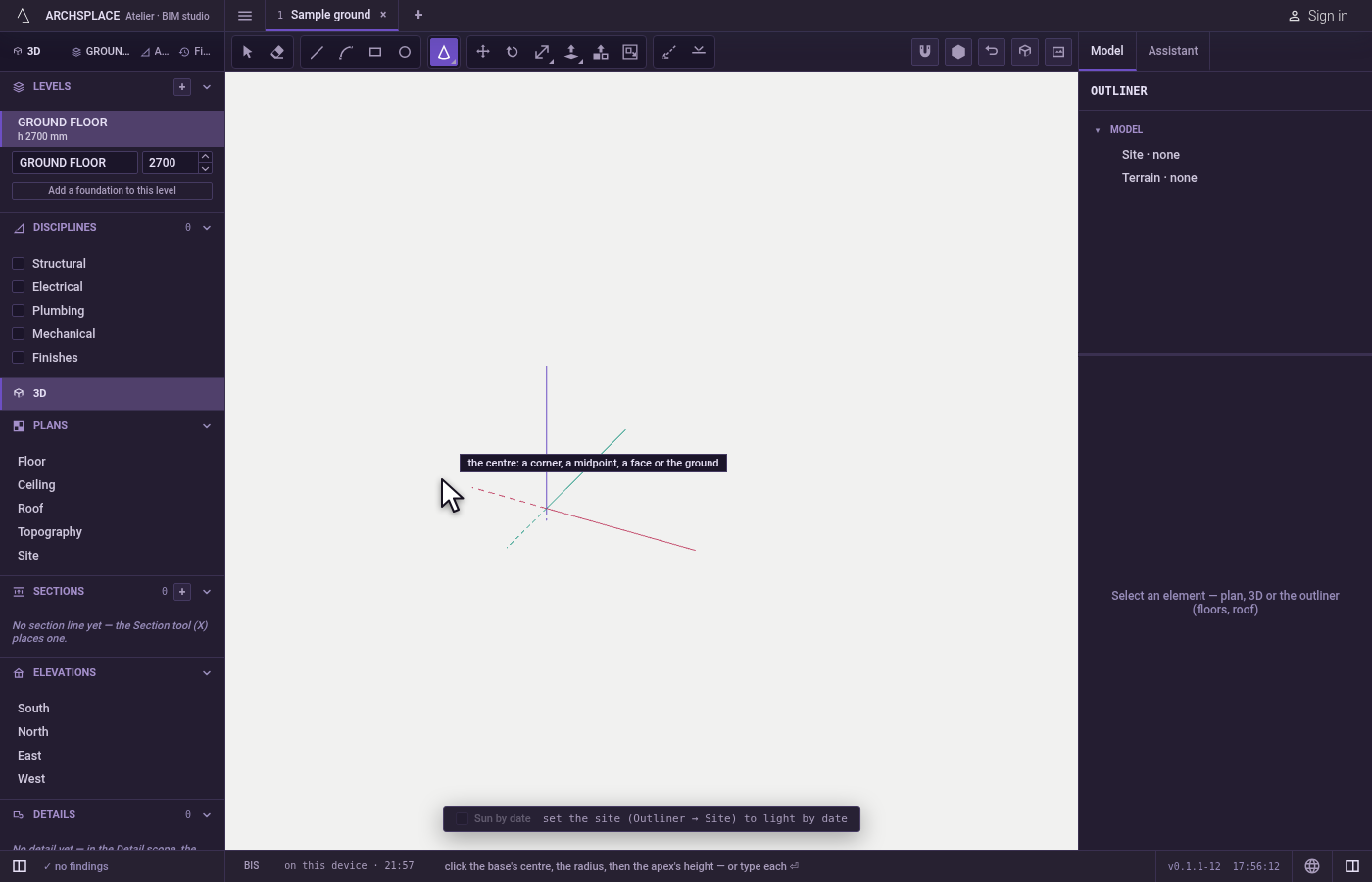
Click the centre of the base. The marker shows what the click picks: a corner, a midpoint, a face, or the ground.
Set the radius. It is read on the level plane through the centre; the readout gives it. Click, or type it and press
Enter.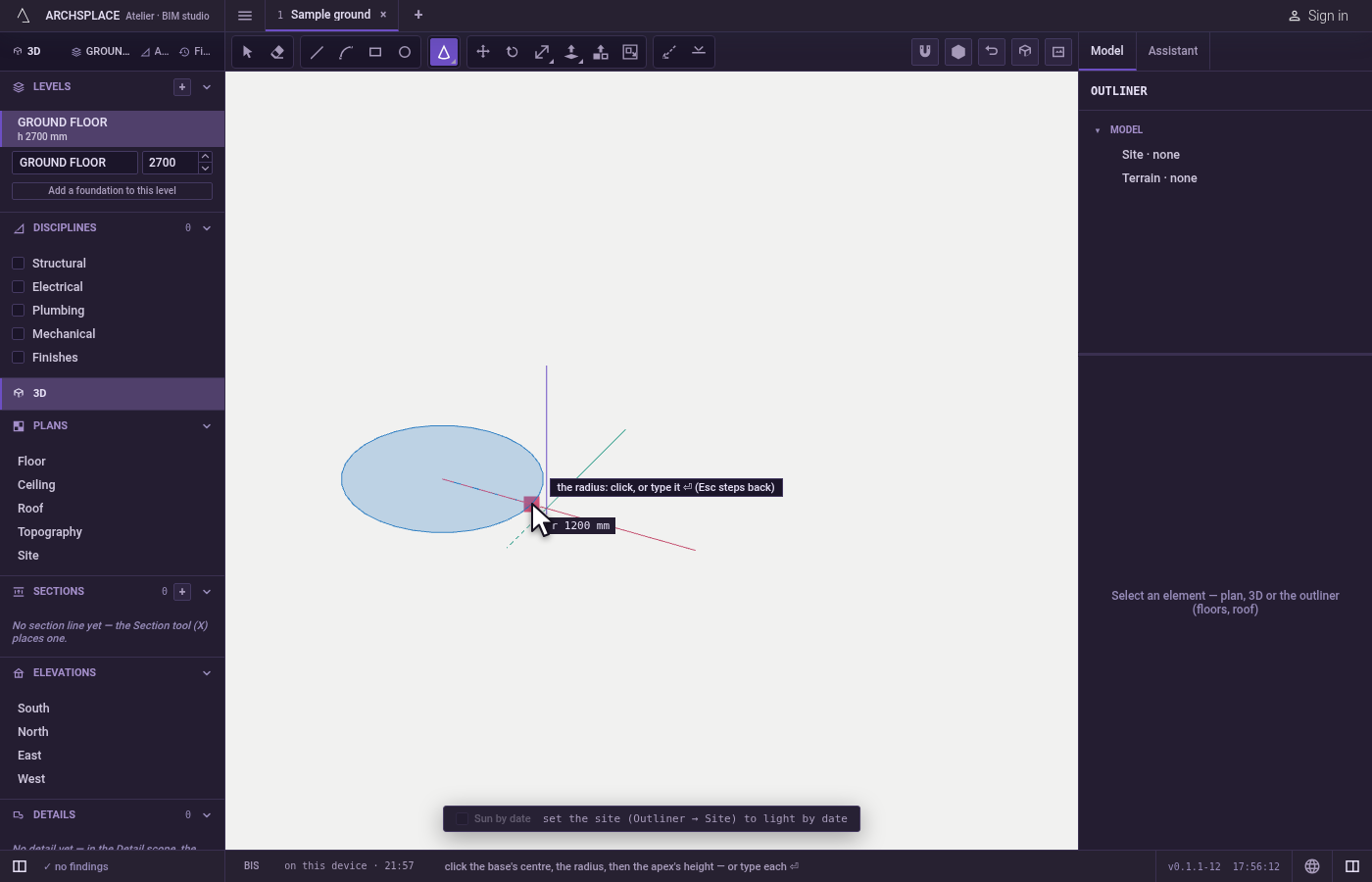
Set the height of the apex. The apex follows the pointer up or down the vertical through the centre. Click, or type the height and press
Enter. The cone is in place at once.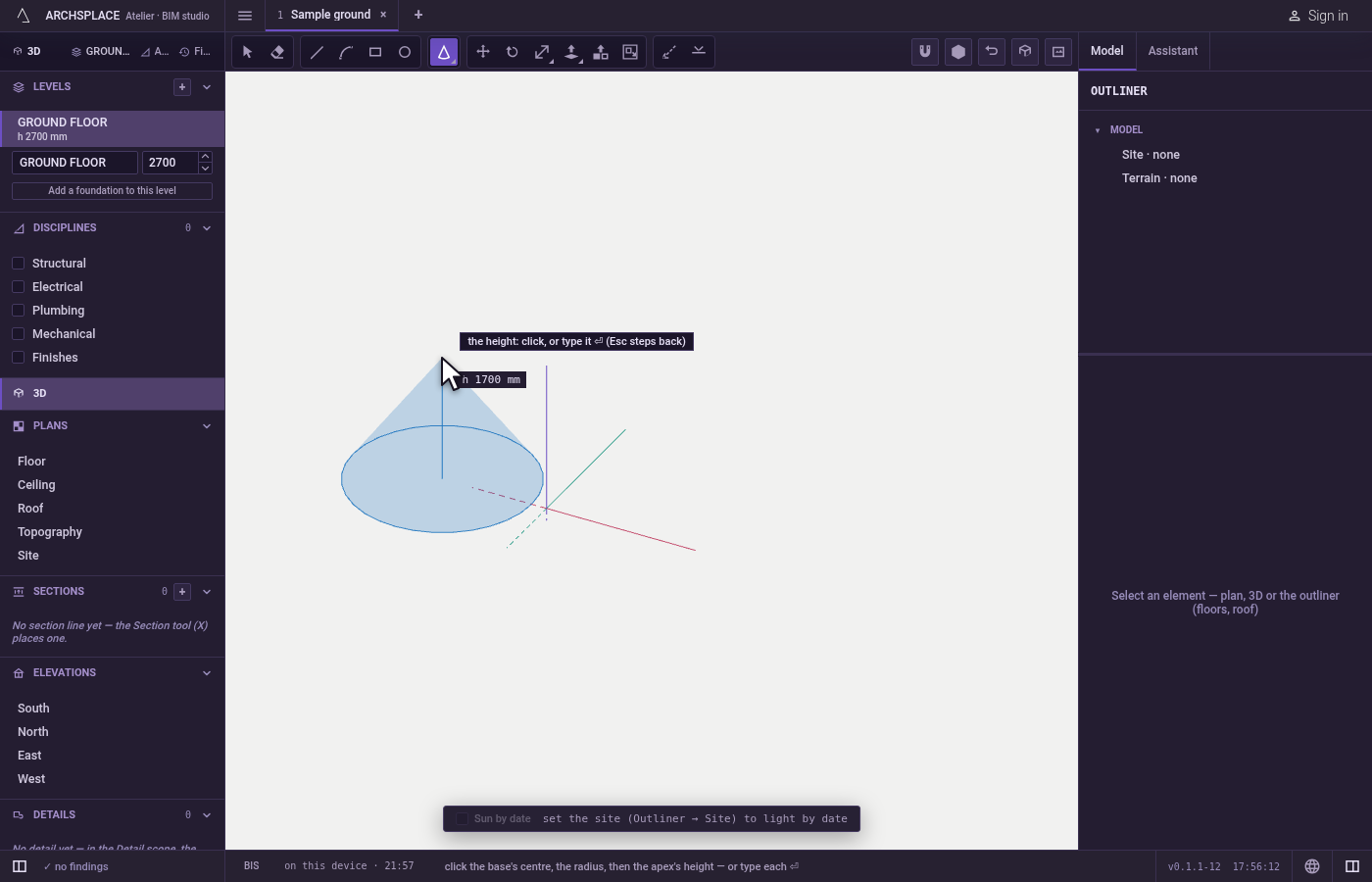
Go back if needed.
Escapegoes back one step: from the height to the radius, from the radius to the centre. The space bar returns to Select.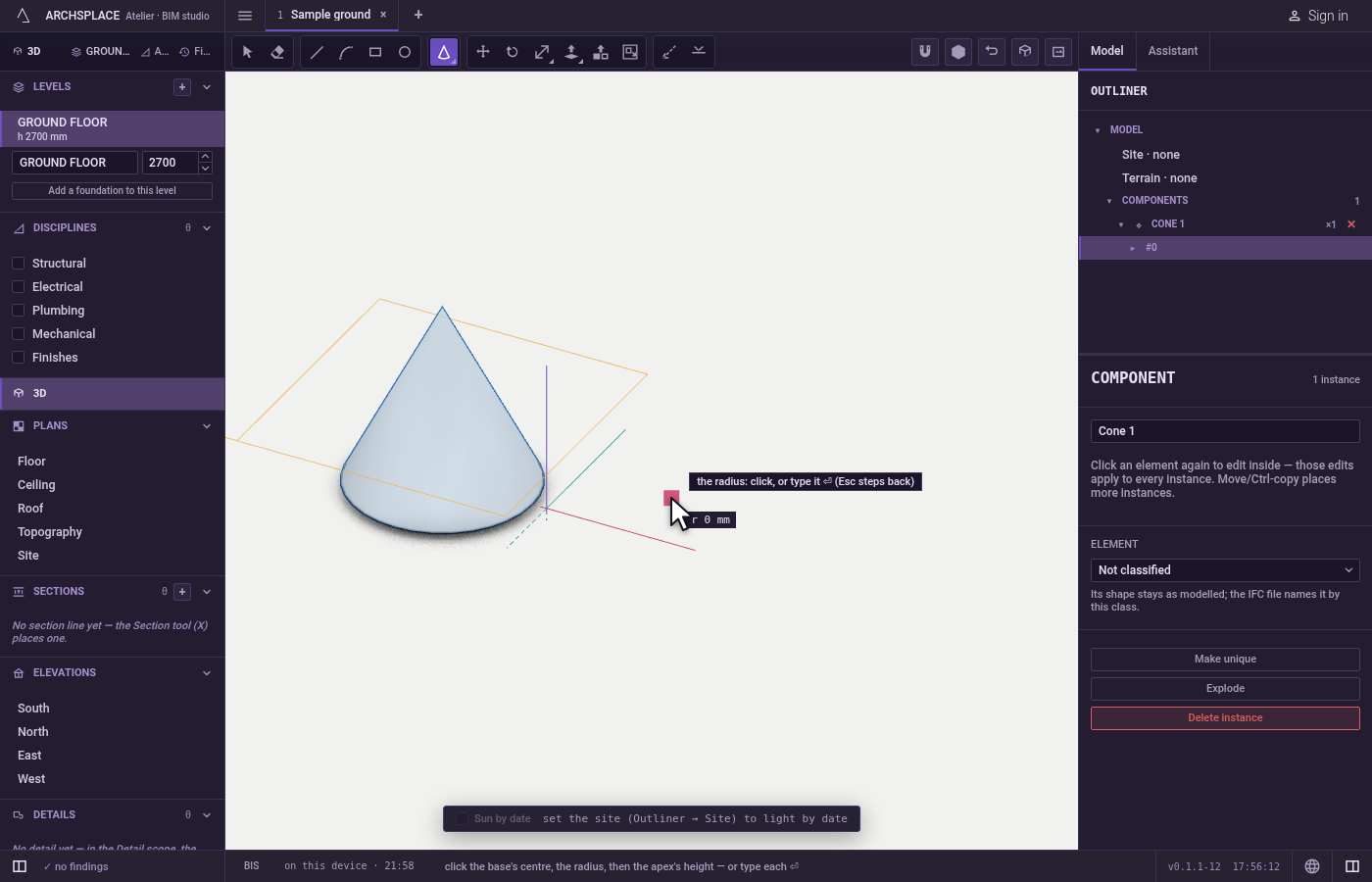
What it refuses
- A radius or a height of nothing. A zero is ignored and the tool waits for a real value.
- A centre on nothing. A click that finds no point tells you where the centre may be picked.
What it writes to the contract
One undoable step adds a new component definition holding the body of the cone, and a placement of it at the centre of the base, on the current level. Inside an open component, the new component is placed inside that one. The new placement is selected.
Common questions
What is the shortcut of the Cone tool?
Type C and then N, one right after the other. C alone opens the Circle tool; the N that follows switches to the Cone.
Can the cone point downwards?
Yes. Set the height of the apex below the base and the cone hangs below it, with its point down.
Can I use a cone to cut another body?
Yes. Place it where it overlaps the body, pick the Boolean tool and click the cone: it cuts whatever it touches.