SketchCin the studio
Circle
Circle draws a full circle in the sketch editor from its centre and a point on it, or from its centre and a typed radius. The circle is kept as four true quarter arcs, so it remains a circle all the way to the contract.
What it is
Circle draws a full circle from two things: its centre, and either a point on the circle or a typed radius. The circle is made of four quarter arcs that meet at its right, top, left and bottom points. Those four points are real corners: you can snap to them, pick them with Select, and other tools can stop on them.
When to use it
- To draw a round window, an oculus, or a porthole in a door.
- To draw a circular pattern area, such as a round inlay in a floor.
- To lay out a circle that Trim will cut into an arc or a segment.
The steps
Pick Circle. In the sketch editor (see Select for the ways in), press
Cor click Circle on the toolbar of the editor. The hint at the cursor says centre.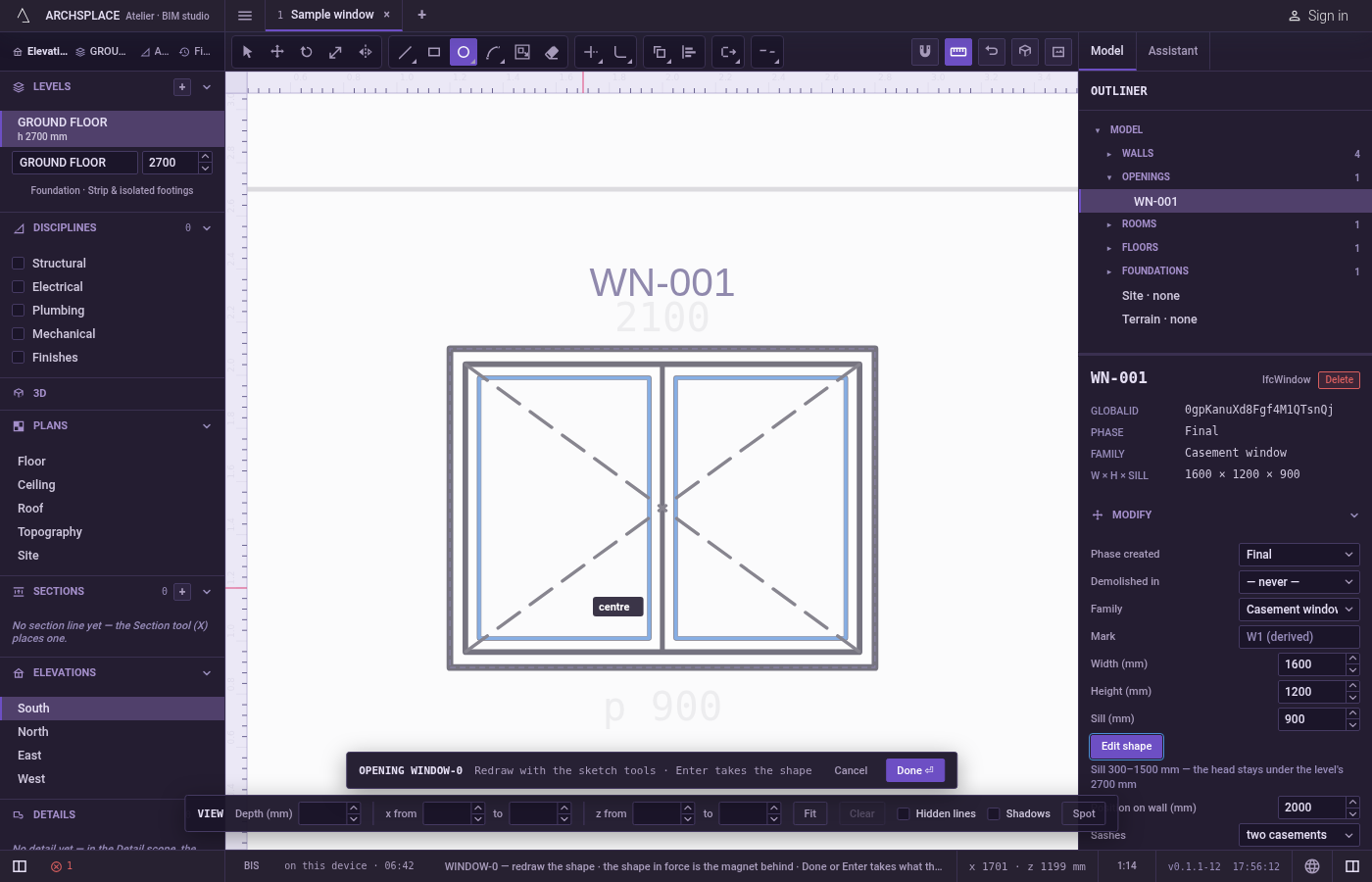
Click the centre. It snaps to corners, midpoints, the centres of arcs, crossings, the dimmed shape in force and the lines of the view.
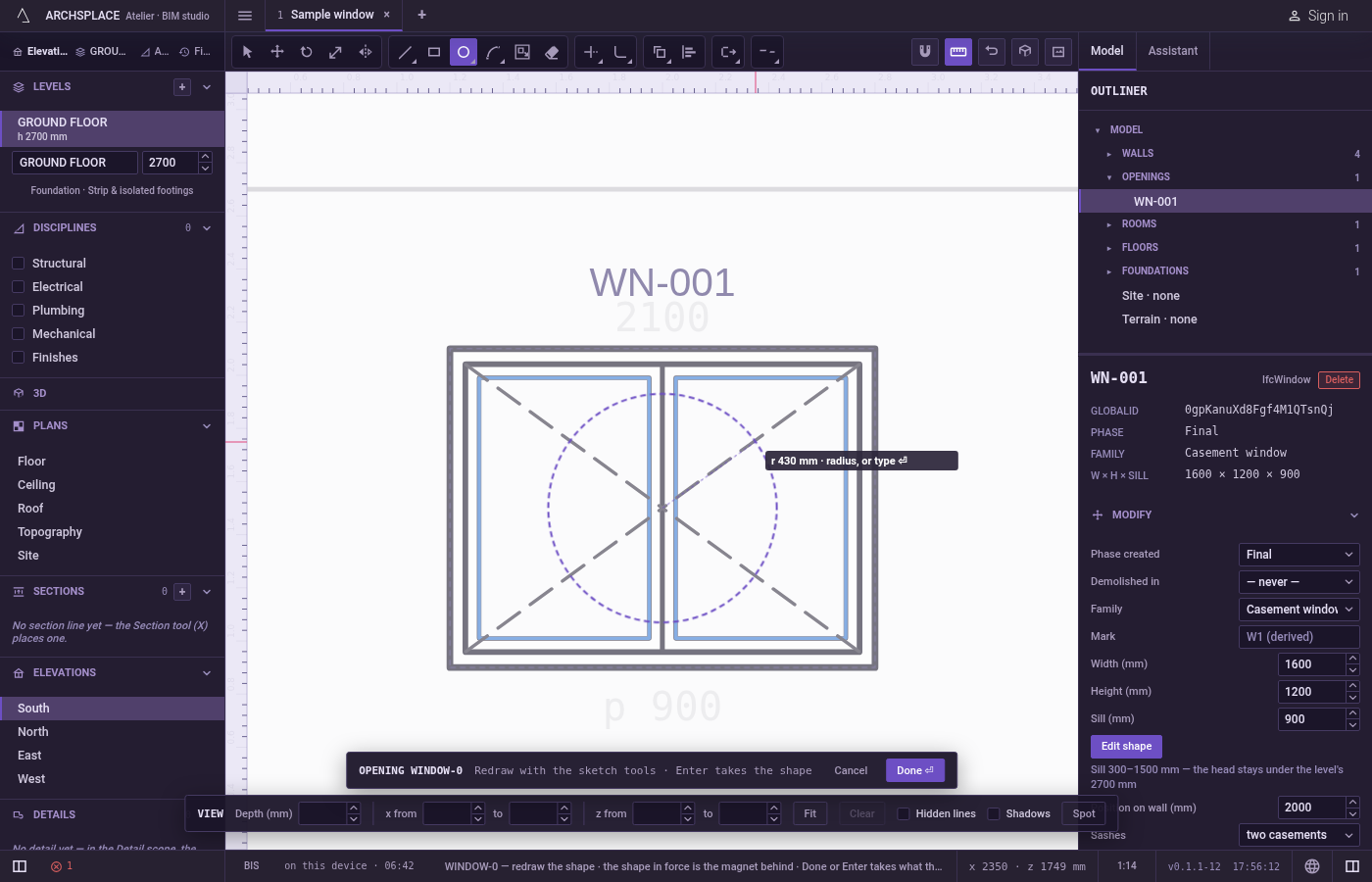
Click a point on the circle. A preview circle and its radius follow the pointer, and the hint shows the radius, such as r 0.40 m in a metric project. Click to draw it. You can also press at the centre, drag and release on the circle.
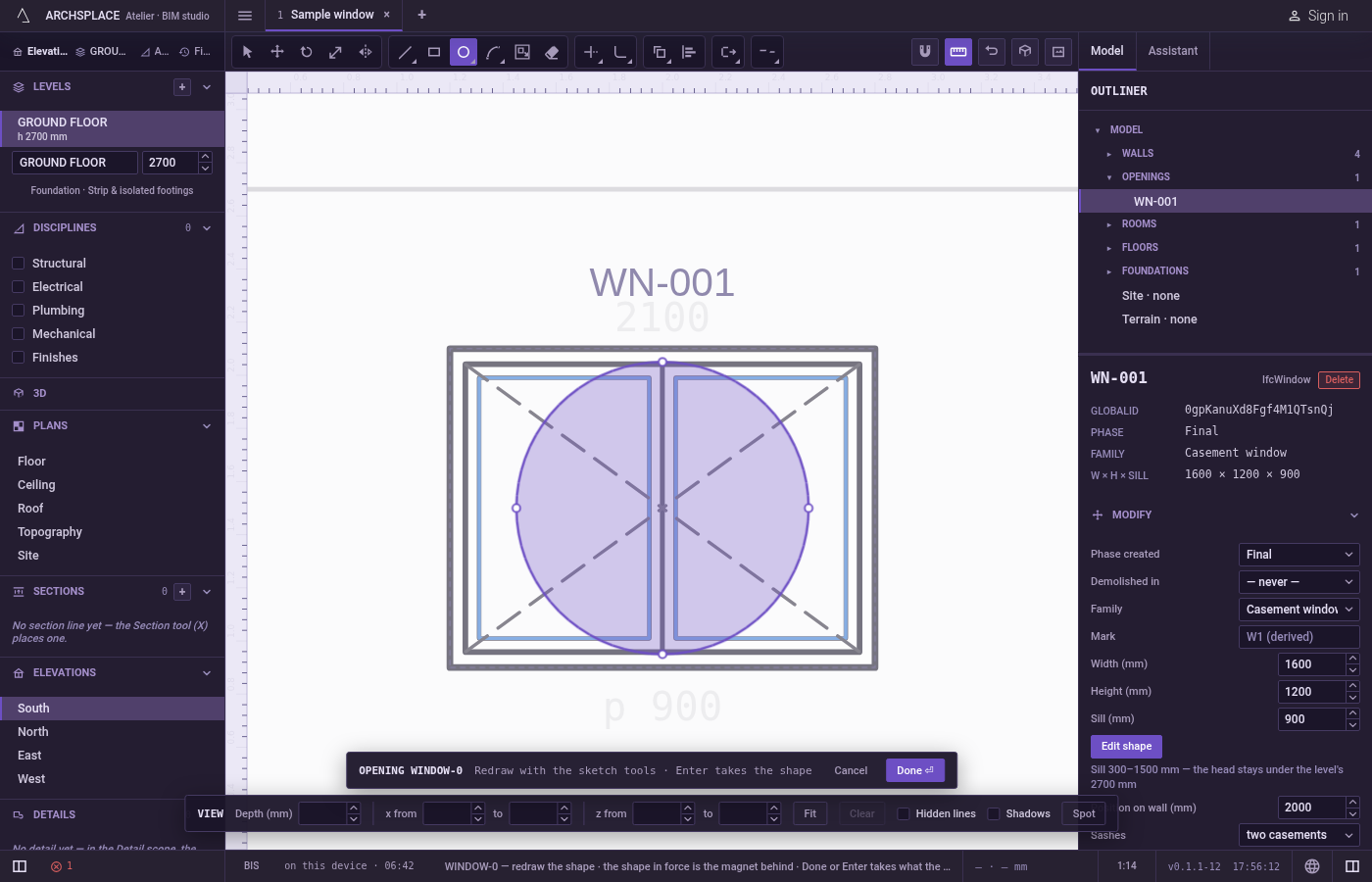
Or type the radius. After the centre, type the radius in the project units and press
Enter.Backspaceremoves the last character.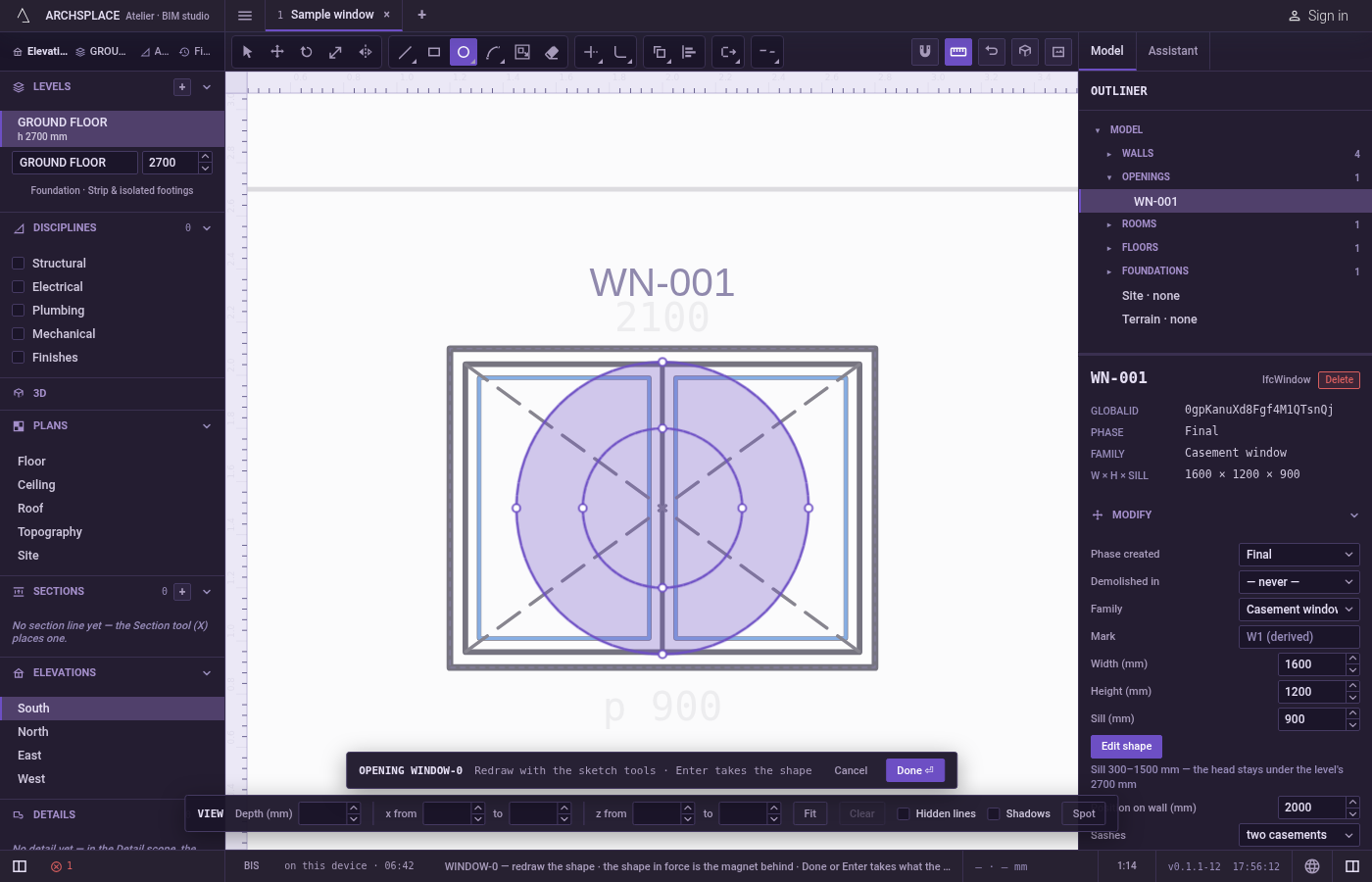
Carry on. The circle stays in the drawing and the tool is ready for the next one.
Escapedrops a centre you have set.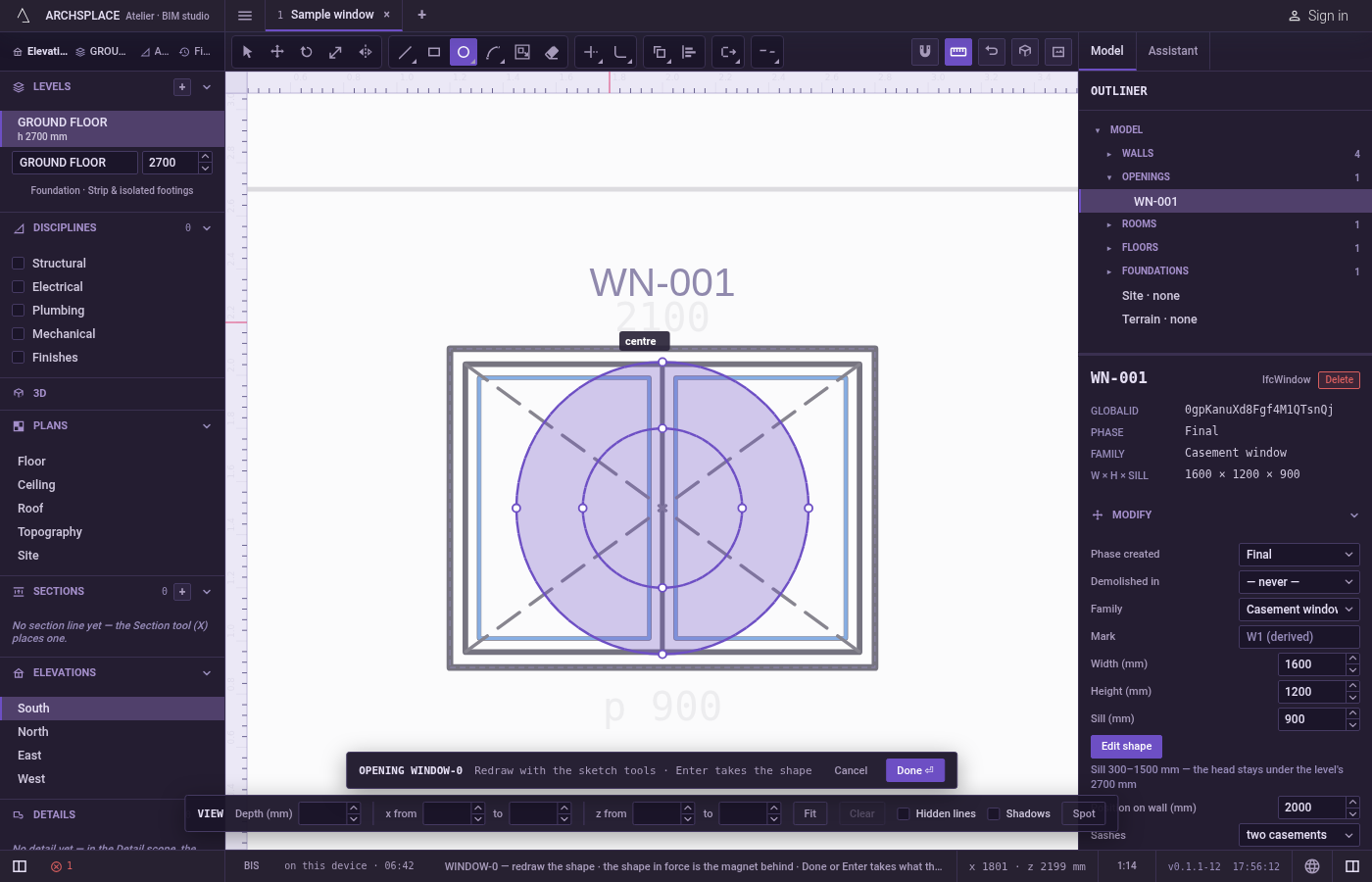
What it refuses
- A circle smaller than one millimetre. A radius that small draws nothing; the tool keeps the centre and waits.
- A radius typed before the centre. Digits count only once the centre is set.
- A diameter or three points. This tool takes a centre. To draw from the ends of a diameter, use Circle by 2 points; through three points, Circle by 3 points.
What it writes to the contract
Nothing until you press Done. The circle is added to the drawing inside the editor, with its centre and radius rounded to the nearest millimetre, and Ctrl+Z goes back through it. The contract changes when you press Done, or Enter with nothing in progress, as one step that you can undo: what the lines enclose becomes the profile of the window or door, points [u, v] in metres across the wall and up from the floor, or the outline of the pattern area in the floorAreas or ceilingAreas of the room, points [x, y] in plan metres.
A circle on its own becomes four points, each with a bulge of 0.414214: the third number that says the side from that point to the next is a quarter of a circle. A round window 80 centimetres across, centred 1.5 metres up, looks like this:
Common questions
How do I draw a round window of exactly 80 centimetres?
Open the shape of the window, press C, click the centre, type 0.4 and press Enter. The radius is half the diameter.
Is the circle stored as many short lines?
No. It is four quarter arcs, each stored with its exact bend, so drawings, the 3D view and exports all show a true circle.
Can I erase part of a circle?
Yes. Erase removes the quarter you click, and Trim cuts the stretch between two lines that cross the circle.