PlanDin the studio
Dimension
Dimension places a measured line on the plan in three clicks: the two points it measures, then where the line sits. Its value is always measured from the points, never typed.
What it is
Dimension adds a dimension of your own to the plan, over and above the ones the plan draws by itself. It measures the straight distance between two points, along the line between them, and its line sits at the distance from them that you show with the third click. The value is measured, never typed: it reads the points as they are, in the project units.
The plan already dimensions the elevations and the openings by itself. Use this tool for whatever you want to show beside them.
When to use it
- To show a clearance, the width of a room or the distance between two elements that the automatic dimensions do not show.
- To dimension something at an angle, along the line it measures.
The steps
Pick the tool. Press
D, or click the Dimension button. The status bar asks you to click the first point, the second, then where the line sits, and tells you that Esc cancels.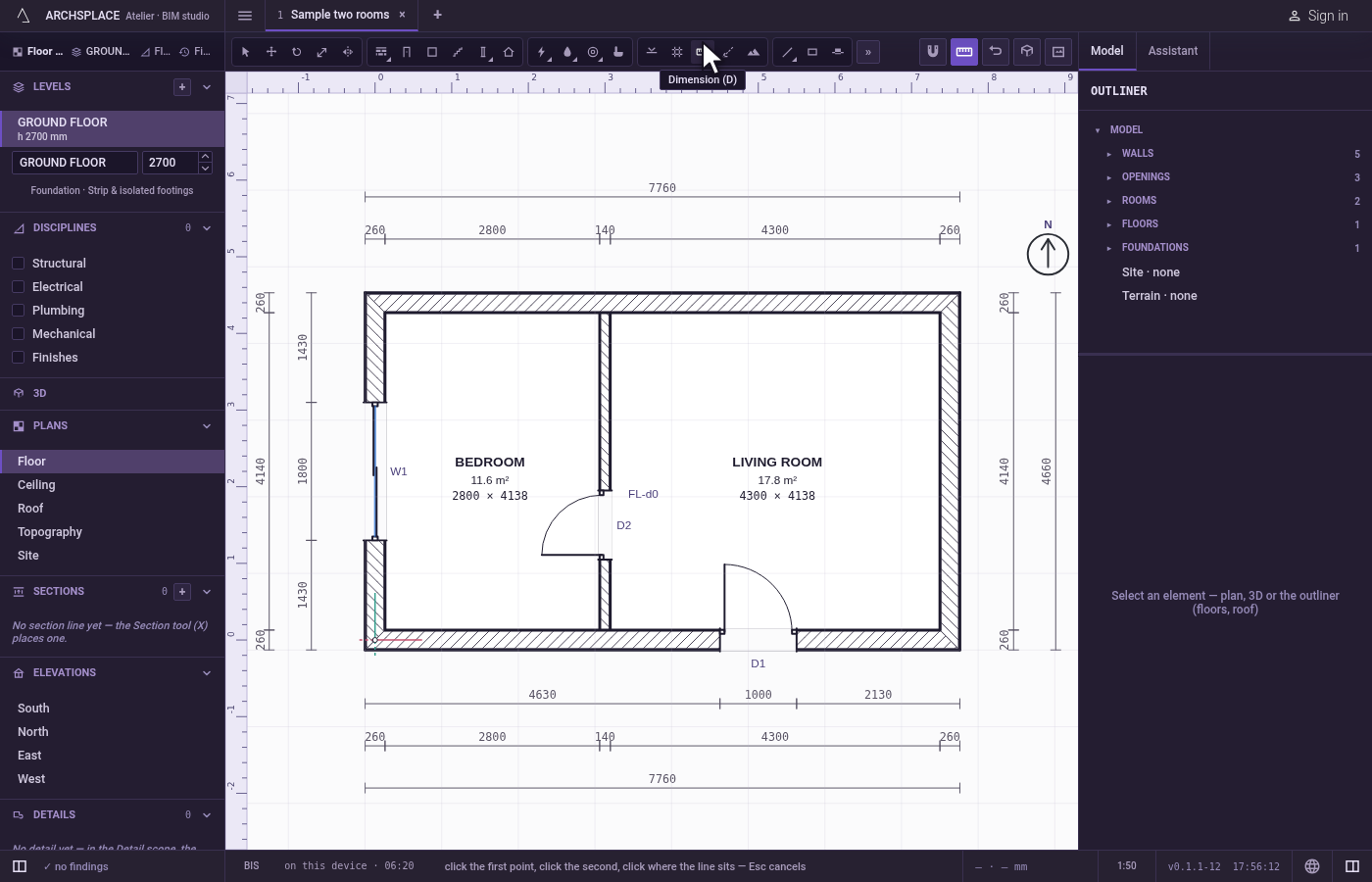
Click the first point. The magnet holds the click on the corner of a wall, a midpoint, the jamb of an opening or another point within reach, so the dimension measures exactly that point.
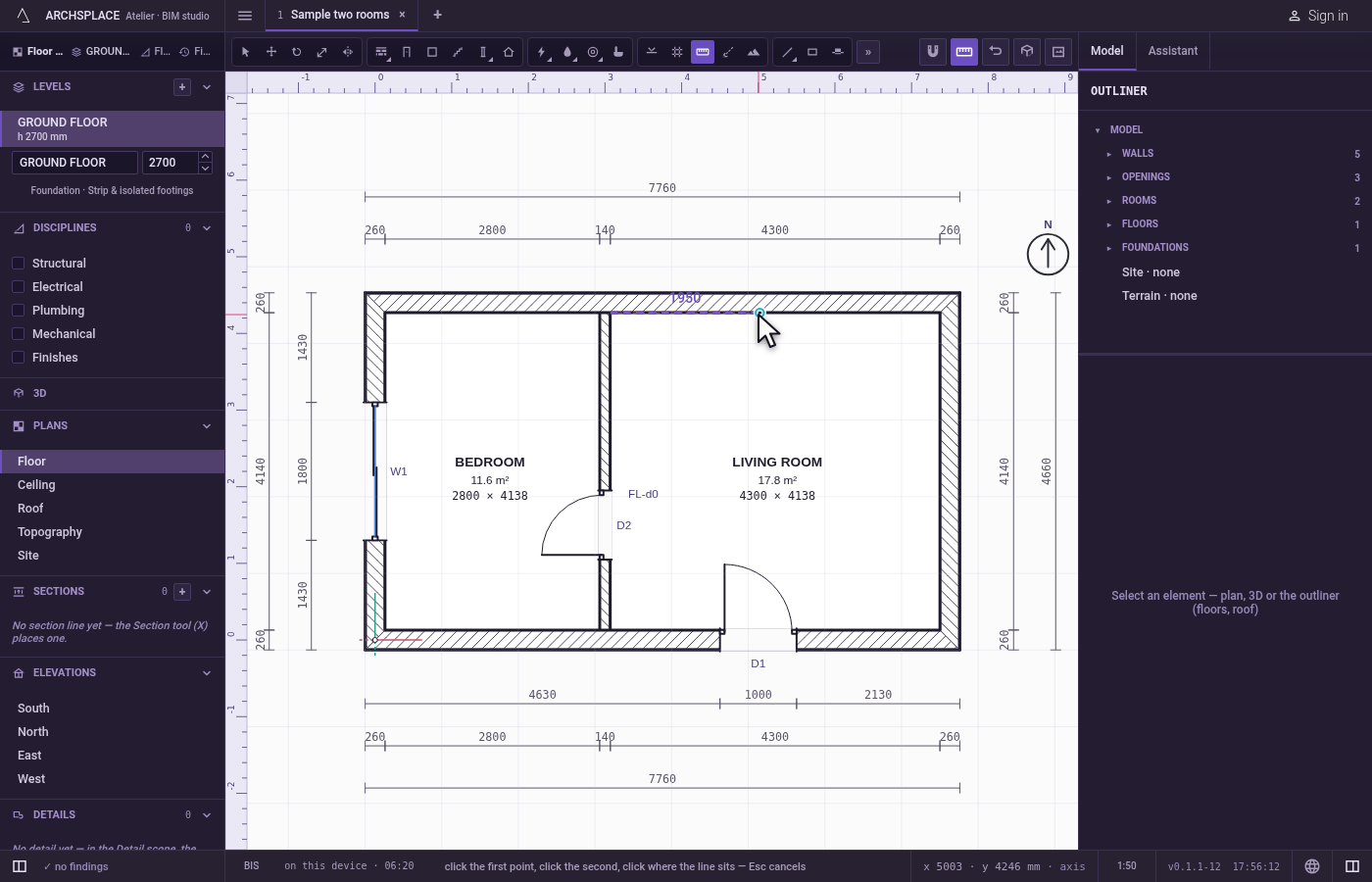
Click the second point. The two points must be farther apart than the reach of the magnet.
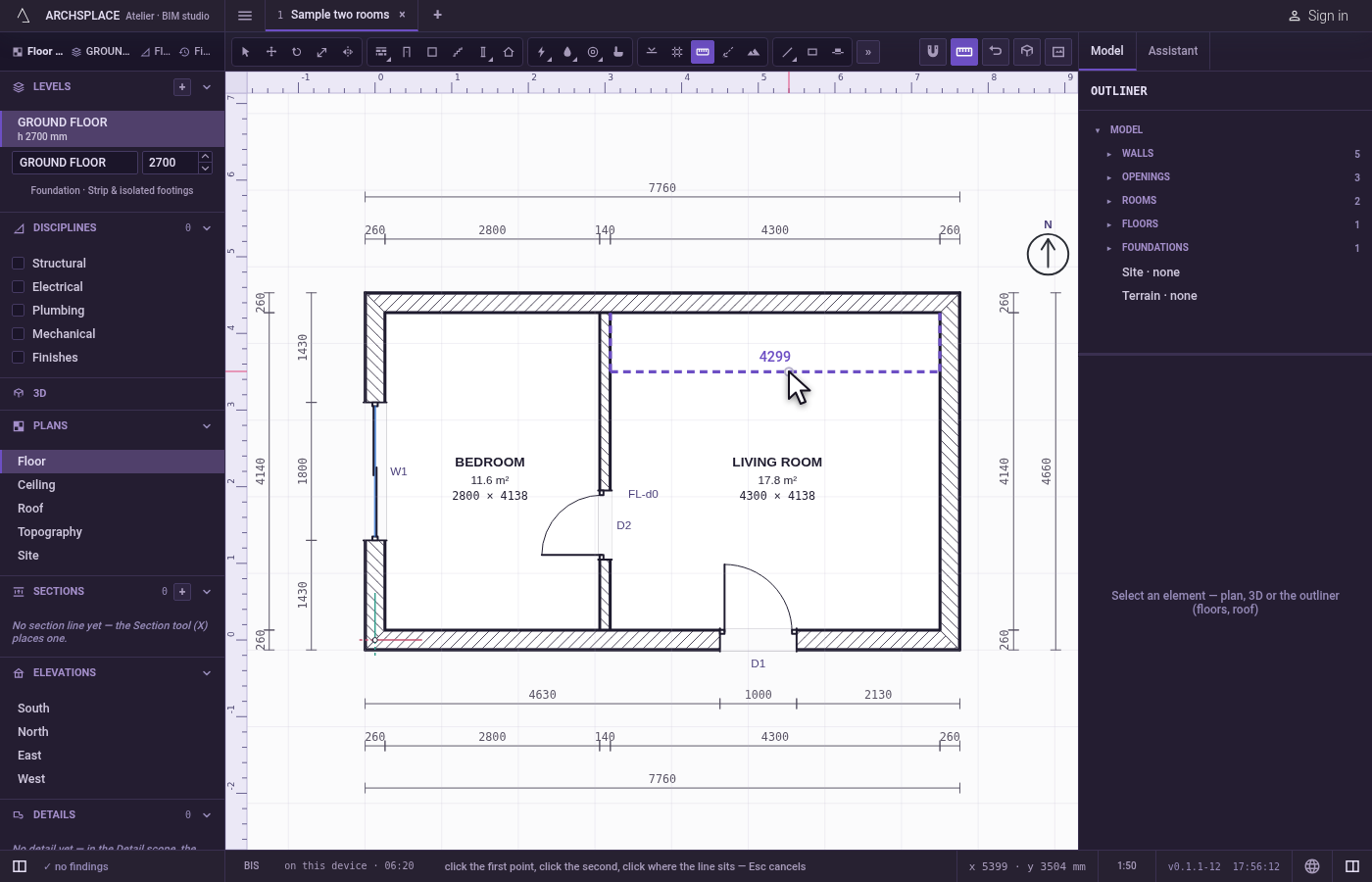
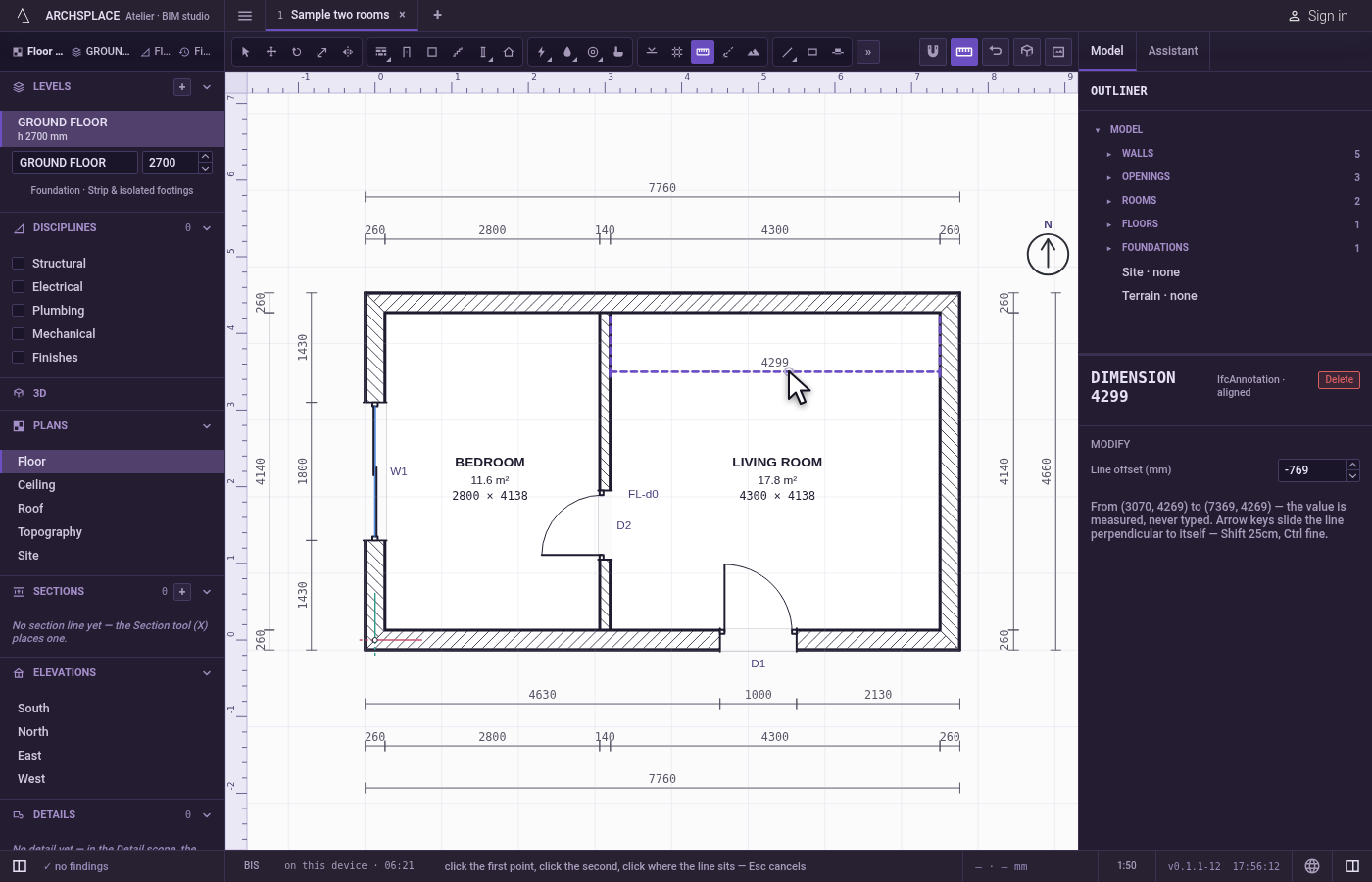
Click where the line sits. The dimension follows the cursor, with its extension lines and its value shown, at the distance of the cursor from the two points. Click to place it. The dimension is selected and its panel opens on its offset; the tool stays active for the next one.
What it refuses
- A typed value. A dimension has no value of its own to type.
- Two points on one. A second click within the reach of the magnet around the first is ignored.
- Moving its points. Move and Copy refuse a dimension: it measures two points. Slide its line with the arrow keys or its panel, or delete it and place another.
What it writes to the contract
One new entry at the end of the project's list of dimensions, as one step that one undo reverses: the level, the two points to the nearest millimetre, and the signed offset of the line from them. The value is never written: it is measured every time the plan is drawn.
Concepts
Common questions
Can I type the value of a dimension?
No. A dimension measures the two points on which it was placed, so it always shows the true value. To change the figure, move what it measures.
How do I move a dimension line farther from the wall?
Select the dimension: type its Line offset in its panel, or slide the line with the arrow keys (Shift for steps of 25 cm, Ctrl for finer ones).